
























































You carry a 4K cinema camera in your pocket, yet your live streams look pixelated and your audio lags behind your lips. Why? Because you are relying on the official "GoPro Webcam Utility." It is notorious for freezing, crashing, and compressing your beautiful footage into a messy blur.
Stop fighting with buggy software. The secret to a professional broadcast is bypassing the app entirely. In this guide, we reveal the "Pro Method" of how to use GoPro as a webcam using a dedicated hardware pipeline. With the best capture card (NearStream), you can unlock uncompressed video, rock-solid stability, and the quality your content deserves.
The Core Problem: Software vs. Hardware Solutions
If you have ever Googled "Why does my GoPro webcam lag?", you have found thousands of frustrated users. The official USB method relies on software encoding. It forces your computer's CPU to do the heavy lifting, compressing the high-bitrate video signal into a low-bandwidth USB format. This creates a "bottleneck" that results in latency and image degradation.
The "Pro Method" uses HDMI. By sending a pure video signal from the GoPro into a capture card like NearStream, you bypass the computer's processing bottleneck entirely. The difference is not just visible; it’s transformational.
Table 1: The Reality Check - Official App vs. NearStream Setup
| Feature | Official GoPro Webcam App (Software) | NearStream HDMI Setup (Hardware) |
|---|---|---|
| Stability | Unreliable (Prone to crashes & disconnects) | Rock-Solid (Secure wired connection) |
| Latency | High (Audio usually desyncs by ~500ms) | Zero-Lag (Perfect Lip-Sync / Real-time) |
| Resolution | Compressed 1080p (Artifacts & Pixelation) | Uncompressed 1080p / 4K (Crisp details) |
| CPU Usage | High (Slows down your PC/Gaming) | Low (NearStream handles the processing) |
| FOV Options | Limited to "Wide" or "Linear" | Supports SuperView / HyperView (Full Wide) |
| Reliability | Depends on Drivers & App Updates | Plug & Play (Driverless UVC) |
Essential Go Pro Accessories for the HDMI Method
You cannot achieve this setup with just a USB cable. To build a "set it and forget it" studio, you need a specific chain of hardware. Here is your definitive checklist of essential go pro accessories.
1. The Media Mod (The "Key" to HDMI)
Modern GoPros are waterproof, which means they removed the open ports. To get an HDMI output on a Hero 8 or newer, you must purchase the GoPro Media Mod. This cage wraps around your camera and provides a Micro-HDMI port.
Table 2: GoPro Model Compatibility Matrix
| GoPro Model | HDMI Port Situation | What You Need |
|---|---|---|
| Hero 13 / 12 / 11 / 10 / 9 | No Built-in Port | Must Buy: GoPro Media Mod |
| Hero 8 Black | No Built-in Port | Must Buy: GoPro Media Mod |
| Hero 7 Black | Micro-HDMI (Built-in) | Direct Connect: Just a cable needed |
| Hero 6 / 5 Black | Micro-HDMI (Built-in) | Direct Connect: Just a cable needed |
| Hero 4 Black / Silver | Micro-HDMI (Built-in) | Direct Connect: Just a cable needed |
| Hero 7 Silver / White | None | ❌ Not Supported |
| GoPro Session | None | ❌ Not Supported |
2. The Capture Card: Why NearStream is the Best Capture Card
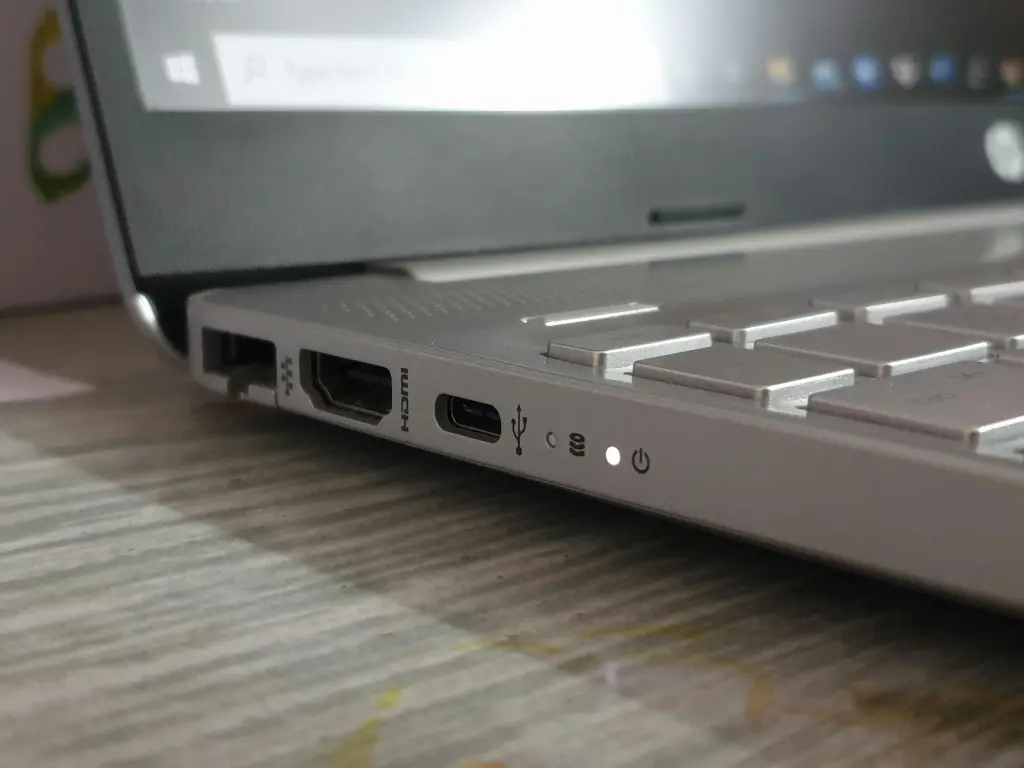
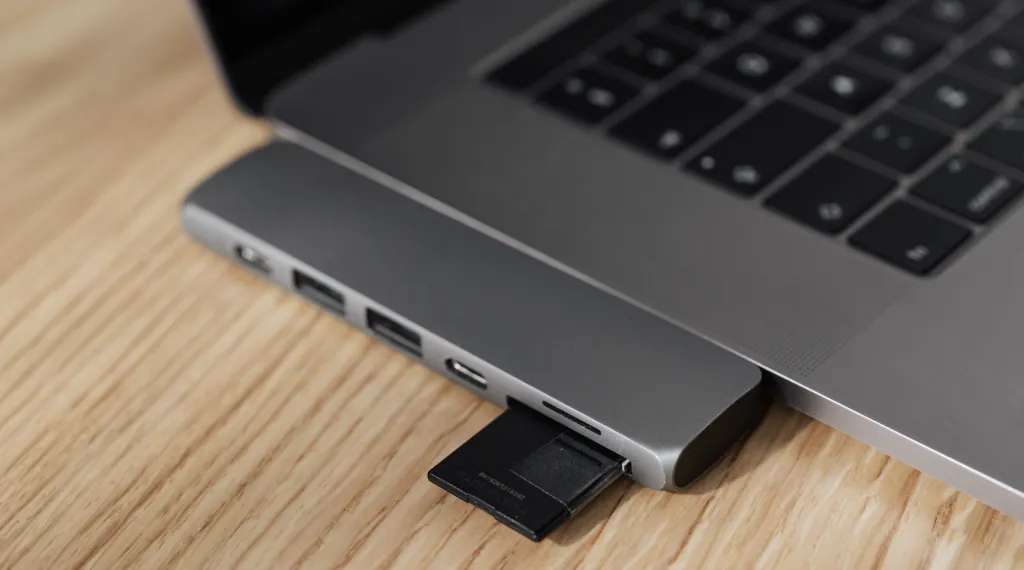
You cannot plug an HDMI cable directly into your laptop (laptops usually have HDMI-Out, not In). You need a translator.
NearStream is the preferred choice for action cam streamers because:
- Heat Dissipation: GoPros run hot. The NearStream card uses an aerospace-grade aluminum shell to stay cool, ensuring your stream doesn't crash after 2 hours.
- Color Accuracy: It supports high-fidelity color sampling, ensuring that "GoPro Look"—vibrant blues and warm skin tones—isn't washed out like on cheap dongles.
3. Continuous Power (Dummy Battery)
Streaming drains batteries in 45 minutes.
- The Fix: Use a "USB Pass-Through Door" or remove the battery door entirely. Crucial Tip: Remove the internal battery and run the camera purely on USB wall power. This prevents the camera from overheating and shutting down.
Step-by-Step Guide: How to Use GoPro as Webcam via HDMI
Ready to build your rig? Follow these steps precisely. The order matters to avoid the dreaded "Black Screen."
Phase 1: The Physical Connection
- Install the Mod: Slide your GoPro into the Media Mod (if using Hero 8-12).
- Power Up: Connect your USB-C power source (remember to remove the internal battery!).
- The HDMI Chain: Plug the Micro-HDMI end into the GoPro, and the standard HDMI end into the NearStream Capture Card.
- PC Connection: Plug the NearStream card into a USB 3.0 port (usually Blue or Red) on your computer for maximum bandwidth.
Phase 2: Camera Settings (The "Clean HDMI" Secret)
If you turn on your camera now, your viewers will see your battery percentage and SD card icons overlaying your face. You need to enable "Clean HDMI."
For Hero 9, 10, 11, 12:
- Swipe down to access the Dashboard.
- Swipe left to Preferences > Display.
- Scroll to HDMI Output.
- Select Live. (Selecting "Media" will show the gallery; "Live" gives a pure clean feed).
Table 3: Recommended GoPro Settings for Streaming
| Setting | Recommended Value | Why? |
|---|---|---|
| HDMI Output | Live | Removes icons/overlays. |
| Digital Lens | Linear | Removes "fisheye" curve for a pro look. |
| HyperSmooth | On (Boost) | Keeps the shot steady if you bump the desk. |
| Auto Power Off | Never | Prevents camera from sleeping mid-stream. |
| ISO Max | 400 or 800 | Prevents grain/noise in indoor lighting. |
| Sharpness | Medium | "High" looks too digital/fake for webcams. |
Achieving a Lag-Free GoPro Stream Live Experience
When you hit "Go Live," you cannot afford glitches. The number one complaint about the official GoPro App is Audio Desync—your lips move, and the sound arrives 0.5 seconds later.
Why NearStream Delivers Superior Stability
Stability is about the pipeline.
- The Software Way: Camera -> WiFi/USB -> CPU Encoding -> App -> OBS. (Too many steps).
- The NearStream Way: Camera -> HDMI -> NearStream -> OBS.
Because NearStream uses hardware decoding (FPGA chips), the latency is near-zero. You can clap your hands, and it happens instantly on screen. This is critical for:
- Musicians: Drummers need every beat to sync visually.
- Fitness Instructors: Your voice instructions must match your movements.
- Gamers: Your reaction to the game must match your face cam.
Unlocking 4K Quality
While the official app limits you to compressed 1080p, the HDMI method allows you to push the limits. If you have a Hero 7 Black or newer, you can output a 4K signal. Even if you stream in 1080p, downscaling from a 4K source (using NearStream) results in a much sharper, more detailed image than a native 1080p webcam.
Troubleshooting Your Setup
Even with the best capture card, technical gremlins can appear. Use this matrix to solve problems fast.
Table 4: Troubleshooting Matrix
| Symptom | Likely Cause | Rapid Fix |
|---|---|---|
| Black Screen in OBS | Camera Asleep / Wrong Mode | Turn GoPro ON after plugging in; Ensure it is in Video Mode. |
| "Sparkles" / Green Lines | Bad Cable | Replace the Micro-HDMI cable (Avoid cheap unbranded ones). |
| Camera Overheating | Internal Battery Heat | Remove the internal battery and run on USB wall power only. |
| Audio Desync (Lip Flap) | Processing Delay | Add 50ms - 150ms "Sync Offset" in OBS Audio settings. |
| Icons on Screen | Dirty HDMI Feed | Go to Settings > Display > HDMI Output > Set to Live. |
| Fish-Eye Look | Wrong Lens Setting | Switch Digital Lens to Linear or Narrow. |
Conclusion
Your GoPro is an engineering marvel, capable of capturing Mount Everest and deep-sea dives. Relegating it to a drawer because the official webcam app is "glitchy" is a waste of potential.
By embracing the hardware route—pairing your camera with the NearStream capture card—you transform an action cam into a broadcast powerhouse. You get the stability of a wired connection, the massive field of view of a wide angle camera, and the visual fidelity of uncompressed HDMI.
Stop fighting with software. Plug in, power up, and let the world see your stream in professional clarity.
FAQ: Frequently Asked Questions
Q1: Does the NearStream card support 4K streaming from GoPro?
A: Yes. If your GoPro (Hero 7 Black and newer) outputs 4K HDMI, NearStream can capture it. Note that while Zoom/Teams may compress this, recording in OBS allows for full 4K fidelity.
Q2: Can I use a GoPro Session or Hero 7 White?
A: Unfortunately, no. The GoPro Session, Hero 7 Silver, and Hero 7 White models do not have HDMI output hardware and cannot be used with this method.
Q3: Why does my GoPro battery drain even when plugged in?
A: Most computer USB ports only output 0.5A or 0.9A of power. The GoPro requires closer to 2A when streaming. Use a dedicated USB wall adapter (like a fast phone charger) to power the GoPro, rather than plugging it into the computer.
Q4: Do I need OBS to use this setup?
A: No. NearStream is a "UVC" device. Once connected, your GoPro acts like a standard webcam. You can select "NearStream" directly in the camera settings of Zoom, Skype, Google Meet, or Discord.
Q5: Is the Media Mod mandatory?
A: Only for Hero 8, 9, 10, 11, and 12. If you have a Hero 5, 6, or 7 Black, there is a Micro-HDMI port directly on the body of the camera, so you do not need the Mod.



 sales@nearstream.us






