







































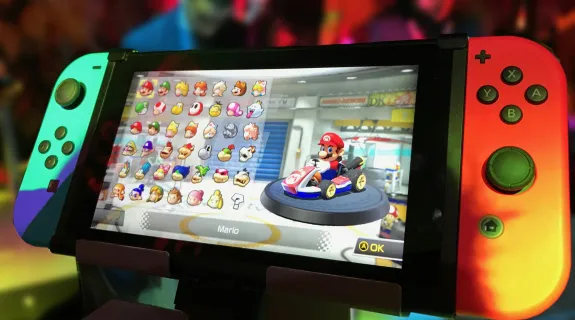

The Nintendo Switch is more than just a console; it is a global cultural phenomenon. From The Legend of Zelda to Mario Kart, these games command massive audiences on platforms like Twitch and YouTube. For gamers, this popularity represents a golden opportunity: turning a hobby into a revenue stream through content creation.
However, the streaming market is competitive. To monetize your gameplay and retain viewers, you need more than just great skills—you need professional broadcast quality. This is where a high-performance 4K capture card transitions from being a luxury accessory to an absolute necessity for your streaming setup.
1. What is a Capture Card and Why Is It Essential?
For beginners, the technical side of streaming can be confusing. Simply put, a Nintendo Switch capture card acts as a digital bridge between your gaming console and your computer. Since computers do not have HDMI Input ports (they only have Outputs for monitors), they cannot "see" your Switch's screen. The capture card solves this by taking the video signal, converting it into digital data, and sending it to your PC via USB.
Why is it so important?
- Live Streaming: It allows you to broadcast your gameplay in real-time using software like OBS Studio, where you can add your webcam, microphone, and alerts.
- High-Quality Recording: It lets you record hours of gameplay in pristine quality for editing later.
What happens if you don't have one?
Without a capture card, you are severely limited. The Nintendo Switch's built-in "Share" button can only record the last 30 seconds of gameplay. This makes it impossible to stream live or create "Let's Play" walkthrough videos. Furthermore, pointing a camera at your TV screen results in amateurish quality that viewers will instantly click away from. To be a serious creator, a capture card is non-negotiable.
2. The Reality: Why "Specs" Matter More Than Resolution
This section gets technical, but this is where your content quality is decided. There are three hidden reasons why a 4K card makes your 1080p Switch games look significantly better.
A. The Color Problem: Chroma Subsampling
Nintendo games are famous for their vibrant art styles. Think of the neon ink in Splatoon 3, the lush greens in Zelda, or the bright reds in Mario Odyssey.
Cheap Nintendo Switch capture cards (especially USB 2.0 ones) suffer from bandwidth limitations. To fit the video through the slow USB cable, they compress the color data. This is called Chroma Subsampling (specifically 4:2:0).
- Result: The edges of red and blue objects look jagged or pixelated. The colors look "washed out" compared to what you see on your TV.
The NearStream Advantage:
Because the NearStream capture card is designed for 4K data loads using USB 3.1, handling a 1080p signal is effortless for it. It can capture in YUY2 (4:2:2) or even RGB color formats.
- Result: The ink in Splatoon looks liquid and sharp. The grass in Zelda retains its texture. You are capturing the game exactly as Nintendo's artists intended.
B. Bitrate Headroom and Processing Power
When you record gameplay for YouTube, Bitrate is King.
- Budget Cards: Often have internal hardware encoders that cap the quality to prevent overheating.
- Premium Cards: A card built for 4K60 (like NearStream) has robust internal components designed to handle massive data streams. When you ask it to process a simple 1080p stream, it runs cool and stable, ensuring no dropped frames during intense moments (like a busy Mario Kart race).
C. Latency: The Invisible Enemy
Latency matters even if you use Pass-Through. If you are using your capture card for Discord streaming or playing directly via the OBS preview window (because you don't have a second monitor), you need Ultra-Low Latency.
- Standard AVerMedia cards (USB 2.0 models) often have 100ms+ latency.
- The NearStream capture card boasts premium ultra-low latency, making the delay imperceptible.
3. Future Proofing: Don't Buy E-Waste
This is the financial argument. We are at the end of the Nintendo Switch's lifecycle. Rumors of the "Switch 2" or "Switch Pro" are everywhere, and industry experts agree that the next Nintendo console will likely support 4K resolution (potentially via DLSS technology).
Scenario A: You buy a cheap 1080p card today.
- Cost: $60 - $100.
- Outcome: In 2026, when the new Switch launches, your capture card becomes obsolete. You cannot record the new console in its full glory. You have to buy a new card.
- Total Cost: $60 + New Card Price.
Scenario B: You buy a NearStream 4K capture card today.
- Cost: Competitive pricing for a premium device.
- Outcome: You get the best possible quality for your current Switch. When the Switch 2 launches, you are already ready. You simply plug in the new console and start recording 4K60 content immediately.
- Total Cost: One-time investment.
Buying a 1080p-only Nintendo Switch capture card in 2025 is investing in yesterday's technology.
4. Head-to-Head: NearStream vs. AVerMedia
Many users searching for the best capture card look at legacy brands like AVerMedia. Let's compare a typical mid-range AVerMedia capture card (often recommended for Switch users) against the NearStream capture card.
We will compare the AVerMedia Live Gamer Mini (GC311)—a popular choice for Switch—against the NearStream standard.
Comparative Specifications Table
| Feature | AVerMedia Live Gamer Mini | NearStream Capture Card | Why It Matters for Switch? |
|---|---|---|---|
| Max Recording Resolution | 1080p 60fps | 4K 60fps / 1080p 120fps | NearStream is ready for Switch 2 and produces sharper 1080p files. |
| Interface | USB 2.0 (Micro USB) | USB 3.1 (Type-C) | USB 3.1 provides the bandwidth needed for better color accuracy (YUY2). |
| Pass-Through | 1080p 60fps | 4K 60fps HDR | NearStream allows you to play PS5/Xbox on the same setup without swapping cables. |
| Latency | Standard | Premium Ultra-Low | Lower latency means better sync for reaction videos. |
| Color Format | MPEG 4 (Compressed) | NV12 / YUY2 (Uncompressed) | NearStream captures vibrant Nintendo colors without "smudging." |
| Driver Requirement | Plug & Play (UVC) | Plug & Play (UVC) | Both are easy to set up. |
The Verdict:
While the AVerMedia capture card is a decent legacy product, it is restricted by its USB 2.0 interface. It physically cannot transmit the high-bandwidth color data that makes games look premium. The NearStream capture card, utilizing USB 3.1, offers a "Pro" image quality for the Switch that budget cards simply cannot match.
5. Setup Guide: Mastering the Switch Capture
Capturing the Switch is slightly different from capturing a PS5 or Xbox because it requires the Dock. Here is how to set up your NearStream capture card for the perfect stream.
Step 1: The Hardware Connection
- Dock the Switch: You cannot capture video from a Switch Lite or a handheld Switch. It must be in the official Dock.
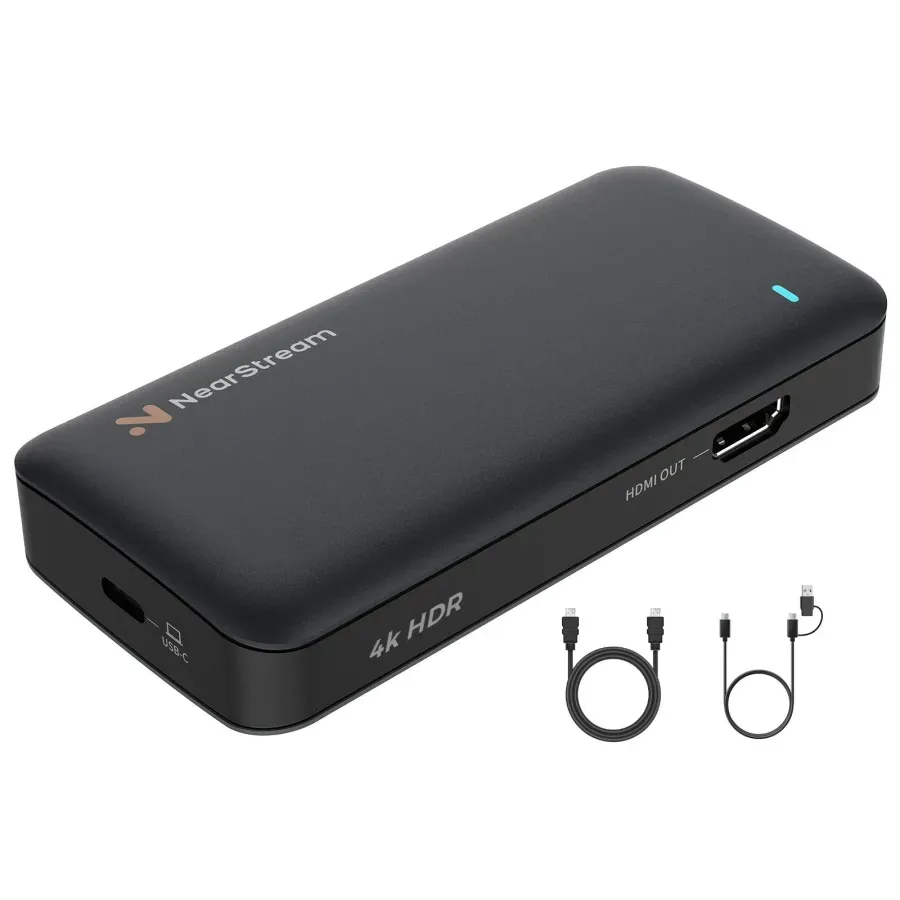
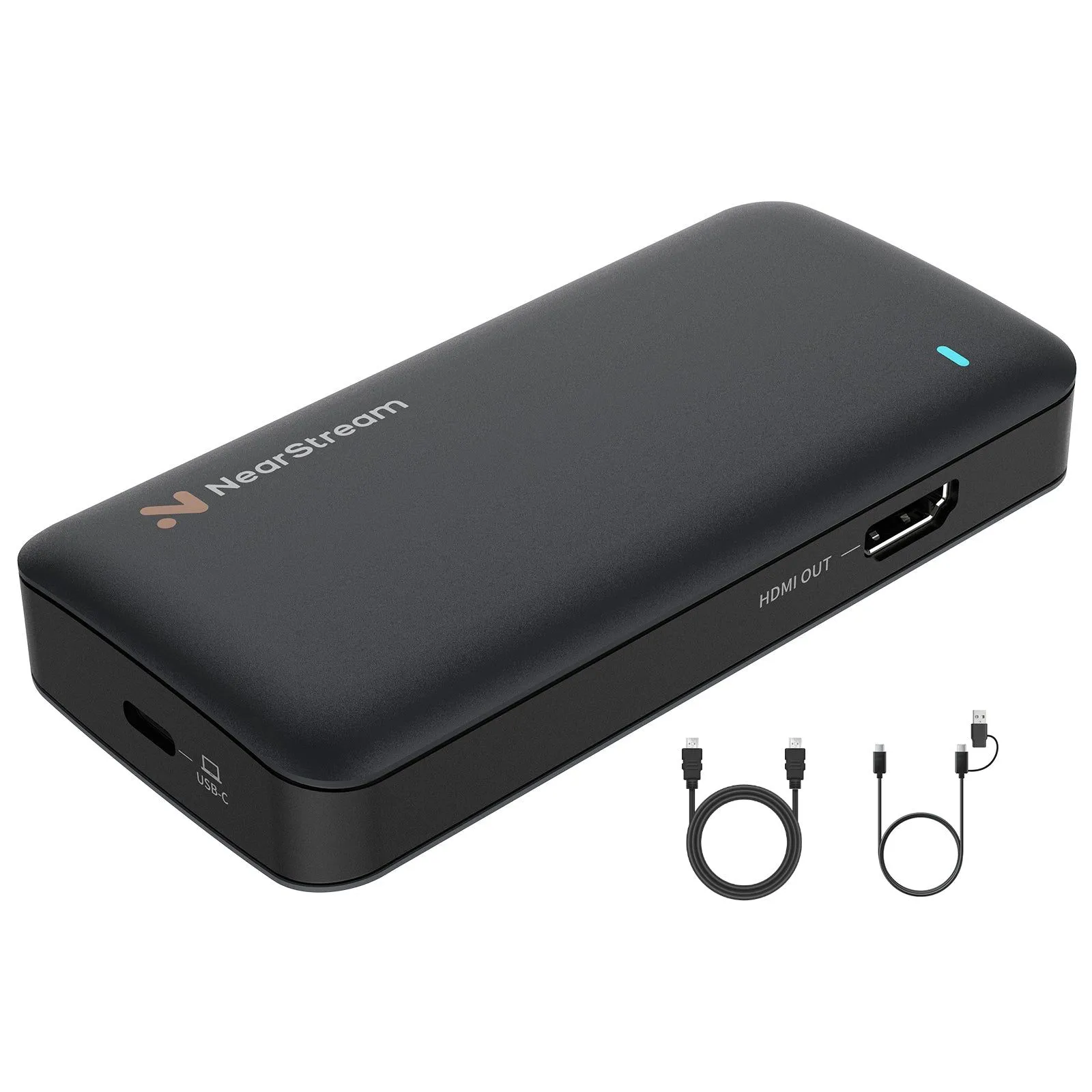
- HDMI OUT (Switch): Connect an HDMI cable from the Switch Dock to the HDMI IN port on the NearStream card.
- HDMI OUT (NearStream): Connect an HDMI cable from the HDMI OUT port on the card to your TV or Monitor. (This is the Pass-Through).
- USB Connection: Connect the USB-C cable from the NearStream card to a USB 3.0/3.1 port on your PC. (Blue or Red ports).
Pro Tip: Do not use a USB Hub unless it is powered. Capture cards need a stable power supply. Direct connection to the motherboard is always best.
Step 2: The Audio Settings (Critical!)
A common issue with any Nintendo Switch capture card is audio desync or missing audio.
- On your Switch, go to System Settings > TV Settings > TV Sound.
- Set it to Stereo.
- Why? Most capture cards and streaming platforms (Twitch/YouTube) process audio in Stereo. If you force "Surround Sound," you might lose dialogue or sound effects in your recording.
Step 3: OBS Configuration for Best Quality
To get that "NearStream Advantage," don't use the default settings.
- Open OBS Studio. Add a "Video Capture Device."
- Select NearStream Capture Card.
- Resolution/FPS Type: Custom.
- Resolution: 1920x1080.
- FPS: 60.
- Video Format: Select YUY2 (if available) or NV12. Avoid MJPEG if possible.
- Color Space: 709.
- Color Range: Partial (Recommended for Switch) or Full. Note: If blacks look grey, switch to Partial.
6. Beyond Gaming: The Multi-Purpose Value
The final reason to buy a 4K NearStream capture card instead of a cheap Switch-only card is versatility. You probably have other interests besides Mario Kart.
- Camera Streaming: If you ever want to upgrade your webcam to a DSLR or Mirrorless camera for "Just Chatting" streams, a 1080p USB 2.0 card will ruin the quality. NearStream's 4K input preserves the camera's depth of field and clarity.
- High Refresh Rate Gaming: If you own a PC or another console, NearStream supports high refresh rate recording (1080p 120fps). A standard Switch card cannot do this.
By choosing NearStream, you aren't just buying a tool for your Switch; you are buying a Swiss Army Knife for all your digital content needs.
Conclusion
It is easy to look at the Nintendo Switch's 1080p spec sheet and think a budget capture card is "good enough." But "good enough" doesn't build a dedicated audience. "Good enough" doesn't prepare you for the next generation of consoles.
While brands like AVerMedia offer solid entry-level options, the NearStream capture card represents a shift towards professional-grade hardware accessible to everyone. By leveraging USB 3.1 bandwidth, superior color sampling, and 4K capability, it ensures that your current Switch content looks better than the competition, and your setup is ready for whatever Nintendo releases next.
Don't buy a capture card for the console you have today; buy the best capture card for the content creator you want to be tomorrow.
FAQ: Frequently Asked Questions
Q1: Will a 4K capture card make my Switch games look like 4K?
A: No, it cannot magically add pixels that aren't there. However, the NearStream capture card will capture the 1080p signal with higher "bitrate density" and better color accuracy (YUY2) than a cheap card, making the image look sharper and cleaner on YouTube, even at 1080p.
Q2: Can I use the NearStream capture card with a Nintendo Switch Lite?
A: Unfortunately, no. The Switch Lite lacks the internal hardware to output video via USB-C. You must use a standard Nintendo Switch or the Switch OLED model docked to a TV.
Q3: How does the NearStream card compare to the AVerMedia Live Gamer Portable 2 Plus?
A: The AVerMedia Portable 2 Plus is popular because it has a "PC-Free" mode (recording to SD card). However, strictly speaking of image quality and latency for streaming, the NearStream capture card is superior due to its USB 3.1 architecture, whereas the Portable 2 Plus relies on older USB 2.0 technology.
Q4: Do I need to install drivers for the NearStream card?
A: No. The NearStream card uses the UVC (USB Video Class) standard. This means it is truly Plug-and-Play for Windows, macOS, and even Linux. Just plug it in, and OBS will recognize it immediately.
Q5: My Switch audio isn't working in OBS. What should I do?
A: First, ensure your Switch TV Sound is set to "Stereo." Second, in OBS, scroll down in the NearStream properties and check "Use Custom Audio Device," then select the NearStream audio interface. Finally, in OBS Audio Mixer, set the device to "Monitor and Output" if you want to hear it through your PC speakers.


 sales@nearstream.us






