









































Introduction
So, you’ve pulled off the perfect play in Elden Ring, or you’re ready to upgrade your Zoom calls with a DSLR camera, but you’re stuck. How do you get that high-quality video from your device into your computer? The answer lies in a small but powerful tool: the HDMI capture card. Whether you are planning to become the next big Twitch streamer or simply want to record gameplay for YouTube, this device is the bridge you need. In this guide, we will demystify the tech, compare industry giants, and help you decide if you need a high-end NearStream capture card or a standard entry-level option.
1. What Exactly is an HDMI Capture Card?
At its simplest, an HDMI capture card is a digital translator. Your console (like a PlayStation 5 or Nintendo Switch) or camera outputs a video signal that your computer cannot naturally understand or display as a window.
Computers usually have HDMI Out ports (to send video to a monitor), not HDMI In ports. The capture card solves this by taking the HDMI video signal from your source and converting it into digital data (usually via USB) that your PC can read, record, or stream in real-time.
Why can’t I just use the console’s built-in share button?
- Quality: Built-in recording is often compressed and low-quality.
- Time Limits: Consoles like the Switch limit clips to 30 seconds.
- Customization: A capture card allows you to use software like OBS to add overlays, facecams, and alerts.

2. The 5 Critical Specs: Don't Buy Until You Read This
Before you click "Add to Cart," you must understand the jargon. The difference between a frustrating experience and a professional stream often comes down to these five specs.
A. Pass-Through (Loop Out)
This is non-negotiable for gamers. "Pass-through" means the capture card sends the video signal to your PC for recording and simultaneously sends it to your TV for you to watch.
- Without Pass-Through: You have to play the game by watching the preview window on your computer, which always has a delay.
- With Pass-Through: You play on your TV lag-free, while the PC records in the background.
Note: The NearStream capture card features 4K60 HDMI loop out, ensuring your visual experience on the TV remains pristine and fluid, even while recording.
B. Capture Resolution vs. Pass-Through Resolution
This is the most common marketing trap.
- Pass-Through Resolution: What you see on your TV (e.g., 4K HDR).
Capture Resolution: What is actually recorded or streamed (e.g., 1080p).
Many cards claim "4K Support" but only record in 1080p. If you want true next-gen quality, look for cards that explicitly state 4K60 output (recording), not just input.
C. Latency (The Delay)
Latency is the time delay between your action (pressing a button) and seeing it happen on the stream.
- High Latency: Your voice reaction happens 2 seconds before the game action on stream. Viewers hate this.
- Ultra-Low Latency: The standard for modern devices like the Elgato HD60 X capture card and NearStream capture card. This ensures your commentary syncs perfectly with the gameplay.
D. Interface: USB 3.0 vs. USB 2.0
Never buy a USB 2.0 capture card in 2025 unless you only care about retro gaming. USB 2.0 lacks the bandwidth for uncompressed 1080p60 or 4K video, resulting in blurry, blocky footage.
- The Standard: USB 3.0 / 3.1 (Type-C) provides the speed needed for Uncompressed YUY2 video formats, which offer superior color accuracy.
E. HDR10 Support
High Dynamic Range (HDR) makes colors pop—blacks are darker, and lights are brighter. Recording HDR is difficult. Many cards force you to turn off HDR on your PS5 to record. Premium cards like the NearStream capture card offer True HDR10 support, allowing you to capture the full visual fidelity of modern games.
3. Deep Dive: The Industry Standard (Elgato)
When people talk about streaming gear, one name dominates the conversation. But is it still the automatic choice?
Is the Elgato HD60 X Capture Card Still the King?
The Elgato capture card family has long been the gold standard for streamers. The Elgato HD60 X capture card is their current external flagship, designed to replace the older HD60 S+.
Why it’s popular:
- VRR (Variable Refresh Rate): It supports VRR, which helps prevent screen tearing on Xbox Series X and PS5.
- Software Ecosystem: It integrates deeply with Elgato’s 4K Capture Utility and Stream Deck.
- Reliability: It’s a known quantity with massive community support.
The Limitations:
However, the HD60 X has limits. While it passes through 4K60 HDR, its USB capture is often capped at 4K30 or 1080p60 for recording. For creators who want to upload high-frame-rate 4K gameplay to YouTube, this can be a bottleneck. Furthermore, the "brand tax" often means you pay a premium price for the logo.
4. The New Challenger: NearStream
For users focusing on raw performance per dollar and higher recording specs, the market has evolved.

Why Upgrade to a NearStream Capture Card?
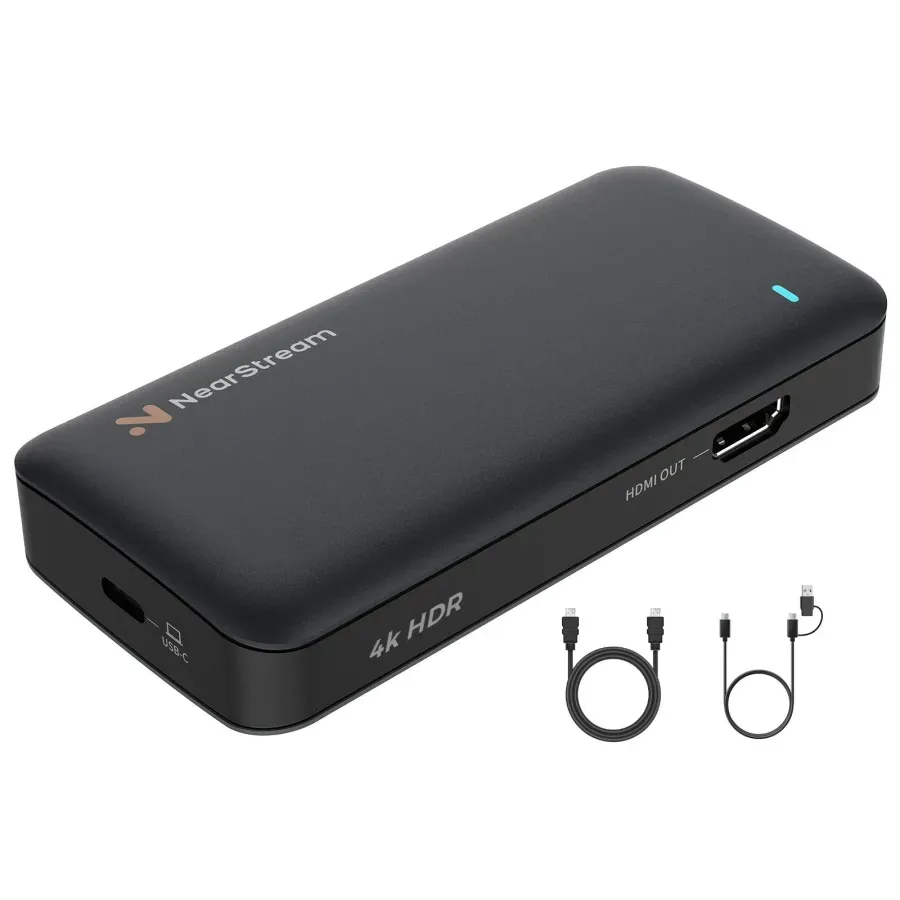
The NearStream capture card is designed for the "Pro-sumer"—someone who wants professional specs without the enterprise price tag. It directly addresses the limitations of older capture cards by pushing the bandwidth of USB 3.1 to its limit.
Key Technical Advantages:
- True 4K60 Recording: Unlike competitors that downscale 4K inputs to 1080p for recording, the NearStream card offers 4Kp60 USB 3.1 output. This is a game-changer for YouTube creators who want to upload gameplay in full 4K at 60 frames per second.
- Premium Ultra Low Latency: Optimized for instant game view, making it suitable for playing directly through the OBS preview window if necessary.
- Audio Versatility: Many NearStream models integrate advanced audio processing, reducing the need for separate audio interfaces.
Comparison Table: Elgato HD60 X vs. NearStream
| Feature | Elgato HD60 X | NearStream Capture Card | Generic $20 Dongle |
|---|---|---|---|
| Interface | USB-C 3.0 | USB-C 3.1 | USB 2.0 |
| Max Pass-Through | 4K60 HDR | 4K60 HDR | 1080p60 |
| Max Recording | 4K30 / 1080p60 | 4K60 / 1080p120 | 1080p30 (Compressed) |
| HDR Support | Yes | Yes (True HDR10) | No |
| Latency | Ultra Low | Premium Ultra Low | High (>100ms) |
| Best Use Scenario (Who is this for?) | General Streamers Best for Twitch streaming where 1080p60 is standard, or users who need VRR for Xbox. | Pro Content Creators Best for recording high-quality 4K60 YouTube videos, competitive FPS gaming, and HDR color grading. | Budget Casuals Best for simple Discord screen sharing or retro gaming on a very tight budget. |
As the table shows, if your goal is the highest possible recording framerate at 4K resolution, the NearStream capture card holds a distinct specification advantage.
Conclusion: Which Card Should You Buy?
The world of HDMI capture cards can be overwhelming, but it boils down to your specific needs.
- Choose the Elgato HD60 X capture card if: You are already deep in the Elgato ecosystem (using Stream Deck, Key lights) and value VRR support for Xbox Series X.
- Choose the NearStream capture card if: You prioritize raw image quality and performance. If you want 4K60 recording via USB 3.1, True HDR10, and a device that works equally well for high-end gaming and professional DSLR camera setups, NearStream offers superior value and specifications.
Your stream is your brand. Start with hardware that won't hold you back.

FAQ: Frequently Asked Questions
Q1: Do I need a powerful PC to use an HDMI capture card?
A: Yes and no. The capture card does the heavy lifting of ingesting the signal, but your PC needs to run OBS (broadcasting software). For 1080p streaming, a mid-range laptop (i5 or Ryzen 5) is fine. For 4K60 recording with the NearStream capture card, you will want a dedicated GPU (NVIDIA GTX 1060 or better) to handle the encoding.
Q2: Can I use a capture card with a Mac?
A: Most modern capture cards are "UVC" (USB Video Class) compliant, meaning they are plug-and-play on Mac without drivers. Both Elgato and NearStream work on macOS. However, always check if the manufacturer provides software for Mac updates.
Q3: Does this support 120Hz or 144Hz high refresh rates?
A: Yes. While 4K recording is usually capped at 60fps, both Elgato and NearStream cards typically support high refresh rate pass-through at lower resolutions (like 1080p120 or 1440p120). This allows you to play competitive shooters smoothly on your monitor while recording a standard stream.
Q4: My capture card shows a black screen in OBS. Why?
A: This is usually due to HDCP (High-bandwidth Digital Content Protection). If you are capturing a PS4 or PS5, you must go to your console Settings > System > HDMI and turn OFF "Enable HDCP."
Q5: Can I record party chat with these cards?
A: HDMI captures video and game audio. Party chat (voice chat) is tricky because consoles separate it. You may need an extra "Chat Link Cable" or to change your console settings to play voice chat through "Speakers" (HDMI) instead of just your headset.


 sales@nearstream.us






