








































You spend hours perfecting your artistry—blending seamless eyeshadows or sculpting intricate Gel X nails. Your skills are professional, but does your video quality match your talent? If your videos look blurry on TikTok or colors appear "muddy," your smartphone is likely the bottleneck.
To truly stand out, you need a workflow that captures every glitter particle and skin texture. In this guide, we will show you how to upgrade your studio with a professional overhead camera setup and the best capture card (NearStream). It’s time to stop letting bad quality hide your talent and start creating content that looks as expensive as your taste.
Why Top Beauty Influencers Are Switching to Pro Gear
If you scroll through the feeds of top beauty influencers, you will notice a common thread: Clarity. Their videos are crisp, the lighting is soft, and the colors are vibrant. This is the "Influencer Standard."
Many creators start with a phone. While convenient, phones use aggressive AI to smooth out skin (making foundation reviews inaccurate) and struggle to focus on tiny details. To grow your brand and land premium brand deals, you need to treat your content like a production. This means connecting a mirrorless camera directly to your computer.

Visual Comparison: Smartphone vs. NearStream 4K Setup
| Feature | Smartphone Recording | Pro Camera + NearStream Capture Card |
|---|---|---|
| Resolution | Compressed 1080p/4K | Uncompressed 4K (Crisp Detail) |
| Focus | "Focus Hunting" (Blurry) | Manual/Eye-AF (Locked Focus) |
| Color Accuracy | AI Auto-Correct (Inaccurate) | True-to-Life (4:4:4 Color Space) |
| Monitoring | Tiny phone screen (Hard to see) | Large Laptop/Monitor Screen |
| Vibe | Amateur / Hobbyist | Cinematic / Professional |
Pro Tip: Your audience trusts your eyes. If your camera distorts the color of a lipstick, you lose that trust. A professional setup ensures what you see is what they get.
Mastering the Overhead Camera for Flawless Gel X Nails
For nail technicians and artists, the overhead camera shot (or "Top-Down" shot) is your bread and butter. It is the most satisfying angle for viewers, but it comes with a massive headache for creators: The Blind Spot.
The Problem: Painting Blind
When you mount a camera on a C-Stand or boom arm above your desk to film Gel X nails, the camera screen faces the ceiling. You are physically unable to see it while you work.
- Are you in the frame?
- Is the focus on the cuticle or the table?
- Did your hand block the light?
Most creators solve this by standing up every 5 minutes to check, or worse, filming the whole set only to realize it was out of focus.
The NearStream Solution: Tethered Monitoring
The secret to a stress-free workflow is Tethering. By using the NearStream card, you turn your laptop into a massive, real-time monitor.
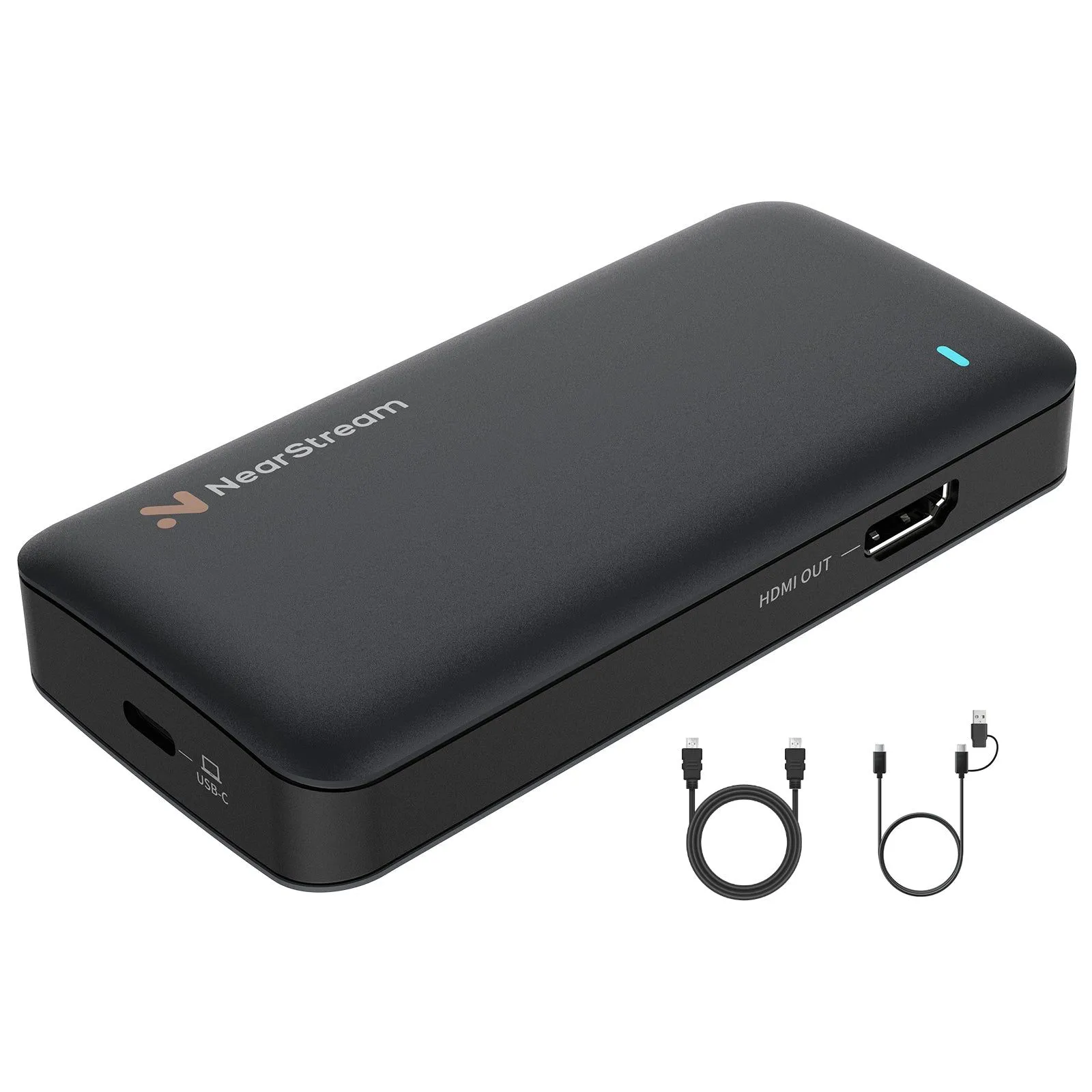
- Connect: Run an HDMI cable from your overhead camera into the NearStream card.
- Monitor: Plug NearStream into your laptop (USB-C) and place the laptop in front of you.
- Create: Open OBS or your camera app. Now, your laptop screen mimics your camera view.
Benefits for Nail Artists:
- Zero Neck Pain: Sit comfortably and look forward at your screen, not up at the ceiling.
- Macro Precision: Gel X nails require showcasing transparency and texture. With the 4K feed on a big screen, you can see if there are any air bubbles or lint before you cure the nail.
Unlocking True Color & Texture with a 4K Capture Card
Let’s talk about makeup. In the beauty community, Texture is everything.
Viewers want to see the real finish of a foundation—is it matte, dewy, or satin? They want to see the shift in a duochrome eyeshadow. A standard webcam or phone compresses video data to save space, which results in "muddy" skin tones and pixelated glitter.
Why "4K" Isn't Just a Buzzword
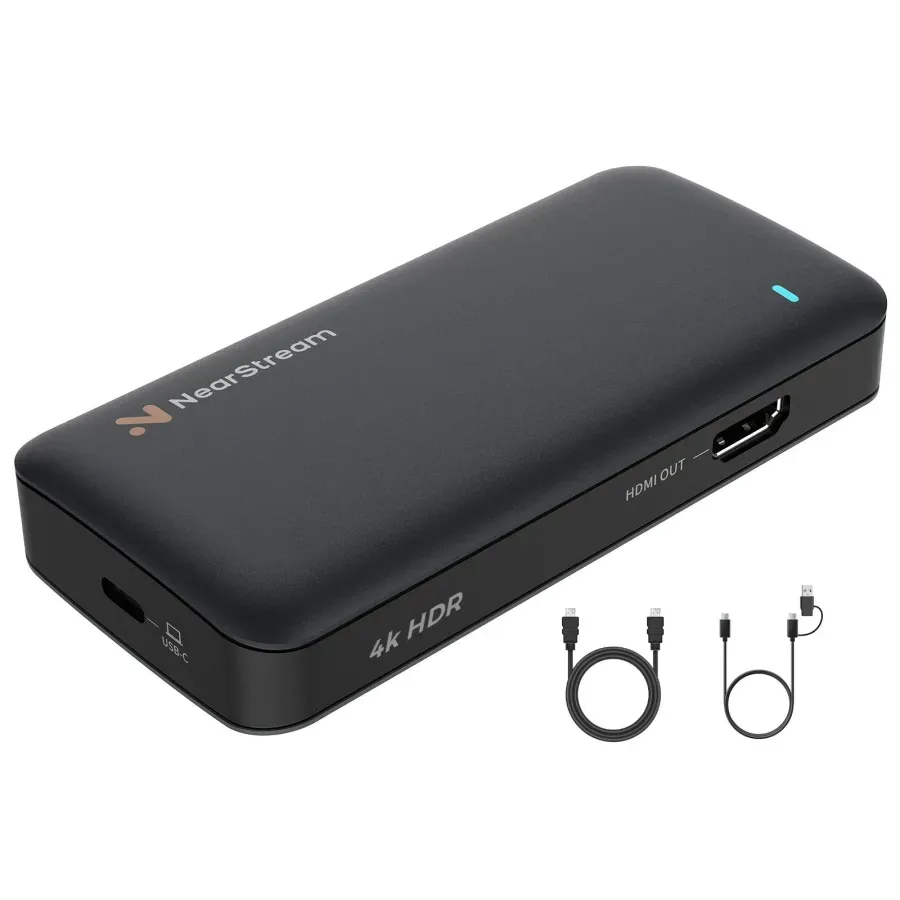
A 4K capture card like NearStream acts as a pure pipeline. It takes the raw, high-quality signal from your Sony or Canon camera and sends it to your computer without degrading it.
- 4:4:4 Color Sampling: This is a technical term, but it matters. It means NearStream captures color data for every single pixel. The result? Your red lipstick looks red, not orange. Your contour looks like shadow, not dirt.
- Digital Zoom: Recording in 4K allows you to crop in (Zoom) during editing by up to 200% without losing quality. You can film a full-face makeup tutorial, and then crop in on your eye for the mascara application, keeping everything sharp.
Why NearStream is the Best Capture Card for Your Studio
We know what you are thinking: "This sounds technical. I'm an artist, not an IT expert."
This is exactly why the NearStream capture card is the preferred choice for female creators and lifestyle influencers. It is designed to be powerful but invisible in your workflow.
1. Plug & Play (No Drivers Needed)
NearStream is driverless. There is no complicated software to install.
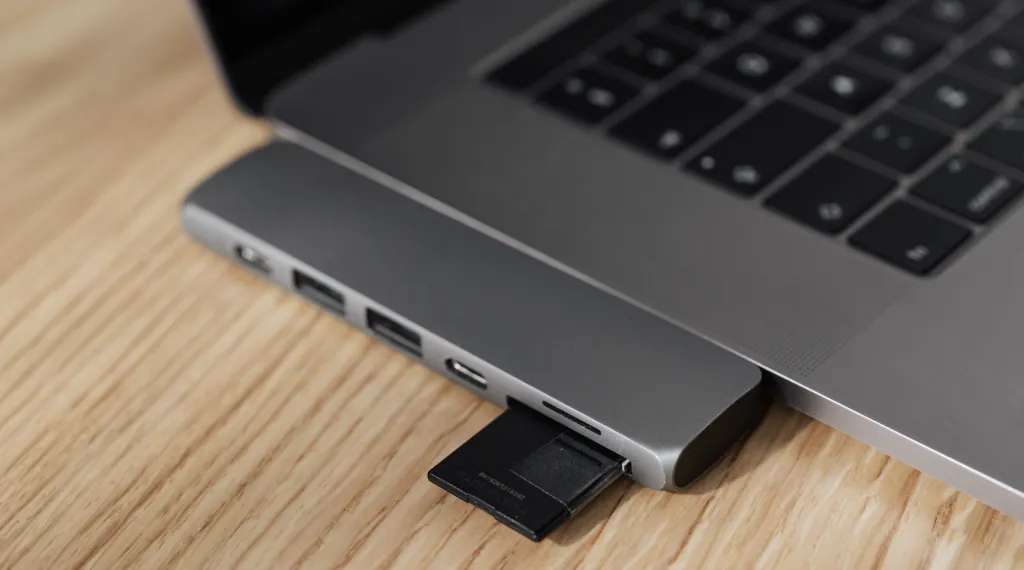
- For Mac Users: It works seamlessly with MacBook Air and Pro (M1/M2/M3 chips). Just plug it into the USB-C port, and your Mac instantly recognizes it as a camera.
- For Windows: Works instantly with OBS, Zoom, or TikTok Live Studio.
2. Aesthetic & Compact Design
Your desk setup is likely curated—perhaps it's a "Cozy White Desk" or a "Pink Gaming Setup." You don't want a bulky, ugly black box with flashing gaming lights. NearStream is compact, sleek, and easy to hide behind your laptop or in a cable box. It respects your aesthetic.
3. The "Hybrid" Workflow
You don't need separate equipment for nails and makeup.
- Morning: Connect it to your overhead rig to film a Gel X nails tutorial.
- Evening: Move the HDMI cable to your face-cam to live stream a "Get Ready With Me" (GRWM).
It is the versatile heart of your content studio.
Step-by-Step: Building Your Cinematic Setup
Ready to upgrade? Here is the exact equipment list and setup flow you need to replicate the look of top influencers.
The Gear List
- Camera: A Mirrorless Camera (e.g., Sony ZV-E10 II, Canon G7X Mark III, or Panasonic Lumix).
- The Bridge: NearStream 4K Capture Card.
- The Mount: A C-Stand (for heavy rigs) or a Desk Mount Boom Arm (for lighter setups).
- Lighting: Two Softboxes (placed at 45-degree angles) to eliminate shadows.
The Connection Flow
- Mount: Secure your camera to the overhead camera arm. Ensure it is level.
- Cable: Plug a Micro-HDMI (or Mini-HDMI) cable into your camera, and the standard HDMI end into the NearStream card.
- Computer: Plug the NearStream card into your computer's USB 3.0 port.
- Software: Open OBS Studio. Click "+" in Sources -> Video Capture Device -> Select "NearStream".
- Action: You should now see your crystal-clear 4K feed.
Conclusion
Upgrading your content quality doesn't mean changing who you are; it means giving your talent the stage it deserves. Whether you are sculpting the perfect Gel X nails or sharing your favorite beauty products, the difference between "good" and "viral" is often in the details.
By integrating an overhead camera and the NearStream 4K capture card into your setup, you solve the problems of focus, color, and monitoring in one go. Stop struggling with your phone. Plug in, power up, and let the world see your beauty content in cinematic 4K.
FAQ: Frequently Asked Questions
Q1: Do I need a powerful computer to use a 4K capture card?
A: Not necessarily. While editing 4K video requires a decent computer, recording it via NearStream is very efficient. The card handles the signal processing. If you have a MacBook M1/M2 or a decent Windows laptop from the last 3-4 years, you are good to go.
Q2: Can I use this for TikTok Live (Vertical Video)?
A: Absolutely! You can use free software like OBS Studio. Set your canvas to 1080x1920 (Vertical). NearStream sends the high-quality video to OBS, and you can stream directly to TikTok with professional quality.
Q3: Why is my overhead video upside down?
A: This happens depending on how you mount the camera. In OBS or your recording software, simply right-click the NearStream video source and select "Transform > Rotate 180 Degrees."
Q4: Is NearStream compatible with Sony ZV-E10 and Canon G7X?
A: Yes! These are the two most popular cameras for beauty influencers, and they both work perfectly with NearStream. Just make sure to get a "Micro-HDMI to HDMI" cable for your camera.

 sales@nearstream.us






