

























































You bought a 4K camera and professional lights, yet your video still looks "off." Perhaps red text looks blurry, your green screen edges are frizzing, or your makeup swatches lack vibrancy. The culprit isn't your lens—it’s a hidden compression technique called Chroma Subsampling.
Most budget equipment throws away 75% of your color data before it even reaches your computer. In this deep dive, we will demystify the science of color (4:4:4 vs 4:2:0), explain how do capture cards work, and show you why a high-bandwidth video capture HDMI card (like NearStream) is essential for professional results.
What is Chroma Subsampling? The "Paint by Numbers" Analogy
To understand why your video looks the way it does, you need to understand how human eyes work. Biology tells us that our eyes are much more sensitive to Brightness (Luma) than they are to Color (Chroma).
Video engineers in the 1980s used this fact to save data. They decided: "Let's keep the black-and-white image (Luma) at 100% resolution, but delete some of the color data (Chroma)." This process is called Chroma Subsampling.
The "Paint by Numbers" Explanation
Imagine a grid of 4 pixels (2x2).
- The Sketch (Luma/Y): The outline is drawn perfectly for all 4 pixels. You can see the sharp edges.
- The Paint (Chroma/UV): This is where the compression happens.
- 4:4:4 (No Compression): You paint a unique color for every single pixel. (Total: 4 colors).
- 4:2:2 (Half Compression): You paint one color for every two horizontal pixels. The pixels have to share. (Total: 2 colors).
- 4:2:0 (Heavy Compression): You paint one big splash of color for all four pixels. They all share the same average color. (Total: 1 color).
The Result: In 4:2:0, the color resolution is actually only a quarter of the image resolution. This is why "reds" (which require complex color data) often look blocky or jagged on cheap webcams.

How Do Capture Cards Work in the Color Pipeline?
Many creators ask: "My camera shoots 4:2:2 internally. Why is my stream 4:2:0?"
The answer lies in the pipeline. A video capture HDMI card acts as a translator between your camera and your computer.
- The Source: Your camera outputs a pristine HDMI signal (often Uncompressed or 4:2:2).
- The Bottleneck: This is where cheap USB dongles fail. Because they lack bandwidth (USB 2.0) or processing power, they aggressively compress that signal into MJPEG (4:2:0) before sending it to the PC.
- The Display: Your computer receives this compressed signal. The color data is already lost. No amount of OBS filters can bring it back.
The NearStream Difference: A high-end capture card uses USB 3.0 bandwidth to send Uncompressed (YUY2/NV12) video. It preserves the color integrity from the HDMI cable, ensuring your PC receives the full spectrum of data.
The Visual Impact: When Does 4:2:2 Matter?
You might ask, "Does this really matter for a face-cam?"
For a simple Zoom call? Maybe not. But for creators, the difference is night and day in three specific scenarios.
Scenario 1: Green Screen (Chroma Key)
Green screen software works by identifying specific shades of green to remove.
- With 4:2:0: The "green" pixels spill over into your hair or clothes because the color resolution is low. This creates that ugly "fizzing" outline around your body.
- With 4:2:2: The edge between "You" and "Green" is razor-sharp. The key is clean and professional.
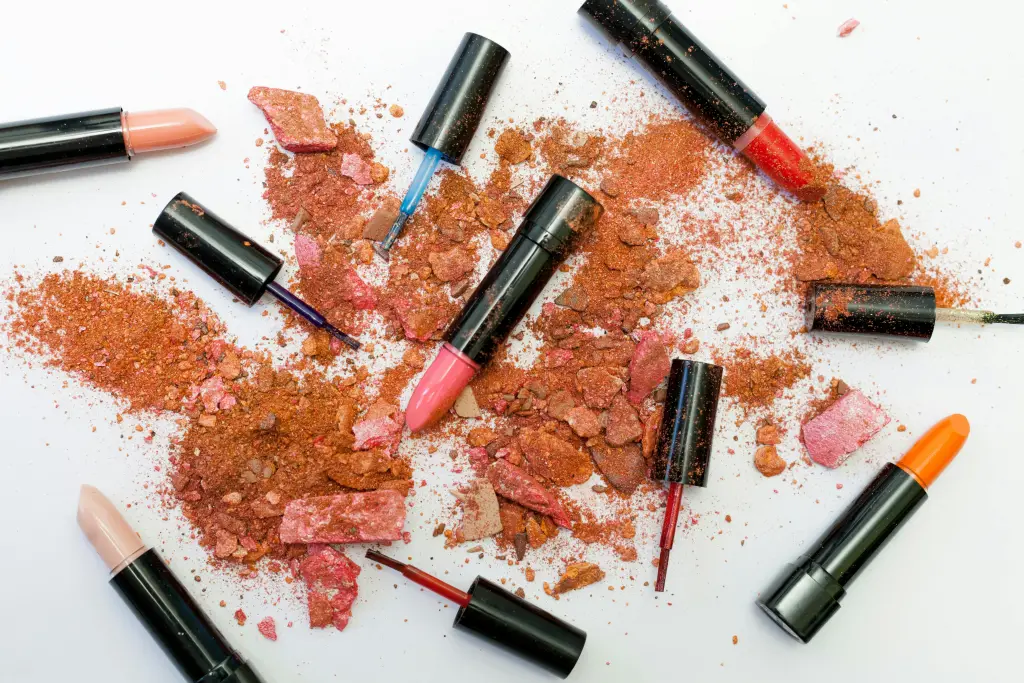
Scenario 2: Beauty & Makeup (Red Fidelity)
Red is the hardest color for digital sensors to process.
- With 4:2:0: A sharp red lip line will look jagged or "bleed" onto the skin.
- With 4:2:2: The lipstick line is crisp, and the subtle variations in blush are preserved.
Scenario 3: Gaming & Text
- With 4:2:0: Small red text on a blue background (common in RPGs or retro games) becomes unreadable and blurry.
- With 4:4:4 (PC Capture): Every pixel of text is sharp.
Choosing the Best Capture Card for Color Accuracy
Not all capture cards are created equal. When shopping for a video capture HDMI card, ignore the marketing fluff and look at the technical specs. To be considered the best capture card, it must support high-bandwidth formats.
Comparison: Budget Dongle vs. NearStream
| Feature | Cheap USB 2.0 Dongle | NearStream Capture Card |
|---|---|---|
| Connection | USB 2.0 (Slow Lane) | USB 3.0 (Fast Lane) |
| Color Format | MJPEG (Compressed) | YUY2 / NV12 (Uncompressed) |
| Subsampling | 4:2:0 (Low Color) | 4:2:2 / 4:4:4 (High Color) |
| Latency | High (>100ms) | Ultra-Low (\<20ms) |
| Best Use | Basic Zoom Calls | Pro Streaming, Beauty, Gaming |
Tech Note: NearStream allows for Loop-through in 4K. This means while you record/stream, the monitor you look at displays the full, uncompressed 4:4:4 image with zero loss.
Optimizing Bitrate for Sharp Videos OBS
Even if you have perfect color sampling (4:2:2), you can ruin it with low bitrate. Bitrate is the amount of data used to encode your video per second.
Think of Chroma Subsampling as the quality of the paint, and Bitrate as the amount of paint on the canvas.
Recommended OBS Settings for High Fidelity
If you are using NearStream to capture high-quality color, do not starve OBS of data.
- For 1080p 60fps (Streaming):
- Minimum: 6,000 Kbps (Twitch Limit).
- Recommended: 8,000 Kbps (YouTube).
- For 4K 30fps (Recording):
- Bitrate: 20,000 - 40,000 Kbps (CQP Level 18-20).
- Color Format: Set OBS Video Settings to NV12 or P010 (for HDR).
Pro Tip: In OBS, go to Advanced Settings -> Video -> Color Space. Change it from "601" (Old TV standard) to "709" (HD Standard) or "2100" (HDR), and set Color Range to "Partial" (recommended for streaming) or "Full" (for recording). NearStream supports the full range.
Conclusion
Video quality is a science, not magic. The "muddy" colors and blurry edges that frustrate so many creators are usually due to Chroma Subsampling bottlenecks in cheap hardware.
By upgrading to a professional video capture HDMI card like NearStream, you stop throwing away 75% of your color data. Whether you are keying out a green screen or showcasing a bold red lip, ensure your hardware honors your artistry. Don't let your signal get lost in translation.
FAQ: Frequently Asked Questions
Q1: Can the human eye really tell the difference between 4:2:2 and 4:2:0?
A: In a fast-moving movie? Maybe not. But for computer interfaces (text), green screens, and high-contrast makeup videos, the difference is visible even to the untrained eye as "fuzziness" or "pixelation."
Q2: Does YouTube support 4:4:4 video?
A: No, YouTube compresses everything down to 4:2:0 for playback. However, recording and editing in 4:2:2 or 4:4:4 is still crucial. It gives the YouTube encoder a higher quality "master file" to start with, resulting in a cleaner final video than if you started with a compressed 4:2:0 file.
Q3: How do I know if my capture card is actually doing 4:2:2?
A: In OBS, add your capture card as a source. Uncheck "Use Preset" and look at the "Video Format" dropdown. If you see options like YUY2 or UYVY, it supports uncompressed high-color modes. If you only see MJPEG, it is limited to 4:2:0.
Q4: Is a higher bitrate always better?
A: Up to a point. Once you pass the threshold of what the resolution needs (e.g., 50,000 Kbps for 1080p), you are just wasting hard drive space without visible improvement.




 sales@nearstream.us






