Best Camera Setup for Online Teaching in 2026: Top Picks for Educators, Hybrid Classrooms, and Course Creators
Discover the best camera setup for online teaching in 2026.
best camera setup for online teaching
best multicam setup for online classes
best camera for hybrid classroom
Updated: 2 juin 2026 · 8 minutes read
Modular Video Kits for Growing Business.
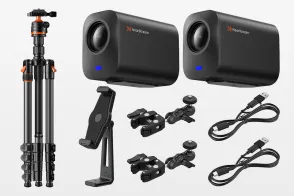
In today’s online learning environment, professional video and audio quality are no longer optional — they directly impact student engagement, comprehension, and retention. This guide explores the best camera setup for online teaching, comparing basic webcam workflows with professional multicam solutions designed for educators, hybrid classrooms, course creators, and trainers. From the challenges of blurry whiteboards and poor audio to the benefits of dual-camera teaching and OBS multicam workflows, we break down what truly matters in a modern teaching setup. We also explain why the combination of 2× NearStream VM20 4K streaming cameras and the AWM28T wireless lavalier microphone stands out as one of the most practical and effective solutions for professional online instruction, hybrid learning, STEM demonstrations, tutorial recording, and interactive virtual classrooms.
Quick Picks: Best Online Teaching Camera Setups for 2026
Before diving into the details, here are our top recommendations based on different teaching scenarios:
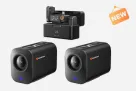
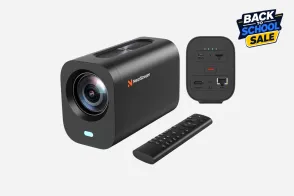
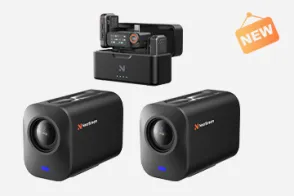
Best overall value for professional multicam + wireless audio
#2
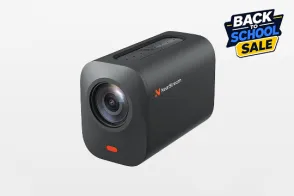
Single NearStream VM20 + AWM28T
Solo educators upgrading from webcams
Excellent zoom and audio at accessible price point
#3
Basic webcam + USB mic
Casual one-on-one tutoring
Simplest setup, limited flexibility
For educators ready to move beyond basic webcams and create truly engaging, professional-quality lessons, the dual VM20 + AWM28T combination stands out as the most capable and practical best multicam setup for online classes available today.
The Problem: Why Basic Setups Fall Short for Modern Teaching
Most educators start with what they already have — a laptop webcam and built-in microphone. While this works for casual video calls, it creates significant limitations when teaching becomes your primary professional activity.
Common Pain Points Educators Face
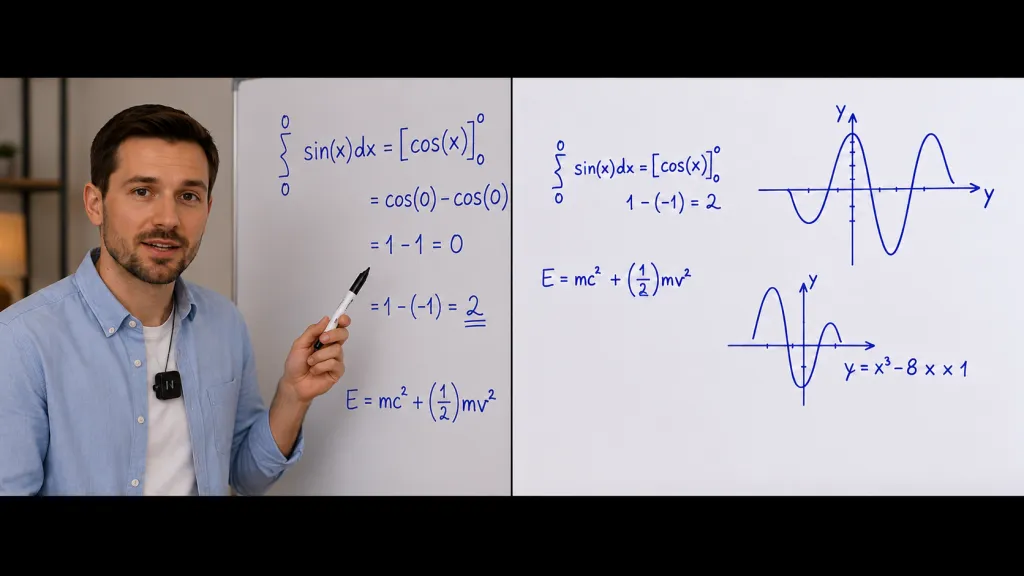
Lack of Optical Zoom Standard webcams have fixed lenses. When you step back to show a whiteboard, textbook, or experiment, details become unreadable. Students squint at blurry formulas, diagrams, or demonstrations, reducing comprehension and increasing frustration.
Poor Audio Quality Laptop microphones pick up room echo, keyboard noise, and ambient sounds. When you move away from the computer to demonstrate something, your voice becomes distant and muffled. In a hybrid classroom camera setup, poor audio disproportionately affects remote students who already face engagement challenges.
Difficulty Switching Views Without a multicam workflow, showing different angles requires physically moving a camera or laptop — disrupting lesson flow and looking unprofessional.
Stability Issues During Long Sessions Consumer-grade devices overheat, drop frames, or disconnect during extended livestreams. When you are teaching a two-hour workshop or recording a comprehensive course module, reliability matters.
Why the VM20 + AWM28T Setup Works for Online Teaching
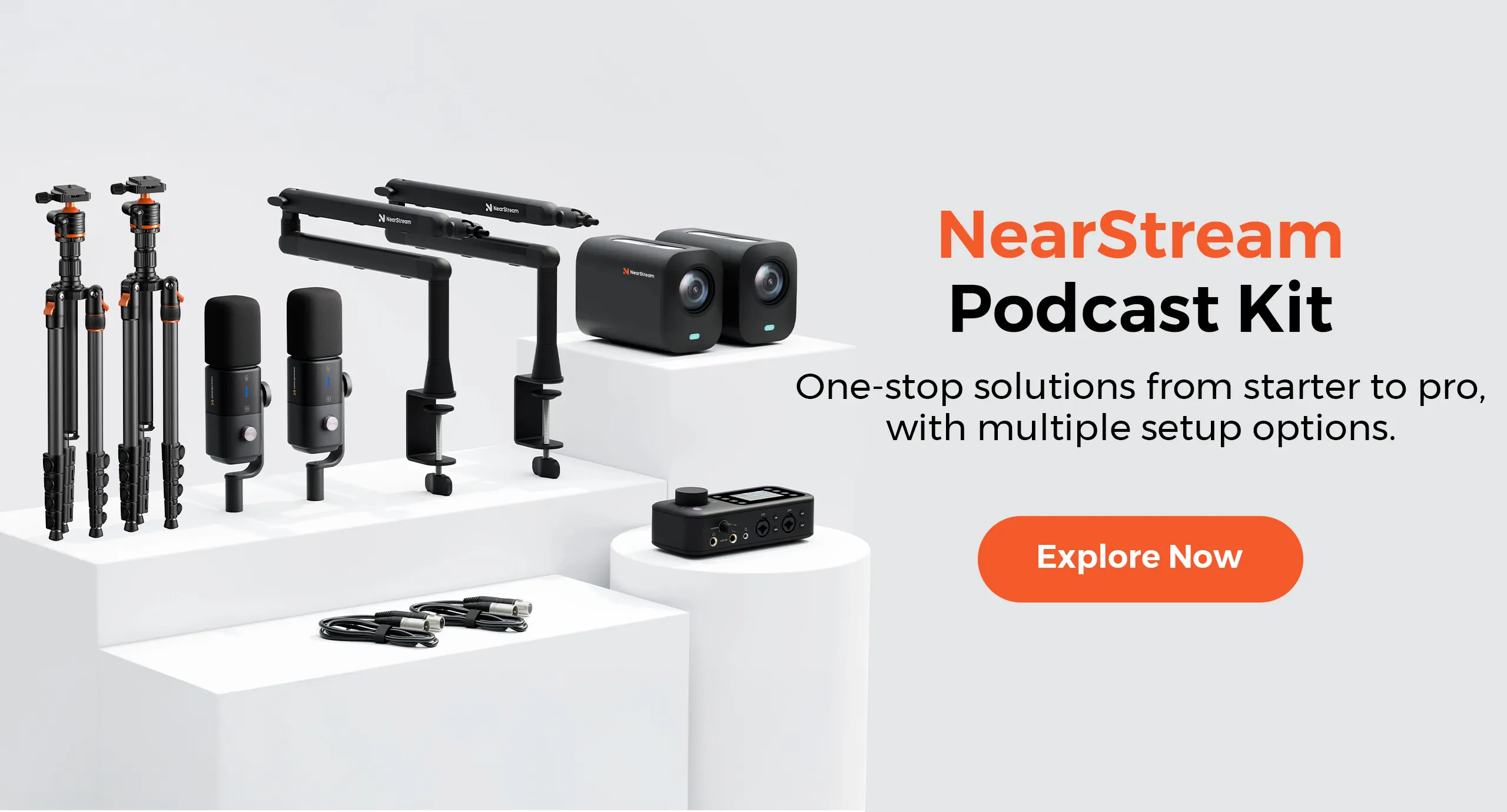
After evaluating numerous configurations for best livestream setup for educators, the combination of two NearStream VM20 4K streaming cameras paired with one AWM28T wireless lavalier microphone emerges as the standout choice for most teaching scenarios in 2026.
This isn't just another camera recommendation. It is a complete workflow designed specifically for the challenges educators face daily.
The Setup Configuration
Camera 1: Instructor Wide Shot Positioned to capture the teaching area, desk, or front of classroom. This camera provides the primary view students see during explanations, discussions, and presentation segments.
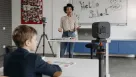
Camera 2: Detail/Whiteboard/Demonstration Camera Positioned to capture whiteboards, textbooks, experiments, product demonstrations, instrument close-ups, or hands-on work. With the VM20's powerful zoom capabilities, this camera can reframe to show fine details without physical repositioning.
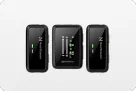
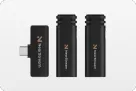
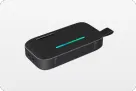
Audio: AWM28T Wireless Lavalier Clipped to the instructor's clothing, providing consistent, clear speech pickup regardless of movement. The wireless design eliminates cable constraints that limit teaching mobility.
NearStream VM20: Built for Teaching Environments
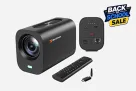
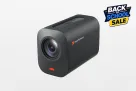
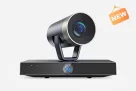
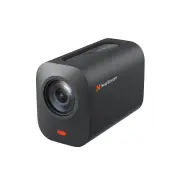
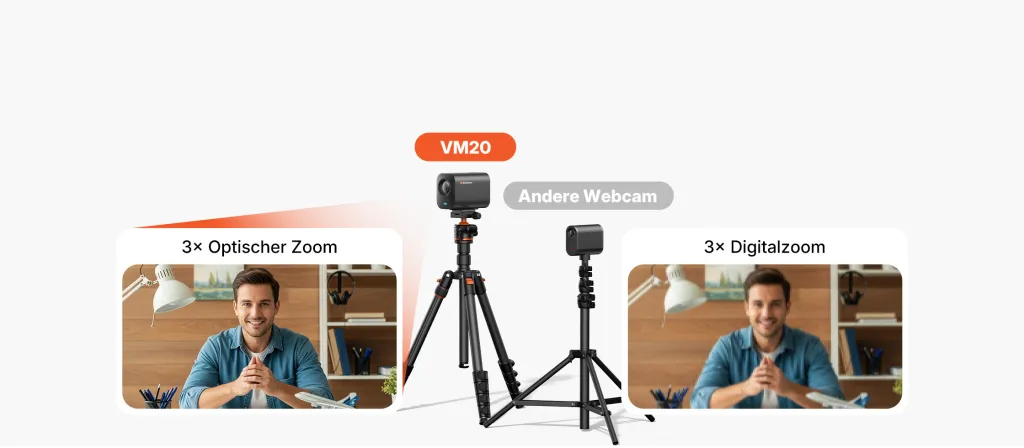
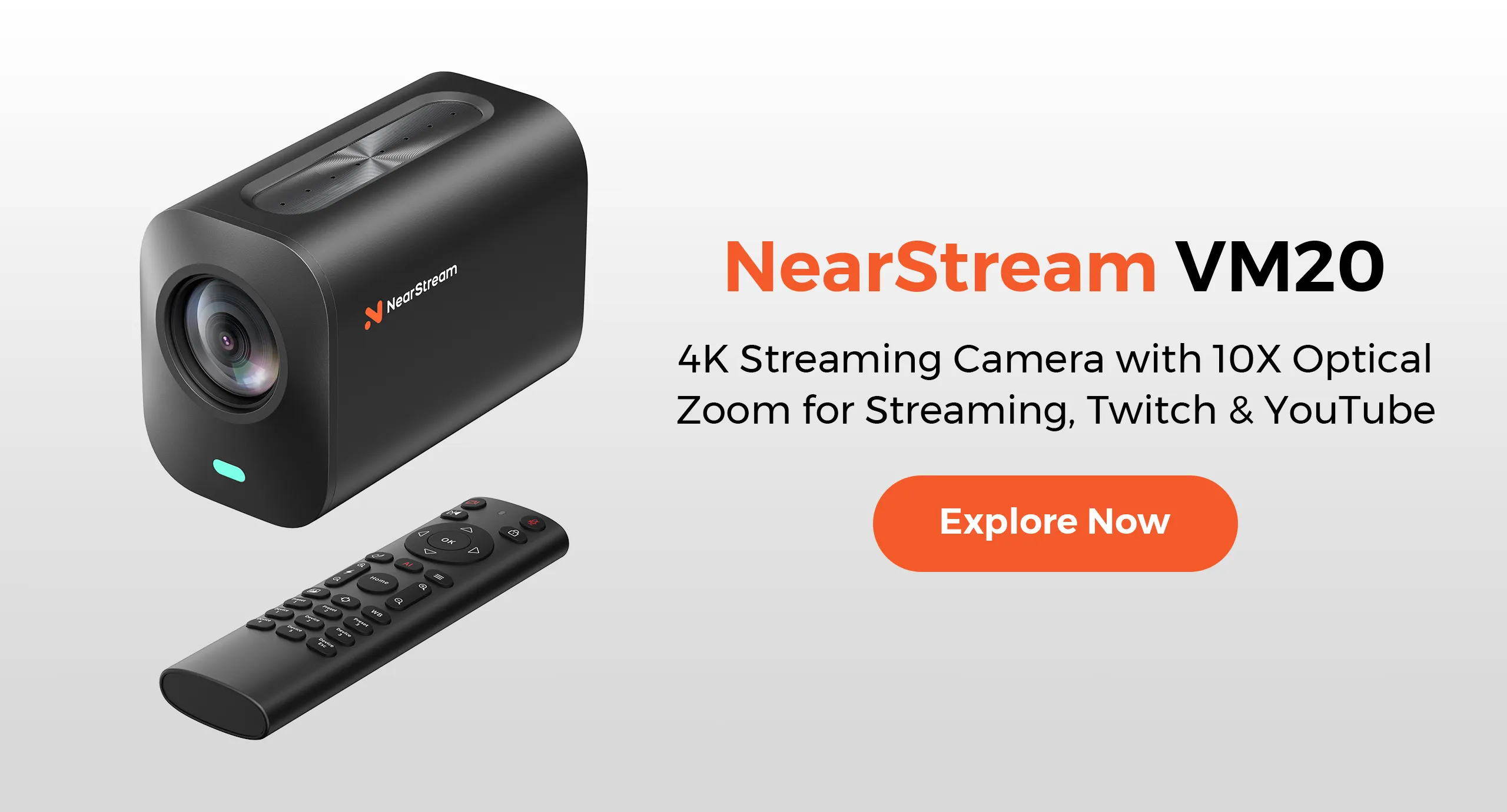
The VM20 combines 4K resolution with 10× optical zoom, making whiteboards, textbooks, and demonstrations much clearer than standard webcams. Unlike fixed-lens webcams, the VM20 maintains image quality while zooming in on detailed teaching content.
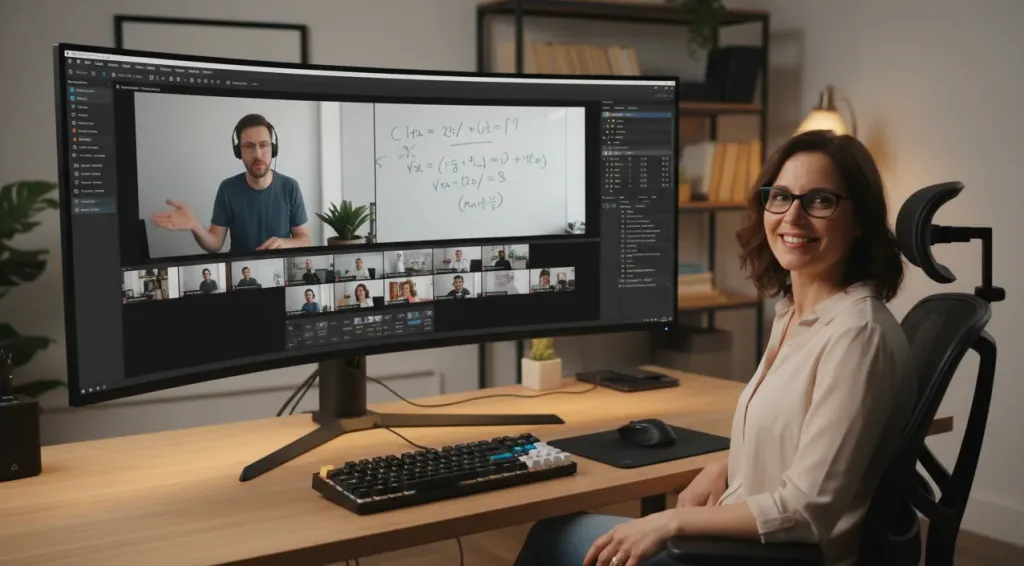
Its wired USB-C and HDMI connections also provide better long-session stability for livestream classes, workshops, and hybrid classrooms. The camera works seamlessly with OBS Studio, allowing educators to build multicam teaching workflows without complex broadcast equipment.
AWM28T: Clear Audio for Hybrid Teaching
The AWM28T wireless lavalier microphone helps educators maintain clear and consistent audio while moving around the classroom. Compared with built-in laptop microphones, it reduces echo and distance-related volume issues, making lessons easier for remote students to follow.
OBS Workflow and Teaching Setup Tips
Step-by-Step OBS Configuration
Step 1: Connect Your Cameras Plug both VM20 cameras into your computer via USB-C. Your operating system should recognize them as video devices automatically. No special drivers are required.
Step 2: Add Sources in OBS Open OBS Studio and add each VM20 as a "Video Capture Device" source. Name them clearly (e.g., "Camera 1 - Instructor" and "Camera 2 - Whiteboard") for easy identification during live switching.
Step 3: Create Your Scenes Build at least two scenes: one with Camera 1 full-screen for instructor-focused segments, and one with Camera 2 for whiteboard or demonstration views. Test switching between them using the scene panel or keyboard shortcuts.
Step 4: Configure Audio Add the AWM28T wireless receiver as an "Audio Input Capture" source in OBS. Set it as your primary audio source and disable any built-in laptop microphones to prevent echo or dual audio capture.
Step 5: Test Before Going Live Run a 10-minute test stream to verify camera stability, audio levels, and scene transitions. Check that whiteboard text is readable at your chosen zoom level and that audio remains consistent throughout your teaching area.
Comparison: How Teaching Setups Stack Up
When evaluating online course recording setups and livestream configurations, understanding the trade-offs helps educators make informed decisions.
Feature
Laptop Webcam + Built-in Mic
Single VM20 + AWM28T
2× VM20 + 1× AWM28T
Video Resolution
720p–1080p
4K
Dual 4K
Optical Zoom
None
10×
10× (per camera)
Hybrid Zoom
Digital only
40×
40× (per camera)
Camera Angles
Single fixed
Single with zoom flexibility
Two independent angles
Audio Quality
Echoey, distance-sensitive
Professional wireless clarity
Professional wireless clarity
Teaching Mobility
Tethered to laptop
Wireless audio freedom
Wireless audio + dual camera coverage
OBS Multicam
Single source
Single source with zoom changes
True dual-camera switching
Whiteboard Visibility
Poor at distance
Excellent with optical zoom
Dedicated camera angle possible
Setup Complexity
Minimal
Low
Moderate
Stability
Variable
High (wired)
High (wired)
Scalability
None
Can add second camera later
Full multicam workflow
Production Quality
Basic
Professional
Broadcast-style
Recommended Teaching Scenarios
Different teaching contexts benefit from different configurations. Here's how to match your needs to the right setup:
Hybrid Classrooms
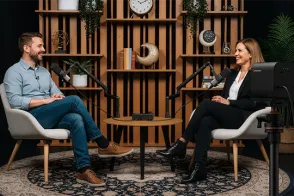
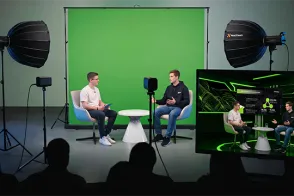
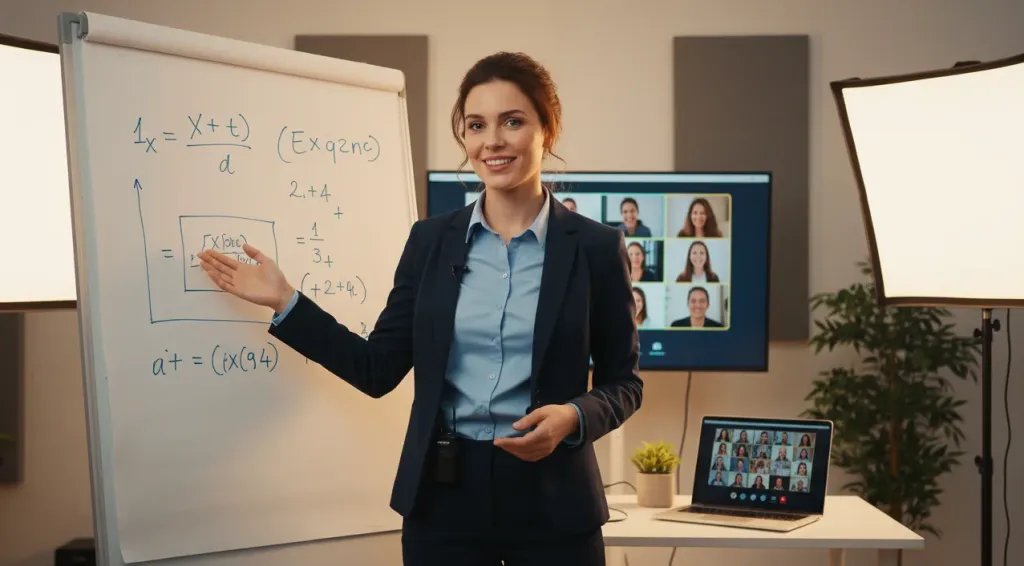
Hybrid classrooms present unique challenges — simultaneously serving in-person and remote students requires professional capture quality. One VM20 captures the instructor while the second captures whiteboards, presentations, or demonstration areas. Remote students receive broadcast-quality views that can exceed what in-person students see from the back row.
STEM and Science Teachers
Laboratory demonstrations, equipment close-ups, and detailed visual explanations demand both high resolution and optical zoom. The second VM20 positioned at the demonstration bench captures experimental details while the instructor explains concepts. The wireless mic maintains clear narration even when working with equipment across the room.
Whiteboard-Heavy Instruction
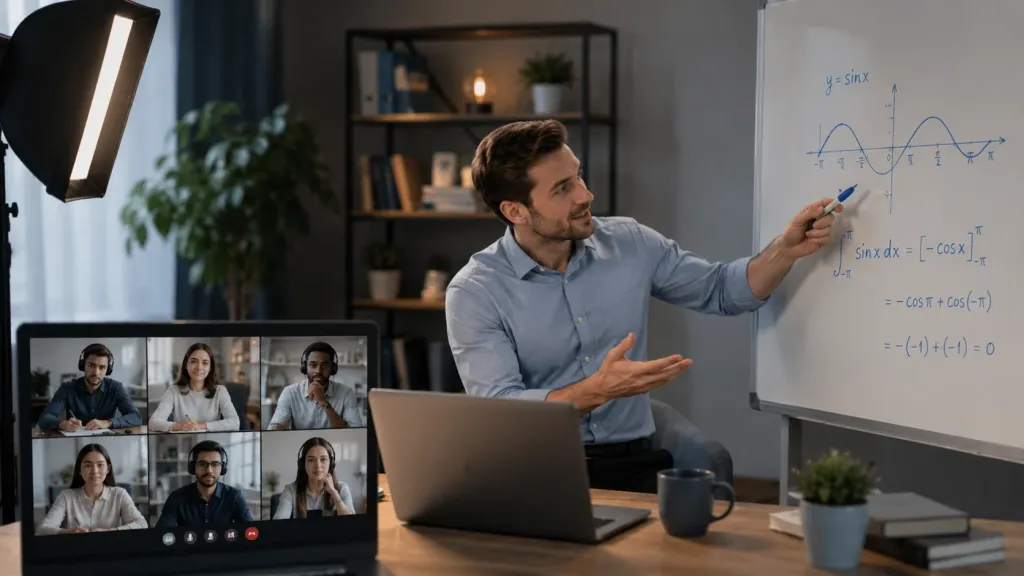
Mathematics, physics, economics, and language instruction often depend on written content. The VM20's optical zoom makes handwritten formulas and diagrams clearly readable — a game-changer compared to webcam-quality whiteboard visibility. The dual-camera setup lets students see both the instructor and detailed whiteboard content.
Online Course Creators
For educators building premium courses sold on platforms like Teachable, Kajabi, or Udemy, production quality directly impacts perceived value and pricing power. Multicam recordings with professional audio justify premium course prices and generate stronger student reviews. The time saved through efficient OBS workflows accelerates course production.
Corporate Training, Tutorial Recording, and Production Teams
Recommended Setup: 2× VM20 + 1× AWM28T
Professional trainers delivering internal education, sales training, or compliance content need polished production that reflects organizational standards. Software tutorials, DIY workshops, and how-to content also benefit from showing both the instructor and detailed close-up work. For schools and institutions building multiple recording spaces, the VM20 + AWM28T combination provides reliable, repeatable setups that scale across campus with minimal technical support.
FAQ
Q: What makes the NearStream VM20 better than a standard webcam for teaching?
The VM20 offers true 10× optical zoom and 40× hybrid zoom at 4K resolution, keeping whiteboards and demonstrations sharp from a distance. Standard webcams have fixed lenses with no optical zoom, so digital zoom creates unreadable pixelation. The VM20's wired USB-C and HDMI connectivity ensures long-session stability, and it works natively with OBS for easy multicam workflows.
Q: Do I need technical expertise to set up a dual-camera teaching system with OBS?
No. The VM20 connects via USB-C plug-and-play, so your computer recognizes it like an advanced webcam. OBS Studio is free, and most educators can set up basic scene switching within an afternoon. Start with two scenes and add complexity gradually.
Q: Can I start with one VM20 camera and add a second later?
Absolutely. Many educators begin with a single VM20 and AWM28T, immediately improving quality over webcam setups. Add the second camera later when your needs justify multicam switching. This scalability works for both individual educators and institutions.
Q: How does a multicam setup improve student engagement in online classes?
Visual variety correlates with attention and retention. Switching between views creates natural pacing, while picture-in-picture layouts show both explanations and subject matter. For remote students in hybrid classrooms, a multicam setup can provide better views than in-person students in the back row.








 sales@nearstream.us