



























































Say goodbye to digital clutter. This definitive guide is your roadmap from a chaotic music folder to organizational mastery. We’ll demystify what an MP3 tag is and why it's the backbone of any professional audio setup. From the industry's most versatile desktop MP3 tag editors to quick online alternatives, we break down the exact software you need. You'll learn how to leverage automated systems to auto-tag thousands of files in minutes and master the advanced metadata techniques used by digital archivists. By the end, you'll have the absolute confidence to take control of your music library—ensuring every track is perfectly labeled, instantly discoverable, and a visual joy to browse.
Picture this: you scroll through your digital music library, a collection of songs and albums amassed over years. Instead of a pristine, browsable archive, you're met with chaos. Tracks are cryptically named "Track01.mp3" or "AUDIO_FINAL_03.wav." Album art is a sea of generic grey icons. Your favorite artist appears under three different spellings, and that classic movie soundtrack is scattered into a dozen individual "albums." This digital mess isn't just an eyesore; it's a frustrating barrier between you and the music you love. The context, the story, and the identity of each song are lost.
Fortunately, there is a powerful solution to this digital disarray: the MP3 tag. Think of it as the digital identity card for every audio file in your collection. It’s the hidden information that tells your music player the song's title, the artist who performed it, the album it belongs to, and even displays the beautiful cover art. Mastering the art of tagging MP3 files is the single most effective way to transform a chaotic folder of files into a professional-grade, perfectly curated music library.
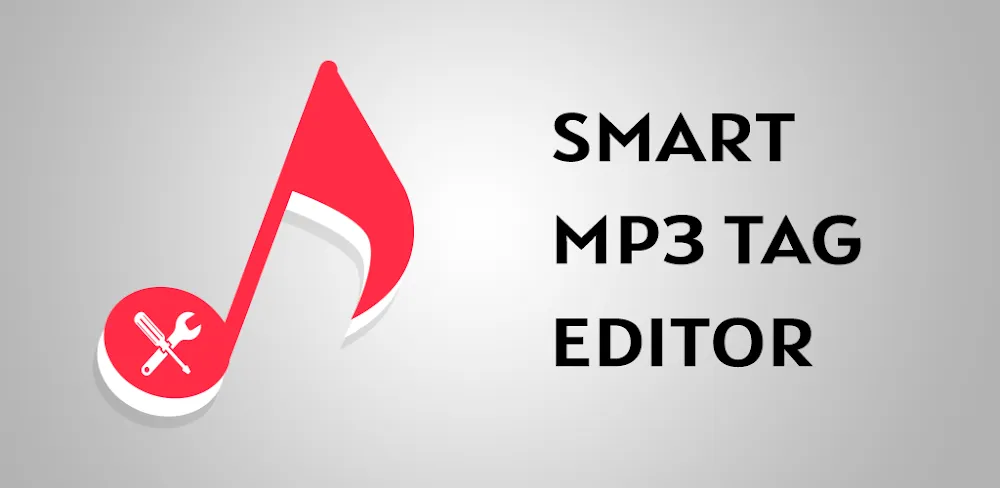
For live streamers and video creators, having a perfectly curated background music (BGM) library is just as essential as your visual setup. (If you are also looking to upgrade your visual quality to match your audio, check out the stunning 4K clarity of the NearStream VM20 Wired Streaming Camera). Mastering the art of tagging MP3 files is the single most effective way to transform a chaotic folder of files into a professional-grade, perfectly curated music library.
What is an MP3 Tag? Unlocking the Hidden Data in Your Audio Files
At its core, what is an MP3 tag and why is it important? An MP3 tag is a container of metadata—descriptive information—that is embedded directly within an audio file. While the name suggests it's exclusive to the MP3 format, this concept of embedded metadata is used across a vast array of audio file types, including lossless formats like FLAC and ALAC, as well as others like M4A (AAC), OGG, and WMA. This container holds all the essential details that bring a simple audio file to life.
The Anatomy of a Tag: Core Metadata Fields Explained
When you use an MP3 tagger to edit a file, you're interacting with a set of standardized fields. Think of it like labeling jars in a pantry; each label has a specific purpose, ensuring you can find what you need instantly. The most critical fields you'll encounter are:
- Title: The name of the individual song.
- Artist: The name of the primary artist or band that performed the track.
- Album: The name of the album or release the song belongs to.
- Genre: The musical category of the track (e.g., Rock, Jazz, Deep House).
- Year: The year the album was originally released.
- Track Number: The position of the song within the album's tracklist.
- Album Art: The cover image associated with the album.
- Composer: The person or people who wrote the music.
Filling out these core fields is the foundation of a well-organized library.
The "Why": Key Benefits of Proper MP3 Tagging
The effort of meticulously tagging MP3 files pays off in numerous ways, creating a ripple effect that enhances your entire music experience.
Enhanced Listening Experience: Proper tags create a more immersive and informative listening experience. When you play a song, your media player reads the tags to display the correct song title, artist name, and album cover.
Improved Discoverability and Organization: A well-tagged library is an organized library. Modern music software and streaming services rely heavily on this metadata to power their recommendation engines and smart playlist features. When you tag a song with a specific subgenre like "Punk Rock" instead of a generic "Rock," you provide algorithms with the precise data needed to suggest other artists you might love.
Professionalism and Branding: For musicians, podcasters, and other content creators, clean and complete metadata is a non-negotiable sign of professionalism. Correct tags ensure your name, the title of your work, and your branding are displayed correctly on every platform.
Creator Pro Tip: Great Metadata Starts with Great Audio Perfecting your MP3 tags is crucial for publishing, but it won't fix bad source audio. Before you export and tag your final podcast episode or voiceover, ensure you're capturing broadcast-level sound:
- For Studio Podcasters: The NearStream AM25x USB/XLR Condenser Microphone delivers rich, professional studio audio with the flexibility of both USB plug-and-play and XLR connections.
- For On-the-Go Creators: Recording interviews or IRL streams? The NearStream AWM28T Wireless Lavalier Mic features an intuitive touchscreen and active noise cancellation for flawless wireless audio anywhere.
Copyright and Attribution: The metadata container can also hold vital copyright information, helping to prevent unauthorized distribution or use of material.
A Tale of Two Standards: Understanding the Evolution of ID3 Tags
To truly understand tagging MP3 files, one must understand the technical foundation upon which it is built: the ID3 tag standard. ID3 is the specification that defines how metadata is stored within an MP3 file.
The Original: The Severe Limitations of the ID3v1 Standard
Introduced in the mid-1990s, ID3v1 worked by appending a small, 128-byte block of data to the very end of an MP3 file. Its limitations quickly became apparent:
- Fixed-Width Fields: The title, artist, and album fields were all capped at just 30 characters.
- No Album Art: The ID3v1 standard had no provision for embedding images.
- Poor for Streaming: Because the tag was located at the end of the file, a media player had to download the entire file before it could read the metadata.
The Modern Solution: The Power and Flexibility of ID3v2
Recognizing these shortcomings, ID3v2 was introduced as a complete rewrite. It places a flexible and extensible data container at the beginning of the file. Its key advantages include extensible "frames" (allowing unlimited text length), embedded album art, full Unicode support, and streaming-friendly formatting.
 The Gold Standard: Why ID3v2.3 is Still Recommended
While the leap from v1 to v2 was massive, a crucial question arises regarding the revisions within ID3v2 itself (v2.2, v2.3, and v2.4). While it might seem logical to always use the newest version (ID3v2.4), a critical factor is backward compatibility. ID3v2.4 is still not recognized by some widely used legacy software, most notably older versions of Windows Media Player.
For this reason, ID3v2.3 is widely considered the "gold standard." When configuring your MP3 tag editor, always choose to write ID3v2.3 tags to ensure your meticulously organized library is readable everywhere.
The Power User's Toolkit: The Best Desktop MP3 Tag Editors
For anyone serious about organizing a digital music collection, a dedicated desktop MP3 tag editor is an indispensable tool.
The All-Rounder: A Deep Dive into Mp3tag
When it comes to a perfect balance of power, flexibility, and ease of use, Mp3tag stands out as the quintessential "Swiss Army knife" for audio metadata. Available as freeware for Windows and as a paid application for macOS, here are its standout features:
- Batch Tag Editing: Write or modify tags for thousands of files simultaneously.
- Online Database Lookups: Automatically fetch tag information from online sources.
- Tag-Based File Renaming: Create complex, customized folder structures based on tag information (e.g.,
Artist\Year - Album\Track - Title). - Full Unicode Support: Ensures proper handling of international characters.
The Intelligent Archivist: Mastering MusicBrainz Picard
For the meticulous archivist, MusicBrainz Picard is an unparalleled tool. It encourages you to group your loose files into albums first, then matches that entire album against the community-maintained MusicBrainz database. Its most powerful feature is AcoustID audio fingerprinting, which can analyze the actual music in a file and identify the track with astonishing accuracy—even if the file has no existing metadata.
A Roundup of Other Top-Tier Desktop Taggers
- TagScanner: A powerful, free, and feature-rich editor for Windows.
- MediaMonkey: A full-fledged music player and library manager that includes very strong tagging capabilities.
- Music Tag: A simple and highly user-friendly option for Windows and Mac, perfect for beginners.
To help you decide, here is a breakdown of what are the best desktop mp3 tag editors and their features?
| Feature Comparison: Top 5 Desktop MP3 Tag Editors |
|---|
| Tool Name |
| Music Tag |
| Mp3tag |
| MusicBrainz Picard |
| TagScanner |
| MediaMonkey |
Tagging in the Cloud: A Review of Online MP3 Tagger Tools
For users who need a quick fix or are working on a locked-down computer, online MP3 tag editors offer a convenient, browser-based solution. Popular options include the Banger.Show MP3 Tag Editor and the editor from SoundBoost.ai.
A Critical Consideration: Are Online MP3 Tag Editors Safe?
The answer depends entirely on how the tool processes your files:
- Server-Side Processing: The tool uploads your file to their server. If you are a musician tagging an unreleased track, this poses a privacy risk.
- Client-Side (Local) Processing: A safer approach involves tools that perform all processing locally within your web browser using technologies like WebAssembly. Your file never leaves your device. Always prioritize online editors that explicitly state they process files locally.
From Tedious to Effortless: Automated and Advanced Tagging
How to Auto-Tag MP3 Files with Online Databases
The core principle behind automated tagging is simple. Your software takes a piece of information from your file and uses it to query colossal, community-curated databases like MusicBrainz and Discogs. When a match is found, the software pulls down track titles, artist names, year, genre, and high-resolution album art automatically.
Pro-Level Organization: Advanced MP3 Tagging Techniques
Once your core data is correct, apply these advanced techniques:
- Proper Title Casing: Adopt a standard title case (e.g., "The Last of the Mohicans").
- Disc & Track Numbering: Always use the X/Y format (e.g., Track 1/12, Disc 1/2).
- The Compilation Conundrum (Artist vs. Album Artist): Frustrated when a movie soundtrack appears as 20 different albums? The solution lies in the Album Artist tag. Tag all tracks on a compilation with
ALBUMARTISTas "Various Artists". This tells your software to treat all these files as one single cohesive album entry.
Beyond the Basics: Embedding High-Quality Album Art and Lyrics
What is the Best Format for Album Art?
The ID3v2 standard officially recommends JPEG or PNG. For all practical purposes, JPEG is the safest choice for maximum compatibility.
To "future-proof" your library for 4K displays, digital music distributors like TuneCore recommend a resolution of at least 1600x1600 pixels. However, be aware that some older car stereos may fail to display images over 500 KB.
How to Embed Lyrics in MP3 Files
There are two main types of lyrics you can embed:
- Unsynchronized Lyrics (USLT): A single block of text containing the full lyrics.
- Synchronized Lyrics (SYLT): Includes timestamps allowing the player to highlight lyrics in real-time.
To embed lyrics using Mp3tag, simply right-click your file, select "Extended Tags", add the UNSYNCEDLYRICS field, and paste your lyrics text. Even if you have time-coded .lrc files, placing synchronized text in the USLT field is a popular workaround, as many modern players are smart enough to detect the timestamps and display them karaoke-style.
Frequently Asked Questions (FAQ)
1. Does editing MP3 tags reduce audio quality? Absolutely not. The metadata (tags) and the audio data are stored in separate parts of the file. Using an MP3 tag editor does not touch or re-encode the audio stream itself.
2. Can I edit tags for formats other than MP3? Yes. Most modern editing software is format-agnostic, supporting lossless files like FLAC and ALAC, as well as compressed formats like M4A and WAV.
3. What is the difference between Artist and Album Artist? The Album Artist tag defines the primary artist for an entire album and is used to group all its tracks together (use "Various Artists" for compilations). The Artist tag refers to the specific performer of an individual track.
4. Do ID3 tags matter for podcasts? Their importance has diminished, as platforms like Apple Podcasts pull info directly from your RSS feed. However, ID3 tags are still relevant if a listener downloads the raw MP3 file directly to their device.
5. Can I edit MP3 tags on my mobile device? Yes. There are numerous smart MP3 tag editors available on the Google Play Store and iOS App Store that allow you to edit metadata directly on your phone.
Your journey to an organized library starts with a single step. Download a recommended tool like the versatile Mp3tag or the intelligent MusicBrainz Picard, choose one disorganized album from your collection, and begin. Transform that one album today, and you will be well on your way to mastering your entire music library—and your streaming career!




 sales@nearstream.us






