

























































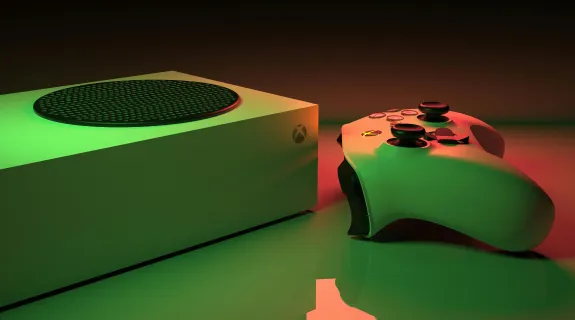
The Xbox Series X is a 4K powerhouse, but the built-in streaming app limits your potential with low bitrates and no custom overlays. To broadcast the true power of your console, you need a dedicated hardware setup.
In this guide, we will walk you through exactly how to set up Xbox Series X for streaming using a PC and a capture card. We cover critical audio routing, OBS configuration, and why the NearStream capture card is the essential tool to transform your gameplay into a studio-quality production.
Step-by-Step: How to Set Up Xbox Series X for Streaming
Transitioning from the internal "Share" button to a professional setup involves creating a physical "Signal Chain." This chain ensures that your video signal travels from your console to your audience without losing quality or introducing input lag.
Here is the definitive hardware wiring guide for a professional stream.
The Hardware Checklist
Before we plug anything in, ensure you have the following:
- Xbox Series X (or Series S)
- Streaming PC/Laptop: It doesn't need to be a supercomputer, but it needs a USB 3.0 port.
- Capture Card: We recommend the NearStream VM33 or compatible model.
- Two High-Speed HDMI Cables: Ideally HDMI 2.1 or 2.0 certified.
- USB 3.0 Cable: Usually provided with the capture card.
Phase 1: The Cabling Workflow
Many beginners mess this up and end up with a black screen or significant lag. Follow this order precisely:
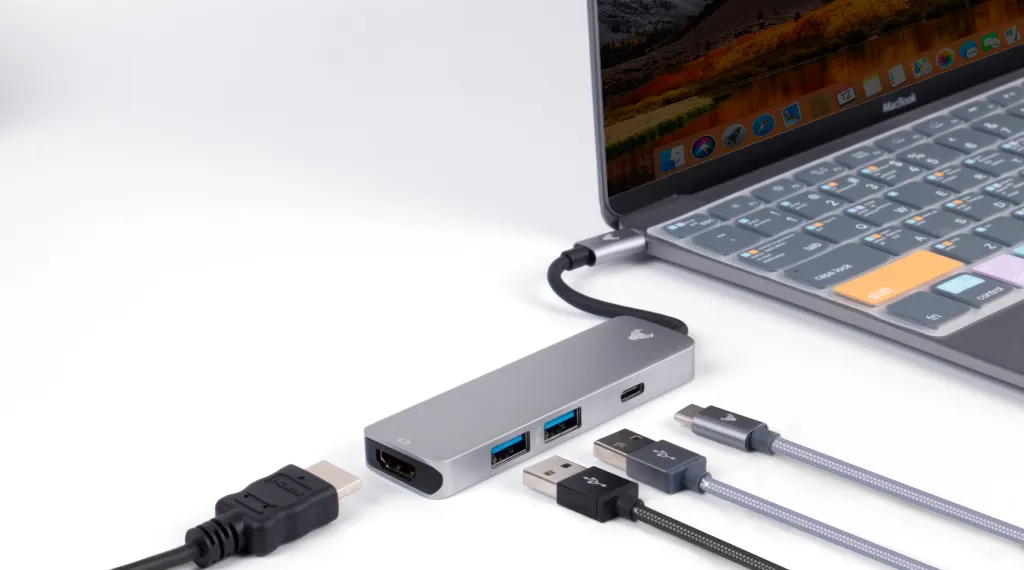
- Console Output: Unplug the HDMI cable from the back of your TV. Plug this cable (coming from the Xbox) into the HDMI INPUT port of your NearStream capture card. The capture card now holds the signal.
- The Passthrough Connection: Take your second HDMI cable. Plug one end into the HDMI OUTPUT (sometimes labeled "Loop-Out" or "Passthrough") on the NearStream card. Plug the other end into your TV or Gaming Monitor.
- Why is this crucial? This creates a "Loop." It allows the video signal to pass through the card and go to your TV instantly. This means you play your game on your TV with zero latency, just as if the capture card wasn't there. Never try to play the game by watching the OBS preview window on your PC; the split-second delay will make you miss your shots.
- The Data Link: Connect the NearStream card to your PC using the USB 3.0 cable.
- Critical Warning: You must use a blue (USB 3.0) or red (USB 3.1/3.2) port on your computer. If you plug it into a black (USB 2.0) port, the bandwidth will be too low, and your video will stutter or look like a slideshow.
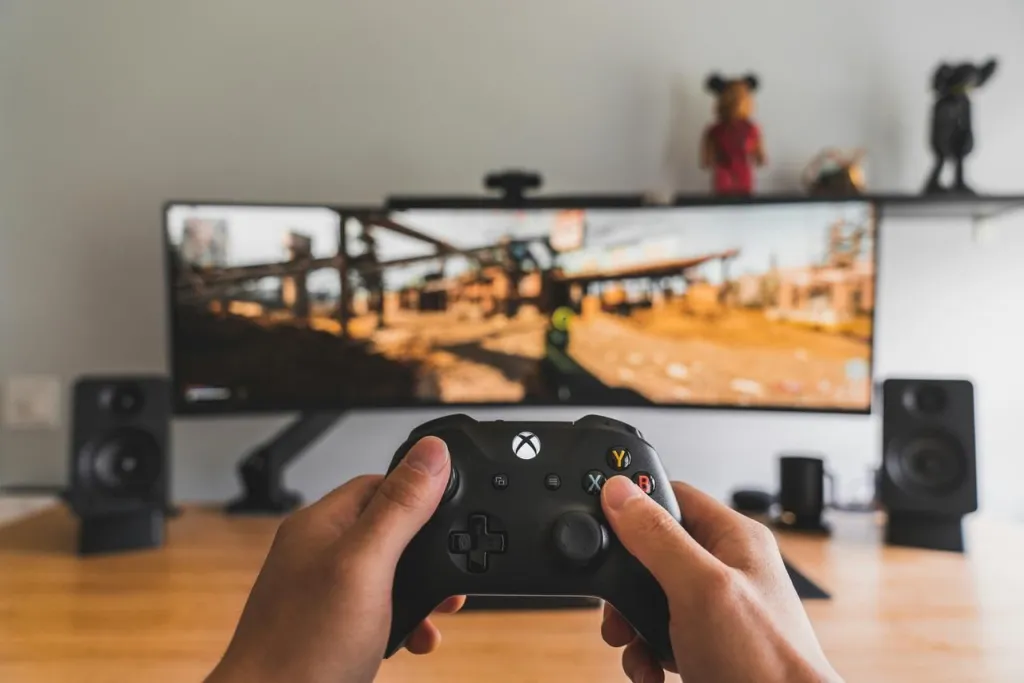
Why You Need a Dedicated Xbox Capture Card
You might ask: "Why spend money on an xbox capture card when I can just stream directly from the console dashboard?" Or perhaps, "Can't I just use Remote Play?"
While the built-in Twitch integration is convenient for your first day, it is a "walled garden" that prevents growth. A dedicated xbox capture card like NearStream breaks down those walls and unlocks the full potential of your content.
The Limitations of Native Streaming
When you stream directly from the Xbox:
- No Overlays: You cannot add a "Starting Soon" screen, a webcam border, or your latest follower alert. Your stream looks generic.
- Performance Tax: The Xbox has to use its own CPU and GPU resources to compress and upload the video. In demanding games like Cyberpunk 2077 or Call of Duty: Warzone, this can cause frame drops in your game.
- Audio Restrictions: You cannot play Spotify music, use Discord for voice chat, or use advanced microphones. You are stuck with whatever headset is plugged into your controller.
The Capture Card Advantage
By offloading the work to a capture card and a PC:
- 100% Console Power: Your Xbox focuses entirely on rendering the game.
- Production Value: You can use OBS Studio to add professional graphics, transitions, and multiple cameras.
- Archive Quality: You can stream to Twitch while simultaneously recording a high-bitrate "Master Copy" to your hard drive for editing TikToks or YouTube Shorts later. The native Xbox DVR clips are short and compressed; a capture card lets you record for hours.
Native Twitch App vs. NearStream Capture Card
| Feature | Xbox Native App | NearStream Capture Card |
|---|---|---|
| Overlays/Alerts | Impossible | Fully Customizable (OBS) |
| Webcam Support | Limited USB support | Use any DSLR/Pro Camera |
| Game Performance | Uses Console CPU/Network | 0% Console Load (Offloaded) |
| Stream Bitrate | Low / Variable (Blocky) | High / Stable (Crisp 1080p) |
| Party Chat | Often Buggy | Perfect Control |
| Recording | Short Clips Only | Unlimited High-Quality Recording |
Choosing the Best Capture Card for Beginners
For Xbox users, hardware compatibility is the most important factor. You need a device that respects the Series X's unique video output signals, particularly HDR and high frame rates.
NearStream is widely considered the best capture card for new streamers for three specific technical reasons:
1. Driverless Setup (UVC Standard)
The nightmare scenario for any new streamer is "Driver Conflict." Many older or cheaper capture cards require you to install bloated, buggy software drivers that often crash Windows or conflict with other devices.
NearStream uses the UVC (USB Video Class) standard. This is the same technology used by webcams.
- The Benefit: As soon as you plug the NearStream card into your USB port, Windows, macOS, OBS, Discord, and Zoom recognize it immediately as a video device. No installations, no headaches. It is the definition of "Plug and Play."
2. 4K & High Refresh Rate Passthrough
The Series X outputs 4K. It also supports 120Hz.
If you buy a cheap $20 capture card from Amazon, it likely only supports 1080p 60Hz input.
- The Consequence: To make that cheap card work, your Xbox will detect the bottleneck and force your entire system down to 1080p 60Hz. You just turned your $500 Series X into an Xbox One S.
- The NearStream Solution: NearStream cards support 4K Passthrough. This lets you play in Ultra HD or high refresh rates on your TV, while the card internally downscales the video to 1080p for your stream. You compromise nothing.
3. Uncompressed YUY2 Video
Streaming requires clean data. Many USB 2.0 cards compress video into MJPEG format before it even reaches your computer. This results in "muddy" colors and pixelation during fast motion (like driving in Forza Horizon).
NearStream utilizes USB 3.0 bandwidth to send Uncompressed YUY2 video. This delivers a raw, razor-sharp image to your Streaming PC, allowing for accurate color grading and a cleaner final broadcast.
How to Optimize Xbox Series X for Streaming Settings
Connecting the cables is only half the battle. To get the best picture and sound, you must configure the internal settings of the Xbox Series X. The default settings are designed for living room TVs, not for streaming capture.
1. Video Fidelity & Overscan
Go to Settings > General > TV & display options > Video fidelity & overscan.
- Display: Set this to HDMI (Auto-detect usually works, but manual HDMI forces the best signal).
- Color Space: This is critical.
- Standard (Recommended for OBS): Xbox typically outputs a "Limited" RGB range (16-235) for televisions. OBS defaults to "Partial" range. Keeping both on Partial/Limited ensures blacks look black.
- PC RGB: If you set this to PC RGB (0-255) on the Xbox but leave OBS on Partial, your blacks will look crushed (too dark). Only use PC RGB if you know how to change OBS to "Full" range.
2. Enabling 120Hz (The FPS Boost)
If your monitor supports it, go to TV & display options.
- Resolution: Set to 1440p or 4K.
- Refresh Rate: Set to 120Hz.
- Note: Ensure your NearStream card is connected properly. If you see a black screen when switching to 120Hz, check that your HDMI cables are rated for High Speed.
3. HDR (High Dynamic Range) Management
Xbox Series X loves Auto HDR. It makes games look vibrant on your OLED TV. However, HDR looks terrible on non-HDR streams (it looks washed out and grey).
- Option A (Disable HDR): Go to Video modes and uncheck "Allow HDR10". This is the simplest fix. Your game will look slightly less vibrant on your TV, but your stream colors will be perfect immediately.
- Option B (Tone Mapping): Keep HDR on. In OBS, right-click your NearStream source > Filters > Apply a Video LUT or use the "Tone Map" feature (if available) to convert the HDR signal back to SDR for your viewers.

The Wrong Way: How to Record Audio with Xbox Game Bar Recording
We need to address a common pitfall. Some users try to bypass buying hardware by using the Xbox Remote Play feature on PC and recording it with the Windows Game Bar. They often search for how to record audio with xbox game bar recording, hoping for a free fix.
If you care about quality, stop using Game Bar.
Why Game Bar Fails for Streaming
- Compression Artifacts: Remote Play compresses the video heavily to send it over your Wi-Fi. It turns your crisp "next-gen" graphics into a muddy 720p mess.
- Audio Separation Issues: Game Bar records everything on one track. It often fails to separate game audio from party chat. If your friend's mic is too loud in the recording, you can't fix it later.
- Input Lag: Playing through the remote play window introduces massive delay.
The Professional Solution:
A hardware capture card grabs the raw, uncompressed HDMI audio directly from the source. It gives you pristine sound without the Wi-Fi dependency. However, capturing Xbox audio via hardware has its own trick… which leads us to the most important section of this guide.
The Audio Nightmare: Capturing Party Chat
This is the #1 problem Xbox streamers face: "My stream can hear the game, but they can't hear my teammates."
By default, when you plug a headset into your Xbox controller, the console mutes the voice chat going to the HDMI cable (privacy feature). This means your capture card receives the game sound, but the voice chat stops.
The Fix: Change Audio Output Settings
You do not need expensive cables like the "Elgato Chat Link" if you change this setting:
- Press the Xbox button to open the guide.
- Go to Settings > General > Volume & audio output.
- Look for Additional options.
- Party Chat Output: Change this setting from "Headset" to "Headset & Speakers".
What this does:
It tells the Xbox to send your friends' voices to both your headset (so you can hear them) AND the TV/HDMI (so the NearStream card can hear them).
What About Your Voice?
Remember: The capture card hears the game and your friends, but it does not hear you (because your mic input goes into the controller, not out to the HDMI).
- Solution: Connect a separate USB microphone (like a Blue Yeti or HyperX QuadCast) to your Streaming PC.
- Add this mic as an "Audio Input Capture" in OBS.
- Now your stream hears: Game + Friends (via HDMI) + You (via USB Mic). This is the pro standard.
Configuring OBS Studio for Xbox Series X
Once your hardware is set and your Xbox is optimized, the final step is configuring OBS Studio. Follow these precise settings for a crisp 1080p 60fps stream.
1. Adding the Video Source
- Open OBS. Under the "Sources" box, click the + icon.
- Select Video Capture Device. Name it "Xbox Series X".
- Device: Select NearStream Capture.
- Resolution/FPS Type: Change from "Device Default" to Custom.
- Resolution: 1920x1080.
- FPS: 60. (Always stream Xbox games at 60fps, even if the game is 30fps, for smoother UI).
- Video Format: YUY2 (Crucial for uncompressed color).
- Color Space: 709.
- Color Range: Partial (Matches Xbox default).
2. Audio Sync Check
Sometimes, the audio might arrive slightly faster or slower than the video.
- Record a short clip of you shooting a gun in a game (like Halo Infinite).
- Watch the clip. Does the sound of the gunshot happen exactly when the muzzle flash appears?
- If not, click the Gear Icon in the Audio Mixer > Advanced Audio Properties.
- Adjust the Sync Offset (in ms) for the Capture Card. Usually, adding 50ms to 100ms fixes any USB latency.
Recommended OBS Settings for Xbox Series X
| Setting Category | Recommended Value | Why? |
|---|---|---|
| Resolution | 1920x1080 | Standard for Twitch/YouTube streaming. |
| FPS | 60 FPS | Essential for smooth motion in shooters like Halo. |
| Video Format | YUY2 | Uncompressed color format for best fidelity. |
| Color Space | 709 | HD Standard color space. |
| Color Range | Partial (Limited) | Matches Xbox's default TV output range. |
| Audio Monitoring | Monitor Off / Only | Prevents echo (Audio Feedback Loop). |
| Sync Offset | 50ms - 100ms | Fixes minor USB audio delays if needed. |
Conclusion
The Xbox Series X is a powerhouse of entertainment, but relying on the built-in app or messy Remote Play workarounds limits your creative potential. You didn't buy a next-gen console to deliver a last-gen broadcast.
By learning how to set up xbox series x for streaming with a dedicated NearStream capture card, you unlock the ability to add professional overlays, use high-quality cameras, and deliver a broadcast that looks as good as the game itself. You preserve your high frame rates, you capture every joke in your party chat, and you present your gameplay in stunning uncompressed quality.
Pack your gear, optimize your settings, and hit "Go Live." The world is waiting to see what you can do.
FAQ: Frequently Asked Questions
Q1: Can I stream at 120fps with NearStream?
A: Streaming platforms like Twitch and YouTube generally cap livestreams at 60fps. However, NearStream allows you to play at 120fps using the HDMI Loop-out (Passthrough) to your TV, while the card internally captures a smooth 60fps signal for your stream. This gives you the competitive advantage of 120Hz while providing a standard, stable stream for viewers.
Q2: My stream audio is echoing. Why?
A: You likely have the OBS preview audio enabled. In OBS Audio Mixer, click the Gear icon > Advanced Audio Properties. Set your Capture Card to "Monitor Off" (if you listen through the gaming headset connected to the controller) or "Monitor Only" (if you listen through PC headphones).
Q3: Do I need to turn off HDCP on Xbox?
A: Unlike the PlayStation 5, the Xbox Series X manages HDCP automatically. It turns HDCP off for games and on for media apps (Netflix, Hulu). You generally do not need to change any settings manually unless you are experiencing black screens while on the dashboard.
Q4: How do I include my own voice?
A: The HDMI cable captures game audio and incoming party chat, but it does not capture your voice from the headset mic. You need to connect a separate USB microphone to your Streaming PC and add it as an "Audio Input Capture" source in OBS to be heard by your audience.
Q5: Why is my Xbox color looking grey/washed out in OBS?
A: This is an RGB Range mismatch. Xbox typically outputs "Limited" (16-235) color range for TVs. In OBS Source settings, ensure the Color Range is set to Limited or Partial to match. If you set it to "Full," blacks will look grey.



 sales@nearstream.us






