

























































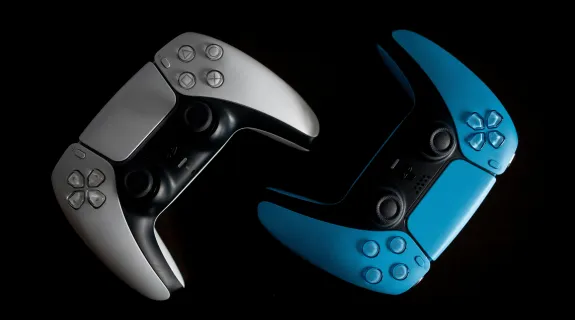
The collaboration between Sony and Discord was a major milestone for gamers, bringing cross-platform voice chat to the mainstream. However, for power users, community leaders, and content creators, the integration has a glaring omission: No Video Streaming.
While you can talk to your community, you cannot show them your gameplay directly from the console. Whether you are hosting a community tournament, coaching a student, or demonstrating a boss mechanic, the official app falls short.
The good news is that you don't need to wait for an update. By using a dedicated video pipeline, you can bypass these restrictions today. This guide serves as the ultimate technical resource on how to stream PS5 to Discord, ensuring your gameplay is broadcast with zero latency and crystal-clear audio.
The Missing Link: How to Stream PS5 to Discord with Video
When users search for how to stream ps5 to discord, they are often confused by the difference between "Voice Integration" and "Screen Sharing."
Understanding the Limitation
The native PS5 Discord app is an Audio Bridge. It connects the PS5's microphone/headphone channel to Discord's VoIP servers. It does not access the GPU's video encoder for third-party streaming.
To share your screen, you must externalize the video signal.
The Professional Workaround
To stream video to Discord, you must treat your PS5 as an external video source for your PC.
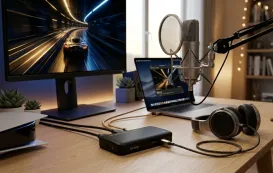
- The Workflow: PS5 HDMI Out -> Capture Card (NearStream) -> PC (OBS/Discord) -> "Go Live."
This method unlocks professional use cases that the native "Share" button cannot handle:
- Coaching & Reviews: A high-fidelity stream allows coaches to see UI details and text clearly.
- Community Events: Stream exclusive gameplay to a Discord Stage Channel for hundreds of server members.
- Game Demos: Show off new game mechanics in real-time without the compression artifacts of cloud streaming.
Technical Prep: How to Turn Off HDCP PS5 Settings
Before connecting any external video hardware, you must address the copy-protection protocols embedded in the PS5. Failure to do this is the #1 cause of "Black Screen" issues.
HDCP (High-bandwidth Digital Content Protection) is designed to stop piracy, but it inadvertently blocks capture cards from receiving game signals. You must know how to turn off hdcp ps5 protocols to proceed.
The Configuration Protocol:
- Direct Connection: Initially, connect your PS5 directly to your monitor (bypass the capture card).
- System Navigation: Go to Settings > System > HDMI.
- Deactivate: Locate the "Enable HDCP" toggle and switch it to OFF.
- Verification: Once disabled, you can safely connect your NearStream capture card. The signal will now pass through freely to your PC.
Warning: While HDCP is off, streaming apps like Netflix, Disney+, or Spotify on the PS5 will not function. You must re-enable it to use media apps.

Selecting the Best Capture Card for Discord Streaming
Streaming to Discord presents different technical challenges compared to Twitch or YouTube. On Twitch, a 5-second delay is acceptable. On Discord, interaction is often conversational and real-time. Therefore, Latency is the most critical metric.
NearStream is engineered to be the best capture card for Discord integration due to three specific architectural advantages:
1. Sub-50ms Latency (Real-Time Interaction)
If you are coaching a player or hosting a quiz event, you cannot afford delay. NearStream's ultra-low latency ensures that what you say aligns perfectly with what the audience sees.
- Competitor Cards: Often suffer from 200ms+ delay over USB 2.0, causing "Voice desync" where you react to an event before the audience sees it.
- NearStream: Delivers near-instant visual feedback.
2. UVC "Webcam" Protocol
Discord is picky about video inputs. It natively recognizes "Webcams" better than complex broadcast devices.
NearStream adheres to the UVC (USB Video Class) standard. This means Discord detects the card immediately as a valid video source, eliminating the need for virtual camera plugins or buggy driver software.
3. Color Accuracy (YUY2 Sampling)
For game artists or RPG enthusiasts sharing their screen, visual fidelity matters. NearStream supports YUY2 4:2:2 uncompressed color space, ensuring that the vibrant landscapes of Final Fantasy or Horizon are transmitted without the "washed out" look typical of MJPEG compressed cards.

Execution Guide: The "Windowed Projector" Method
While you can add the capture card as a "Camera" in Discord, that method often fails to transmit Game Audio.
To ensure your audience hears the game sound (explosions, music, dialogue), we recommend the OBS Windowed Projector workflow.
Step 1: The Signal Chain
- Connect PS5 HDMI to NearStream Input.
- Connect NearStream USB-C to your PC.
- Launch OBS Studio.
Step 2: Audio/Video Setup in OBS
- Add a "Video Capture Device" source and select NearStream.
- In the Audio Mixer, click the Gear Icon > Advanced Audio Properties. Set the NearStream audio to "Monitor and Output." (This ensures audio plays on your PC).
Step 3: The Projector Trick
- Right-click anywhere on the OBS video preview.
- Select "Windowed Projector (Preview)."
- A standalone window will appear containing your live PS5 footage. Do not maximize it; just resize it.
Step 4: Going Live on Discord
- Enter a Discord Voice Channel or Stage Channel.
- Click the "Share Your Screen" button (Not the "Turn on Camera" button).
- Go to the "Applications" tab.
- Select the "Windowed Projector (Preview)" window.
- Important: Ensure the "Stream Sound" toggle is enabled.
- Click "Go Live."
Result: Discord now captures the pure video feed and the system audio from that window, delivering a synchronized, high-quality broadcast to your server.
Troubleshooting: Ensuring Stability and Quality
Table 1: Discord Streaming Diagnostics
| Issue | Root Cause | Solution |
|---|---|---|
| Viewers see Black Screen | HDCP Handshake | Re-confirm HDCP is OFF in PS5 System Settings. |
| No Audio for Viewers | Wrong Share Mode | Ensure you shared the "Application" (Windowed Projector), not the "Screen." Discord only captures audio from specific apps. |
| Stream Pixelation | Discord Bitrate Cap | Free Discord users are capped at 720p/30fps. For 1080p/60fps clarity, the streamer needs Discord Nitro. |
| Stream Stuttering | Frame Rate Mismatch | Ensure OBS is set to 60fps and your PS5 output matches. |
Conclusion
The PlayStation 5 is a powerhouse of gaming, and Discord is the powerhouse of community. While the official integration bridges the audio gap, the lack of video support remains a barrier for true community interaction.
By leveraging a low-latency capture card like NearStream and following the "Windowed Projector" workflow, you break down this barrier. You are no longer limited to voice chat; you are equipped to host tournaments, conduct training sessions, and share high-fidelity gameplay experiences directly to your community.
FAQ: Frequently Asked Questions
Q1: Can I stream to a Discord server and Twitch at the same time?
A: Yes. Since the NearStream video feed is coming into OBS, you can hit "Start Streaming" in OBS to broadcast to Twitch, while simultaneously screen-sharing the OBS Projector window to Discord. This allows you to have a public broadcast and a private "VIP" backstage stream at the same time.
Q2: Does this method work for Discord Mobile viewers?
A: Yes. Users on the Discord mobile app can view your stream. However, ensure your bitrate isn't too high (keep OBS bitrate standard), or mobile users with poor data connections might experience buffering.
Q3: Will disabling HDCP affect my game performance?
A: No. Disabling how to turn off hdcp ps5 settings has zero impact on FPS, resolution, or graphical fidelity in games. It only disables media playback apps like Netflix.
Q4: Why use a capture card instead of PS5 Remote Play to PC?
A: Remote Play compresses the video heavily and introduces input lag because the signal travels over your home network. A capture card provides a direct, uncompressed, lag-free video signal, which is far superior for viewing quality.
Q5: What is the maximum resolution I can stream to Discord?
A: With a NearStream card, you can input 4K. However, Discord's output is limited by your account tier. Free users max out at 720p/30fps. Discord Nitro Classic users get 1080p/60fps. Discord Nitro users get source quality (up to 4K/60fps).



 sales@nearstream.us






