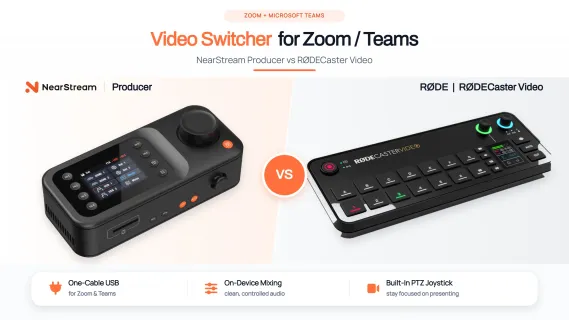
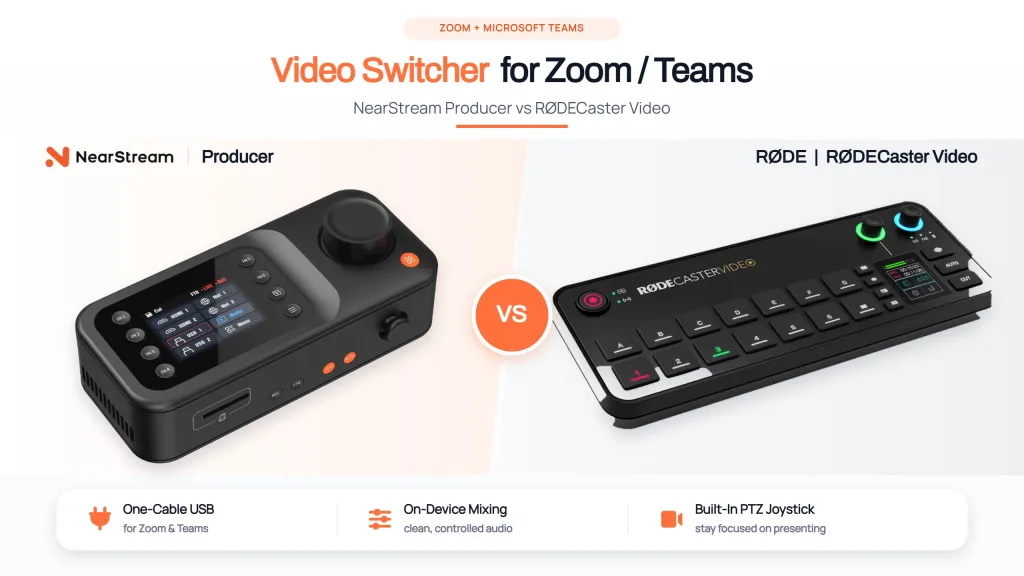
Video Switcher for Zoom and Teams: NearStream Producer vs RØDECaster Video
This article compares the best video switcher for Zoom setups, revealing why the NearStream Producer’s plug-and-play design beats complex audio consoles for live webinars.
video switcher
video switcher for live streaming
live streaming camera
Updated: Nov 12, 2026 · 8 minutes read
Modular Video Kits for Growing Business.
A single laptop webcam is fine until your webinar needs more than a talking head. When you want to seamlessly integrate presenter close-ups, top-down product demos, and physical whiteboards without technical glitches, a dedicated hardware video switcher becomes essential. This guide compares the NearStream Producer and RØDECaster Video to help you choose the right setup for professional, computer-hosted presentations.
Key Takeaways
True Plug-and-Play: The NearStream Producer offers a single-cable USB connection for Zoom, eliminating the dual-cable confusion of complex studio consoles.
Tactile PTZ Control: A built-in physical joystick allows solo presenters to adjust camera angles effortlessly without breaking eye contact or using a mouse.
Echo-Free Audio: Intuitive on-device audio mixing prevents the severe feedback loops often caused by PC-based audio routing software.
Smarter Slide Sharing: For the sharpest text, rely on native Zoom screen sharing rather than routing HDMI slides through your video switcher.
A single laptop webcam is fine until your webinar needs more than a talking head. Today’s B2B buyers, corporate trainees, and online students expect dynamic presentations. You may want a crisp close-up of the presenter, a top-down product demonstration, and a physical whiteboard view—all without asking your attendees to watch you awkwardly reposition a webcam mid-sentence.
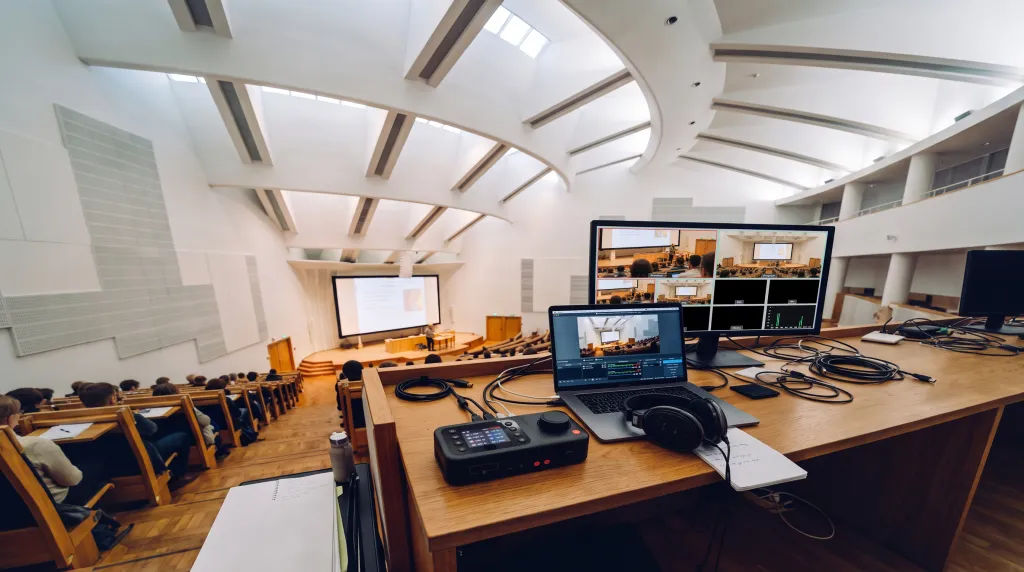
That is when a hardware video switcher becomes an absolute necessity for your desk. Your cameras and microphones feed into the switcher; the switcher mixes them into one finished, professional program; and Zoom or Microsoft Teams distributes it to your audience.
If you are currently comparing a video switcher for live streaming specifically for a computer-hosted webinar, the purchasing decision comes down to one critical question: Do you want to focus on presenting your content, or do you want to troubleshoot software?
For solo presenters, educators, and marketing teams, the NearStream Producer is our definitive top recommendation because it delivers a direct, plug-and-play USB workflow with intuitive tactile camera control. While the RØDECaster Video offers deep, studio-grade audio processing, real-world users often find its heavy reliance on PC software routing and dual-cable setups too complex and distracting for a live, fast-paced webinar environment.
Quick Answer: Which Fits Your Webinar Workflow?
Before we dive into the technical details, here is the bottom line on how these two devices fit into a real-world video production setup.
Decision factor
NearStream Producer (The Presenter's Choice)
RØDECaster Video (The Studio's Choice)
Best-fit webinar
Solo presenter-producer, corporate training, live demos, and stress-free business webinars.
Audio-first podcast productions that have a dedicated technical operator behind the scenes.
Computer connection
True Plug-and-Play: One single USB UVC cable sends both mixed video and audio directly to Zoom.
Complex Routing: Often requires two separate USB cables (one for media, one for app control) to unlock full features.
Audio approach
Intuitive 11-channel local mixing on the touch device. Prevents echo without needing an audio engineering degree.
Deep XLR audio processing that requires steep learning curves and PC app routing for mix-minus.
Control while presenting
Built-in physical PTZ Joystick and dedicated source buttons. Never break eye contact to use a mouse.
Relies heavily on the desktop companion app for PTZ control and advanced scene building.
The rest of this comparison focuses on why these specific hardware differences can either elevate your live webinar or cause a complete technical meltdown.
The USB Connection Maze: Why True "Plug-and-Play" Matters
A video switcher for Zoom should behave predictably. When you have 100 high-value attendees waiting in a meeting lobby, the last thing you want to do is diagnose USB port roles, reboot desktop software, or figure out why your computer suddenly doesn't recognize your camera feeds.
The RØDECaster Video’s USB architecture is surprisingly complicated for a modern device. RØDE’s official setup guide assigns USB 1 to the video stream, while USB 2 handles direct RØDECaster App control. If you want to send your video to Zoom and control your scenes via their application, you are instantly forced to manage multiple connections and software bridges.
Real users have described exactly how frustrating this learning moment is: one USB connection is only for changing settings via the app, while a different USB connection is used for the computer’s mic and video inputs. If you plug in the wrong cable first, your Zoom screen remains black. For a solo presenter who is already managing presentation notes and audience questions, this dual-cable confusion is a massive liability.
NearStream Producer eliminates this headache entirely with a true, presenter-friendly path. Its USB UVC output (see Producer's spec) means it acts exactly like a premium, standard webcam to your computer.
The NearStream webinar sequence takes seconds:
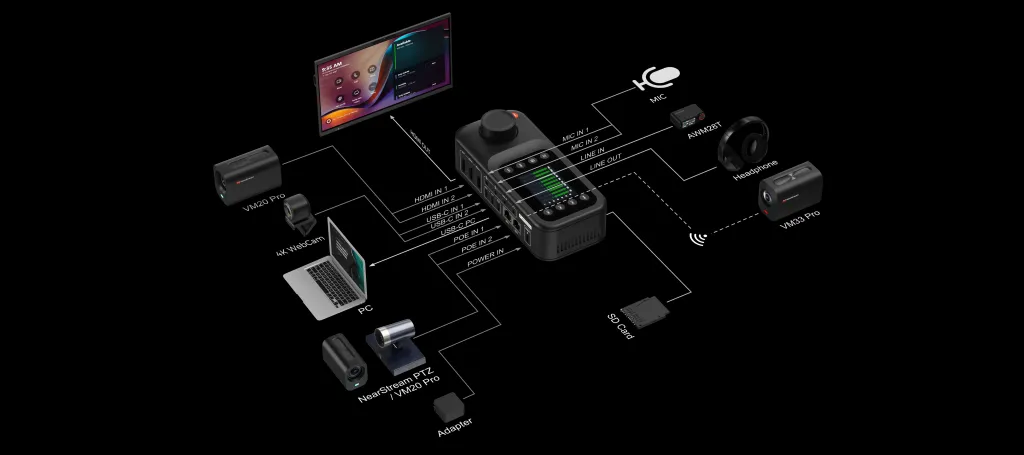
Connect your PTZ cameras and microphones directly to the Producer hardware.
Run one single USB-C cable from the Producer to your laptop.
Open your meeting software and select "NearStream Producer" in Zoom or Teams as your primary camera and microphone.
You are live.
Because all the core switching, screen monitoring, and audio controls remain on the NearStream hardware console, you never have to worry about a background PC app crashing or a secondary USB cable failing mid-stream.
Webinar Audio Routing: Mixing Mics Without the Echo
When it comes to audio routing, having the longest list of features isn't always a good thing—especially if you have to manage them live while speaking.
The RØDECaster Video inherited its DNA from complex audio mixing consoles, which means it brings studio-level complexity right to your office desk. While it certainly boasts powerful XLR inputs and advanced APHEX processing, setting up a simple Zoom call without getting nasty audio feedback (the dreaded echo) requires diving into the PC app's virtual Audio Mixer to configure custom output routing and mix-minus settings.
Users have reported struggling for months with the major learning curve required just to get basic background music, live instrumentation, and speaking voices properly routed into meeting platforms without audio glitches or delays.
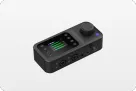
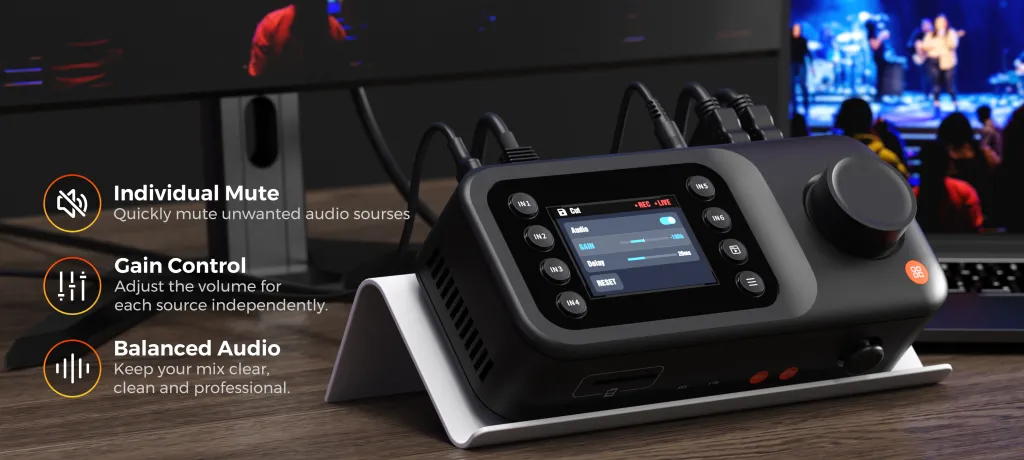
NearStream Producer takes a much more direct, visual approach that respects the presenter's time. Its built-in 11-channel mixer brings your microphones, cameras, and line-level audio sources into one highly intuitive touch interface on the device itself. You can easily adjust the gain, mute specific channels, and fix audio sync delays right on the console screen.
You build the perfect program mix locally and send one clean, echo-free audio feed into Zoom. You get professional, broadcast-quality audio without needing to hire a sound engineer.
Tactile Control While Presenting: The PTZ Joystick Advantage
Imagine explaining a complex product feature on camera. You need to cut from your face to a top-down camera, seamlessly zoom in on a specific part, and then cut back to your wide shot.
With the RØDECaster Video, while you have basic physical buttons to switch between inputs, moving a compatible network PTZ (Pan-Tilt-Zoom) camera requires you to use the RØDECaster PC App. This forces you to break eye contact with your audience, grab your computer mouse, and fiddle with virtual controls on your laptop screen while you are actively supposed to be presenting.
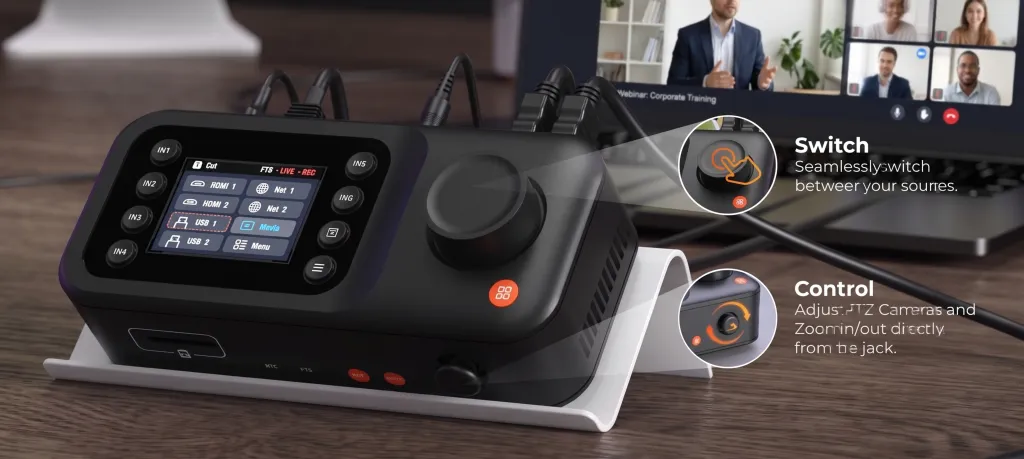
NearStream Producer puts the ultimate solo-presenter tool right at your fingertips: a built-in 5-way physical PTZ joystick.
This is an absolute game-changer for a camera switcher. Your hand can rest comfortably on the console, naturally toggling between camera inputs, while your thumb uses the joystick to smoothly pan, tilt, and zoom your compatible PTZ cameras.
Combined with the True Preview multiview screen directly on the device, you can frame your next shot perfectly before sending it to your Zoom audience—all while maintaining the flow of your presentation. When you are live on air, physical tactile controls beat software menus every single time.
Handling Presentation Slides: Hardware vs Software Share
One crucial tip for any professional webinar host: do not route your PowerPoint or Keynote computer through an HDMI cable into any hardware switcher merely to show slides. Doing so turns crisp text into a heavily compressed video feed, making it much harder for your Zoom attendees to read small fonts or data charts.
The smartest, most reliable workflow lets your hardware and software do exactly what they do best:
Let the NearStream Producer handle the heavy lifting of your high-quality, multi-camera video production (your face, the physical whiteboard, the product demo).
Use Zoom’s native "Share Screen" or Teams’ built-in content-sharing controls to display your slide deck directly from your computer.
This dual approach guarantees that your audience sees the sharpest possible text on the slides natively, while your video feed remains a professional, dynamically switched production in the corner of their screen.
Which Video Switcher Elevates Your Webinar?
If you are running a complex audio studio, have a dedicated technical operator sitting in another room, and have months to learn intricate routing software, the RØDECaster Video is undeniably a powerful audio-first device.
But if you are a professional who needs to actually host the webinar, the choice is overwhelmingly clear.
NearStream Producer is the ultimate video switcher for Zoom and Microsoft Teams. Its single-cable USB UVC output completely eliminates pre-show connection anxiety. Its intuitive on-device audio mixing prevents embarrassing echoes. And most importantly, its physical switching buttons and integrated PTZ joystick allow you to direct a multi-camera show flawlessly without ever taking your eyes off your audience.
If you are comparing a video switcher for live streaming, choose the equipment that lets you focus entirely on your presentation, not your IT setup.
Don’t let tech glitches ruin your next webinar. Not sure how to connect your specific cameras and microphones to Zoom or Teams? Explore NearStream Producer and tell us your gear list. Our experts will help sketch out the perfect, stress-free NearStream workflow for your presentation.
FAQs
Do I need an external capture card if I use a hardware video switcher for Zoom?
If you choose the NearStream Producer, you do not need an external capture https://www.nearstream.us/all-in-one-live-streaming-producercard. The Producer features a built-in USB UVC output. This means that once you connect it to your computer via a single USB-C cable, Zoom and Teams will instantly recognize it as a standard high-definition webcam and microphone.
Can I connect remote guests directly into the video switcher?
A common mistake is trying to route remote guests into hardware switchers. While some audio-first devices claim "remote call" features (which often require buying extra audio gear), the most reliable workflow is to let your conferencing platform handle the remote bridging. Use your video switcher for Zoom to perfect your local multi-camera setup (presenter, products, wide shots), and let Zoom natively handle the layout of your remote guests via Gallery View.
How do I avoid audio echo during a multi-camera Teams webinar?
Audio echo usually happens when computer audio is accidentally routed back into the live microphone feed. To avoid this, use a device with intuitive local audio mixing. The NearStream Producer allows you to visually manage all your audio levels and mute unnecessary channels directly on its touchscreen, sending one clean master track to your computer. Always use headphones to monitor the final output before going live.
Can I control PTZ cameras without opening software on my computer?
Yes. While many switchers rely on companion PC apps for camera movement, the NearStream Producer features a built-in 5-way physical PTZ joystick. This allows you to smoothly pan, tilt, and zoom your compatible network cameras directly from the hardware console, ensuring you never have to break eye contact with your audience to click a mouse.











 sales@nearstream.us