
























































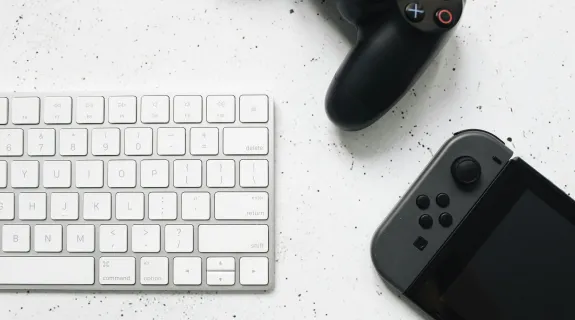
You have finally settled into your dorm room, hotel, or coffee shop. You pull out your Nintendo Switch to play The Legend of Zelda, only to realize: there is no TV. You look at your laptop and think, "Why can't I just plug the Switch into my computer screen?"
You try plugging in the HDMI cable, but nothing happens. The screen stays black.
Don't panic. Your laptop isn't broken. You are just missing one key tool. In this guide, we will show you exactly how to connect Nintendo Switch to laptop screens using a simple pocket-sized device, turning your workspace into a high-definition gaming station instantly.
The Hidden Problem: Why HDMI Cable with Laptop Doesn't Work
Before we fix the problem, we need to understand why the direct connection fails. This is the most common confusion for new students and travelers.
Most laptops are designed to send video, not receive it.
- The Switch Dock sends an HDMI signal (Output).
- The Laptop HDMI Port also sends an HDMI signal (Output).
When you plug an HDMI cable with laptop and Switch together, you are connecting two "Output" ports. It’s like two people talking at each other with neither one listening. To fix this, you need a "translator" that can accept the video signal and convert it into data your laptop can understand.
Table 1: The "Input vs. Output" Reality Check
| Device | HDMI Port Type | Function | Result of Direct Connection |
|---|---|---|---|
| TV / Monitor | HDMI Input | Receives & Displays Video | ✅ Works Perfectly |
| Nintendo Switch | HDMI Output | Sends Video Signal | N/A |
| Laptop | HDMI Output | Sends Video (to Projectors) | ❌ Black Screen (No Signal) |
| Capture Card | HDMI Input + USB Output | The Bridge (Translator) | ✅ Works on Laptop Screen |
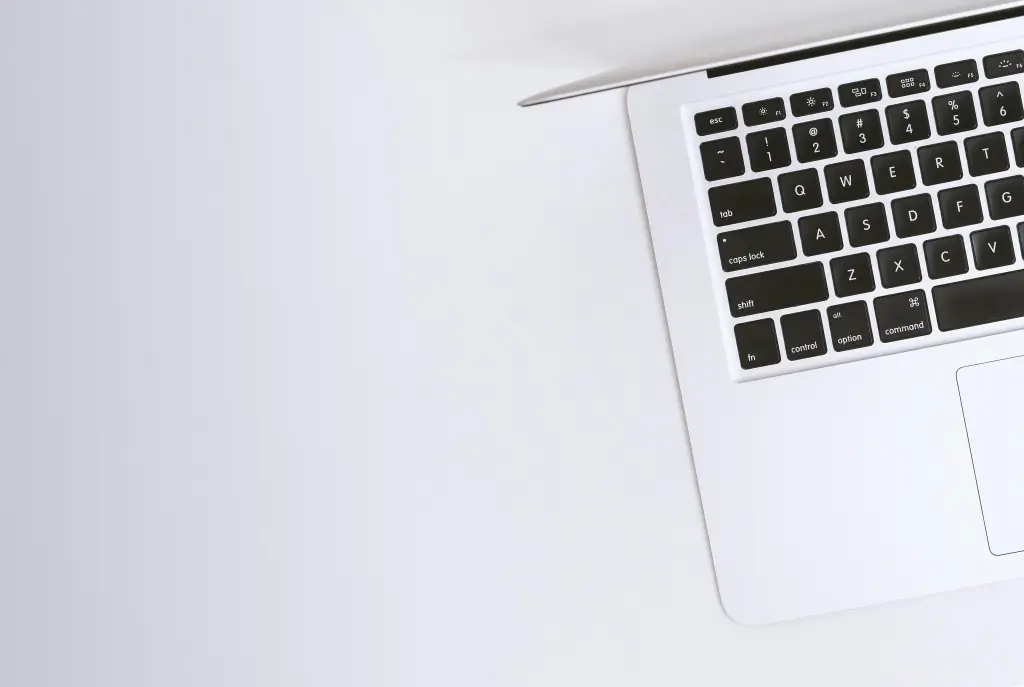
The Solution: Using a Capture Card for Laptop as a Bridge
To solve the "Output vs. Output" conflict, you need a capture card for laptop.
Think of a capture card not just as a streaming tool, but as an HDMI Adapter. It tricks your laptop into thinking the Nintendo Switch is a webcam. Just like you can see yourself in a webcam window, you can see your Mario Kart race in a window on your desktop.
Why NearStream is the Perfect "Dorm Companion"
For students and travelers, you don't need a bulky, expensive studio card. You need portability.
- No Extra Power: Unlike old capture cards that needed wall outlets, NearStream is powered directly by your laptop via USB.
- Durability: Made with an aluminum alloy shell, it survives being tossed in backpacks without overheating during long Smash Bros sessions.
Step-by-Step Guide: How to Connect Nintendo Switch to Laptop
(Keyword: how to connect nintendo switch to laptop)
Here is the foolproof, 3-step method to turn your laptop into a gaming monitor.
Step 1: The Hardware Handshake
- Dock the Switch: Place your Nintendo Switch into its official Dock. (You cannot connect the Switch Lite or the tablet mode directly without the Dock).
- Connect HDMI: Plug one end of your HDMI cable into the Switch Dock, and the other end into the Input port of your NearStream Capture Card.
- Connect to Laptop: Plug the USB end of the NearStream card into a USB 3.0 port (Blue/Red) on your laptop.
- Pro Tip: Always use a USB 3.0 port. USB 2.0 ports are too slow and will cause lag.
Step 2: The Software (OBS Studio)
You need a "viewer" app to see the footage. We recommend OBS Studio because it is free, open-source, and low-latency.
- Download and install OBS Studio.
- Open OBS. You will see a black canvas.
Step 3: Configuring the Display
- In the "Sources" box at the bottom, click the + icon.
- Select Video Capture Device.
- Name it "Switch Gameplay".
- In the "Device" dropdown menu, select NearStream Capture.
- Boom! Your Switch screen should appear in the window.
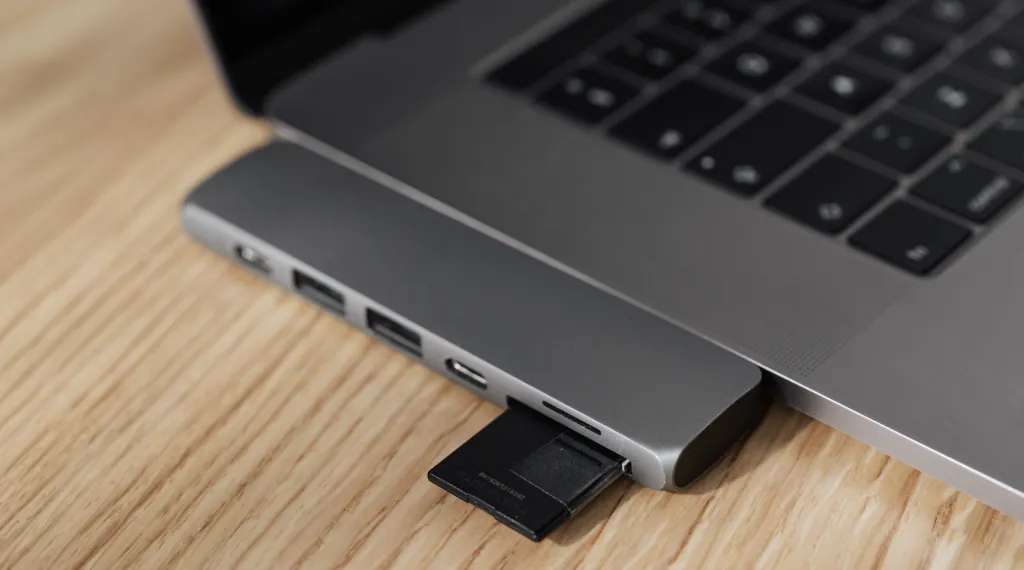
How to Use Laptop as Monitor with Zero Audio Lag
Seeing the video is only half the battle. Many users complain: "I can see the game, but I can't hear it!" or "The sound is delayed."
To properly master how to use laptop as monitor, you must configure the Audio Monitoring in OBS.
- Enable Sound: In the OBS Audio Mixer, find your "Switch Gameplay" audio bar. Click the Gear Icon (Settings) > Advanced Audio Properties.
- Monitor Only: Under "Audio Monitoring," change the setting from "Monitor Off" to "Monitor and Output". Now, the game sound will play through your laptop speakers or headphones.
Table 2: Optimizing OBS for NearStream (The "Zero-Lag" Settings)
| Setting | Recommended Value | Why? |
|---|---|---|
| Resolution | 1920x1080 | Matches Switch Native Output. |
| FPS | 60 FPS | Essential for smooth motion in games like Splatoon. |
| Video Format | YUY2 | Crucial: Provides uncompressed color and faster processing speed. |
| Color Space | 709 | Ensures correct black levels (not washed out). |
| Buffering | Disable | Forces real-time playback to minimize input lag. |
Why NearStream is the Best Capture Card for Students & Travelers
When you search for the best capture card for this specific use case, you will see options ranging from $15 to $200. Why choose NearStream?
1. The "Generic Card" Trap
Cheap $15 generic cards often use "Software Compression" (MJPEG). This adds a 100ms-300ms delay.
- The result: You press "Jump" in Mario, and he jumps half a second later. The game becomes unplayable.
2. The NearStream Advantage (FPGA Technology)
NearStream uses dedicated hardware chips to process the video instantly. This results in Ultra-Low Latency.
- The experience: The lag is virtually imperceptible to the human eye. You can play reaction-heavy games like Zelda: Tears of the Kingdom directly on the OBS preview window without needing a TV pass-through.
3. Heat Management
Dorm rooms can get hot. Laptops get hot. Cheap plastic cards overheat and freeze after 30 minutes. NearStream's thermal design ensures it stays cool, even during an all-night gaming marathon.
Troubleshooting Common Connection Issues
Even with the best hardware, software settings can be tricky. Use this matrix to solve problems fast.
Table 3: The "Dorm Gamer" Troubleshooting Matrix
| Problem | Likely Cause | Rapid Fix |
|---|---|---|
| Black Screen | Dock Power Issue | Ensure the Switch Dock is plugged into the wall power, not just the laptop. The Dock needs AC power to output HDMI. |
| Game is Laggy/Choppy | Wrong USB Port | Move the NearStream card to a Blue (USB 3.0) port. USB 2.0 is too slow for 1080p 60fps. |
| No Audio | Windows Privacy Settings | Go to Windows Settings > Privacy > Microphone > Allow apps to access your microphone (OBS needs this permission to hear the HDMI audio). |
| Fuzzy / Blurry Image | Wrong Resolution | Right-click the Source in OBS > Resize Output (Source Size). Ensure it is set to 1080p. |
| Audio Echo | Double Monitoring | Mute the "Desktop Audio" in OBS if you are not streaming, or ensure you only have "Monitor Only" selected for the Switch source. |
Conclusion
Living in a dorm or traveling for work doesn't mean you have to give up your big-screen gaming experience. You don't need to buy a portable monitor or hijack the hotel TV.
By understanding how to connect Nintendo Switch to laptop using the NearStream capture card, you unlock the ability to play anywhere. It is the ultimate "life hack" for gamers on the go—turning the laptop you already own into the high-performance monitor you need.
Pack your Switch, grab your NearStream, and game on.
FAQ: Frequently Asked Questions
Q1: Can I use this method with a Nintendo Switch Lite?
A: No. The Nintendo Switch Lite lacks the internal hardware to output video via USB-C. This method only works with the standard Switch (V1/V2) and the Switch OLED model, and they must be docked.
Q2: Will playing on my laptop screen cause lag?
A: With a high-quality capture card like NearStream, the latency is extremely low (often under 20-50ms), making it perfectly playable for most games. However, competitive fighting games (like Smash Bros online ranked) might feel slightly different compared to a direct TV connection.
Q3: Can I connect my PS5 or Xbox Series X to my laptop this way too?
A: Yes! This method works for any HDMI device. You can use your laptop as a monitor for PS5, Xbox, Raspberry Pi, or even another camera. The setup steps are exactly the same.
Q4: Do I need a high-end gaming laptop for this to work?
A: No. Since you are just "viewing" the footage and not recording/streaming it to the internet, even a basic school laptop (MacBook Air or Windows Ultrabook) can handle the task easily. The capture card does the heavy lifting.
Q5: Can I play in full screen?
A: Yes. In OBS, right-click anywhere on the video preview and select "Fullscreen Projector (Preview)." This will make the game fill your entire laptop display, hiding all the OBS menus and buttons.



 sales@nearstream.us






