


























































Whether you are a creator trying to save a catchy background song, a podcaster repurposing a YouTube interview, or an editor isolating a voiceover, knowing how to extract audio from video is a foundational skill in 2026.
With the rise of AI-powered editing and multi-platform content creation, separating audio from video is no longer a tedious technical chore. It takes just seconds if you have the right tools. In this guide, we will demystify the process, share the 3 universal steps, and review the 9 best tools for Mac, PC, and mobile.
In this article, we’ll walk you through the best tools to extract audio from video, including:
- Adobe Premiere Pro
- CapCut
- iMovie
- Audacity
- VLC Media Player
- InShot
- Audio Extractor (Android)
- QuickTime Player
- DaVinci Resolve
Whether you’re editing on desktop or mobile, free or pro, we’ve got you covered.
Why You Might Need to Extract Audio from Video
Separating audio from video isn’t just a technical trick – it’s a creative superpower:
Rescue Imperfect Recordings: Remove background noise (construction, wind, chatter), hums, or sudden spikes without altering visuals.
Example: A travel vlogger eliminates motorbike sounds from a Bali temple scene.
Legal & Licensing Flexibility: Replace copyrighted music instantly. Add royalty-free tracks or custom scores post-production.
Example: A YouTuber swaps a popular song for Epidemic Sound track after a copyright claim.
Multilingual Content Expansion: Record voiceovers in Spanish, Hindi, or Japanese without re-shooting footage.
Example: A SaaS company localizes a product demo for 6 markets using 1 video.
Repurpose Content Strategically: Transform webinars into podcasts, TikTok videos into Instagram Reels audio, or tutorials into voice-guided tutorials.
Example: A marketer turns a 60-minute LinkedIn Live into 12 podcast episodes. If you are looking to maximize your engagement across platforms, our Instagram Live guide for creators provides more pro tips on tools and strategies for high-impact broadcasting.
- Advanced Sound Design: Layer ambient sounds (rain, cafe chatter) or Foley effects (footsteps, door creaks) with surgical precision.
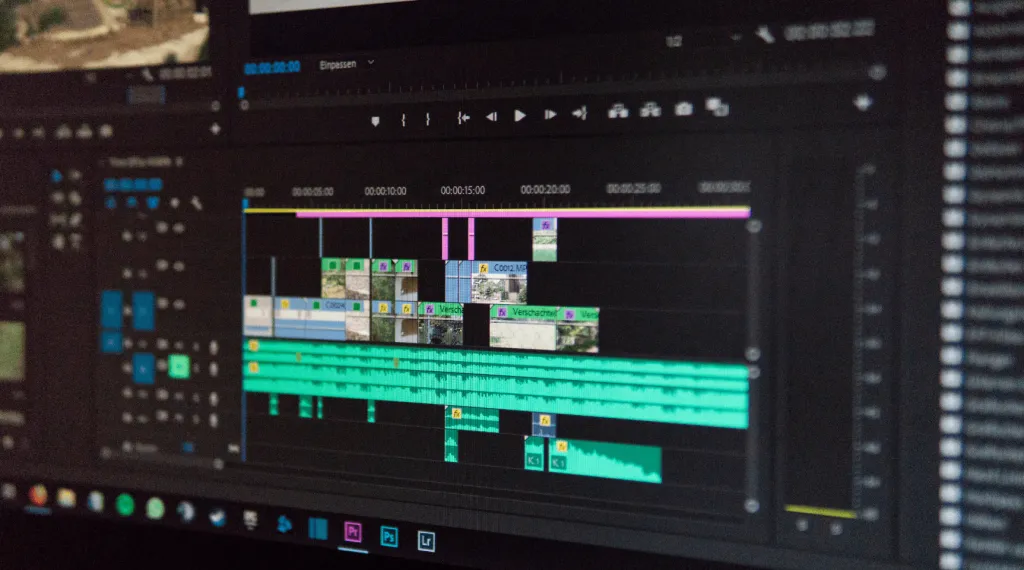
Audio Extraction Demystified: It’s Simpler Than You Think
"Audio extraction," "audio splitting," or "detaching audio" all mean one thing: decoupling the sound waveform from the visual frames in your video file (MP4, MOV, AVI, etc.).
How It Works Technically:
Editing software reads the video’s container (e.g., MP4), identifies the audio stream (usually AAC or MP3), and extracts it into a standalone audio file (WAV, MP3). No complex coding needed!
Myth Busting for 2026: * ❌ "You need expensive software" → Free tools like Audacity or CapCut work perfectly.
- ❌ "Quality always degrades" → Exporting as WAV preserves true lossless quality.
- ❌ "It takes hours" → Thanks to modern processors, most extractions finish in under 60 seconds.
Creators and professionals detach audio from video for several reasons:
- Podcasting: Turning a recorded YouTube video or Zoom interview into an audio-only podcast (MP3 or WAV).
- Audio Editing: Isolating the audio track to remove background noise, wind, or echo in a dedicated audio editor.
- Saving Storage: Audio files are significantly smaller than video files, making them easier to share and store.
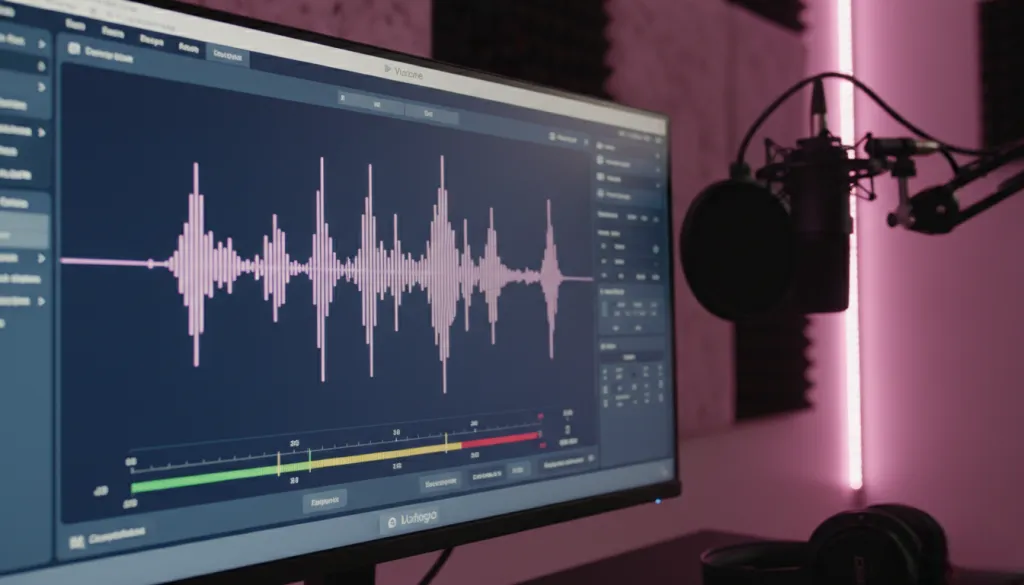
How to Extract Audio from Video: 3 Universal Steps
Regardless of your software, these core steps apply across the board:
Step 1: Import Your Video
- Formats Supported: MP4, MOV, AVI, MKV, FLV, WMV (varies by tool).
- Pro Tip: Struggling with a "corrupted file"? Convert it first using HandBrake (free).
Step 2: Extract/Separate the Audio Track
Software terminology varies:
- Adobe Premiere Pro: "Extract Audio"
- iMovie: "Detach Audio"
- CapCut: "Separate Audio"
- VLC: "Convert" > Choose Audio Format
- Critical Setting: Ensure "Delete Original Audio" is UNCHECKED to preserve your source file.
Step 3: Export & Format Your Audio File
Choose wisely based on your 2026 content strategy:
- WAV: Lossless (CD Quality) | Very Large | Best for Music production, mastering.
- FLAC: Lossless | Large | Best for Archiving high-fidelity audio.
- AAC: High Quality | Medium | Best for YouTube, iOS devices.
- MP3: Good Quality | Small | Best for Podcasts, quick social media sharing.
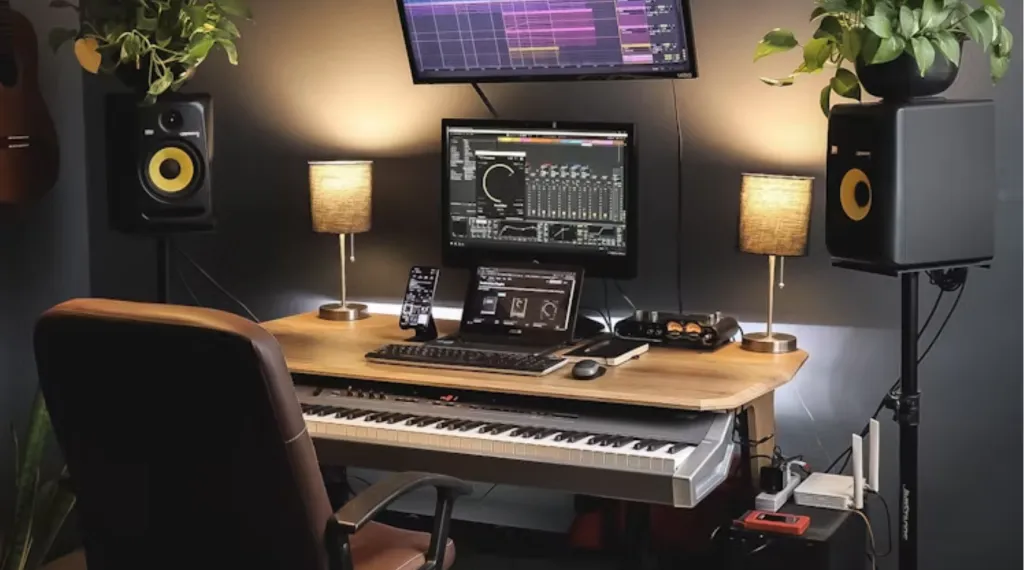
💡 Expert Tip: Record Clean Audio from the Start (The 2026 Hardware Stack)
While extracting audio is incredibly helpful for editing, spending hours trying to 'fix' extracted audio in post-production is a massive time sink. Consulting a comprehensive microphone buying guide can help you select the right USB or XLR gear to capture pristine sound from the very first take. Starting with clean, high-quality recordings minimizes the need for heavy extraction and repair.
NearStream’s professional hardware helps creators capture crisp, balanced audio from the very first take:
- AM25X Condenser Microphone: Perfect for capturing broadcast-quality vocals while rejecting room echo.
- AMIX40U Audio Mixer: Allows you to monitor, EQ, and mix live sound and background music in real-time. You can separate vocal and background tracks live, making your audio editing process frictionless.
Tool | Best For | Platform | Cost |
|---|---|---|---|
Premiere Pro | Advanced Editors | Mac / Windows | Paid |
CapCut | TikTok/Reels Creators | Mobile / Desktop | Free / Freemium |
Audacity | Podcasters / Purists | Mac / Windows | Free |
VLC | Batch Processing | Mac / Windows | Free |
InShot | Quick Mobile Edits | iOS / Android | Freemium |
The 9 Best Tools to Extract Audio from Video
1. Adobe Premiere Pro: Frame-Perfect Extraction
- Best For: Filmmakers, agencies, advanced editors.
- Key Strengths: Extract audio from 8K/VR footage; Edit in Adobe Audition with one click; New 2026 AI-powered "Enhance Speech" and "Remix" tools.
- Step-by-Step: Import video > Drag to timeline > Right-click clip > Extract Audio (Creates new audio track below) > File > Export > Media > Format: WAV or MP3.
2. CapCut: Cross-Platform Sound Splitting
- Best For: TikTok/Reels creators, quick edits.
- Key Strengths: Highly upgraded AI voice isolation in 2026; Extract audio + auto-captions in one click; Direct upload to social platforms.
- Mobile Tutorial: Open CapCut > Add video > Tap video clip in timeline > Select Audio > Tap Extract > Save as MP3.
3. iMovie (Apple Ecosystem Standard)
- Best For: Mac/iPhone beginners.
- Hidden Gem: Use Apple's built-in Audio Enhancements to reduce noise AFTER extraction.
- Mac Workflow: Drag video into timeline > Right-click clip > Detach Audio > Click audio track > File > Share > File > Select Audio Only > Export as M4A or AIFF.
4. Audacity (Free & Open-Source)
- Best For: Podcasters, audio purists.
- Pro Tip: Use the FFmpeg library to import MP4/MOV directly into the interface.
- Advanced Technique: File > Import > Audio > Select video file > Edit audio (cut noise, normalize volume) > File > Export > Choose MP3 or WAV. Once you have your standalone file, you can follow our tutorial on how to improve voice quality to ensure your audio sounds professional on TikTok and other platforms.
5. VLC (The Swiss Army Knife)
- Best For: Tech-savvy users, batch conversions.
- Power User Hack (Batch Convert): Media > Convert / Save > Add multiple videos > Click Convert/Save > Profile: Audio - MP3 > Set destination folder > Start.
6. InShot (Mobile Editing King)
- Best For: Android/iOS social creators.
- Unique Feature: Extract audio AND add new music in under 60 seconds right from your phone.
- Android Guide: Open video > Tap Music note icon > Tap Tracks > Video Track > Tap Extract > Save as MP3.
7. Audio Extractor (Android Specialist)
- Best For: Pure extraction on Android devices.
- Advantage: Allows you to trim the audio before export, saving storage space.
- Workflow: Tap Select Video > Drag sliders to trim start/end > Select format: MP3/WAV > Convert.
8. QuickTime Player (Mac’s Built-in Solution)
- Best For: Mac users needing incredible speed without third-party apps.
- 30-Second Method: File > Open File > Select video > File > Export As > Audio Only > Name file > Export as M4A.
9. DaVinci Resolve (Professional Free Alternative)
- Best For: Colorists and editors expanding into deep audio mixing.
- Fairlight Audio Workflow: Import video to "Media Pool" > Drag to timeline > Right-click > Detach Audio > Edit in the Fairlight page (EQ, dynamics) > Deliver page > Select Audio Only preset.
How Do You Extract Audio from Video on Any Device?
| Platform | Recommended Tools |
| 💻 Mac Users | QuickTime, iMovie, CapCut, Final Cut Pro |
| 🖥️ Windows Users | Adobe Premiere Pro, Audacity, VLC, Windows Movie Maker |
| 📱 iOS | iMovie, CapCut, VLC, InShot |
| 📱 Android | InShot, CapCut, Audio Extractor, Timbre |
How to Choose Your Audio Extractor: 5 Key Factors
- Device Ecosystem:
- Apple-only? → iMovie, QuickTime, DaVinci Resolve.
- Windows/Android? → Audacity, VLC, Audio Extractor.
- Output Quality Needs:
- Music production → WAV/FLAC export (Premiere, Audacity, DaVinci).
- Podcasts/social → MP3/AAC (CapCut, InShot, VLC).
- Advanced Editing:
- Noise removal/EQ → Audacity, Premiere Pro, DaVinci.
- Basic split only → QuickTime, Audio Extractor.
- Batch Processing: Convert 100+ videos? → VLC (desktop), Adobe Media Encoder.
- Budget:
- Free → Audacity, VLC, CapCut, iMovie.
- Professional → Premiere Pro ($35.99/mo), DaVinci Studio ($295).
Troubleshooting Audio Extract from Video
Problem 1: "Extracted audio is out of sync!"
- Cause: Variable frame rate (VFR) from phones/screen recordings.
- Fix: Convert video to constant frame rate (CFR) via HandBrake before extraction.
Problem 2: "My software won’t import MP4!"
- Cause: Missing codecs (especially on older Audacity).
- Fix: Install FFmpeg (free) or switch to VLC.
Problem 3: "Audio quality sounds tinny/echoey."
- Cause: Low bitrate export or mic interference.
- Fix:
- Re-extract as WAV (never edit MP3s).
- Use Audacity’s
Noise ReductionorEqualization.
Problem 4: "I lost the original video after extraction!"
- Prevention: ALWAYS duplicate footage before editing.
- Recovery: Use backups or recovery software like Disk Drill.
Key Takeaways: Master Audio Extraction
- Extracting audio solves noise issues, copyright problems & unlocks content repurposing.
- Use the right tool: Free (Audacity/VLC), Mobile (InShot/CapCut), Pro (Premiere/Riverside).
- Always export as WAV for editing → Convert to MP3/AAC after mastering.
- Batch process for large volumes (VLC/Adobe Media Encoder).
- Skip extraction entirely: Record split audio/video tracks with Riverside.fm for studio quality and editing agility.
FAQ: How Can I Extract Audio from Video?
How do I extract audio from a private YouTube video?
Use yt-dlp (command-line tool) to download as MP4 → Extract audio via Audacity/VLC.
How can I extract audio from a video on mobile?
Apps like InShot or CapCut let you extract sound from video directly on iOS or Android.
- Open your project
- Tap your video
- Tap Scissors > Detach
- Save your audio
Can I extract audio from Instagram Stories?
Android: Screen record → Use Audio Extractor. iPhone: Use StorySaver app → Import to iMovie.
What’s the fastest method for 100 videos?
VLC: Media > Convert/Save > Batch add files → Set audio profile → Start.
Can I extract audio without software?
Yes—online converters allow basic audio extract from video, but they’re not ideal for private or large files.
Why choose WAV over MP3 for editing?
MP3 is "lossy" – deletes data to shrink files. WAV preserves every detail for clean edits.
How to extract an audio from a video without losing quality?
Export in WAV format using Premiere Pro, Audacity, or QuickTime for the best audio quality.
How do you extract audio from a video?
Use tools like VLC, Audacity, or CapCut to extract audio from video by converting it into MP3 or WAV format.
Final Thoughts: Extract Audio Like a Pro
Whether you’re a beginner or a seasoned content creator, knowing how to extract audio from video is a valuable skill. From removing background noise to creating podcasts or multi-language voiceovers, extracting audio gives your content new life.
As you’ve seen, there are many ways to extract sound from video, depending on your device and goals. If you’ve ever asked yourself, “How do you extract audio from a video?” or “How can I extract audio from a video without losing quality?”, this guide should have you covered.




 sales@nearstream.us






