


























































Streaming high-fidelity games in 2026 demands more than just a fast internet connection; it requires a delicate balance of system resources. Most guides on how to optimize gaming pc for streaming suggest lowering graphics or closing background apps—sacrifices no serious creator should make. To unlock true performance, you must shift from software-based encoding to hardware-precision capture. By offloading the heavy lifting to the best capture card like the NearStream CCD30, you can achieve a zero-compromise broadcast. This guide explores the technical evolution of streamer setups and why hardware-level optimization is the secret to professional-grade clarity.
The Resource War: Why Software Optimization is a Band-Aid
When gamers search for how to optimize gaming pc for streaming, they are usually trying to fix a fundamental hardware conflict: the battle for the GPU and CPU.
The Myth of Software Tweaks
Traditional "optimization" usually involves overclocking, adjusting Windows "Game Mode," or prioritizing OBS in the CPU scheduler. While these help on the margins, they don't solve the core issue: System Interruption.
- The "Wait State" Problem: When your GPU is 99% utilized by a game like Cyberpunk 2077, the streaming encoder often has to "wait" for a clock cycle to process a frame. This leads to "Encoding Overloaded" messages in OBS.
- Context Switching: Every time your CPU switches between running game logic and encoding a video frame, there is a performance hit. In fast-paced shooters, this translates to micro-stutters that can cost you the match.
- VRAM Contention: Modern games are VRAM-hungry. Running a 4K stream alongside a 4K game can push your graphics memory to the breaking point, leading to system instability.
The Hardware Solution: Total Offloading
The only way to achieve "0% performance loss" on your gaming rig is to treat the video signal as an external data stream. By using a capture card for streaming like the NearStream CCD30, your gaming PC "thinks" it is just connected to a standard monitor. The NearStream CCD30 then takes that raw HDMI signal and handles the heavy data packaging, preserving every cycle of your CPU/GPU for the game itself.
Technical Core: How to Optimize Gaming PC for Streaming via Dual-PC Setup
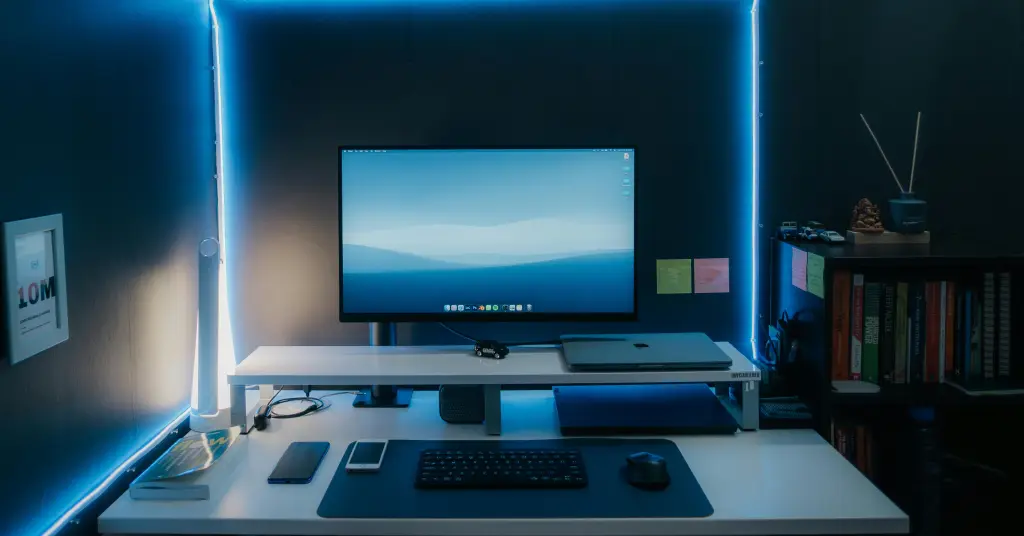
The best streaming setups for gaming in 2026 have moved away from single-PC struggles toward the Dual-PC (2PC) paradigm. This is the gold standard for anyone serious about quality and stability.
The Architecture of a Dual-PC Setup
In this configuration, your Gaming PC handles the game, and your Streaming Laptop/PC handles the broadcast.
- Gaming PC: Focuses 100% of its GPU/CPU on rendering.
- NearStream CCD30: Acts as the high-speed bridge.
- Streaming PC: Receives the 4Kp60 USB 3.1 output and encodes it for Twitch or YouTube.
Why This is the "Ultimate Optimization"
| Metric | Single-PC (Software) | Dual-PC with CCD30 (Hardware) |
|---|---|---|
| FPS Impact | 15% - 30% Reduction | 0% Reduction |
| Input Lag | Variable (Encoder Load) | Premium Ultra Low Latency |
| Encoding Lag | Common in high-motion | Non-existent (Independent) |
| Reliability | Crash on Gaming PC = Stream Ends | Independent (Stream Stays Live) |
| Heat Management | High (Internal stress) | Low (Workload split) |
The Science of Bandwidth: Why CCD30 is the Best Capture Card
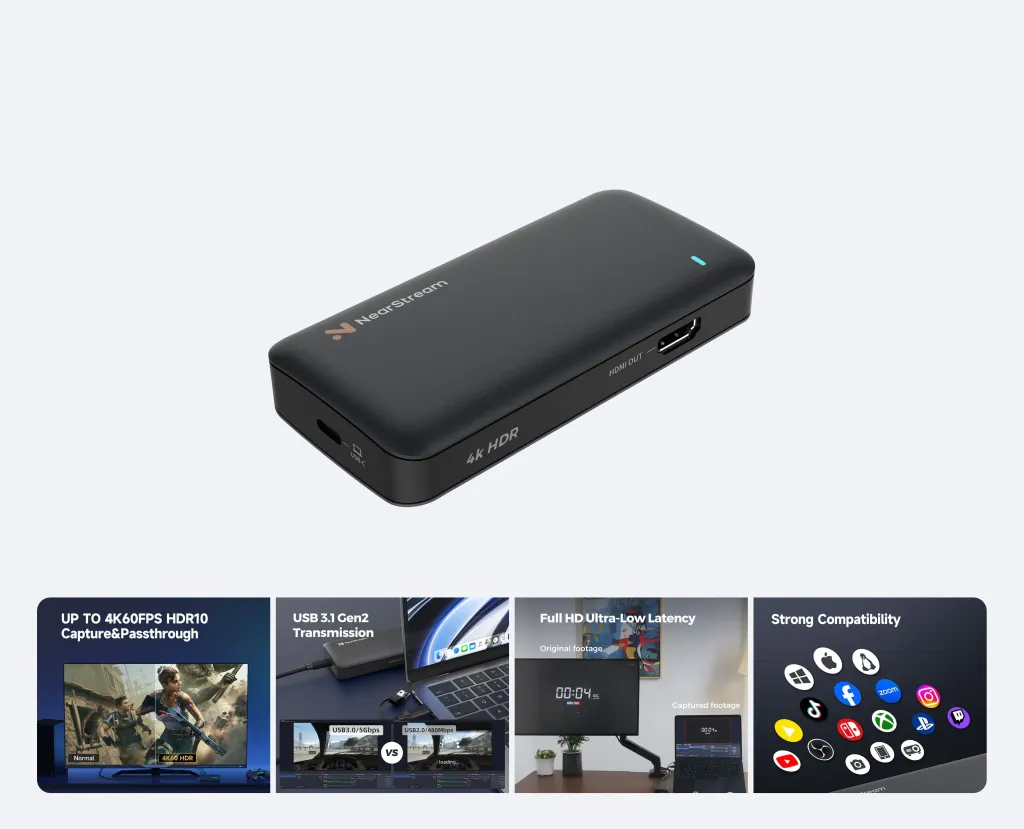
Choosing the best capture card requires looking at the data interface and the internal processing power. The NearStream CCD30 is engineered for "Hardware Precision."
USB 3.1 Gen 2: The 10Gbps Revolution
Most streamers don't realize that a "4K card" is only as fast as its USB port.
- The Bandwidth Wall: 4K60 video at 8-bit color requires massive throughput. USB 3.0 (5Gbps) often forces the card to use heavy MJPEG compression, which introduces "macro-blocking" (pixelated squares in fast motion).
- The CCD30 Edge: With a USB-C 3.1 interface, the CCD30 offers a reliable 10Gbps pipeline. This allows for uncompressed or low-compression formats like NV12 and YUY2, ensuring the image on your stream is a "pixel-perfect" mirror of your gaming monitor.
Premium Ultra Low Latency (ULL) Engineering
When you search for how to optimize gaming pc for streaming, input lag is the primary concern. The CCD30’s ULL technology ensures that the delay between your mouse click and the frame appearing in OBS is sub-50ms.
- Competitive Edge: Sub-50ms latency means you can play competitive games like Valorant or Apex Legends while looking at your OBS preview window without feeling disconnected.
- Perfect Sync: This technology ensures that your facecam, mic, and game footage all reach the viewer at the exact same moment.
Visual Perfection: HDR10 and Professional Video Formats
Modern streamer setups are moving toward High Dynamic Range (HDR). If you are playing titles in HDR10, a standard capture card will make your stream look grey and washed out.
Mastering HDR10 with CCD30
The NearStream CCD30 supports True HDR10. This means:
- Enhanced Contrast: Your audience sees the deep blacks and blinding highlights exactly as you do.
- Color Accuracy: No more "neon greens" turning into muddy yellows.
- 4K60 Loop Out: You can continue playing in 4K60 HDR10 on your main gaming monitor with zero lag, while the card simultaneously captures the perfect stream-ready feed.
Decoding the Formats: MJPG, YUY2, NV12, I420
For technical optimization, the CCD30 offers versatile formats to match your streaming PC's power:
- NV12 (1440p @ 60fps): The "Pro Choice." NV12 is a 4:2:0 format that modern GPUs understand natively. It offers the best quality-to-performance ratio for live streaming.
- YUY2 (1440p @ 50fps): A 4:2:2 format that retains twice the color information of NV12. This is the best capture card setting for local recording where post-production color grading is needed.
- MJPG (4K @ 60fps): Best for maximizing frame rate over the USB bus when using older hardware.
Audio Precision: Solving the "Streamer Setups" Audio Desync
A major part of how to optimize gaming pc for streaming is audio management. Software audio routing (like Virtual Audio Cable) often leads to "audio drift" over long sessions.
The 3.5mm Analog-to-Digital Advantage
The NearStream CCD30 features a built-in 3.5mm audio interface.
- Direct Mic Input: Plug your mic into the card to bake your commentary directly into the HDMI stream at the hardware level.
- Zero-Latency Monitoring: Plug headphones into the card to hear exactly what the capture hardware hears, without the 200ms delay of Windows processing.
- Hardware Sync: By processing audio and video on the same internal chip, the CCD30 ensures that your lips and your voice never go out of sync, even during a 24-hour marathon stream.
Build for the Marathon: Aluminum Alloy and Thermal Throttling
Hardware optimization isn't just about speed; it's about consistency. Processing a 4K60 stream generates significant thermal energy.
Thermal Engineering for Pro Streamers
Cheap plastic capture cards are notorious for "Thermal Throttling." After 60 minutes of use, the internal chip heats up and begins dropping frames to stay cool.
- NearStream CCD30: Encased in a Premium Aluminum Alloy. Aluminum is an excellent conductor of heat, acting as a passive heatsink that dissipates thermal energy into the air.
- Consistency: This thermal stability is what makes it a staple in the best streaming setups for gaming. You get the same flawless 60FPS in hour ten that you had in minute one.
Strategic Implementation: Setting Up Your Optimal Stream
To truly answer how to optimize gaming pc for streaming, you must execute the setup correctly.
The 2026 Pro Workflow
- Gaming PC Output: Set your display to 4K60. Ensure HDR is enabled in Windows settings.
- CCD30 Connection: Connect the HDMI from your GPU to the CCD30 "Input." Connect the CCD30 "Loop Out" to your monitor. Connect the CCD30 USB-C to your streaming laptop.
- OBS Configuration:
- Add "Video Capture Device" -> Select NearStream CCD30.
- Set Resolution/FPS Type to "Custom."
- Select NV12 for the Video Format.
- Set Color Space to Rec. 709 for vivid, accurate colors.
- Bitrate Optimization: If streaming to Twitch, set your bitrate to 8000 Kbps (CBR). If YouTube, you can push the CCD30’s quality to 20,000+ Kbps for 4K.
Comparative Analysis: Why CCD30 Dominates the Market
| Feature | Generic "4K" Card | NearStream CCD30 |
|---|---|---|
| Interface | USB 3.0 (5Gbps) | USB-C 3.1 (10Gbps) |
| Loop Out | 1080p Only | 4K60 HDR10 Zero Lag |
| Encoding Format | MJPG Only | NV12, YUY2, MJPG, I420 |
| Audio | No Analog Ports | 3.5mm Mic/Earphone Jack |
| Build Material | Plastic (Heat prone) | Aluminum Alloy (Cooling) |
| Console Support | Legacy Only | PS5/Series X/Switch/DSLR |
Advanced Troubleshooting: Solving Common Streamer Setup Issues
Even with the best capture card, you may encounter hurdles. Here is how to fix them with hardware precision:
- Issue: "Screen Tearing on Stream."
- Solution: Ensure your Gaming PC is set to a fixed 60Hz or 120Hz refresh rate. The CCD30 will handle the sync, but a mismatch in the source can cause tears.
- Issue: "Washed Out Colors."
- Solution: This usually means HDR is on, but OBS is set to SDR. Use the "HDR Tone Mapping" filter in OBS or ensure the CCD30 is set to NV12 with Rec. 709 color space.
- Issue: "Audio Popping."
- Solution: This is often a USB power issue. Ensure the CCD30 is plugged directly into a USB 3.1 port on the motherboard/laptop, not through a non-powered hub.
Conclusion: The Final Step in Streamer Optimization
In 2026, how to optimize gaming pc for streaming is no longer a question of software tweaks; it’s a question of hardware investment. By shifting your workflow to a Dual-PC setup anchored by the NearStream CCD30, you liberate your gaming rig to perform at its maximum potential. With 4K60 HDR10 support, USB 3.1 speeds, and Premium Ultra Low Latency, the CCD30 isn't just a tool—it's the core of the best streaming setups for gaming. Stop sacrificing your graphics for your stream. Embrace hardware precision and give your audience the uncompromised quality they deserve.
FAQ: Optimizing Your Pro Streaming Rig
Q1: Will using a capture card really increase my game's FPS?
A: Yes! By using a capture card for streaming (especially in a Dual-PC setup), your gaming PC no longer has to encode video. This can return 15% to 25% of your GPU power back to the game.
Q2: Why do I need USB 3.1 Gen 2 specifically?
A: USB 3.1 provides 10Gbps of bandwidth. For 4Kp60 USB output, this extra speed is necessary to transmit high-quality formats like NV12 or YUY2 without the "fuzziness" seen in older USB 3.0 cards.
Q3: Can I use the CCD30 with a MacBook for streaming?
A: Absolutely. It is Plug and Play for both Windows and Mac. No drivers are needed, making it one of the best capture card options for mobile creators.
Q4: How do I handle audio in a Dual-PC setup?
A: The easiest way is using the CCD30's 3.5mm interface. You can send your Gaming PC audio through HDMI, and plug your microphone directly into the CCD30 for hardware-level mixing.
Q5: What is the "sweet spot" resolution for streaming in 2026?
A: While the CCD30 supports 4K60, many find that 1440p 60FPS (using NV12) is the current "sweet spot" for viewers, as it offers incredible clarity without buffering issues for the audience.



 sales@nearstream.us






