

























































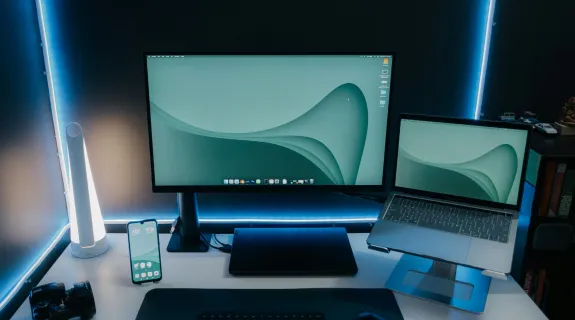
Many gamers ask: can I use my laptop screen to play Nintendo Switch? Whether you are in a dorm or traveling, the idea of a "No-TV" setup is incredibly appealing. However, simply plugging an hdmi cable with laptop ports rarely works. This guide will debunk common myths about hardware compatibility and show you exactly how to connect nintendo switch to laptop using the best capture card technology. By the end, you’ll have one of the best streaming setups for gaming, transforming your portable computer into a high-definition gaming monitor.
The HDMI Myth: Why an HDMI Cable with Laptop Ports Isn’t Enough
The most common frustration for Nintendo fans is realizing that their laptop’s HDMI port is "Output only." Most consumers believe that if they have an hdmi cable with laptop and a Switch, they are ready to go.
Output vs. Input: The Technical Barrier
Laptops are designed to send their screen signal out to a projector or TV. They are not built to receive signals in. To bypass this, you need a hardware bridge.
| Connection Type | Direction | Result for Switch Gaming |
|---|---|---|
| Standard Laptop HDMI | Outward only | Black screen / No signal |
| HDMI via Capture Card | Inward to USB | Success: Play & Stream |
| USB-C to HDMI Adapter | Outward only | Black screen |
Why "Software Fixes" Usually Fail
You might see videos claiming you can use "Remote Play" or wireless mirroring. For Nintendo Switch, these methods are either non-existent or suffer from massive lag. A physical connection via the best capture card is the only way to ensure the 60FPS fluidity required for games like Mario Kart or Super Smash Bros.
Best Streaming Setups for Gaming: Why You Need a Dedicated Bridge
To build the best streaming setups for gaming, stability and latency are the two pillars of success. If you are trying to how to use laptop as monitor, you aren't just looking for a picture; you are looking for a playable experience.
Component Checklist for a Pro Setup:
- The Console: Nintendo Switch (Docked mode).
- The Display: Your laptop (PC or MacBook).
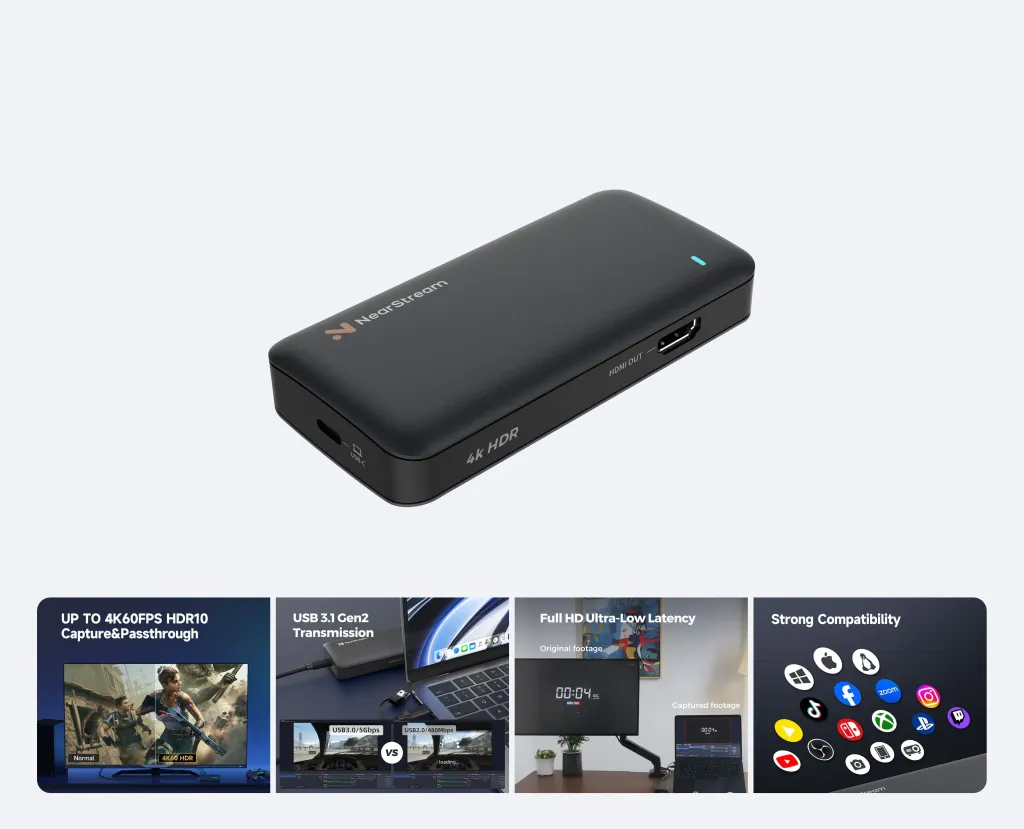
- The Bridge: NearStream CCD30 (The best capture card for low-latency).
- The Software: OBS Studio or Windows Camera App.
- Cabling: A high-speed HDMI 2.0 cable to ensure no data bottlenecks.
How to Connect Nintendo Switch to Laptop via NearStream CCD30
Learning how to connect nintendo switch to laptop is a straightforward process once you have the right gear. Here is the professional workflow to ensure a 1080p/60FPS experience.
Step-by-Step Hardware Integration:
- Place the Switch in the Dock: The Switch must be powered via the dock to output an HDMI signal.
- Connect the HDMI Cable: Plug one end into the Switch Dock and the other into the NearStream CCD30 Input.
- USB Link: Plug the CCD30 into your laptop’s USB 3.0 port. Crucial: Avoid USB 2.0 ports (usually black) as they lack the bandwidth for high-speed gaming.
Software Configuration (OBS Studio):
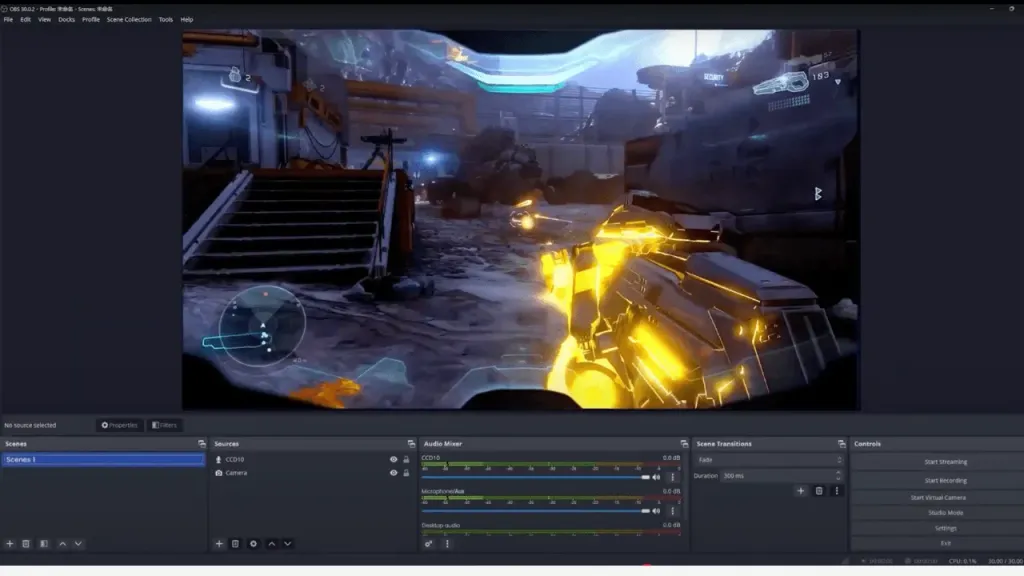
- Open OBS and click the + under Sources.
- Select Video Capture Device and name it "NearStream CCD30."
- Change "Resolution/FPS Type" to Custom.
- Select 1920x1080 and 60 FPS.
- Audio Setup: Set "Audio Output Mode" to "Capture audio only" and check "Use custom audio device" to select the CCD30's digital audio interface.
How to Use Laptop as Monitor: Playing vs. Streaming
When people search for how to use laptop as monitor, they usually fall into two categories: those who just want to play silently and those who want to broadcast.
Playing Mode (The Zero-Latency Experience)
If your goal is purely to play, the NearStream CCD30 provides an ultra-low latency feed that makes fast-paced games feel native. By using the "Fullscreen Projector" mode in OBS, your laptop screen becomes a dedicated gaming monitor with zero UI clutter.
Streaming Mode (The Pro Creator Path)
For those building the best streaming setups for gaming, the laptop acts as both the monitor and the broadcast station. This is where the CCD30 shines, allowing you to play in the preview window while sending your stream to Discord or Twitch simultaneously.
Finding the Best Capture Card: CCD30 vs. The Competition
The market is flooded with "HDMI-to-USB" sticks. However, the best capture card isn't always the most expensive one; it's the one that handles heat and data flow correctly.
Feature Comparison Matrix
| Feature | Generic $20 Dongle | NearStream CCD30 | High-End Pro Cards |
|---|---|---|---|
| Input Support | 1080p 30Hz | 4K 60Hz Pass-through | 4K 120Hz |
| Output to Laptop | 720p (Blurry) | 1080p 60FPS (Crisp) | 4K 30FPS |
| Heat Management | Plastic (Overheats) | Aluminum Alloy | Active Fan |
| Latency | 200ms+ (Unplayable) | \<50ms (Ultra-Low) | \<30ms |
| Compatibility | Finicky | Plug & Play (UVC) | Driver Dependent |
Optimization Guide: Fixing Common HDMI Cable with Laptop Issues
Even with the best capture card, users occasionally face technical hurdles. Understanding the limitations of your hdmi cable with laptop configuration is key.
Troubleshooting Black Screens:
- HDCP Handshake: While Switch usually doesn't have HDCP issues, ensure your dock is powered by the original Nintendo AC adapter. Third-party power bricks often fail to trigger the HDMI output.
- USB Bandwidth: If the image flickers, ensure no other high-speed devices (like external hard drives) are sharing the same USB bus.
- Privacy Settings: On Windows and macOS, you must allow "Camera Access" in System Settings for the software to "see" the CCD30.
Advanced Setups: Laptop as Monitor for Dual-PC Gaming
If you have a high-end desktop and a laptop, you can use the laptop as a dedicated "Recording PC." This is a staple in the best streaming setups for gaming. By using the CCD30 to send your desktop's HDMI output to your laptop, you offload all the encoding stress, ensuring your game runs at max FPS on your main monitor while the laptop handles the stream.
Conclusion
Building the best streaming setups for gaming is a journey of fine-tuning your gear. Whether you are learning how to connect nintendo switch to laptop for the first time or perfecting your professional broadcast workflow, the right tools make the process effortless. The NearStream CCD30 stands as a testament that you don't need to spend a fortune to get professional results. Start small, focus on stability, and let your gameplay do the talking. Using your laptop as monitor is no longer a compromise—it's a smart, portable solution for the modern gamer.
FAQ: Frequently Asked Questions
Q1: Can I play Switch on my laptop with just an hdmi cable with laptop ports?
No. Standard laptop HDMI ports are for output only (sending your screen to a TV). You must use a capture card like the NearStream CCD30 to act as a receiver that converts the HDMI signal into a USB format the laptop can display.
Q2: What is the best capture card for a budget setup?
The NearStream CCD30 is widely considered the best capture card for value in 2026. It offers 1080p 60FPS performance and 4K pass-through, features usually reserved for cards twice its price.
Q3: How do I get audio when I use laptop as monitor?
When you connect via the CCD30, the audio travels through the HDMI cable into your USB port. In your software (like OBS), go to Advanced Audio Properties and set the device to "Monitor and Output." This lets you hear the game through your laptop speakers or connected headphones.
Q4: Does this work for the Switch Lite?
Unfortunately, no. The Switch Lite does not have the internal hardware required to output video via HDMI. This guide on how to connect nintendo switch to laptop only applies to the original Switch and the Switch OLED model.
Q5: Will this setup lag?
If you use a high-quality bridge like the CCD30, the lag is negligible (under 50ms). For most players, this is imperceptible and perfectly suitable for competitive gaming.
Q6: Can I use my MacBook as a monitor?
Yes! The process is identical. Since the CCD30 is UVC compliant, it works on macOS without any drivers. Simply plug it in and use QuickTime or OBS to view your Switch screen.



 sales@nearstream.us






