

























































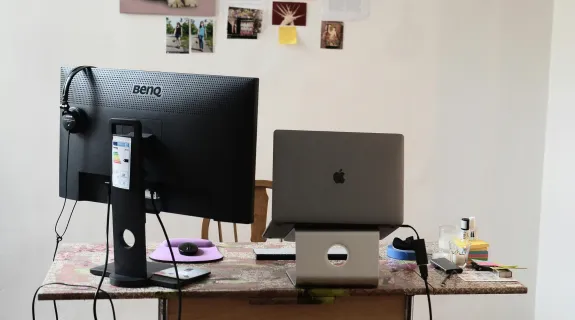
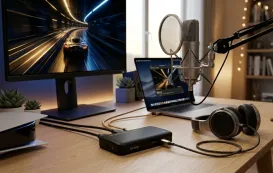
The modern work from home setup has undergone a radical transformation. We no longer just need a desk; we need a command center. Many professionals today manage a high-performance personal PC alongside a restrictive corporate laptop. However, the age-old question remains: how to switch between desktop and laptop with monitors without losing momentum? While the traditional kvm switch was once the industry standard, its hardware limitations—such as slow switching and cable clutter—are becoming obsolete. This 5000-word definitive guide introduces a "Virtual KVM" revolution using the best capture card technology, specifically the NearStream CCD30, to create the ultimate dual monitor gaming setup and professional ecosystem.
The Critical Failure of Traditional KVM Switches in 2026
To understand why we are moving toward a capture-card-based solution, we must first analyze the technical decay of the physical kvm switch.
The "Handshake" Problem
When you use a standard KVM, you are physically disconnecting an HDMI/DisplayPort signal from one source and connecting it to another. This triggers a "Hot Plug Detect" (HPD) event.
- Resync Latency: Your monitor must renegotiate the resolution, refresh rate, and HDCP encryption. This results in the infamous 5-10 second "black screen."
- Desktop Rearrangement: Windows OS often treats a KVM switch as a complete disconnection. When you switch back, all your open folders and Chrome windows have been pushed to a single corner, destroying your organizational flow.
Bandwidth and Refresh Rate Bottlenecks
A dual monitor gaming setup usually requires high refresh rates (144Hz or 240Hz). Affordable KVM switches are typically limited to 60Hz. If you want a KVM that supports 4K at 144Hz for two monitors, you are looking at an investment exceeding $500—and even then, stability is not guaranteed.
Technical Deep Dive: Why Capture Cards are the "Virtual KVM" Future
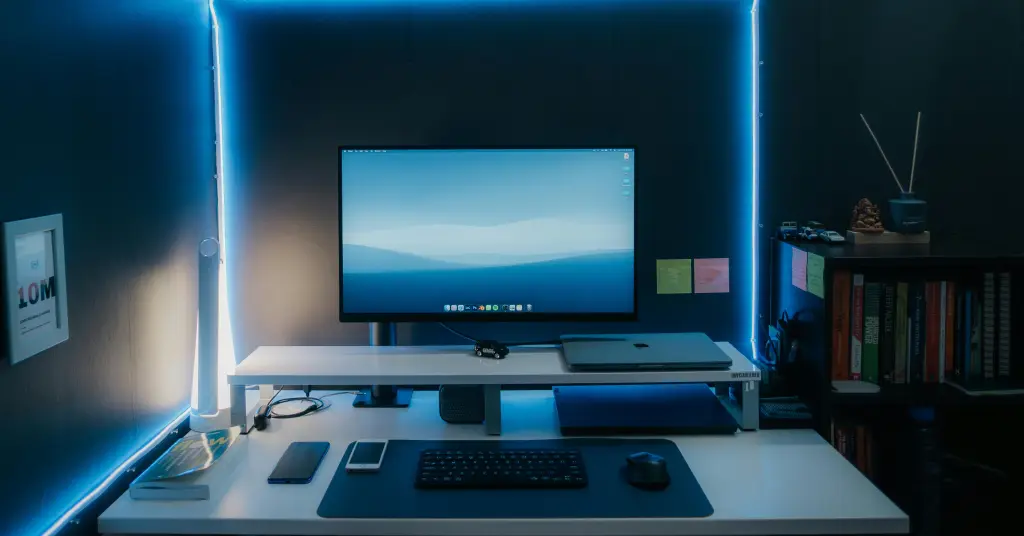
The concept of a "Virtual KVM" involves using the best capture card as a bridge. Instead of switching the monitor's input, you feed the laptop's output into an application window on your desktop.
Why NearStream CCD30 is the Professional's Choice
Not all capture cards are created equal. For a work from home setup, you aren't just capturing video; you are capturing data, text, and interface elements.
| Feature | Low-Cost "Capture Stick" | NearStream CCD30 | Professional PCIe Card |
|---|---|---|---|
| Encoding Format | MJPEG (Compression artifacts) | YUY2 / NV12 (Lossless quality) | RAW / Uncompressed |
| Text Clarity | Blurry/Fuzzy edges | Crisp / High-Contrast | Perfect |
| Input Lag | 150ms - 300ms | \<50ms (Ultra-Low) | \<20ms |
| Cooling | Plastic (Overheats in 1hr) | Aluminum Alloy (24/7 Stability) | Active Cooling |
Chroma Subsampling: The Secret to Reading Text
When you how to use laptop as monitor, text clarity is everything. Most cheap cards use 4:2:0 subsampling, which discards color data to save bandwidth. This makes small black text on a white background (like Excel) look "fringed." The CCD30 maintains superior color processing, ensuring that your spreadsheets are as sharp as they would be on a native monitor.
Step-by-Step: How to Switch Between Desktop and Laptop with Monitors
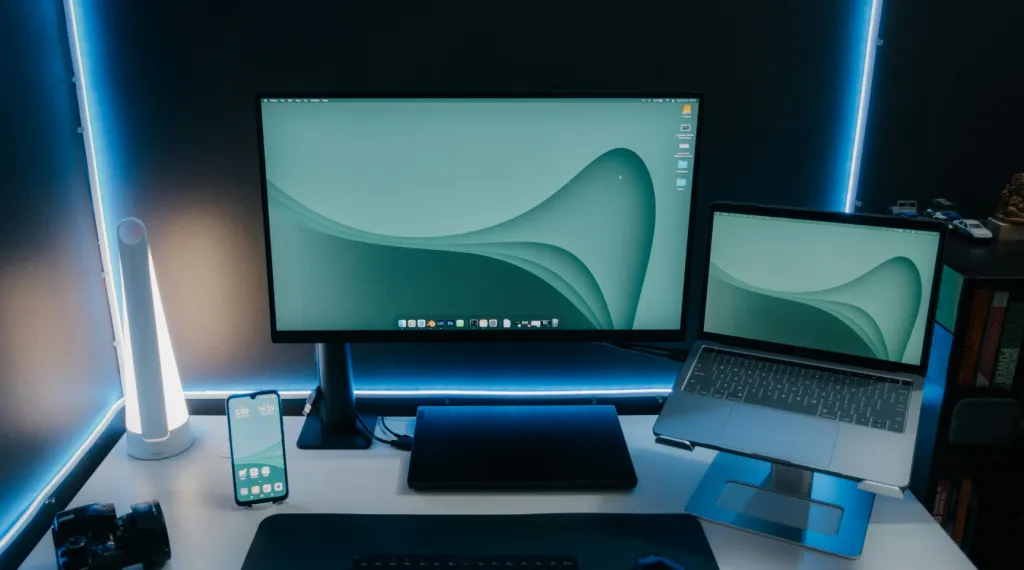
Let's build the setup. This configuration allows you to see both your gaming PC and your work laptop on your dual monitor gaming setup simultaneously.
Step 1: Physical Signal Path
- Work Laptop: Connect a high-quality HDMI 2.0 cable to the laptop.
- The Bridge: Plug that cable into the NearStream CCD30 input.
- The Host: Connect the CCD30 via USB 3.0 to your main desktop PC. Ensure you use the ports on the back of the motherboard for maximum bandwidth.
Step 2: Peripherals (The "Mouse" Logic)
Since the capture card only handles video, you need a way to control the laptop.
- Option A (Software): Use Barrier (Open Source). Your mouse will slide from your desktop screen directly into the "Laptop Window" as if it were a third monitor.
- Option B (Hardware): Use a simple USB-only switcher for just your mouse/keyboard. This is much cheaper and more stable than a full Video KVM.
Step 3: Setting up the "Virtual Monitor" in OBS
- Open OBS Studio.
- Create a Scene: "Work Station."
- Source: Video Capture Device -> NearStream CCD30.
- Pro Setting: Set the resolution to 1920x1080 and the FPS to "Match Output."
- Right-click the preview window -> Windowed Projector.
Work-Life Integration: The Psychology of the "Windowed" Laptop
One of the biggest benefits of this work from home setup is psychological. When your work laptop is just a window on your personal PC, you gain total control over your environment.
The "Picture-in-Picture" Advantage
Imagine you are in a long, boring corporate meeting.
- With a KVM: You are stuck looking at the meeting. You can't see your personal PC.
- With a Capture Card: You can shrink the meeting window to the corner of your secondary monitor. You can continue browsing, gaming, or working on personal projects while remaining "present" in the meeting.
Advanced Audio Routing: One Headset to Rule Them All
The hardest part of how to switch between desktop and laptop with monitors is often the audio. You don't want to swap headsets every time a Slack call comes in.
The Digital Mixer Setup
Because the CCD30 captures audio via HDMI, your laptop's sound is now a "Digital Input" on your PC.
- In OBS, go to Advanced Audio Properties.
- Find the CCD30 and select "Monitor and Output."
- Now, your laptop's notification sounds, Zoom calls, and Spotify will play through your desktop's high-end speakers or gaming headset.
- No more double-headsets. One pair of headphones manages both computers perfectly.
6. Stability and Maintenance: Why Thermal Management Matters
Most people who search for the best capture card ignore the "Thermal Throttling" factor. A work from home setup usually stays powered on for 8 to 10 hours a day.
The Aluminum Advantage
The NearStream CCD30 is encased in a premium aluminum alloy. Why does this matter?
- Heat Dissipation: USB video processing generates significant heat. In plastic cards, this heat builds up, causing the internal chip to slow down (throttle). This leads to frame drops and "stuttering" video.
- Longevity: By keeping the internal components cool, the CCD30 ensures that your investment lasts for years of daily use, not just a few months of light streaming.
Future-Proofing: 4K Pass-Through and Beyond
As we move toward 2027, 4K is becoming the standard. A dual monitor gaming setup today often features one 4K screen. The CCD30 is designed for this future. Its 4K pass-through capability means you can play your games (or view your laptop) in full 4K on your primary monitor while the PC captures the feed at a highly efficient 1080p for recording or sharing on Discord.
Conclusion
Building the best streaming setups for gaming and the most efficient work from home setup requires a shift in mindset. We are moving away from the "mechanical switching" of the past and toward the "digital integration" of the future. By mastering how to switch between desktop and laptop with monitors through the use of a high-performance best capture card like the NearStream CCD30, you eliminate the friction of modern multitasking.
You no longer have to choose between your work life and your gaming life. With a "Virtual KVM" setup, they coexist in a single, streamlined, and high-definition environment. Stop fighting with cables and black screens—embrace the seamless efficiency of a capture-card-powered workstation today.
FAQ: Frequently Asked Questions
Q1: Is there any lag when using a capture card for office work?
A: With the NearStream CCD30, the latency is under 50ms. To put that in perspective, a human blink takes 100-400ms. For typing, clicking, and spreadsheets, the lag is completely imperceptible.
Q2: Can I use this setup to record my work meetings?
A: Yes. Since the laptop screen is a source in OBS, you can hit "Record" at any time. This is a great way to save important tutorials or briefings without needing permission from the meeting host.
Q3: Do I need a special HDMI cable with laptop ports?
A: You should use a high-speed HDMI 2.0 cable. While a standard hdmi cable with laptop ports might work for 1080p, an HDMI 2.0 cable ensures enough bandwidth for HDR and higher color depths, which improves text clarity.
Q4: Will this setup work if my laptop is a Mac and my desktop is Windows?
A: Yes! This is one of the best ways to integrate a MacBook into a Windows dual monitor gaming setup. The CCD30 is driverless and works perfectly across all operating systems.
Q5: Why would I choose a capture card over a $30 KVM switch?
A: A $30 KVM will likely limit you to 30Hz or 60Hz, cause screen flickering, and require you to wait for the "handshake" every time you switch. The capture card allows both screens to be active at once—a true productivity game-changer.
Q6: What happens if my laptop has only USB-C ports?
A: You can use a simple USB-C to HDMI adapter (or a hub) to get the HDMI signal out of your laptop and into the CCD30.



 sales@nearstream.us






