

























































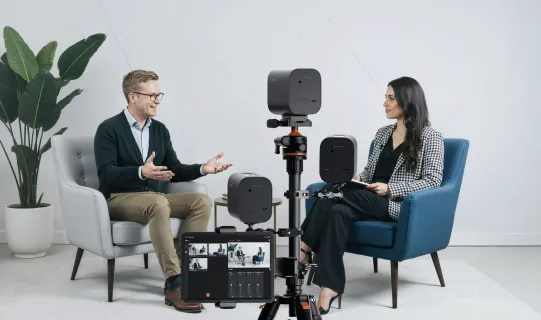
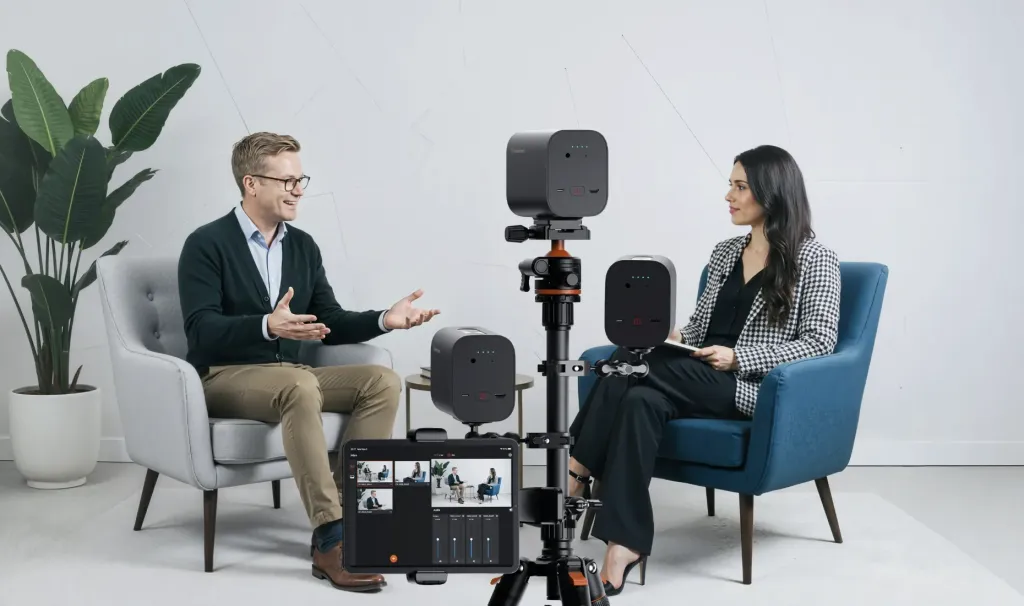
Professional multi-camera interviews used to require a full crew and a hefty budget to manage angles, switching, and audio. Now, the NearStream VM33’s automatic audio directing allows a single creator to replace an entire production team, using smart technology to handle the real-time camera switching that once required multiple dedicated operators.
The magic happens when you link the AWM28T microphone to your VM33 cameras via the NearStream App—a perfect setup to record two people with a wireless microphone—enabling the system to detect the speaker and switch angles automatically. This guide will walk you through configuring this "operator-free" workflow for polished, professional interviews and podcasts.
Why Traditional Multi-Camera Setups Require So Much Labor
Before diving into the solution, it helps to understand why multi-camera production has historically been so resource-intensive.
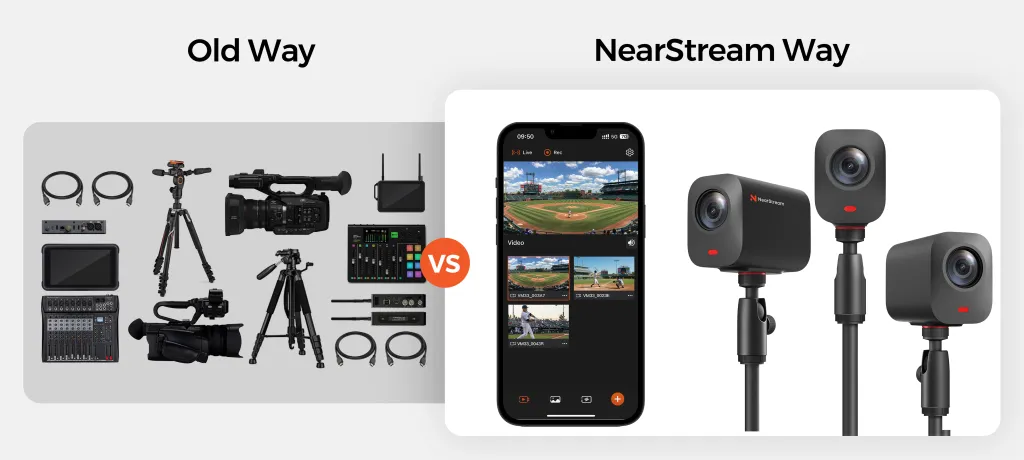
Every additional camera angle adds complexity. Someone must frame each shot, monitor the feeds, and decide when to switch from one camera to another. In a traditional setup, this is the role of a technical director operating a hardware video switcher, watching all feeds simultaneously, and pressing buttons at precisely the right moment. This human decision loop requires training, experience, and constant attention throughout the recording.
Audio management adds another layer. Each microphone feed must be monitored, leveled, and sometimes muted or unmuted depending on who is speaking. In a multi-person interview, overlapping speech can create chaos if not managed by a skilled audio engineer.
The result is that even a simple two-camera interview with two speakers historically required a minimum of three people: one camera operator per camera plus a director or switcher operator. For creators working alone or in small teams, this made professional multi-camera production feel out of reach.
How Automatic Audio Directing Solves the Crew Problem
The NearStream VM33 reimagines this workflow by automating the most labor-intensive part: the camera switching decision.
Here is how the automatic directing system works. Each speaker wears or holds a transmitter from the AWM28T wireless microphone system. Each transmitter sends an audio track to the VM33 hub. Within the NearStream App, you assign each audio track to a specific VM33 camera. When Speaker A's audio crosses a predetermined volume threshold, the video switcher automatically cuts to Camera A. When Speaker B begins talking, the system switches to Camera B.
This audio-triggered switching happens in real time with configurable transition speeds. You can set a short delay to avoid rapid switching during brief interruptions or overlapping words. You can also enable manual override at any time through the app if you need to force a specific camera angle.
The core insight is that in most interviews and podcasts, the person speaking is the person who should be on screen. The automatic audio system simply codifies this rule and executes it faster and more consistently than a human operator could.
What You Need Before You Start
Before setting up automatic camera tracking, gather the following equipment:
Required hardware:
- Two or more NearStream VM33 cameras (up to four can be connected simultaneously)
- One AWM28T wireless microphone system with transmitters for each speaker. This system is designed to work across a wide range of devices—you can check our wireless microphone universal compatibility guide to see how it integrates with your existing gear.
- A tablet or smartphone with the NearStream App installed
- Reliable Wi-Fi network at your filming location
- Tripods or mounting hardware for each VM33 camera
Recommended additions:
- A quiet, controlled recording environment with minimal background noise
- Soft lighting to ensure consistent image quality across all camera angles
- Headphones for monitoring audio during setup
- A backup recording device or storage solution for longer sessions
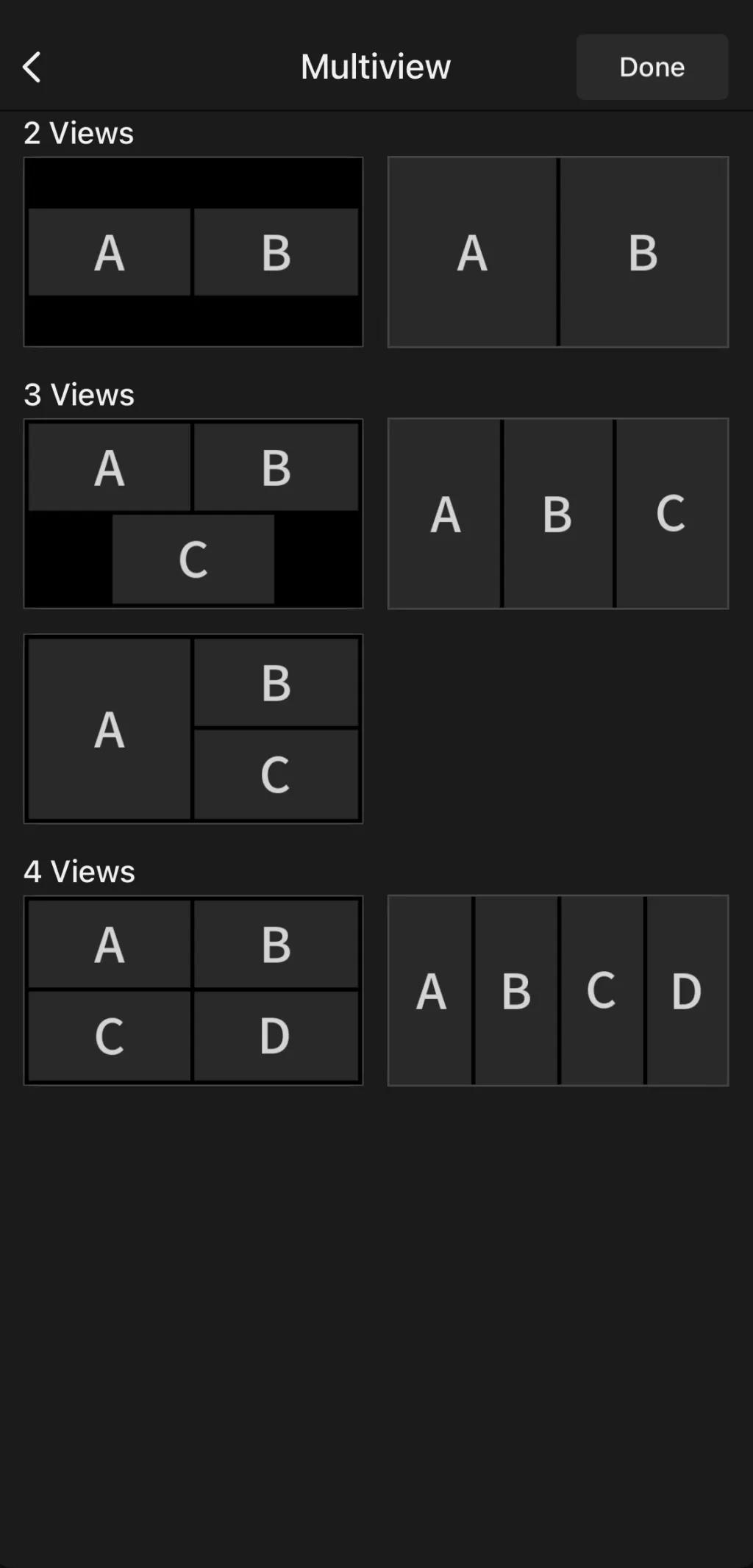
The VM33 supports up to three cameras in a single automatic directing group. For a standard two-person interview, two cameras and one AWM28T system are sufficient. For panel discussions with three or four speakers, add cameras and microphone transmitters accordingly.
Step-by-Step: Setting Up VM33 Automatic Audio Tracking
Follow these steps to configure automatic camera switching for your next multi-camera recording or livestream.
Step 1: Position Your Cameras and Connect to Power
Place each VM33 camera on a tripod at the desired angle. For a standard interview, position Camera A to frame Speaker A and Camera B to frame Speaker B. A wide third camera capturing both speakers is optional but useful for transitions.
Power on each camera and ensure all units are connected to the same Wi-Fi network. The LED indicators on each VM33 will confirm network connection status.
Step 2: Open the NearStream App and Create a Multicam Project
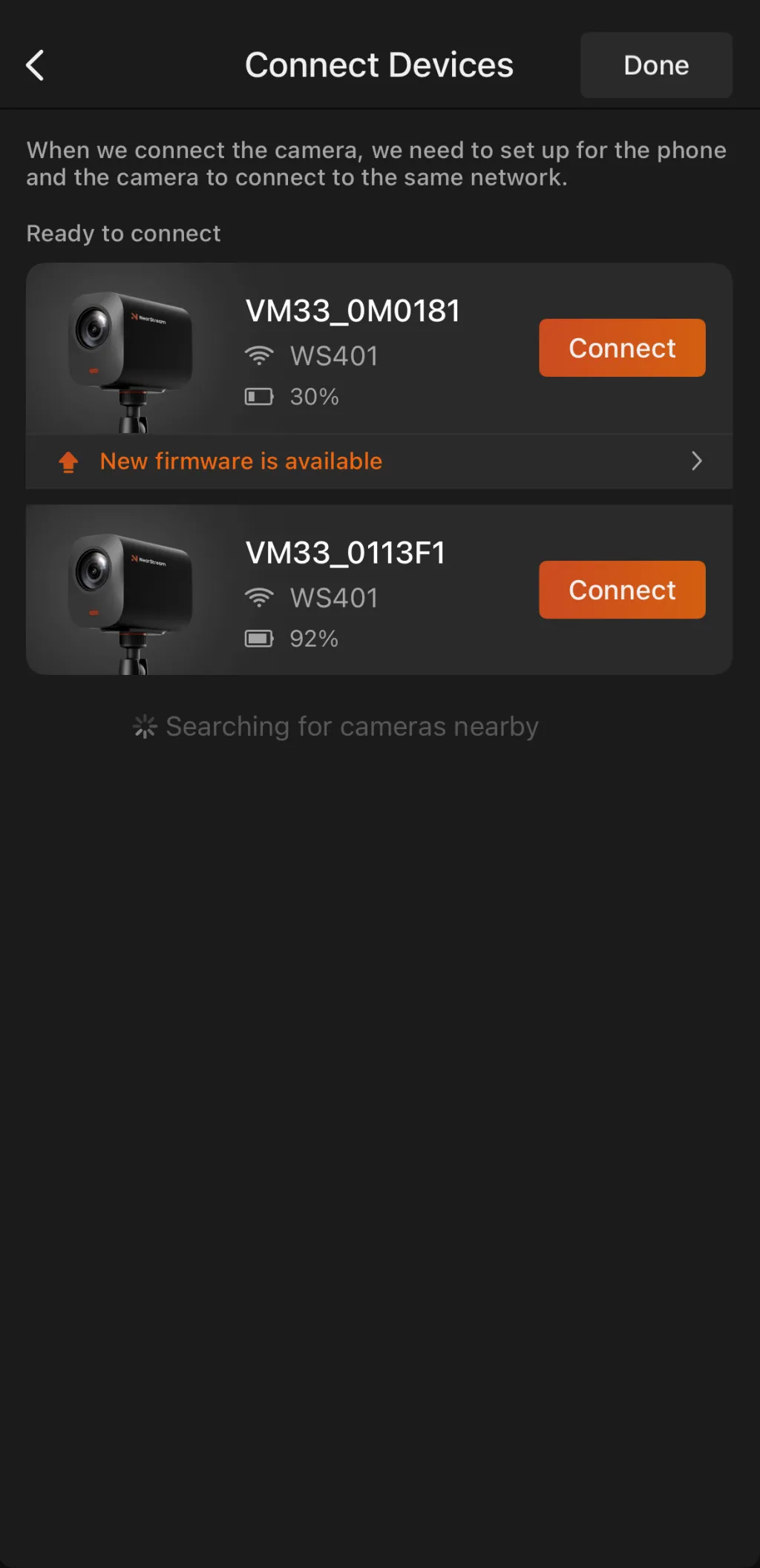
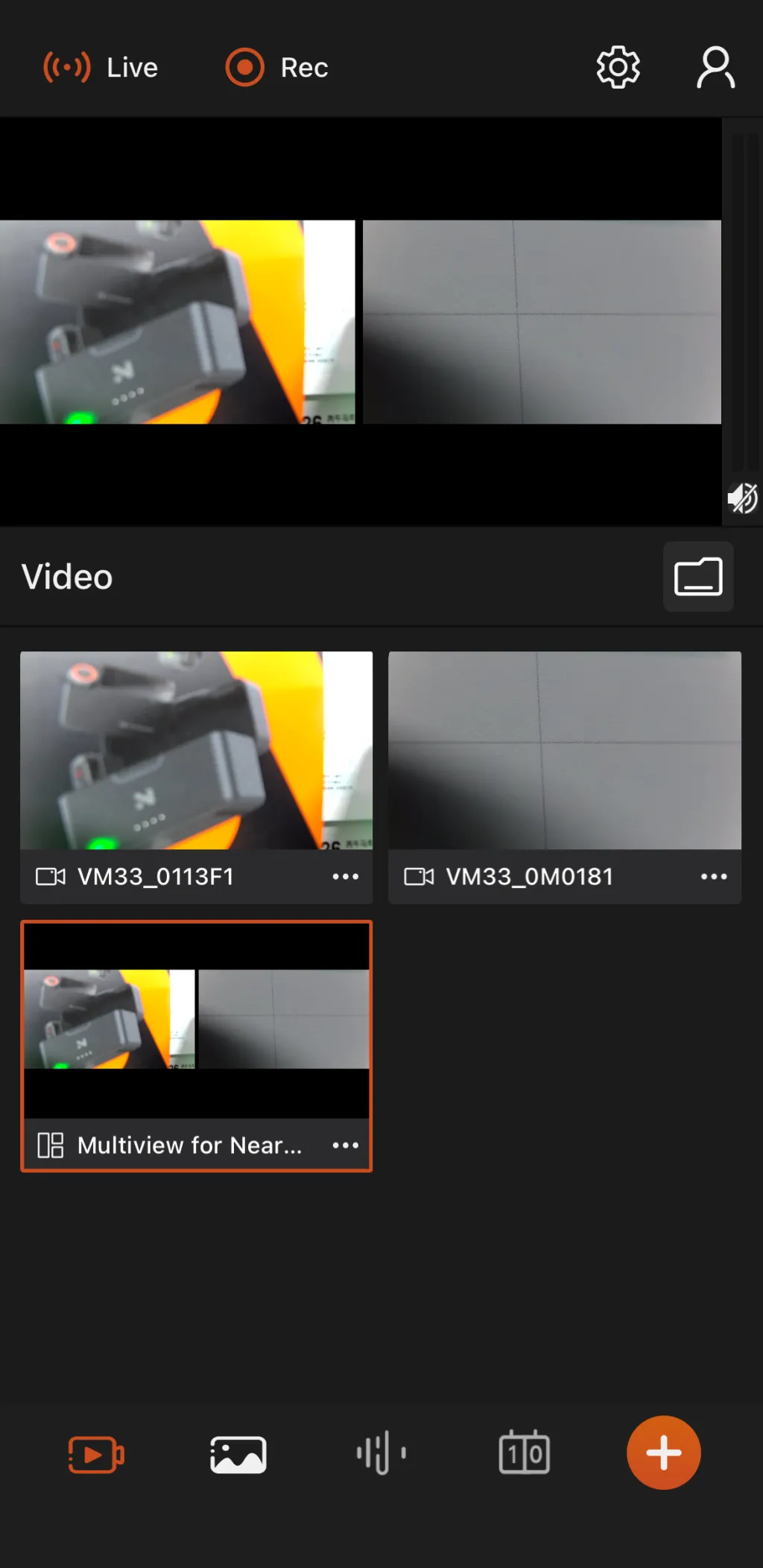
Launch the NearStream App on your tablet or phone. Create a new project and enable the Multicam directing mode. The app will scan for available VM33 cameras on your network and display them in the device list.
Add each camera to your project by tapping the plus icon next to each detected VM33 unit. Once added, you can rename cameras for easier identification (for example, "Camera A — Host" and "Camera B — Guest").
 |  |  |  |
Step 3: Pair the AWM28T Microphone System
Power on the AWM28T receiver and each transmitter. Assign one transmitter per speaker and verify that each audio track is clean and clear before proceeding.
Test each microphone by having speakers talk at normal volume. Check audio levels in the NearStream App to confirm each audio track registers properly without clipping or excessive background noise.
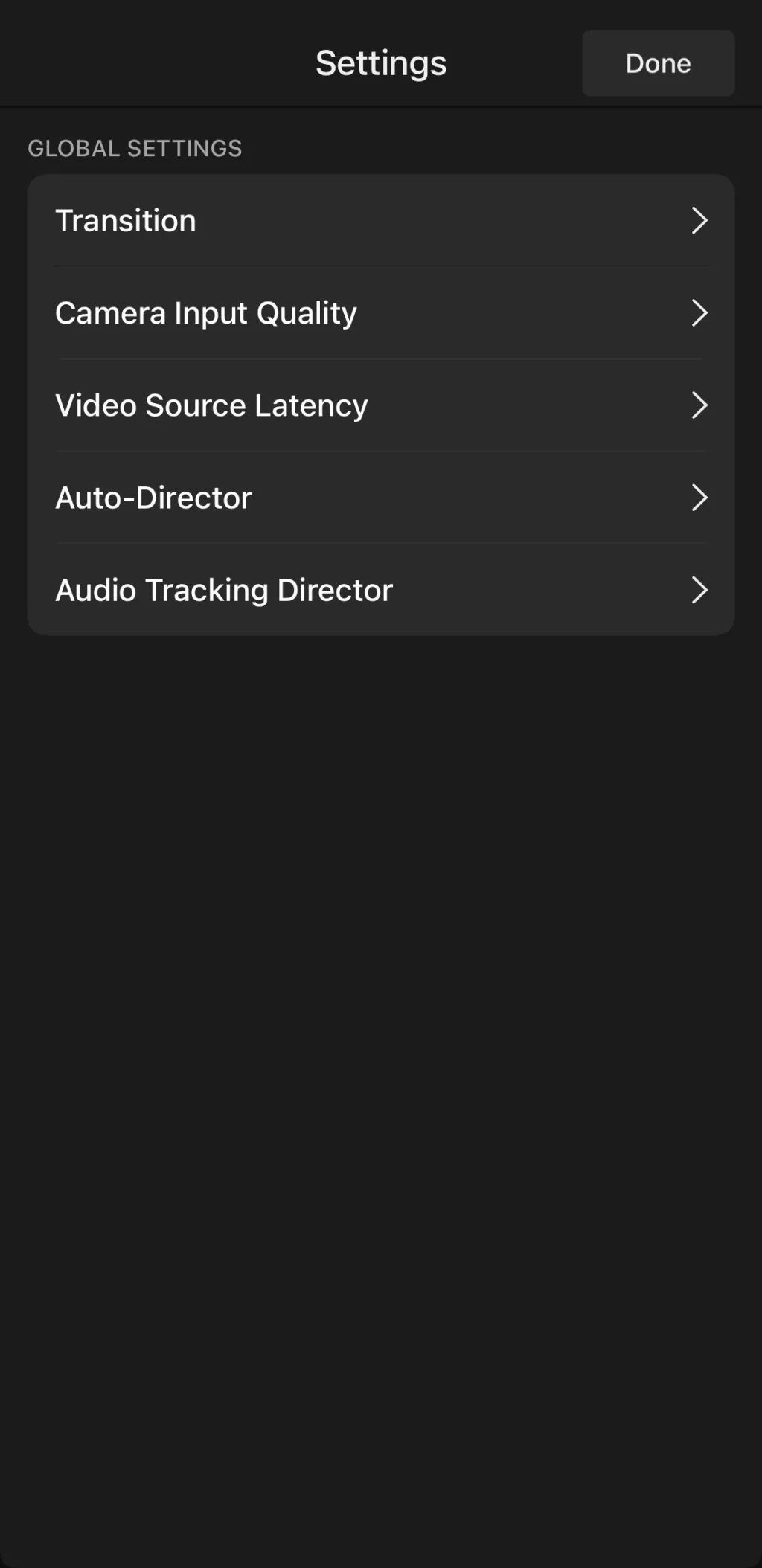
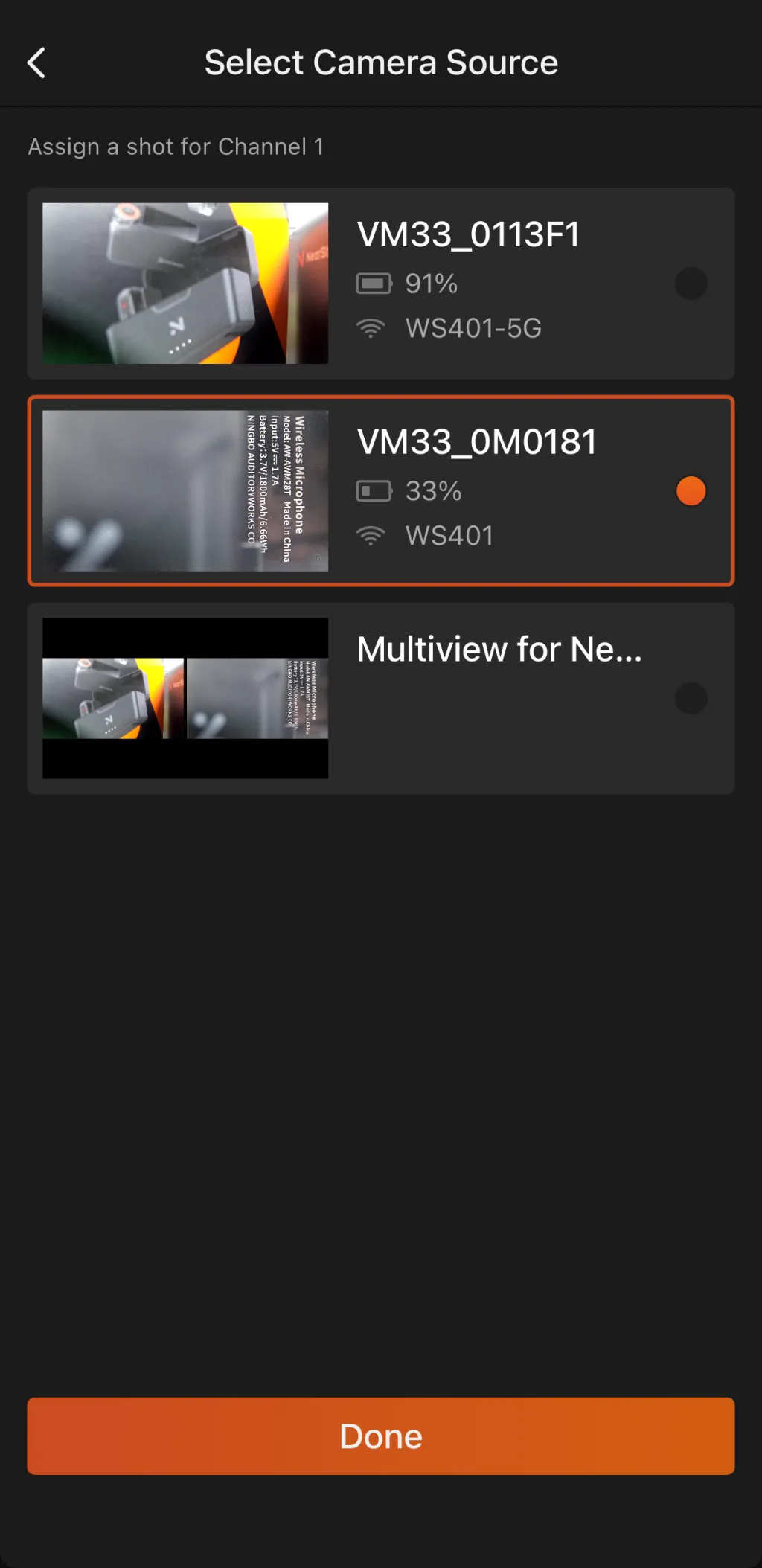
Step 4: Assign Audio Tracks to Cameras
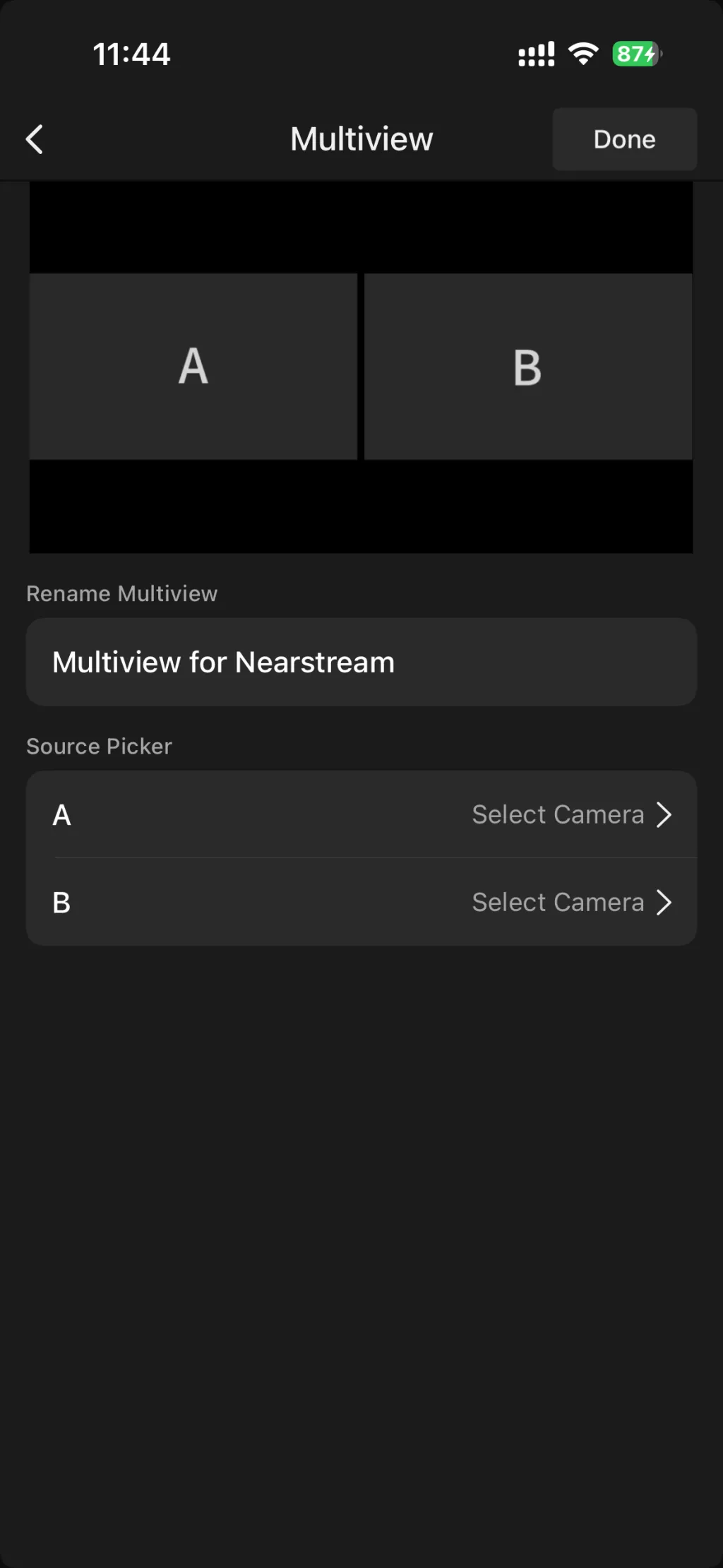
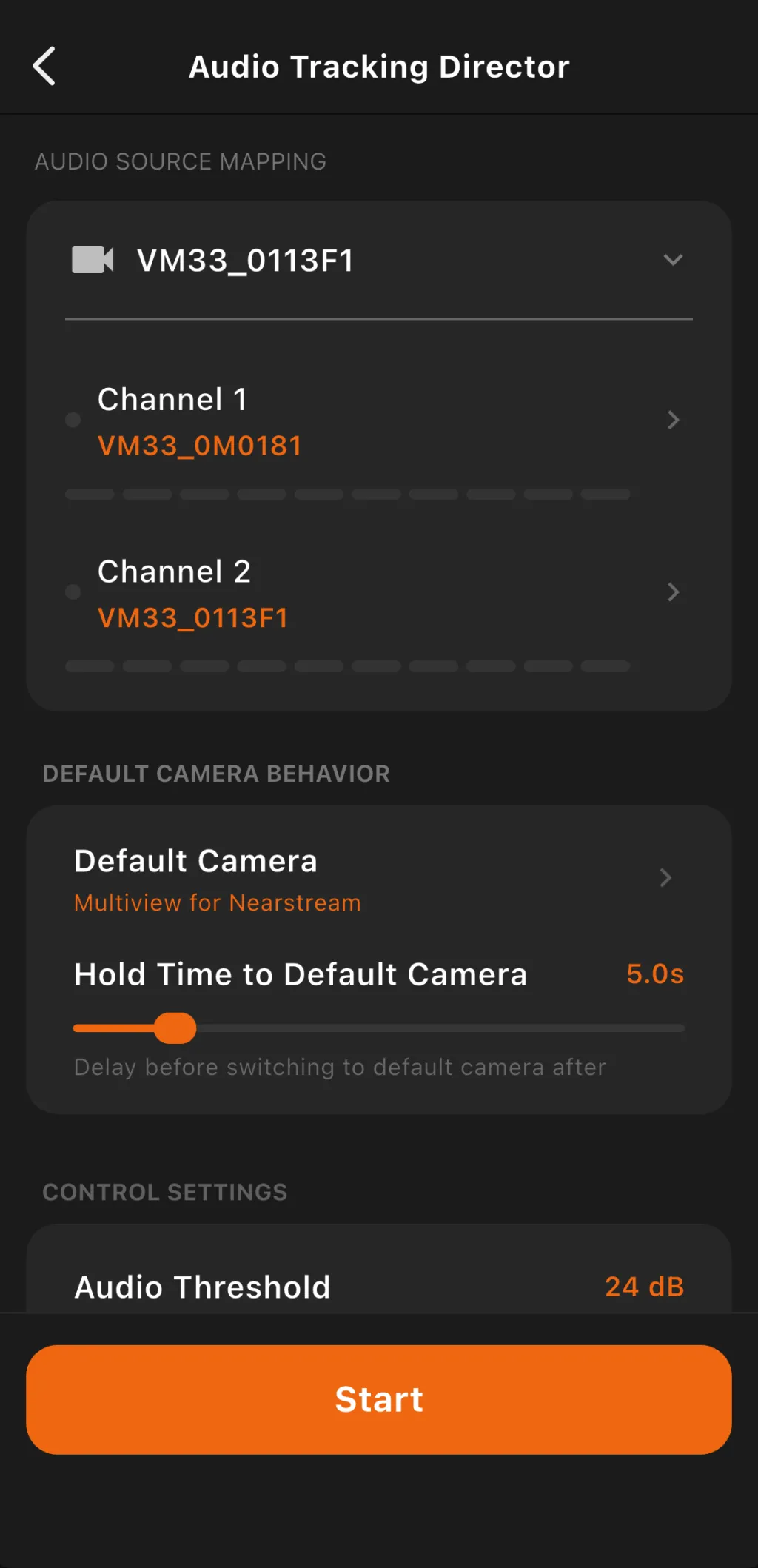
This is the critical configuration step for automatic camera switching. In the directing settings panel, you will see each connected camera listed alongside the available audio tracks from the AWM28T system.
Assign one audio track to each camera. For example, assign the Host's microphone audio track to Camera A, and the Guest's microphone audio track to Camera B. The video switcher will now monitor these audio tracks and automatically cut to the associated camera when that audio track becomes active.
Step 5: Set Audio Thresholds and Switching Delays
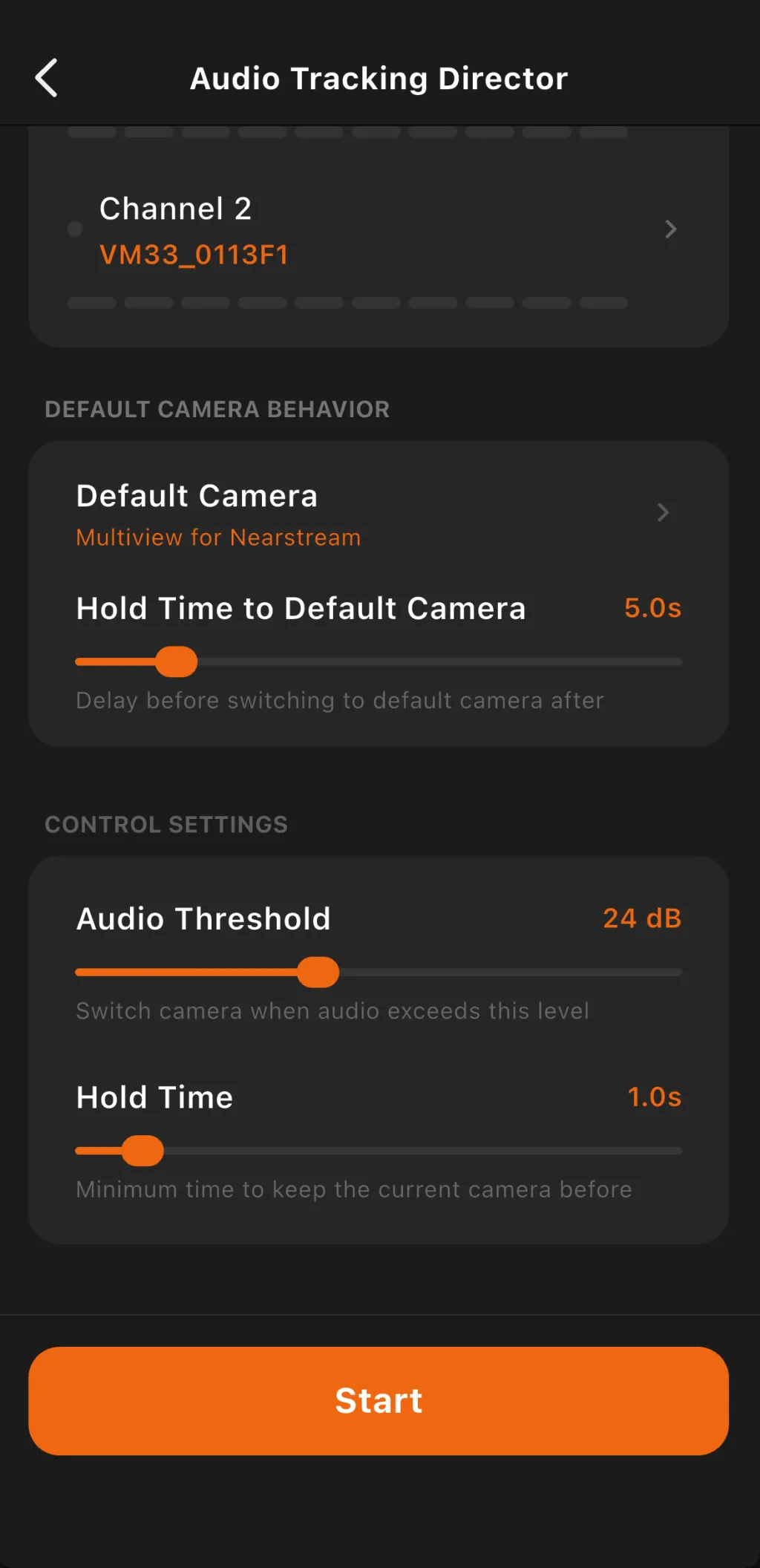
The sensitivity of the automatic switching depends on two key settings: the audio threshold and the switching delay.
The audio threshold determines how loud a speaker must be before the camera switches to them. Set this high enough to ignore coughs, paper rustling, and ambient noise, but low enough to catch normal speaking volume. Start with a medium threshold and adjust after testing.
The switching delay adds a brief hold time before the camera switches. A delay of 200 to 400 milliseconds prevents rapid, distracting cuts during brief interruptions or when one speaker quickly agrees with another. Adjust this based on the speaking style of your participants.
 |  |  |  |
Step 6: Test the Full Setup Before Recording
Run a complete test before your actual recording session. Have each speaker talk in turn, talk over each other briefly, and pause between sentences. Watch the preview monitor to confirm that camera switches happen at the right moments and feel natural.
If switching feels too aggressive or too slow, return to the threshold and delay settings and fine-tune them. Also test the manual override function so you know how to force a specific camera angle if the automatic system makes an unexpected choice during a live session.
Step 7: Start Recording or Live Streaming
With everything configured and tested, press the record or go-live button in the NearStream App. The automatic directing system will handle camera switching throughout your session. You can monitor all feeds from your tablet and intervene manually if needed.
Real-World Use Cases for Automatic Camera Switching
The VM33 automatic audio tracking system adapts to several content formats beyond standard interviews.
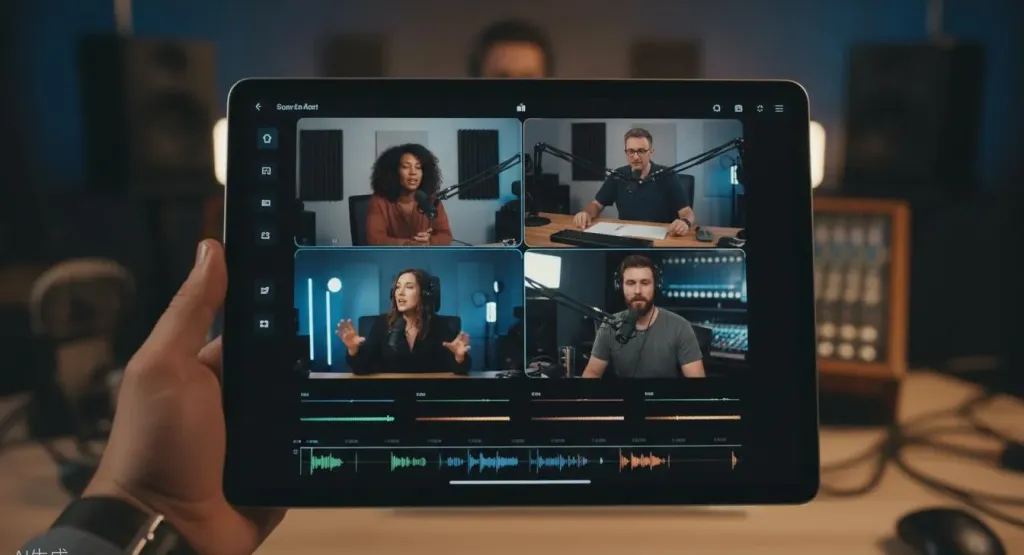
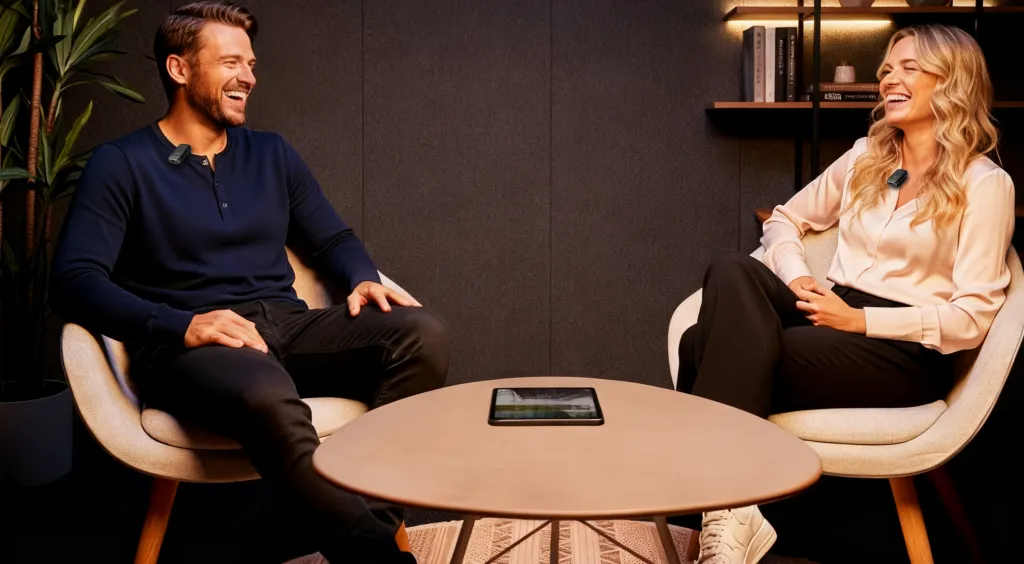
Two-person podcasts: The most straightforward use case. One host and one guest, each with their own microphone and dedicated camera. The automatic director cuts between them as the conversation flows, creating a professional viewing experience that previously required a third person operating the video switcher.
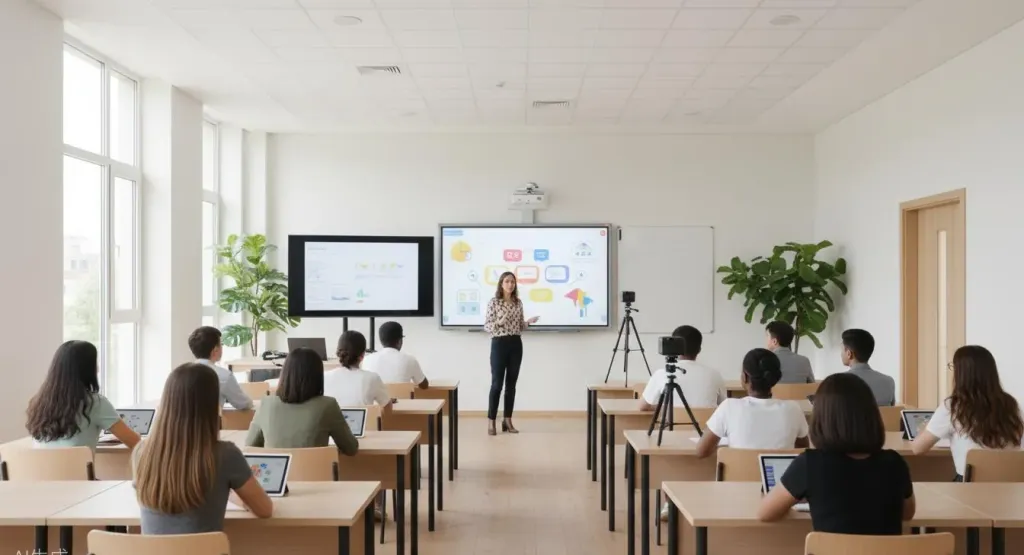
Classroom lectures and educational recordings: Teachers can set up two cameras in their classroom — one facing the instructor and one capturing the whiteboard or presentation screen. The system switches to the instructor camera when they speak, then cuts to the presentation camera when they reference materials. A school technology coordinator can configure this once, and the teacher can operate it alone every day. For a broader look at how to choose the right equipment for educational settings, see our full breakdown of the best cameras for live streaming school events.
Panel discussions and roundtables: With three or four VM33 cameras and matching AWM28T transmitters, a single operator can record a full panel discussion. The automatic director handles the bulk of switching, while the operator monitors from a tablet and manually overrides only when necessary.
Corporate presentations and webinars: A presenter at a podium and a secondary camera on the audience or presentation screen. The system cuts to the appropriate angle based on who is speaking, making recorded company meetings look professionally produced.
Pro Tips for Better Automatic Directing Results
Getting professional results from automatic camera tracking requires attention to a few key details.
Control your acoustic environment. Automatic audio switching works best when each microphone captures a clean, isolated audio track. Minimize echo, background music, and HVAC noise. If you are recording in a large or hollow space, many of the techniques in our guide on fixing church audio echo can help you eliminate the sound bounce that interferes with automatic switching.If speakers are too close together, their microphones may pick up each other's voices, causing the system to hesitate between cameras.
Use directional microphone patterns. The AWM28T transmitters support different microphone patterns. Use directional or cardioid patterns when possible to reduce off-axis sound pickup and improve switching accuracy.
Set conservative thresholds for noisy environments. In louder settings like event halls or classrooms with ambient activity, raise the audio threshold to prevent false triggers. You can always lower it if switching feels unresponsive during testing.
Leave headroom in your framing. Since you will not have a camera operator adjusting shots during the recording, frame each camera angle slightly wider than you might with an operator. This gives speakers room to move naturally without leaving the frame.
Frequently Asked Questions About Camera Tracking
How does camera tracking work with the NearStream VM33?
The VM33 camera tracking system uses the AWM28T wireless microphone to detect which speaker is active. When a speaker's audio track crosses a set threshold, the VM33 automatically switches the video to that speaker's camera. This eliminates the need for a dedicated camera operator or video switcher operator during interviews and podcasts.
Can one person really operate a multi-camera interview setup?
Yes. With the VM33 automatic audio directing feature and the NearStream App, a single person can set up multiple cameras, configure automatic audio-triggered switching, and run the entire recording or livestream without additional crew. The system handles camera switching automatically based on who is speaking.
What equipment do I need for automatic multi-camera switching?
You need at least two NearStream VM33 cameras, one AWM28T wireless microphone with transmitters for each speaker, a tablet or smartphone running the NearStream App, and reliable Wi-Fi in your filming location. This setup replaces a traditional multi-person production crew.
Is automatic audio switching reliable for live streaming?
Automatic audio switching is highly reliable when configured correctly. The VM33 lets you set custom audio thresholds, add transition delays, and manually override at any time through the NearStream App. For best results, use directional microphones and minimize background noise in your recording environment.
What types of content work best with automatic camera tracking?
Automatic camera tracking works best for formats with clear speaker turns: interviews, podcasts, panel discussions, classroom lectures, and corporate presentations. It is less suited for fast-moving events or situations where speakers frequently talk over each other.
Start Producing Multi-Camera Content on Your Own
Camera tracking with automatic audio directing removes the biggest barrier to professional multi-camera production: the need for a dedicated crew. With the NearStream VM33 and AWM28T, a single creator can achieve results that previously required three or more people.
The system is not a replacement for every production scenario. Complex live events with rapid action and unpredictable audio will still benefit from human operators. But for interviews, podcasts, lectures, and presentations — the formats where speaker turns follow predictable patterns — automatic directing is both reliable and transformative.
If you are ready to simplify your multi-camera workflow, learn more about the VM33 and AWM28T setup on the official NearStream product page. Start with a two-camera, two-microphone configuration, follow the setup steps in this guide, and you will be producing professional multi-camera content by yourself within an afternoon.



 sales@nearstream.us






