

























































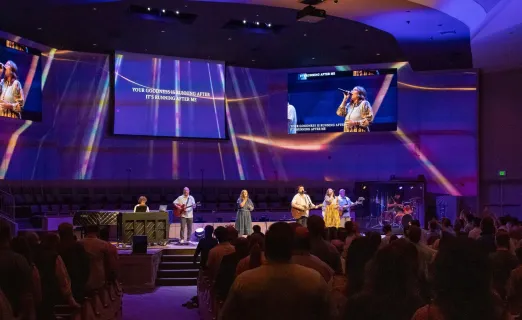
If you have ever gone back to watch your church's Facebook Live replay and heard a distracting echo every time the pastor speaks, you are not alone. Audio echo is one of the most frustrating and common problems facing volunteer AV teams in churches across the country — and it is particularly prevalent in multi-camera setups where built-in microphones capture the same audio at different times. Whether you are managing a simple two-camera rig or building out a full multi-angle church audio system, understanding how to eliminate echo is essential for professional-sounding broadcasts. The good news? Fixing it does not require expensive gear, professional acoustic treatment, or an engineering degree. In most cases, you can solve the problem in under five seconds with one simple settings change.
The Root Cause: Why Does Your Live Stream Echo?
Before you can fix the echo, you need to understand what is actually happening. Most people assume their camera is broken, their streaming software is glitching, or Facebook Live is having issues. None of these are typically true.
The Physics of Sound in Multi-Camera Setups
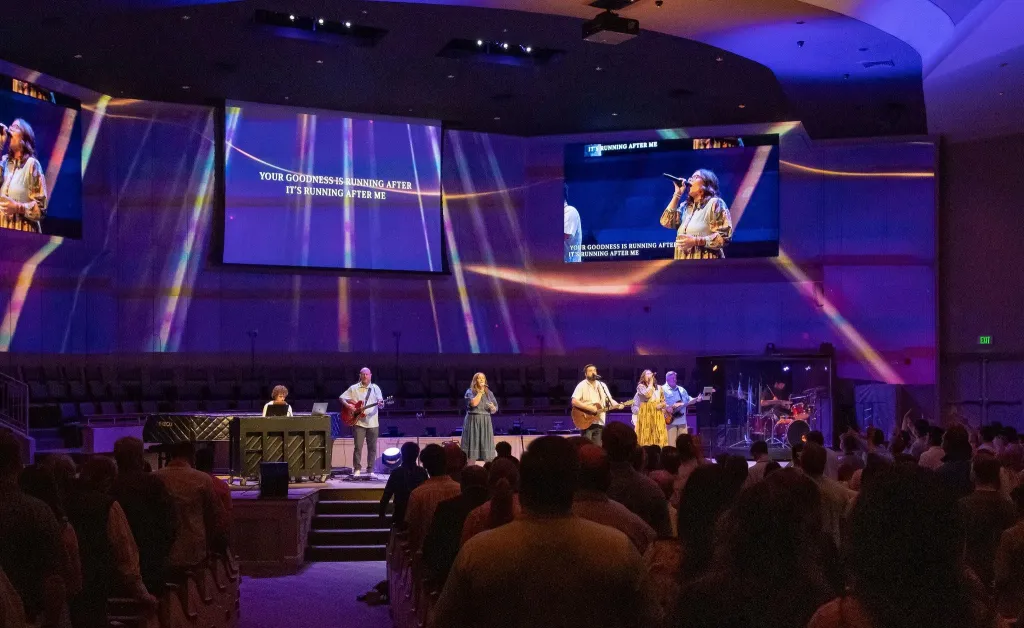
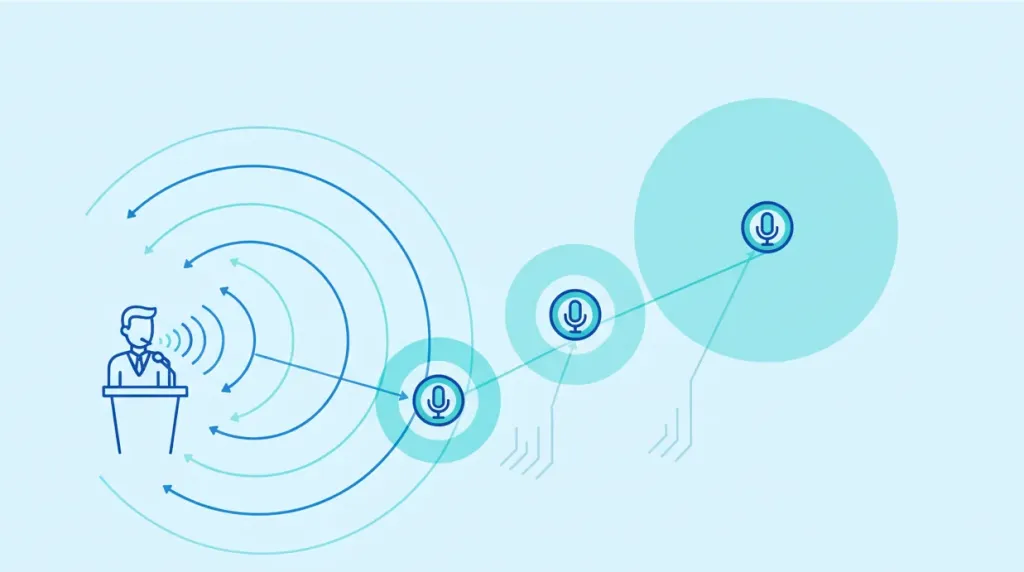
When you set up two or three cameras for your church service — say, one wide shot at the back of the sanctuary, one medium shot on the side, and one close-up near the front — each of those cameras has a built-in microphone. If all of those microphones are active, they are all hearing the same sermon, worship music, and announcements.
But here is the critical detail: those cameras are at different distances from the sound source.
Sound travels through air at roughly 1,125 feet per second. That means a camera positioned 30 feet from the pulpit picks up the pastor's voice approximately 27 milliseconds later than a camera just 10 feet away. When your streaming software combines audio from all three cameras into one broadcast, those tiny time differences stack on top of each other. The result is a cascading, repeating effect that listeners perceive as echo or a hollow 'tunnel' sound. For those interested in the cutting-edge science behind how technology identifies and removes these spatial echoes, researchers at UT Austin are even developing AI models that use visual data to better understand and clean up room acoustics. Even worse, most streaming platforms apply their own audio compression and processing, which can exaggerate these timing conflicts and make the echo sound more pronounced to your online audience than it does in the physical room.
To visualize this, imagine dropping three stones into a still pond at slightly different times. The ripples overlap and interfere with each other, creating a chaotic pattern. Audio echo works the same way — except the "ripples" are sound waves, and your congregation is hearing the interference every time they tune in online.
Why This Is Not a Hardware Defect
It is important to internalize this: your VM33 cameras are not defective. The echo is not a bug in the NearStream App or a flaw in your streaming encoder. It is a straightforward physics problem caused by an audio routing conflict — multiple microphones capturing the same audio at slightly different moments in time.
This distinction matters because it shapes your entire approach to the problem. You are not returning cameras or filing warranty claims. You are reconfiguring how audio flows through your church audio setup. Once you understand this principle, every decision you make about microphone selection, camera placement, and audio routing becomes clearer and more confident.
Key Takeaway
If you are using the built-in microphones on multiple cameras and all of them are active, you will have echo. Full stop. The only question is how distracting it sounds on any given Sunday. The fix is to reduce your active microphones to exactly one.
The 5-Second Quick Fix: The "Rule of One" Camera Mic
Here is the fastest way to eliminate echo from your multi-camera church live stream. It requires no additional equipment, costs nothing, and takes less time than brewing a cup of coffee.
Choose Your Primary Audio Source
Look at your camera arrangement and pick the single camera that will serve as your exclusive audio source. Typically, this should be:
- The camera closest to the speakers or stage
- The camera with the clearest, most centered view of the pulpit
- The camera least affected by ambient congregation noise or HVAC systems
- The camera positioned to avoid direct reflection points like walls or glass
This camera becomes your one and only active microphone. Every other camera in your setup must have its audio completely muted — not turned down, not lowered, but fully muted. Think of it like a choir where only one person should be singing the melody into a microphone. If everyone in the choir had an open mic, you would hear a chaotic blend of voices arriving at slightly different times. Your live stream audio works exactly the same way.
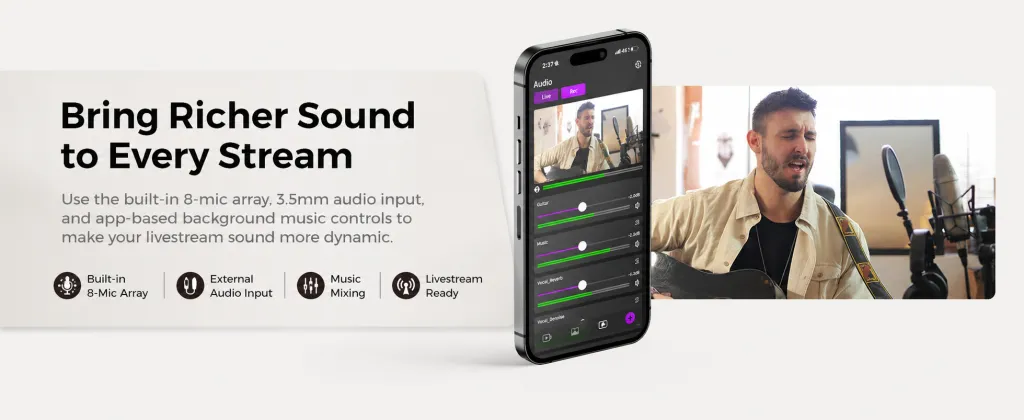
How to Mute Auxiliary Cameras in the NearStream App
Follow these exact steps for each auxiliary camera in your setup:
- Open the NearStream App on your control device
- Select the auxiliary camera you want to mute (Camera 2, Camera 3, etc.)
- Tap the Settings icon for that specific camera
- Navigate to Audio Settings
- Toggle Audio Capture to OFF
- Return to the main view and repeat for every auxiliary camera
Once complete, verify that only your chosen primary camera shows an active audio indicator. Run a quick test by speaking into the room and confirming that audio levels move only on that single camera.
Why This Works So Well
By forcing your stream to pull audio from just one microphone, you eliminate the overlapping time delays entirely. There are no conflicting signals to create that repeating, hollow effect. The audio becomes clean, synchronized, and immediately more professional-sounding. For a volunteer team under time pressure on Sunday morning, this is the highest-impact, lowest-effort fix available.
Best For
This quick fix is ideal for:
- Small to mid-sized churches with limited AV budgets
- Volunteer teams who need a same-day solution before service starts. While church environments have unique acoustics, many of these volunteer-led production tips overlap with our high school sports live streaming guide, which offers a repeatable system for any sideline or sanctuary.
- Setups where cameras are positioned within reasonable distance of the sound source
- Teams still evaluating whether to invest in a more advanced church audio system
- Temporary locations, outdoor services, or event venues without permanent sound infrastructure
If your sanctuary is compact and your primary camera sits relatively close to the stage, this single configuration change may solve your audio problems permanently.
When the Quick Fix Is Not Enough
If you have followed the "Rule of One" and still hear a faint echo or hollow quality, your room itself is likely the culprit. Large sanctuaries with high ceilings, hard floors, and minimal soft furnishings create natural reverberation that even a single microphone will capture. In these environments, the echo you hear is not from multiple microphones — it is the room's own acoustic signature being broadcast to your viewers. This is your signal to move on to the pro solutions outlined in the next section. As you level up your audio, don't forget that visuals matter just as much—learning how to improve live stream video quality will ensure your stream looks as professional as it sounds.
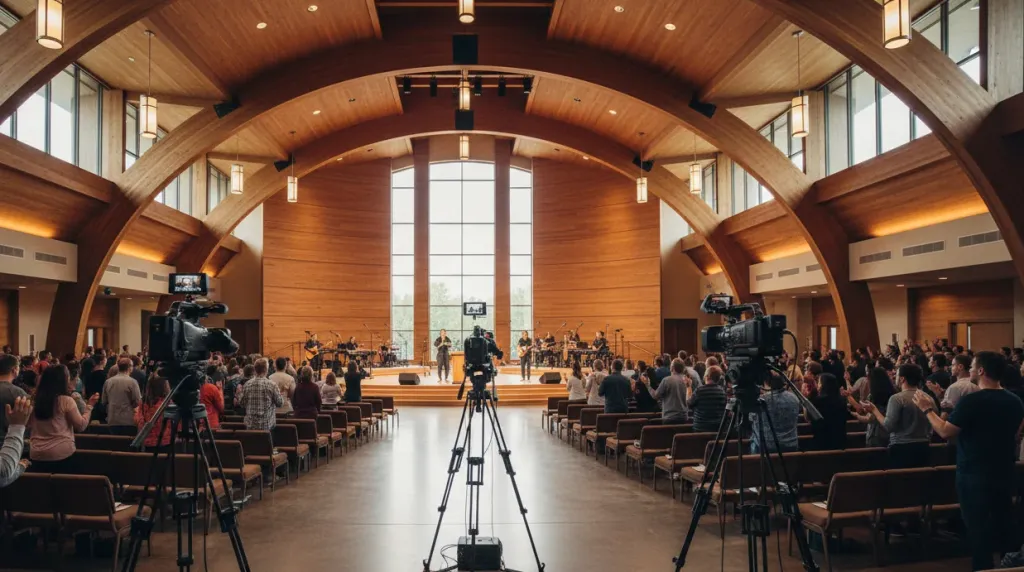
The Pro Solution: Upgrading Your Church Audio System
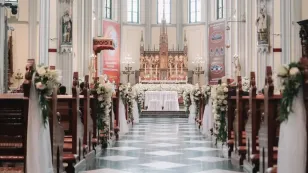
For larger venues — particularly A-frame churches, cathedrals with high ceilings, and sanctuaries with lots of hard reflective surfaces — the quick fix has an important limitation. Even a single built-in camera microphone will pick up significant room reverberation. The sound bounces off walls, ceilings, floors, and pews before reaching the mic, creating indirect ambient noise that sounds muddy, distant, and unprofessional.
If you want broadcast-quality church audio that truly serves your online congregation, you need to bypass the camera microphones entirely and tap into your existing professional sound infrastructure.
Run Audio Directly From Your FOH Soundboard
Your church already has a professional audio setup for the in-room worship experience. The pastor wears a lapel microphone. The worship band runs through direct inputs and stage microphones. The sermon may involve handheld wireless mics. All of this is already being balanced, equalized, and mixed at your front-of-house (FOH) soundboard by your audio engineer.
Instead of asking camera microphones to capture this secondhand from across the room, run a direct audio output from your soundboard into your live stream system. Here is the step-by-step process:
- Locate an auxiliary output (Aux Out), USB output, or unused XLR main output on your church's sound mixing board
- Connect this output to your streaming encoder, primary camera's audio input, or a dedicated computer audio interface
- In the NearStream App or your streaming software, select this external audio input as your primary audio source
- Mute all built-in camera microphones following the procedure in the quick fix section above
- Test the levels by having someone speak on stage while you monitor the stream audio
This approach captures the direct, clean, professionally mixed audio already being optimized for your sanctuary. The pastor's lapel mic, the worship leader's vocals, the band's instruments, and any spoken announcements all come through with the clarity and balance your sound engineer intended.
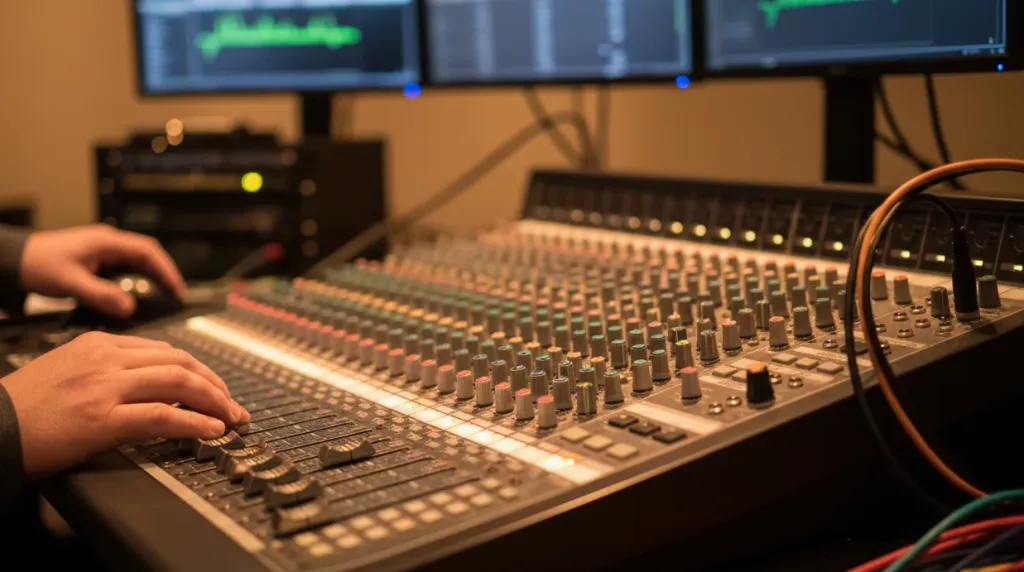
The Real Difference: Built-In Mics vs. Soundboard Feed
The quality gap between these two approaches is substantial and immediately noticeable to viewers:
| Aspect | Built-In Camera Mic | FOH Soundboard Feed |
|---|---|---|
| Audio source | Ambient room sound | Direct microphone inputs |
| Room noise level | High — captures HVAC, crowd shuffling, reflections | Low — receives isolated direct signals |
| Voice clarity | Often muddy, distant, or boomy | Crisp, present, and intelligible |
| Music reproduction | Unbalanced, indistinct | Professionally mixed and EQ'd |
| Consistency across camera switches | Varies with each camera angle | Uniform regardless of video changes |
| Setup complexity | Minimal plug-and-play | Requires one-time cable routing |
For churches serious about online ministry, a soundboard feed is the recognized standard. Viewers watching from home experience the same clear sound as those sitting in the pews. It is one of the most cost-effective upgrades you can make to your overall production quality.
Equipment You May Need
Depending on your soundboard's available outputs and your streaming setup, you might need one or more of these accessories:
- A USB audio interface ($40-$120) — converts analog soundboard outputs to digital USB for your computer
- An XLR to 3.5mm adapter cable ($15-$30) — connects directly to cameras with mini-jack audio inputs
- A digital audio converter ($80-$200) — for newer boards with AES, Dante, or S/PDIF outputs
- A long balanced XLR cable ($20-$50) — to reach from the soundboard location to your streaming station
Most churches can implement a soundboard audio feed for under $150 total — a remarkably modest investment for the dramatic quality improvement it delivers to every stream.
Budget Considerations for Growing Churches
If your church is not quite ready for a full soundboard integration, consider a phased approach. Start with the "Rule of One" camera mic to eliminate echo immediately. Then, when budget allows, add a single quality USB microphone positioned near the stage as your dedicated audio source. Finally, graduate to a full soundboard feed when your production demands it. This staged progression lets you improve your church audio system incrementally without overwhelming your volunteer team or your finance committee.
Once you have solved the basic echo problem, two advanced topics can take your church audio system from good to truly exceptional: audio-video synchronization and physical acoustic treatment.
Adding Audio Delay for Perfect Lip Sync
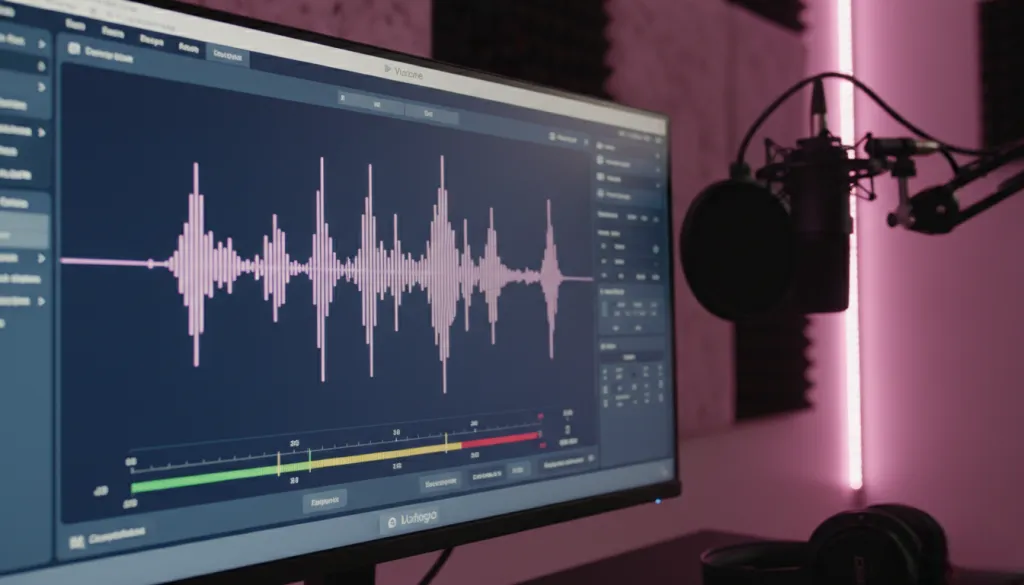
When you run audio from an external mixer alongside your video feed, you may notice that the pastor's lips on screen do not quite match the words you hear. This lip-sync issue happens because audio signals process almost instantaneously, while video signals require time for compression, encoding, and transmission. By the time your video encoder has prepared the image, the audio has already arrived at the destination.
The solution is to intentionally introduce a slight audio delay to slow the audio down so it matches the video timing:
- In OBS Studio: Go to Edit → Advanced Audio Properties, find your audio source, and adjust the "Sync Offset" (start with 100-200 milliseconds and fine-tune)
- In vMix: Use the Audio Settings panel to add delay to the specific audio input in milliseconds
- In hardware encoders: Most professional streaming encoders include an audio delay setting in their configuration menu
- In the NearStream App: Check the audio settings section for sync adjustment options
The most reliable way to dial this in is to have someone on stage clap their hands sharply while you watch the stream on a separate device. Adjust the delay until the sound of the clap and the visual of hands meeting align perfectly. Most churches find that a delay of 1 to 3 video frames (approximately 30-100 milliseconds at 30fps) achieves perfect synchronization.
 Acoustic Treatment for Highly Reflective Church Spaces
Some churches present a unique and stubborn challenge: stunning architectural design with genuinely difficult acoustics. High vaulted ceilings, bare drywall, stained glass windows, tile floors, and wooden pews create an environment where sound bounces relentlessly. Even with a soundboard feed, excessive ambient room noise can still find its way into your stream through open microphones or bleed.
Consider these targeted physical improvements:
- Sound-absorbing panels: Mount acoustic panels on walls directly behind and to the sides of camera positions. These absorb reflected sound before it reaches any open microphones.
- Bass traps: Place these in room corners where low-frequency sound energy accumulates most densely. They reduce the boomy, muffled quality that plagues services in large rooms.
- Acoustic baffles: Hang fabric-wrapped ceiling baffles in areas directly above camera positions. These intercept reflections coming from the ceiling before they cascade down into your mic pickups.
- Strategic camera placement: Position cameras closer to the stage whenever physically possible. The farther any microphone is from the sound source, the greater the ratio of unwanted room sound to desired direct sound.
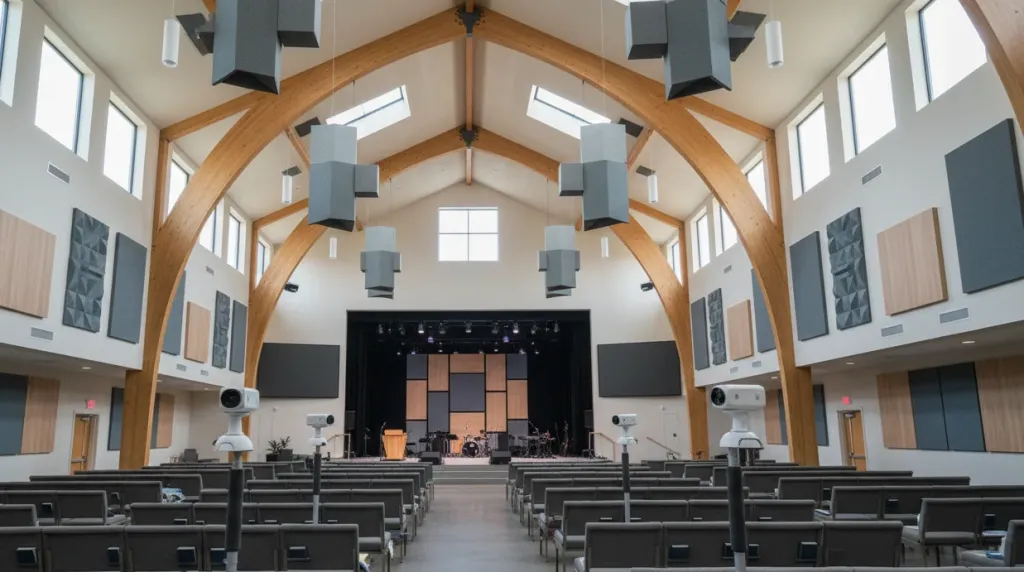
You do not need to transform your sanctuary into a professional recording studio. Even partial treatment — installing a few acoustic panels behind each camera position — can deliver a noticeable reduction in the indirect ambient noise that degrades stream quality week after week.
Many churches find that treating just the rear wall behind their primary streaming camera yields a dramatic improvement. This is because the rear wall is typically the largest flat reflective surface in the room, and it sends the strongest echoes back toward your microphones. Start there and evaluate before committing to a full-room treatment plan.
Troubleshooting Common Audio Mistakes
Even with the right knowledge, churches often stumble into preventable audio pitfalls. Watch out for these frequent missteps that can undo your best configuration efforts:
Leaving auxiliary camera mics active "just in case" Some operators keep backup microphones enabled at low volume as a safety net. This still creates echo. The time delay exists regardless of volume level. Choose one audio source and commit to it. If your primary source fails during service, you can switch sources in a matter of seconds.
Accidentally mixing camera audio with soundboard audio This common error creates a layered echo effect that sounds worse than using camera microphones alone. If you are running soundboard audio, every built-in camera microphone must be fully muted without exception.
Skipping the room context during setup checks Every room sounds different on Sunday morning versus a quiet Wednesday evening. Do your audio verification during conditions that match your actual service — same HVAC settings, same door positions, and ideally with a similar number of people present.
Testing only through headphones or the control monitor Audio that sounds acceptable in your headphones or through the NearStream App preview may develop problems after passing through Facebook Live or YouTube compression algorithms. Always conduct a short private test stream and listen on a mobile phone or external speaker.
Forgetting to coordinate with the worship team Many churches have separate audio systems for the worship portion and the sermon portion of service. If your pastor switches from a lapel mic to a handheld, or if the band's direct inputs get re-routed during the service, your stream audio may cut out or change character without warning. Communicate with your worship leader and sound engineer about microphone changes so you can adjust your stream audio accordingly. A simple two-minute conversation before service can prevent an entire broadcast from having inconsistent audio levels. Consider creating a shared checklist that your worship leader and AV team both review before each service. This ensures everyone knows which microphones will be active during each portion of the service and who to contact if changes are needed mid-stream.
FAQ
What if muting auxiliary cameras makes my overall audio too quiet? If your primary camera is positioned too far from the stage, the built-in microphone may not capture sufficient volume for a professional-sounding stream. This is a clear signal that you need either camera repositioning or a soundboard audio feed. Consider the NearStream VM33, which offers excellent onboard microphone sensitivity, but recognize that no built-in mic can fully replace a dedicated audio source for distant placements.
Can I use an external USB microphone instead of camera audio or a soundboard feed? Absolutely. A quality USB condenser microphone placed on or near the stage... can deliver excellent results. If you are overwhelmed by the choices, our microphone buying guide breaks down the differences between USB, XLR, and condenser mics to help you find the right fit for your budget. Just remember the same fundamental rule: only ONE active microphone can be used in your stream. Mute everything else completely.
Does the VM33 support external audio input for more professional setups? Yes, the NearStream VM33 all-in-one streaming camera supports external audio sources through its input connections, making it an ideal centerpiece for churches that are building a more comprehensive church audio system. You can run your soundboard output directly into the camera and use it as both your primary video source and your audio hub, simplifying your entire routing chain.
Will these echo fixes work for YouTube Live and other platforms besides Facebook Live? Yes. The echo problem and its solutions are entirely independent of your streaming destination. Whether you broadcast to Facebook Live, YouTube Live, church-specific online platforms, or a private RTMP server, the same acoustic principles and configuration steps apply universally.
How often should our team recheck the audio configuration? Verify your complete audio configuration before every service. Volunteer teams rotate, software updates can reset settings, and physical equipment gets bumped or repositioned between services. A quick 30-second audio check prevents a much more embarrassing 30-minute problem during your live broadcast.
Conclusion
Audio echo in your multi-camera church live stream is not a mystery, and it is certainly not a reason to invest in entirely new camera equipment. It is a predictable, solvable physics problem caused by multiple active microphones positioned at different distances from your sound source. Understanding this principle empowers you to diagnose and fix audio issues confidently, without panic or unnecessary spending.
Start with the five-second fix: open the NearStream App and mute every camera except your primary audio source. That single change will eliminate echo for most small and mid-sized churches immediately. When your ministry is ready to upgrade, route clean audio directly from your FOH soundboard into your stream for broadcast-quality church audio that honors your message and keeps your online congregation engaged.
Your online congregation deserves the same clear sound experience as those sitting in your sanctuary. With the practical steps outlined in this guide, you can deliver it — starting this Sunday. No more echo live on stream. No more complaints in the comments. Just clean, professional audio that helps your message reach every listener, whether they are in the front pew or watching from their living room two time zones away.
If you are using NearStream cameras and want to explore how the VM33 can serve as the foundation of your growing church audio system, visit the NearStream VM33 product page to learn more about its audio capabilities, multi-camera streaming features, and how it can simplify your entire production workflow.



 sales@nearstream.us






