
























































By The NearStream Audio Team Estimated Reading Time: 8 Minutes
In [Part 1 of this series], we answered the big question: "Can you really run a professional interview with two people in a room and one person on Zoom?" The answer is yes.
Now, we stop talking theory and start building.
Running a hybrid interview—whether for a podcast, a corporate webinar, or a live talk show—used to require a mixing board, complex routing software, and a headache. Today, we are going to do it with just one device and one USB cable.
In this guide, we will walk you through the exact workflow using the NearStream VM20. By the end of this post, you will have a broadcast-ready setup that captures your local conversation and your remote guest without echo, feedback, or stress.
🏗️ Phase 1: The Gear Checklist
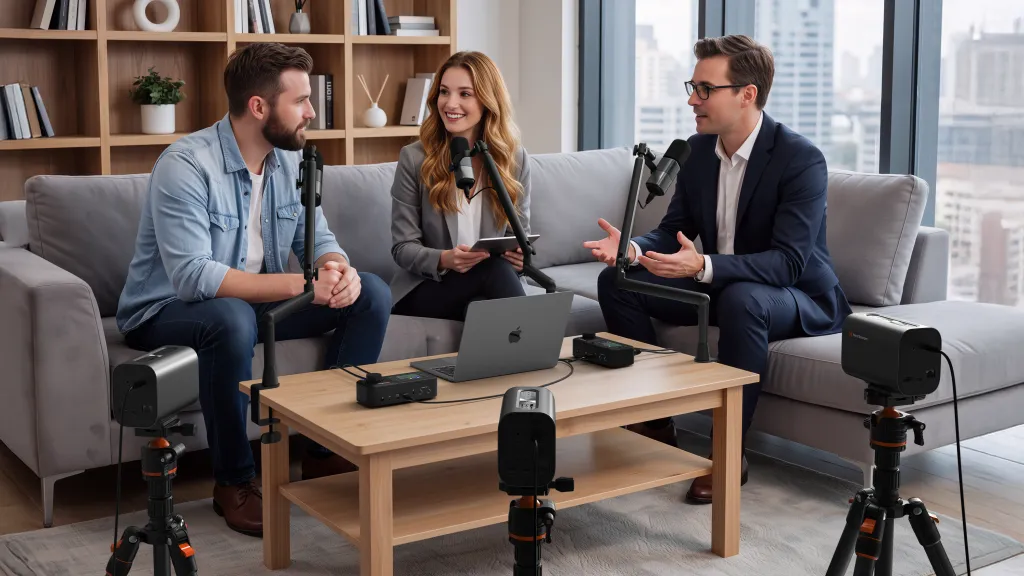
Before we plug anything in, let's ensure you have the right ingredients. The beauty of the VM20 solution is how short this list is.
| Category | The Essentials | Notes |
|---|---|---|
| Hardware | 1x NearStream VM20 | Acts as Camera, Mic, and Speaker. |
| 1x Computer | Laptop or Desktop (PC/Mac). | |
| 1x Pair of Headphones | Recommended for the Host (for monitoring). | |
| People | Local Host + Guest | Sitting in the same room. |
| Remote Guest | Joining via Zoom/Teams/Meet. | |
| Software | Conferencing App | Zoom, Teams, Google Meet, etc. |
| Broadcasting App | OBS, StreamYard, Riverside (Optional). |
Pro Tip: You do not need an external audio interface, mixer, or extra lavalier microphones. The VM20 replaces all of them.
🛠️ Phase 2: The Physical Setup
Step 1: Position the VM20 (The "Triangle" Layout)
Don't just put the camera anywhere. Geometry matters.
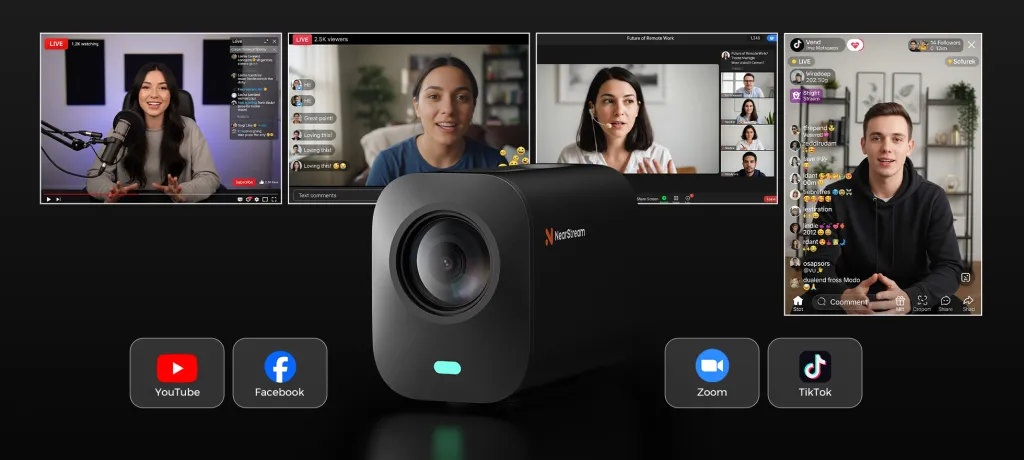
Place the VM20 on the table, equidistant (about 1.5 - 2 meters) from both the Host and the Local Guest.
- Why this works: The VM20 uses an 8-microphone beamforming array. By placing it centrally, you allow the AI to detect and balance both voices automatically.
- The "V-Shape": Imagine a "V" shape. The VM20 is at the bottom point of the V, and the two local speakers are at the top two points. This gives the camera the best viewing angle and audio capture.
Step 2: The Single-Cable Connection
Forget the rat's nest of XLR cables.
- Connect the VM20 to your computer using the provided USB-C cable.
- Wait a few seconds for your computer to recognize the device.
- Verification: The VM20 acts as a "Class Compliant" device. It will appear in your system settings as both a Microphone and a Speaker.
🎛️ Phase 3: The Software Configuration (Crucial)
This is where 90% of people get confused. To make the "Hybrid Magic" happen, you need to tell your software to use the VM20 for everything.
Step 3: Configure Your Video Conferencing App
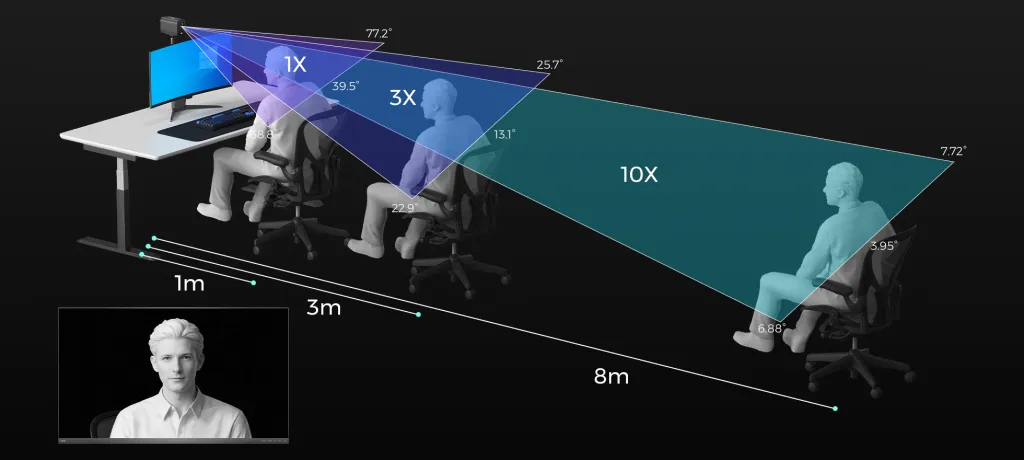
Whether you are using Zoom, Teams, or Google Meet to talk to your remote guest, the settings are identical.
The "Golden Settings" Rule:
| Setting Field | Select This Option | Why? |
|---|---|---|
| Microphone (Input) | NearStream VM20 | Sends both local voices to the remote guest clearly. |
| Speaker (Output) | NearStream VM20 | Plays the remote guest's voice through the VM20 speaker. |
| Camera (Video) | NearStream VM20 | Sends the video of the local room to the remote guest. |
⚠️ Critical Warning: Do not select your laptop speakers as the output. If you do, the VM20's microphone will hear the sound from the laptop, creating a feedback loop. By selecting VM20 for both Input and Output, you enable its built-in Acoustic Echo Cancellation (AEC) to stop the echo before it starts.
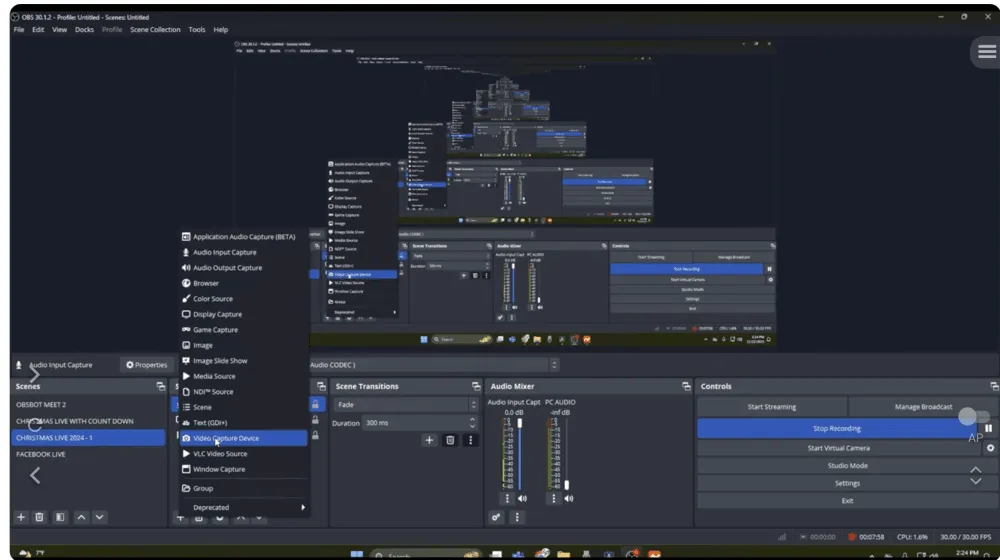
Step 4: Configure Your Broadcasting Software (OBS / StreamYard)
If you are recording or live streaming this interview to the public, you need to set up your output software.
- Audio Input Source: Select NearStream VM20.
- What this captures: It captures the "Mix." This includes the Local Host + Local Guest.
- Note for OBS Users: If you want to capture the Remote Guest's audio for the stream, you will need to add "Desktop Audio" as a source in OBS, since the remote guest's voice is coming out of the computer.
🎧 Phase 4: The "Echo-Free" Guarantee
The biggest fear in hybrid interviews is Echo (the remote guest hearing themselves talk).
Do We Need Headphones?
- The Old Way: Everyone in the room must wear headphones to prevent the mic from hearing the speaker.
- The VM20 Way: Because the VM20 has hardware-level Echo Cancellation, local participants do NOT strictly need headphones. You can listen to the remote guest through the VM20's built-in speaker.
However, here is our "Best Practice" recommendation:
The Host should wear headphones.
While not needed for echo prevention, the Host should wear headphones connected to the computer to monitor the levels and ensure the remote guest hasn't lost connection or muted themselves accidentally. The Local Guest can remain headphone-free for a more natural look.
✅ Phase 5: The Pre-Flight Check
Before you go live, run this 60-second test to ensure stability.
- The "Interrupt" Test: Have the local host and remote guest try to speak at the same time. Can they hear each other? Does the audio cut out? (VM20's full-duplex audio should allow them to talk over each other naturally).
- The Volume Check: Ask the remote guest: "Do I sound louder than the person sitting next to me?" The VM20 should automatically balance your volumes, but you can adjust your seating distance if needed.
- The "Silence" Check: Stop talking for 10 seconds. Listen for any hiss or background noise.
Why This Setup Works (The Technical Secret)
Traditional hybrid interviews fail because audio is handled by multiple devices (Laptop Mic + Webcam Mic + External Speaker). This confuses the software.
The VM20 Setup works because it acts as a Central Audio Hub.
- It collects local sound.
- It plays remote sound.
- It mathematically subtracts the remote sound from the local microphone feed.
- It sends a clean signal to the world.
It turns a complex "Three-Way Handshake" into a simple conversation.

Addressing Common Setup Questions(FAQ)
Even with a simple setup, first-time users often have specific technical concerns. Here are the answers to the most frequent questions we receive about the VM20 workflow.
1."Can I record the local and remote guests on separate audio tracks?"
By default, the VM20 sends a mixed stereo signal to your computer. This means the Local Host and Local Guest are combined into one stream. This is intentional—it simplifies live streaming because you don't need to mix audio in post-production. The remote guest stays on their own track if you use software like OBS to capture "Desktop Audio" separately.
2."Will there be a delay between the video and audio (Lip-Sync issues)?"
The VM20 processes audio and video simultaneously within the device to ensure synchronization. If you experience a delay, it is almost always due to the internet connection (network latency) rather than the hardware.
3."Do I need to install drivers for Mac or Windows?"
No. The VM20 is 100% Plug-and-Play. It uses standard UVC/UAC protocols, meaning your computer recognizes it instantly as a generic webcam and microphone, just like a keyboard or mouse.
4."Can the VM20 track us if we move around?"
Yes. While this guide focused on audio, don't forget the VM20 is also a 4K camera. You can enable AI Tracking Mode in the software settings. This allows the camera to automatically pan and zoom to frame whoever is speaking, making your broadcast look like it has a dedicated cameraman.
Conclusion: Complexity is Optional
For years, we’ve been told that "Professional Broadcasting" requires a rack of expensive equipment, a tangle of cables, and a dedicated technician.
The NearStream VM20 proves that assumption wrong.
By consolidating the camera, microphone array, speaker, and mixer into a single desktop device, you eliminate the points of failure.
- You don't need to balance levels; the AI does it.
- You don't need to fight echo; the hardware kills it.
- You don't need to be an engineer; you just need to plug it in.
Now that your system is built and tested, you are ready to go live. You have successfully removed the technical barriers between your local room and your remote guest.
However, even the perfect setup can face real-world challenges. What happens if the internet drops? What if the remote guest is in a noisy coffee shop?
In the final part of this series, we will turn you into a troubleshooting expert.
What’s Next?
Congratulations! You are now technically ready to broadcast. But as with any live production, things can go wrong.
- What if the internet drops?
- What if the remote guest sounds robotic?
- What if there is a lip-sync delay?
In the final part of this series, we will look at Troubleshooting. We will cover the most common disasters in remote interviews and how to solve them in seconds.
👉 Read Next: [Blog 3: Common Problems in Remote Interviews — and How VM20 Solves Them]
🛒 Ready to build this setup?
Get the All-in-One device that makes hybrid interviews possible.
[Shop NearStream VM20]



 sales@nearstream.us






