How to Get a Transcript of a YouTube Video: Tools, Tips & Pro-Level Workflow
Learn how to get and use YouTube video transcripts on desktop and mobile.
youtube transcript
youtube video transcription
Updated: Feb 26, 2026 · 8 minutes read
Modular Video Kits for Growing Business.
Before you dive into editing or optimizing your YouTube videos, there’s one underrated feature that can completely transform your content strategy: transcripts. Whether you’re aiming to reach more viewers, improve accessibility, or repurpose your content across platforms — understanding how to get, use, and enhance YouTube video transcripts is key.
But not all transcripts are created equal. From auto-captions to manual editing, and from mobile limitations to SEO goldmines, this guide walks you through everything you need to know.
What Is a YouTube Transcript and Why It Matters
A YouTube transcript is the full textual representation of a video's spoken audio. It breaks down the entire dialogue, word by word, often with timestamps. While once considered just an accessibility feature, transcripts today are a multi-purpose tool that can amplify your content’s visibility, repurposability, and professionalism.
Transcripts Are More Than Subtitles
A common misconception is that transcripts and subtitles are the same. In reality, subtitles are timed overlays, while transcripts are standalone text records. You can scroll through, search, edit, and export transcripts — they’re your content’s textual backbone.
YouTube and Google can index the textual content of your video when you include a transcript. That means your video may appear in search results not just by title, but by the actual things you say.
If your video says "how to edit vertical videos for Reels", and this sentence appears in the transcription, it may make you appear in the relevant search, even if it is not part of the title.
👥 Accessibility and Inclusivity
Transcripts help people who are deaf, hard of hearing, or non-native English speakers. They also enable silent viewing (on public transport, office, etc.). This means more potential audience.
🧠 Enhanced Learning & Retention
In educational, technical, or interview-style videos, viewers often need to revisit specific points. Transcripts with timestamps make it easy to jump to what matters most.
How to Get a Transcript of a YouTube Video – Step-by-Step (Phone & Desktop)
How to get a transcript of YouTube videos on your desktop
Step 1: Search for the video you want to transcribe
Launch the YouTube app on your phone and use the search bar to locate the video by entering keywords, video titles, or channel names.
Step2: Access the video details
Tap on the video, then look below the title. Click on the “More” or three-dot icon (⋯) to expand the video’s full information.
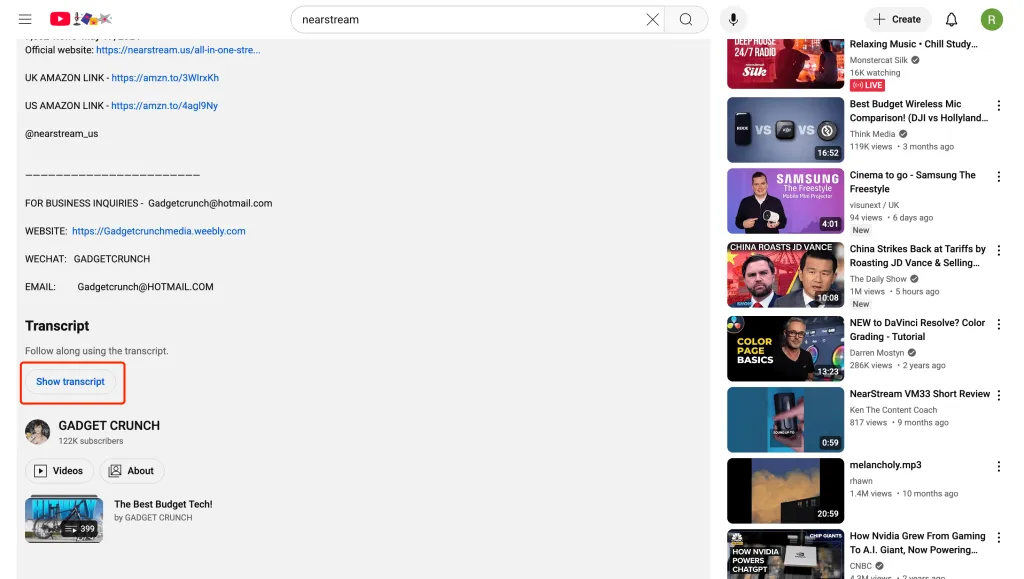
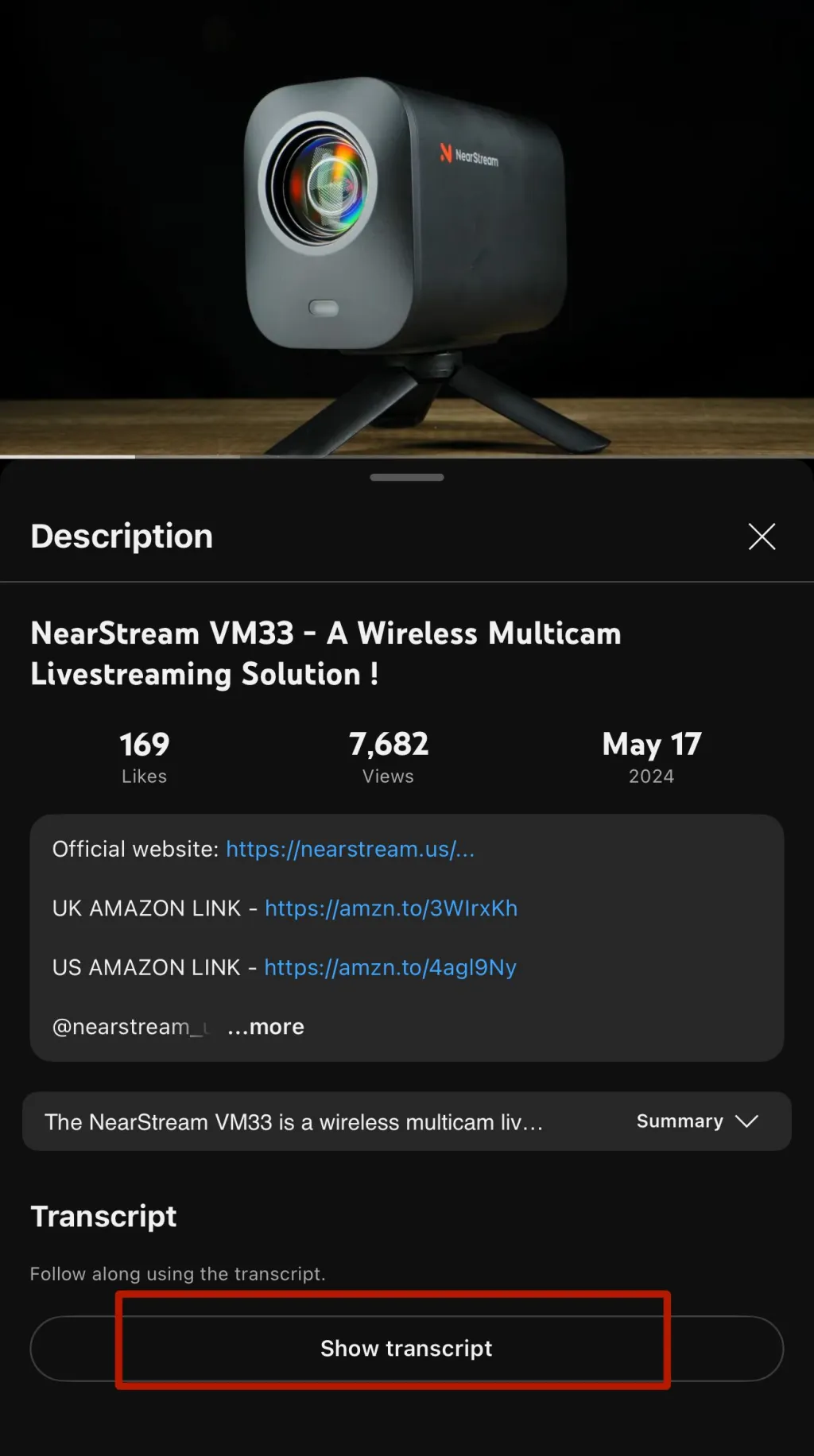
Step 3: Select “Show Transcript”
Scroll through the expanded video info until you find the “Show transcript” option. Tap to open the transcript view.
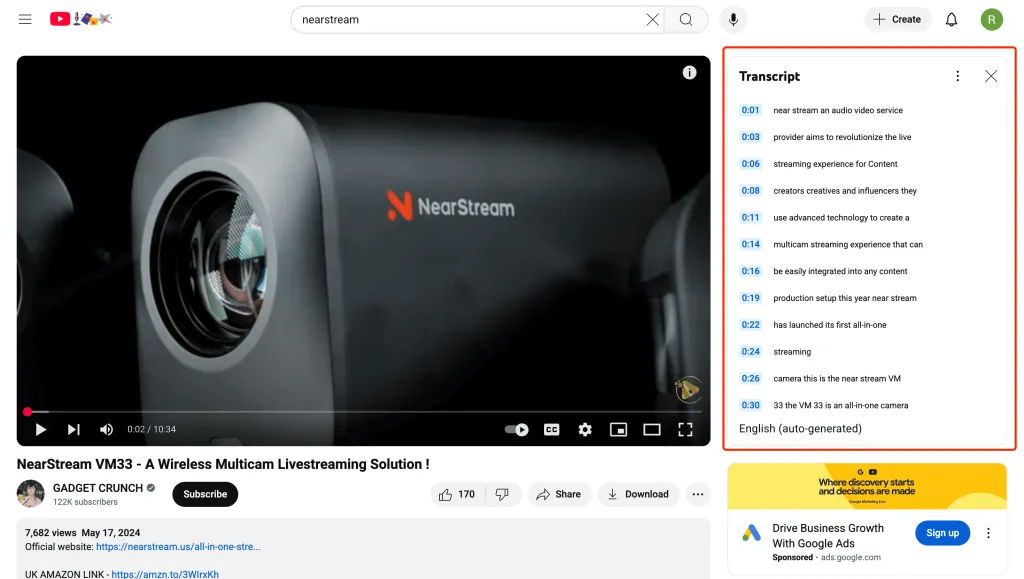
Step 4: Use timestamps to navigate through content
You’ll now see the transcript, often line-by-line with time markers. You can turn timestamps on/off, and tap on any one to jump to that part of the video.
Step 5: Choose available transcript languages
If the video supports multiple languages, you’ll find a dropdown menu to switch between them.
Step 6: Copying or saving the transcript
Select all these texts, copy and paste them into a new document, and you will obtain a complete transcript
How to Get a Transcript of a YouTube Video on Your Phone
Accessing a transcript on your phone — whether you're using iPhone or Android — follows a process similar to the desktop version. However, mobile comes with one key limitation: you can’t copy or export the full transcript. You can view it, tap on timestamps, and switch between languages (if available), but direct download isn't supported.
What Free Methods Can’t Do (Limitations)
Limitation
Description
❌ No full transcript copying on mobile
Mobile apps only allow viewing; copying or exporting the full text isn’t supported.
❌ No structured export formats
Transcripts come without punctuation, paragraphs, or subtitles — formatting must be done manually.
❌ Accuracy depends on audio quality
Poor sound leads to misrecognitions — auto tools can't fix noisy input.
Third-Party Tools to Transcribe YouTube Videos (Manual & AI-Based)
While YouTube’s built-in transcript feature works well for many basic needs, sometimes you’ll need more advanced tools — especially if you want to edit, translate, repurpose, or fine-tune transcripts for accuracy. That’s where third-party transcription tools come in.
AI-Based Tools for Fast & Automated Transcription
AI tools are the most popular choice for creators today. They use speech recognition technology to transcribe your video/audio files in just minutes — and with surprisingly good accuracy (especially when paired with quality audio equipment).
Upload, auto-generate, or manually edit video subtitles
YouTube creators using native workflow
Manual Transcription Tools
If your content includes technical terms, strong accents, multiple speakers, or foreign language phrases, manual editing may still be necessary. The following tools support detailed timestamping, formatting, and exporting — great for long-form, polished content.
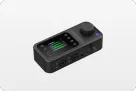
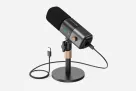
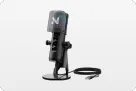
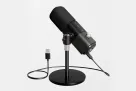
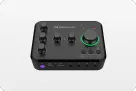
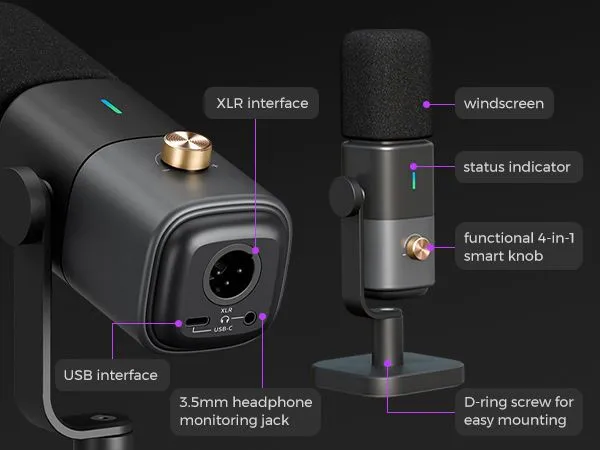
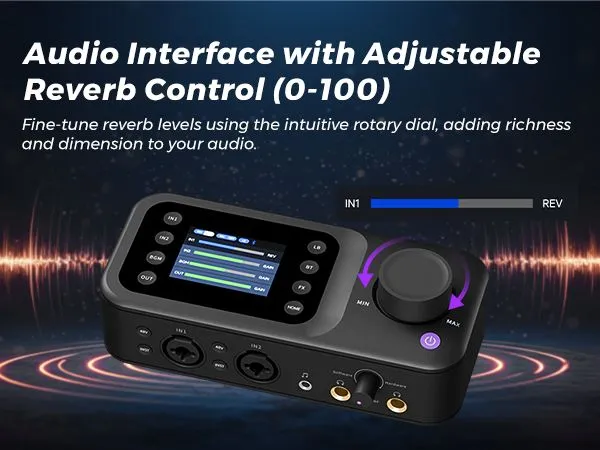
Key reminder: Even the most powerful AI tools rely heavily on clear original audio quality. If your recording is blurry and there is too much background noise, the machine will still "not understand". This is also why more and more creators choose to use the NearStream AM25X condenser microphone + audio mixer in combination to make the transcription process easier and more accurate.
Manual vs. AI Transcription: Which One Should You Use?
Better formatting, reliable meaning across languages
Bonus Tip for Creators:
Use AI transcription tools for your first draft to save time, then do a manual review to polish key parts. This hybrid approach is ideal for YouTubers, podcasters, and educators.
Why Transcription Improves Your YouTube Performance
Adding transcripts to your YouTube videos isn’t just about accessibility — it’s a growth strategy. Clear transcripts (whether via subtitles or full text) improve SEO, viewer retention, watch time, and engagement metrics. Here's how:
Boost SEO & Discoverability
Transcripts contain searchable keywords that help both YouTube and Google understand what your video is about. This increases your chances of showing up in search results — especially for long-tail queries.
Improve Average Watch Time
When users can follow along with on-screen text — especially in tutorials or educational content — they’re more likely to stay longer and rewind key parts, both of which are rewarded by the algorithm.
Increase Engagement
Clear transcripts make videos more relatable and understandable, especially for non-native speakers. They’re more likely to leave a comment or share the content when they fully grasp what’s being said.
Bonus: Turn Your Transcripts Into Blogs, Captions, and Social Content
One of the biggest benefits of having a transcript is content repurposing — the ability to reuse one piece of content in many ways across platforms.
Use Case
Transcript Purpose
Platform Examples
Blog Articles
Turn into detailed how-to guides or long-form tutorials
Personal blogs, Medium, WordPress
Social Media
Extract punchy lines as captions or hooks
TikTok, YouTube Shorts, Instagram Reels
Podcast Show Notes
Create episode summaries or key takeaways
Spotify, Apple Podcasts, RSS feeds
Video Re-edits
Identify highlights for republishing as clips
YouTube Shorts, TikTok, Bilibili
Top Mistakes to Avoid When Transcribing YouTube Videos
🚫 Mistake 1: Relying 100% on Auto-Captions
Auto-captions are convenient, but far from perfect. Always proofread or enhance with manual editing.
🚫 Mistake 2: Ignoring Audio Quality
Poor mic = poor transcript. If your input is noisy or muffled, even the best AI can't help.
🚫 Mistake 3: No Formatting or Speaker Tags
Wall-of-text transcripts are hard to read. Use paragraphs, punctuation, and speaker labels.
🚫 Mistake 4: Not Using Timestamps
Without timestamps, your transcript can’t be navigated. Especially crucial for long-form content.
🚫 Mistake 5: Not Repurposing the Transcript
A transcript is a powerful content asset. Don’t just create it — use it in blogs, captions, Shorts, and more.
Every great transcript starts with one thing: great audio. Whether you're using YouTube's built-in captions or advanced AI tools, your transcription accuracy depends heavily on the clarity of your voice recording.
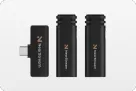
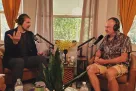
That’s why thousands of creators rely on NearStream’s condenser microphone, wireless lapel mics, and audio mixers to record professional-grade voice tracks — reducing background noise and enhancing speech detail. When your audio is clean, transcripts require less fixing, fewer edits, and more time saved.
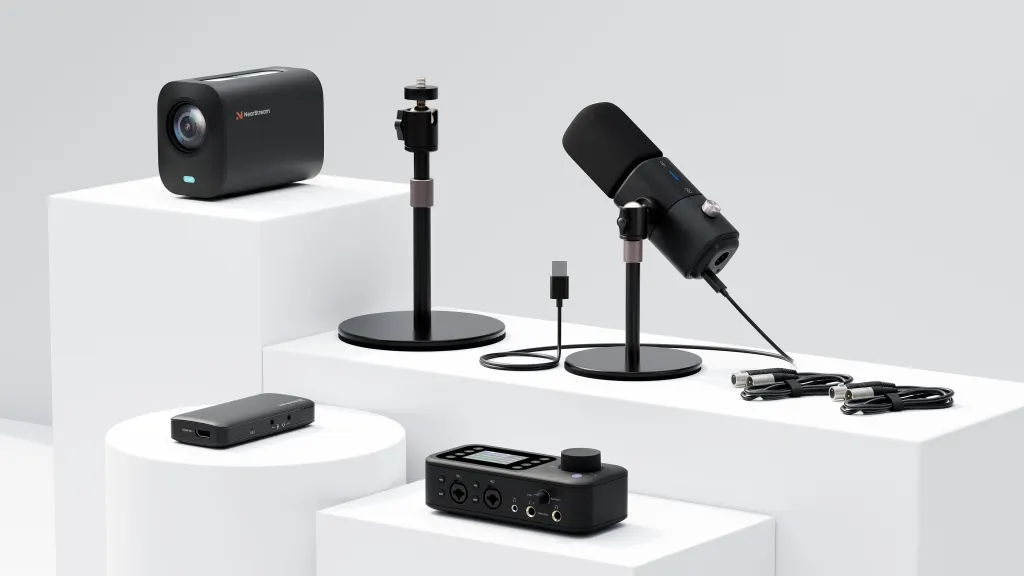
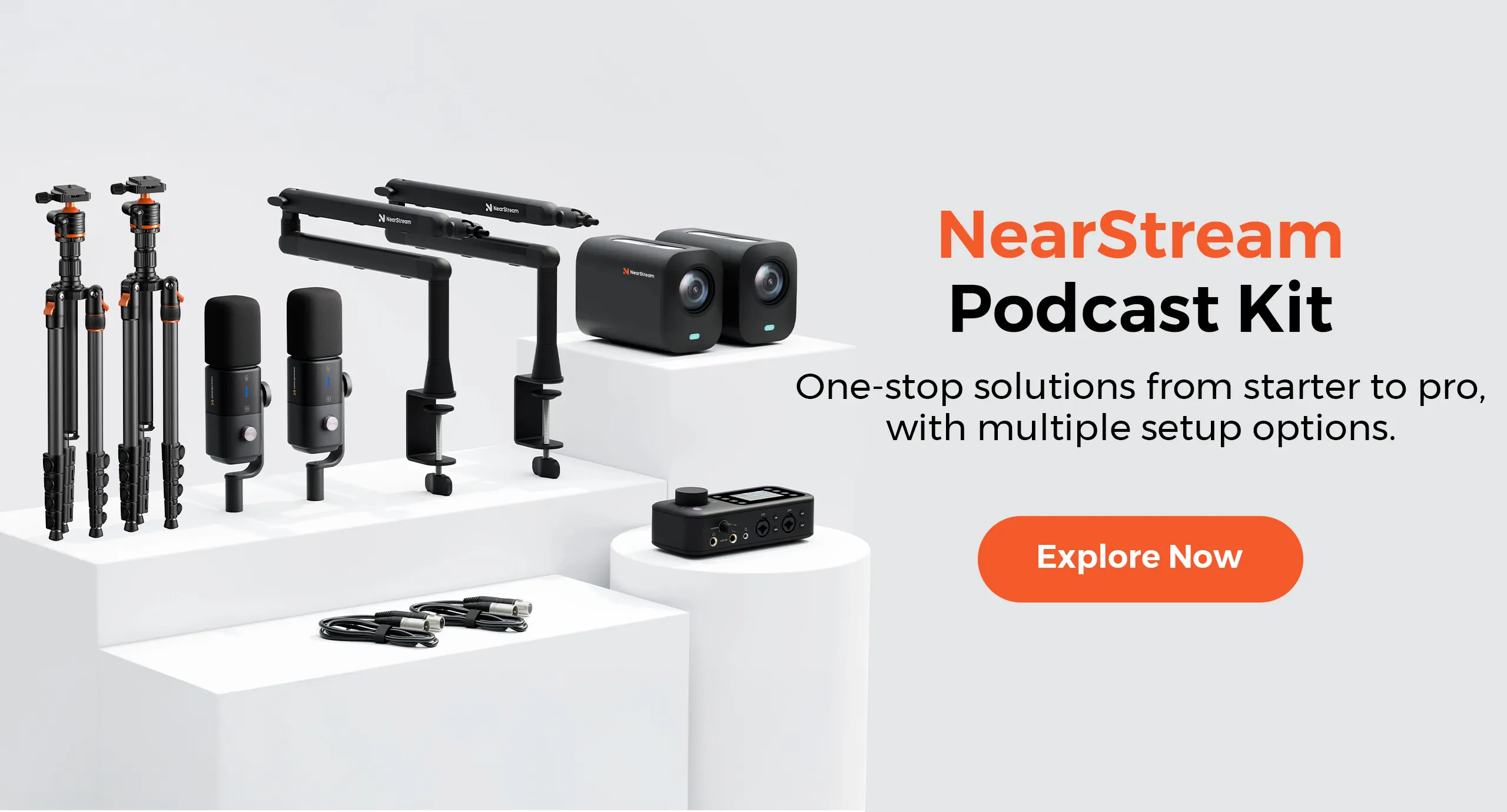
🎯 Want to level up your YouTube production from the source? Explore the NearStream Podcast Solution — built for creators who care about quality, performance, and results.





















 sales@nearstream.us