

























































Broadcasting a baseball game with a single camera from the backstop is a great start, but capturing the true dynamic of the game—the pitcher's release, the play at first base, and the wide field view—requires a multi-camera setup. The pain point? Attempting to link three cameras across a massive, 300-foot outdoor complex with zero cell service or reliable stadium Wi-Fi. Standard mobile hotspots will collapse under the range requirements, leaving you with dropped frames and disconnected devices. This guide reveals the ultimate "off-grid" networking blueprint: combining the NearStream VM33 with a Slate AXT1800 router bridge. Learn how to blanket a remote field in a unified Wi-Fi network and run a professional, multi-angle broadcast from a single iPad in the dugout.
1. The Industry Context: The Multi-Cam Distance Trap
When expanding from a single camera to a multi-camera production on a baseball field, distance is your biggest enemy.
A standard smartphone hotspot might reach a camera mounted right in front of you, but it cannot penetrate the chain-link fence and simultaneously reach a camera mounted down the first-base line.
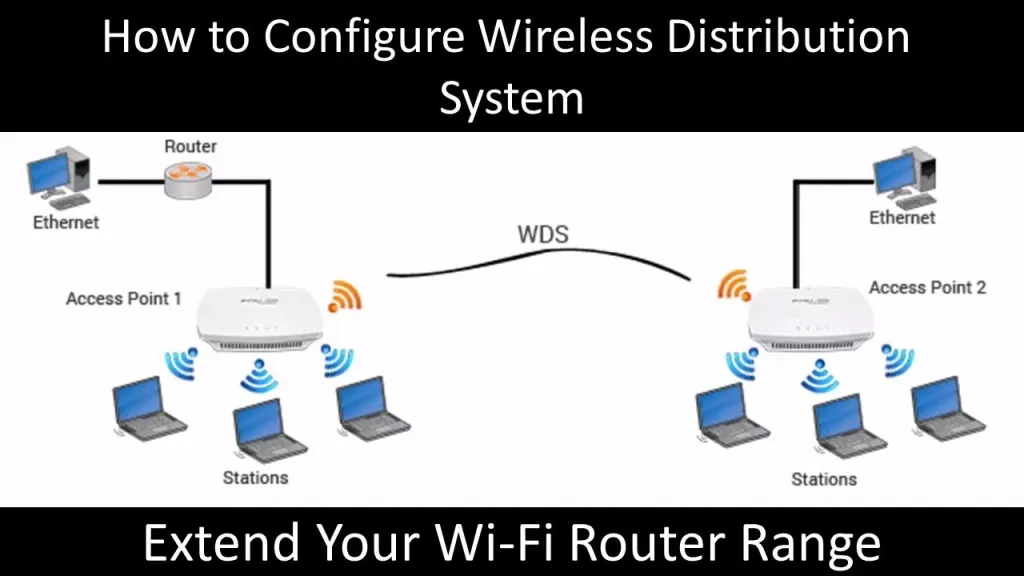
If the cameras cannot communicate flawlessly with your control tablet over the same Local Area Network (LAN), your broadcasting app will not be able to sync the video feeds. To solve this, you must abandon consumer hotspots and build a Wireless Distribution System (WDS)—an invisible, high-powered digital web that connects the entire diamond.
2. Infrastructure Comparison: Finding the Right Network Tool
To build a massive local network outdoors, not all hardware is created equal. Here is how the options stack up for sports broadcasting:
Table 1: Multi-Cam Networking Solutions
| Networking Method | Max Range | Setup Complexity | Best For |
|---|---|---|---|
| Single Mobile Hotspot | 30 - 50 ft | Very Low | Single-camera backstop streaming. |
| Consumer Mesh (e.g., Eero) | 100 - 150 ft | Medium | Home use; latency issues for live video. |
| WDS Bridge (Slate AXT1800) | 300+ ft | High (Initial) | Pro-level multi-cam sports broadcasting. |
Table 2: The Off-Grid Broadcast Hardware Checklist
| Component Role | Recommended Gear | Quantity Needed |
|---|---|---|
| The "Hero" Cameras | NearStream VM33 | 3 |
| The Network Hubs | Slate AXT1800 | 3 |
| The Command Center | iPad or High-End Android Tablet | 1 |
| Internet Source (Optional) | Mobile Hotspot / Starlink | 1 |
3. The Blueprint: Step-by-Step 3-Router + 3-Camera Deployment
To allow your tablet and all three VM33 cameras to "see" each other via the NearStream App's Multicam feature, they must be on the exact same subnet, sharing the same Wi-Fi name (SSID) and password. We will designate one router as the Main (Center) and two as Extenders (Frontline).
Phase 1: Building the Infrastructure (The Router Bridge)
1. Configure the Main Router (Router A - The Hub)
- Power on Router A (usually located at the backstop or your broadcasting table).
- Log into its backend dashboard via your phone or laptop (typically 192.168.8.1).
- Change the 2.4GHz and 5GHz Wi-Fi SSID to a simple, unified name. Let’s use Baseball-Live. Set a secure password.
2. Configure the Extender Nodes (Routers B & C)
- Power on Router B. Log into its backend dashboard.
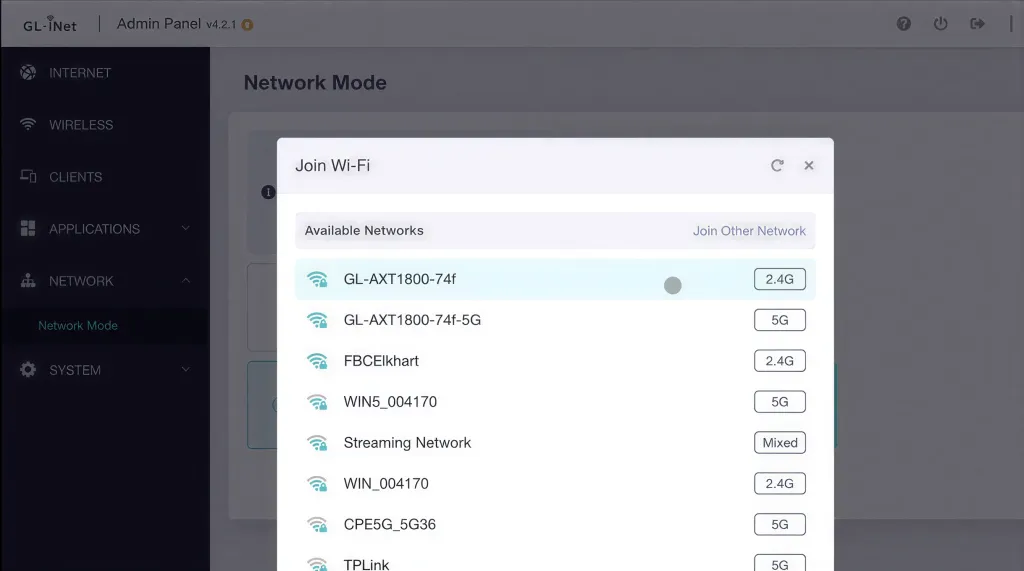
- Crucial Step: Navigate to Network -> Network Mode.
- Switch the mode from "Router" to "Extender" or "WDS/Bridge".
- Scan for networks, select Baseball-Live, and enter the password.
- Pro Tip: In this mode, Router B stops assigning its own IP addresses. It becomes a powerful signal repeater, directly passing all traffic to Router A.
- Repeat this exact process for Router C.
- Deployment: Place Router B down the 1st base line and Router C down the 3rd base line. They must have a line of sight or be within range of Router A.
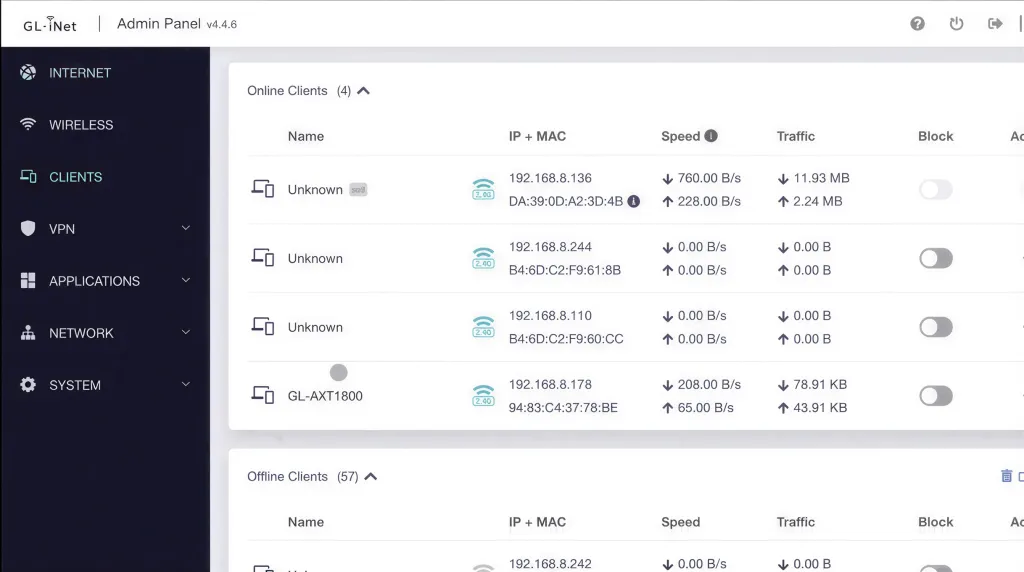
Phase 2: The Command Center Drops In
- Take your iPad (with the NearStream App installed) and walk onto the field.
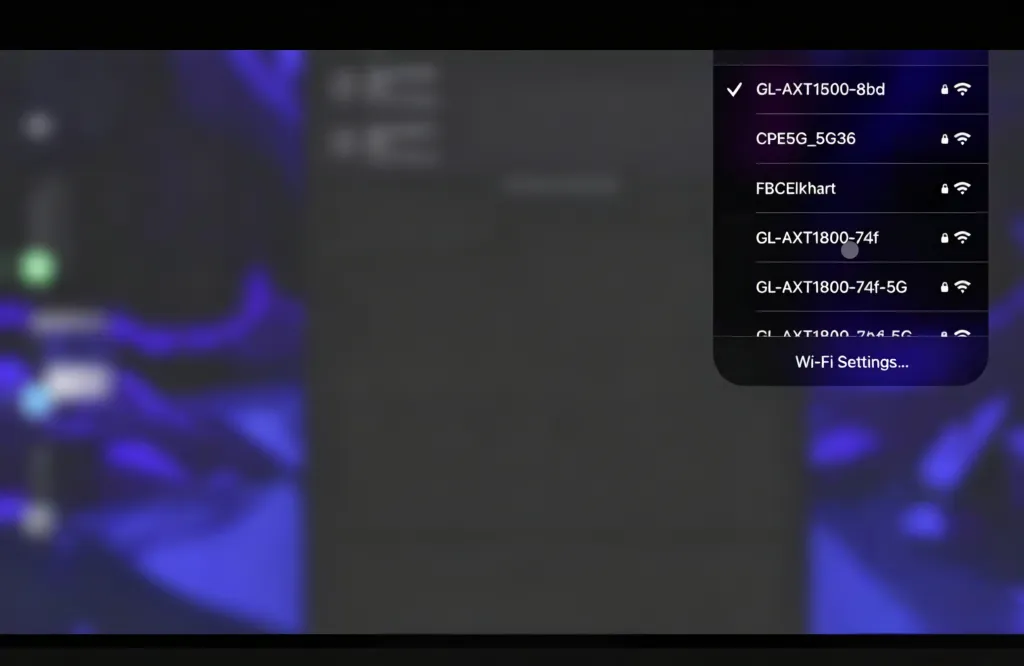
- Connect the tablet to the Baseball-Live Wi-Fi network.
- The Walk Test: Walk from the backstop to 1st base, then to 3rd base. Your tablet's , proving your "invisible web" is active.
Phase 3: Enlisting the VM33 Cameras
Because the VM33 requires a Wi-Fi connection to join the Multicam network, you will need to "walk the field" to link them.
1. Connect Camera 1 (Center Field/Backstop)
- Power on the first VM33.
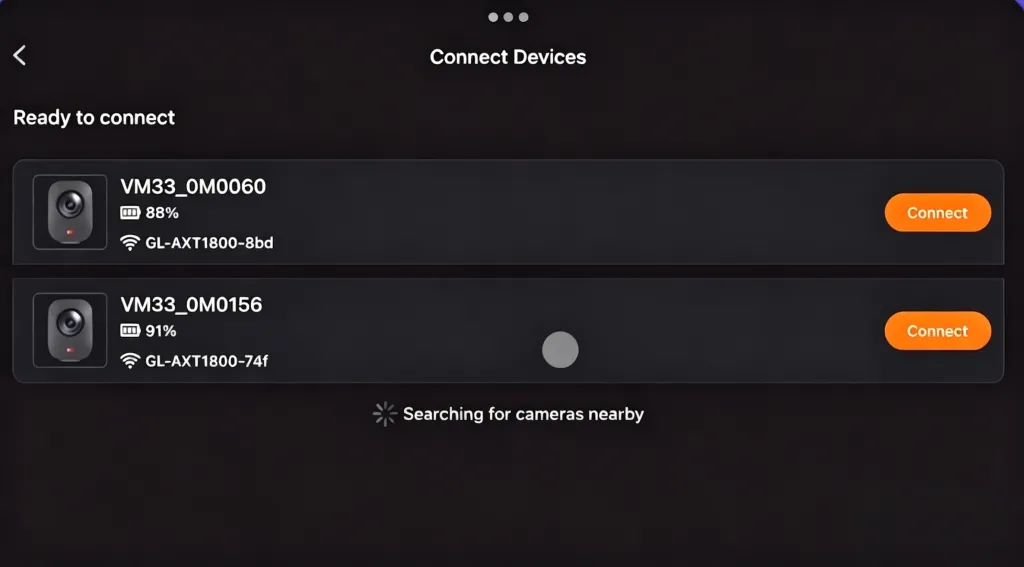
- Open the NearStream App on your connected tablet, and tap Add Device -> Wi-Fi Connection.
- The App will recognize the Baseball-Live network. Input the password to generate the pairing QR code (or follow the specific in-app prompts).
- Wait for the "Connection Successful" prompt.
2. Connect Cameras 2 & 3 (1st and 3rd Base)
- Walk to your second VM33. Return to the app's home screen, tap Add Device, and repeat the pairing process.
- Walk to the third VM33 and do the exact same thing.
Phase 4: Going Live in the Multicam Studio
- Return to your broadcasting position near Router A.
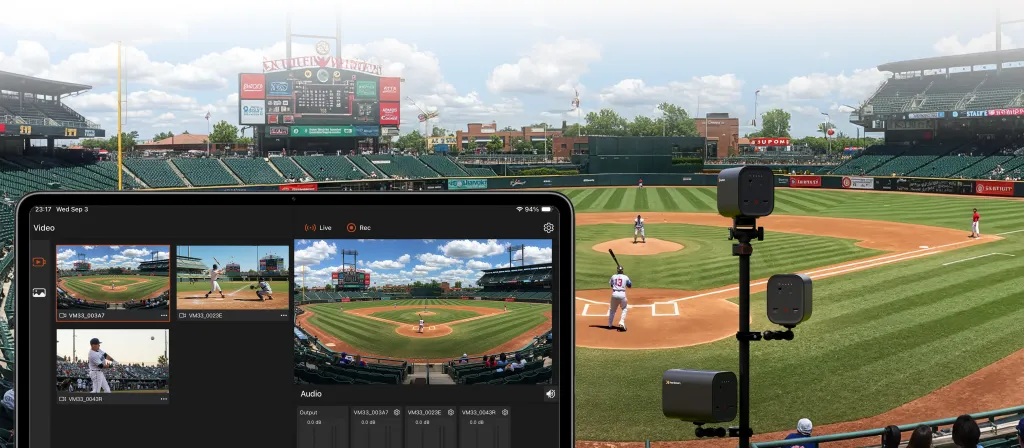
- Open the Multicam interface in the NearStream App.
- Because your tablet and all three cameras are talking to the same unified Baseball-Live network, the app will instantly populate all three video feeds.
- You can now seamlessly switch angles, control zoom dynamically, and push a professional broadcast to your audience.

4. Beyond the Live Stream: Remote Sync Recording & Cloud Collaboration
While a live broadcast brings the game to the fans in real-time, the ability to record high-bitrate, multi-angle footage locally is what transforms a simple stream into a "Value Multiplier" for athletes. This phase of the setup is specifically engineered for high-end post-game editing and professional college recruiting.
The "Master Control" Logic
Thanks to the unified Local Area Network (LAN) created by your WDS bridge, the NearStream App transforms your iPad into a Master Command Center. You no longer need to physically visit each camera to manage storage or start recording.
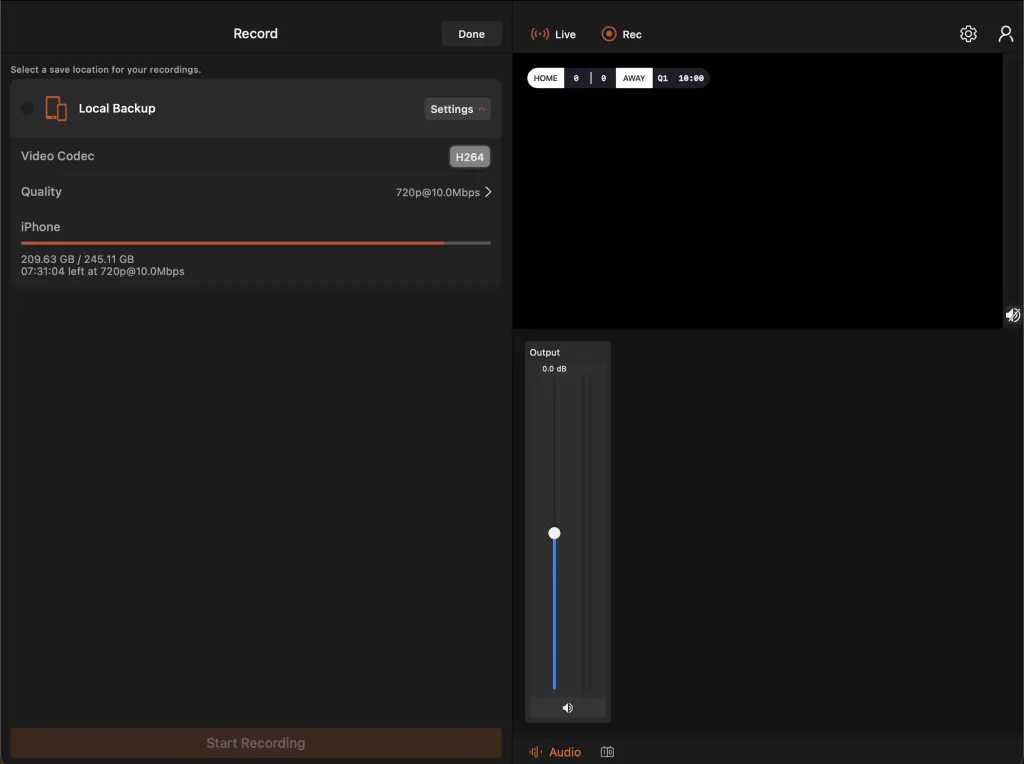
One-Tap Synchronized Control: Within the Multicam interface, a single tap on the "Record" button triggers all three VM33 units—even those 300 feet away—to begin filming simultaneously. This significantly reduces the logistical headache of managing multiple angles as a solo operator.
Zero-Latency Footage Matching: In traditional setups, syncing footage from different cameras is a nightmare because they never start at the exact same micro-second. The NearStream ecosystem solves this by enabling simultaneous recording across all cameras, ensuring each video starts together with near-zero latency, making multi-camera footage easy to align.
Editor-Ready Files: The VM33’s onboard processing ensures that the 1080p/60fps files saved to the local SD cards are perfectly aligned. When you drop these files into editing software like Adobe Premiere or Final Cut Pro, the angles match up instantly with zero manual alignment required.
Streamlining the Scouting Workflow
The power of this setup culminates in how the footage is shared and utilized after the final out is recorded.
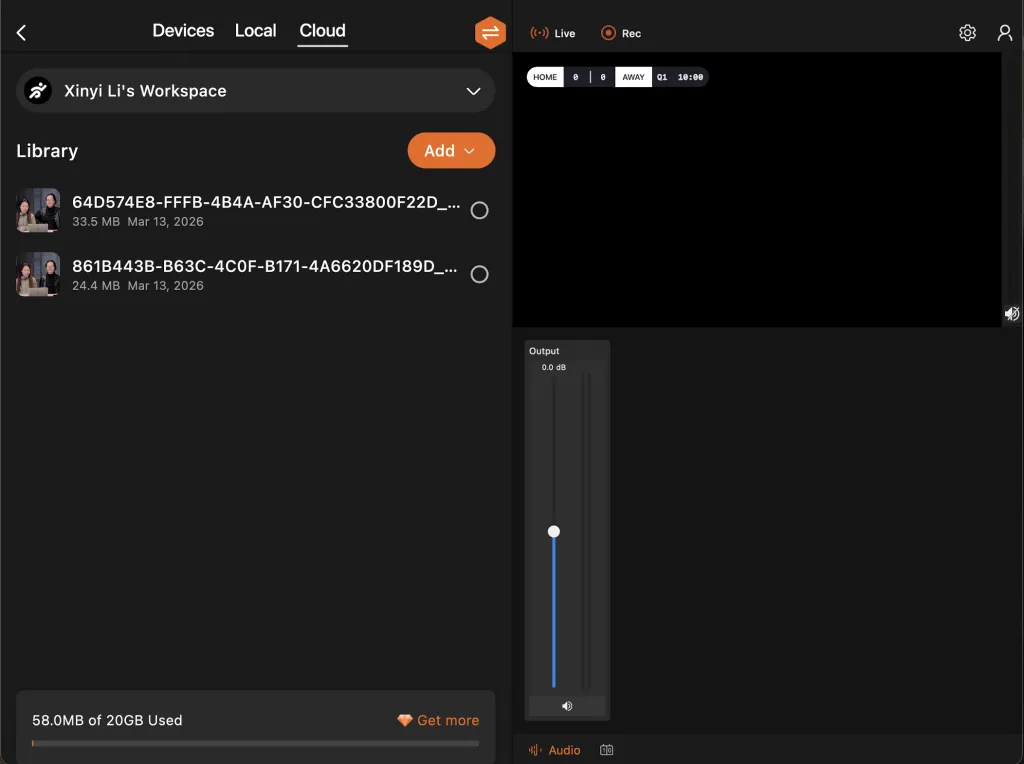
NearStream Cloud Collaboration: Once the game ends, you can upload your high-definition files directly to the NearStream Cloud with one click.
Instant Multi-User Access: Once uploaded, coaches, parents, and scouts across the country can access the footage via shared links. This eliminates the need to manually swap SD cards or mail thumb drives, allowing for real-time talent evaluation.
The Ultimate Recruiting & Showcase Tool: This is the "Secret Weapon" for creating professional Recruiting Videos. You can now capture a single play—such as a critical strikeout—from three distinct perspectives:
- The Center Field Wide (Game Context)
- The Pitcher's Release (Mechanics)
- The Batter's Box Profile (Reaction/Swing Path)
Pro Impact: Providing college recruiters with professional, multi-angle Showcase Footage leaves a lasting impression. It allows scouts to analyze a player's mechanics and speed from every perspective, significantly elevating the athlete’s digital profile and recruitment potential.
5. FAQ: Troubleshooting Remote Field Networking
Q: I’m trying to use NDI for near-field connections, but the cameras won't connect. What's wrong?
You must set up the WDS (Bridge) mode through the router's Web Browser UI (the 192.168.8.1 address), not the router manufacturer's mobile app. Using the simplified setup wizard on an iPhone app often misconfigures the bridge, causing the NDI protocol (which relies heavily on local network discovery) to fail.
Q: If we are in the middle of nowhere, how does the Main Router actually connect to the internet to stream out?
The GL.iNet AXT1800 creates the local network, but it still needs an internet source. You simply take a dedicated mobile hotspot device (like a Netgear Nighthawk) or a Starlink dish, and plug an Ethernet cable from that device directly into the WAN port of Router A. The router will then distribute that internet connection to your entire camera network.
Q: My Multicam drops connections. When my iPad connects to Router 1, it loses the NDI feed from the camera on Router 2. When I walk over to Router 2, it drops Camera 1. How do I fix this?
This is a classic firewall issue. By default, the main router has an internal firewall enabled for security, which blocks the specific ports NDI uses to communicate across the network nodes. You must log into the main router's backend and disable the firewall. Once the firewall is off, the video signals will pass freely between all access points.
Ready to upgrade your sports broadcasting from a single viewpoint to a multi-angle masterpiece?



 sales@nearstream.us






