Top 7 OBS Alternatives for Streaming in 2025: Free & Paid
Discover the best OBS alternatives, essential stre
obs alternatives
alternative software for obs studio
Updated: Mar 2, 2026 · 8 minutes read
Modular Video Kits for Growing Business.
Live streaming has become one of the fastest-growing forms of digital content. Whether you're gaming, hosting webinars, podcasting, or showcasing your creative work, having the right broadcasting tool is essential. OBS Studio (Open Broadcaster Software) has long been a top choice, but it’s not the only option. In this blog, we'll explore the best OBS alternatives, what features you should look for, and the top free and paid options available. We'll also dive into the hardware essentials and setup tutorials — streaming cameras, streaming microphones, and capture cards — to help you create a professional live streaming setup.
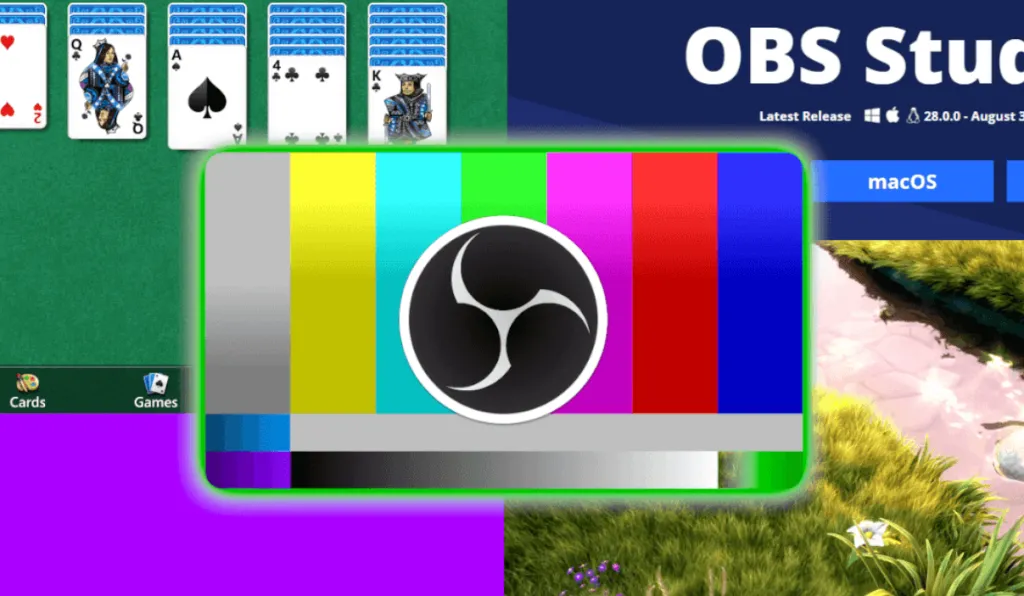
OBS Studio is a free, open-source software used primarily for video recording and live streaming. It allows users to capture real-time audio/video and mix them with other media sources like images, texts, browser windows, and webcams.
When people talk about streaming software, they usually mention OBS Studio because of its flexible features, powerful plugin support, and zero cost. However, OBS can sometimes be intimidating for beginners, demanding in terms of system resources, and lacking built-in customer support — leading users to look for an alternative software for OBS Studio.
Why Should You Consider OBS Alternatives?
While OBS Studio remains a powerhouse, it might not be the perfect fit for everyone. Here’s why exploring alternatives for OBS can be worthwhile:
User Experience: Some users find OBS too complex for basic streaming needs.
Customization: While OBS is flexible, setting up custom scenes and sources can be time-consuming.
Performance: OBS can be heavy on system resources, causing performance issues on older PCs.
Support: With no official support, troubleshooting OBS problems relies heavily on online forums.
Built-In Features: Alternatives often offer built-in templates, alerts, and easier third-party integrations.
Choosing the right OBS alternative depends on your goals — whether it's gaming, business webinars, or multi-streaming to different platforms simultaneously.
What Features to Consider When Finding Best OBS Alternatives
Before we dive into the top streaming software OBS alternatives, let's highlight key features to evaluate:
Ease of Use: User-friendly interfaces help beginners get started quickly.
Customization Options: Ability to create scenes, transitions, and overlays.
Performance Efficiency: Lower CPU usage for smoother streams.
Multi-Platform Streaming: Streaming to Twitch, YouTube, Facebook, and more at once.
Integrated Alerts & Widgets: Built-in options for follower/subscriber alerts.
Recording Quality: Support for high-resolution local recordings.
Customer Support: Access to documentation, live support, or community forums.
Price: Whether free or paid, ensuring good value for features.
Top 7 Alternative Softwares for OBS Studio
Here are the best OBS alternatives categorized by free and paid options:
Software
Price
Compatibility
Pros
Cons
Best For
Streamlabs
Free (Premium upgrades)
Windows, macOS
Beginner-friendly, built-in monetization
Higher CPU usage
Beginners, gamers, casual creators
Lightstream
Free basic, Paid upgrades
Browser-based
No download, easy console streaming
Internet-dependent, limited features
Console gamers, casual streamers
Twitch Studio
Free
Windows, macOS
Twitch-optimized, easy setup
Only supports Twitch
New streamers
vMix
Paid (from $60)
Windows
Studio-grade features, 4K support
Learning curve, Windows-only
Large-scale events, professionals
XSplit Broadcaster
Free, Paid plans
Windows
Smooth transitions, editing tools
Some features paywalled
Gamers, podcasters
Riverside.fm
Free, Paid plans
Browser-based
4K recording, multi-track audio/video
Limited for gaming
Podcasters, educators, interviewers
Ecamm Live
$16/month (billed annually)
macOS only
Mac-native, intuitive UI
Mac-only
Mac-based solo streamers, educators
Free Alternatives
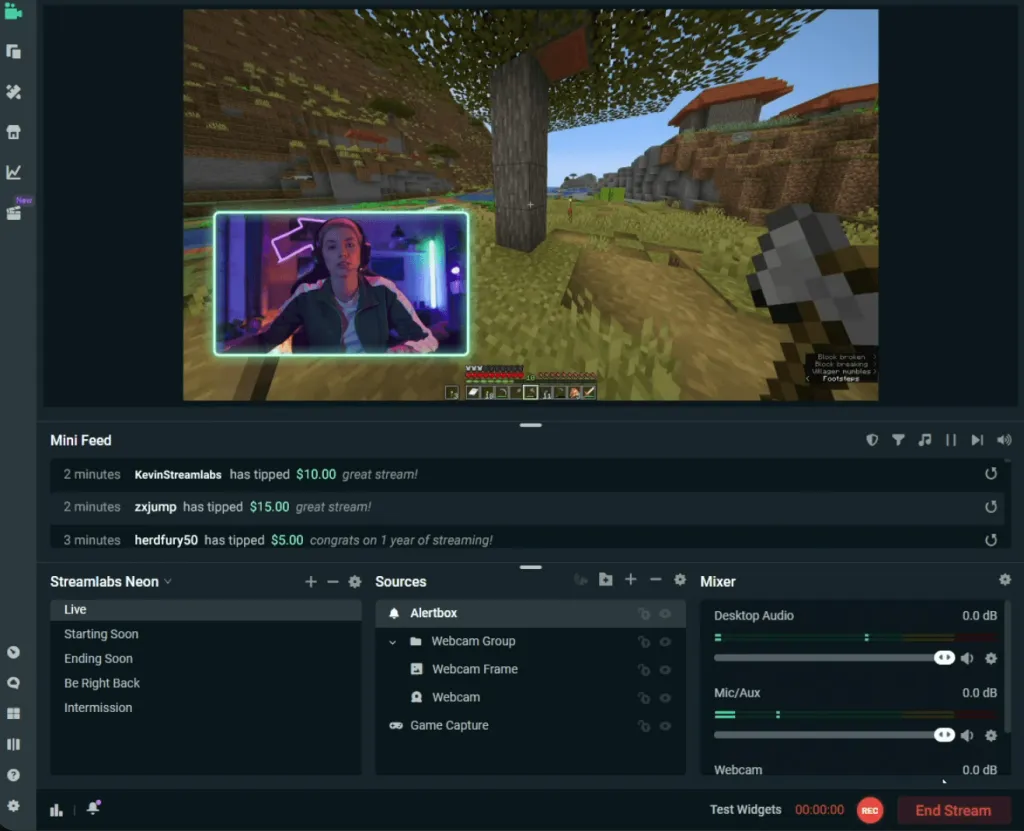
1. Streamlabs
Price: Free (Premium features available via Streamlabs Ultra)
Compatibility: Windows, macOS
Pros:
User-friendly interface ideal for beginners
Pre-installed themes, widgets, and overlays
Integrated cloud backup for scenes and settings
Built-in monetization tools like donation alerts and merch integration
Cons:
Higher CPU usage compared to OBS Studio
Some advanced features require a paid subscription
Best for: New streamers, gamers, and content creators seeking an all-in-one streaming solution
Summary: Streamlabs, often called Streamlabs OBS, simplifies streaming with a beginner-friendly UI, extensive templates, and built-in engagement tools. Though it uses more CPU than OBS Studio, it's ideal for those wanting a quick, easy setup.
2. Lightstream Studio
Price: Free plan; Paid plans for more features
Compatibility: Browser-based
Pros:
No download required
Automatic scene switching
Integrates with Twitch, YouTube, Facebook Gaming
Cons:
Requires a stable, strong internet connection
Limited advanced customization
Best for: Beginners, users on low-end computers
Summary: Lightstream Studio is a browser-based OBS alternative perfect for beginners. With automatic scene management and native streaming platform integration, it’s an easy choice for those seeking a lightweight, cloud-based solution.
3. Twitch Studio
Price: Free
Compatibility: Windows, macOS
Pros:
Designed specifically for Twitch streaming
Guided setup for audio/video configuration
Cons:
Only supports Twitch
Limited customization compared to OBS
Best for: New Twitch streamers
Summary: Twitch Studio provides a simple, streamlined way for new streamers to get started. While it lacks the customization depth of OBS Studio, it offers an optimized, user-friendly setup process for beginners on the platform.
Paid Alternatives
4. vMix
Price: Starts at $60 (one-time purchase; free trial available)
Compatibility: Windows
Pros:
Professional-level broadcast features
Supports up to 4K streaming
Built-in virtual sets
Cons:
Learning curve
Windows only
Best for: Professional broadcasters, churches, and large-scale events
Summary: vMix is a feature-rich OBS alternative offering studio-grade tools like multi-camera switching, virtual sets, and 4K support. Ideal for large productions, it's best suited for users seeking professional broadcasting capabilities.
5. XSplit Broadcaster
Price: Free version; Paid from $5/month
Compatibility: Windows
Pros:
Easy scene transitions
Great for recording and streaming
Integrated video editing tools
Cons:
Some features are locked behind a paywall
Windows only
Best for: Gamers and podcasters
Summary: XSplit Broadcaster delivers a polished streaming and recording experience with built-in editing tools. Although some features are paywalled, it remains a strong choice for gamers and podcasters seeking smooth workflows.
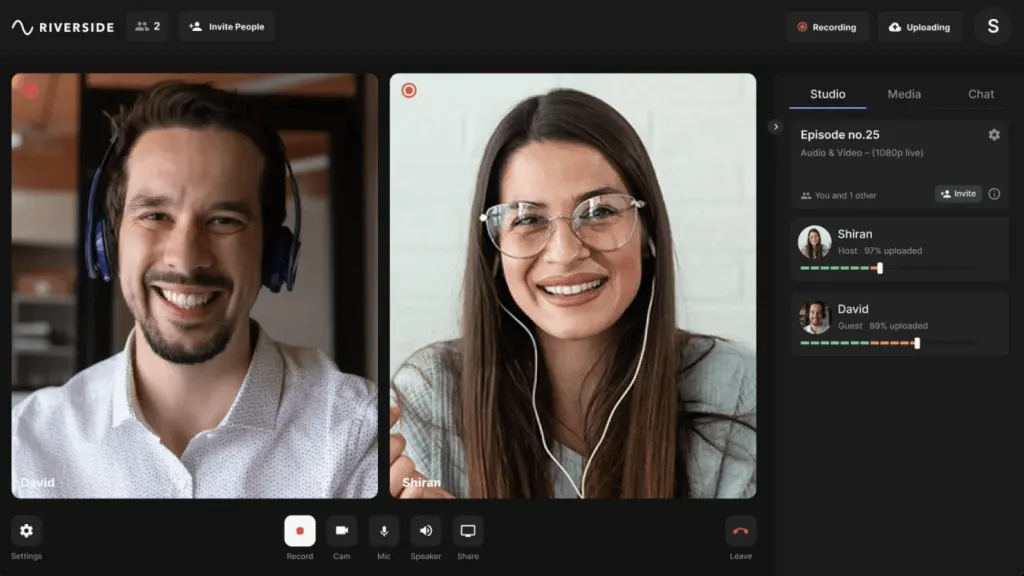
6. Riverside.fm
Price: Free plan available; Paid plans start at $15/month
Compatibility: Browser-based (Windows, macOS)
Pros:
High-quality local recording up to 4K video and 48 kHz audio
Separate audio and video tracks for each participant
Built-in live streaming to platforms like YouTube, Twitch, Facebook, and LinkedIn
Integrated tools for audience engagement and monetization
Cons:
Primarily designed for podcasts and interviews; less suited for gaming streams
Advanced features require a paid subscription
Best for: Podcasters, interviewers, educators, and professionals seeking high-quality remote recordings and live streams
Summary: Riverside.fm is a browser-based platform designed for top-quality remote recordings and live streaming. Its separate track recording and robust engagement tools make it a top OBS alternative for podcasts, interviews, and webinars.
7. Ecamm Live
Price: $16/month (billed annually)
Compatibility: macOS only
Pros:
Native support for Mac features
Intuitive UI and built-in overlays
Cons:
macOS only
Best for: Solo creators, educators using Mac
Summary: Ecamm Live is an excellent OBS alternative for Mac users, offering an intuitive interface, native Mac support, and built-in overlays. It’s ideal for solo streamers, online teachers, and Mac-based creators looking for a streamlined setup.
Must-Have Hardware for a Professional Streaming Setup
No matter which OBS alternative you choose, your hardware plays a crucial role in delivering a professional stream. While software is essential for managing your broadcast and engaging with your audience, high-quality hardware ensures that your stream looks and sounds its best. To get the most out of your streaming software, you’ll need the right tools to capture crisp visuals, clear audio, and smooth video. Here are three key pieces of equipment that will elevate your stream:
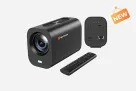
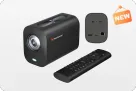
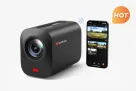
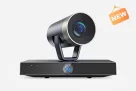
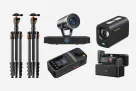
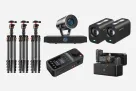
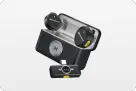
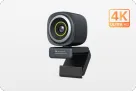
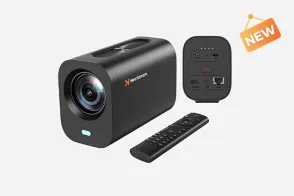
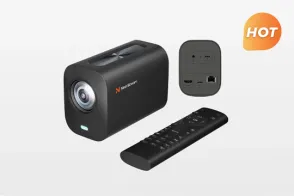
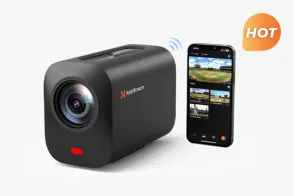
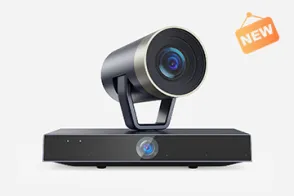
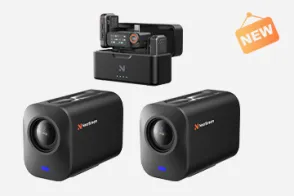
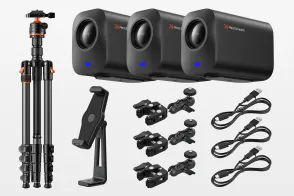
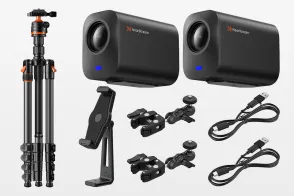
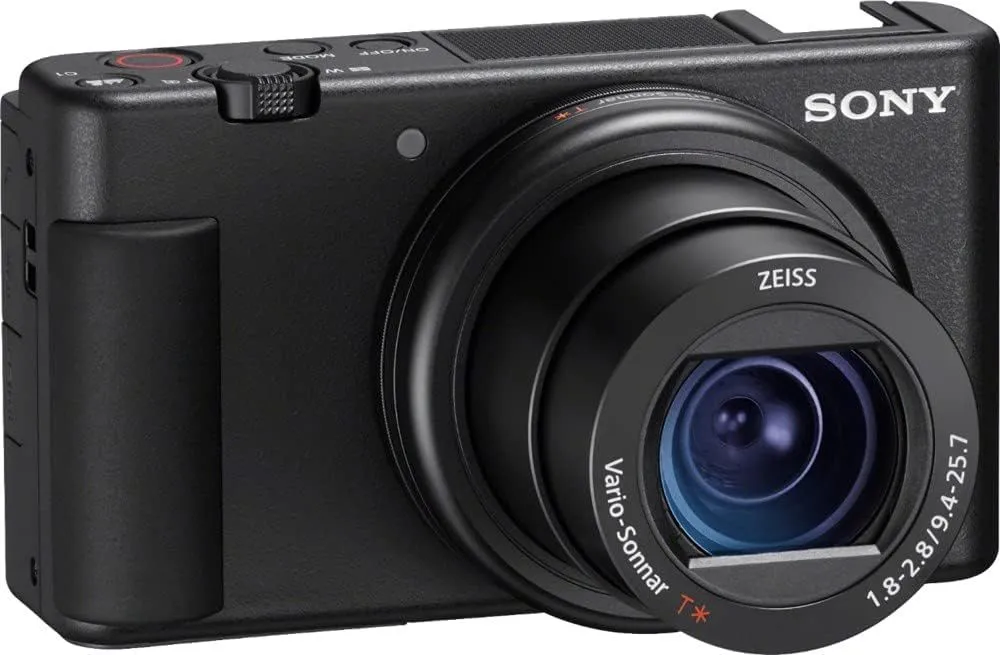
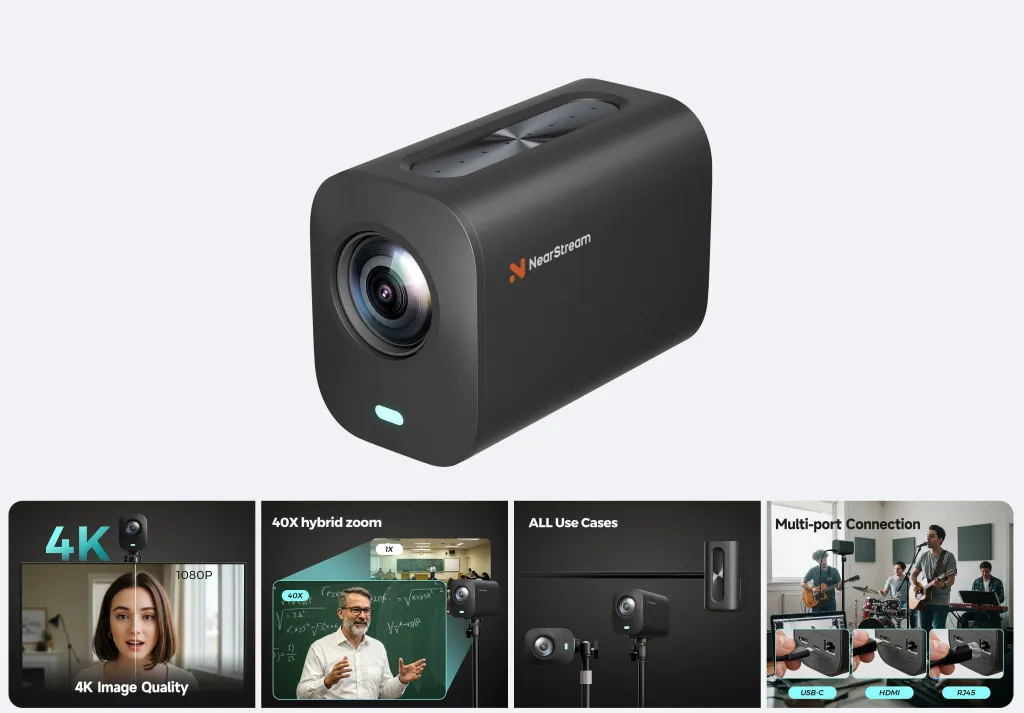
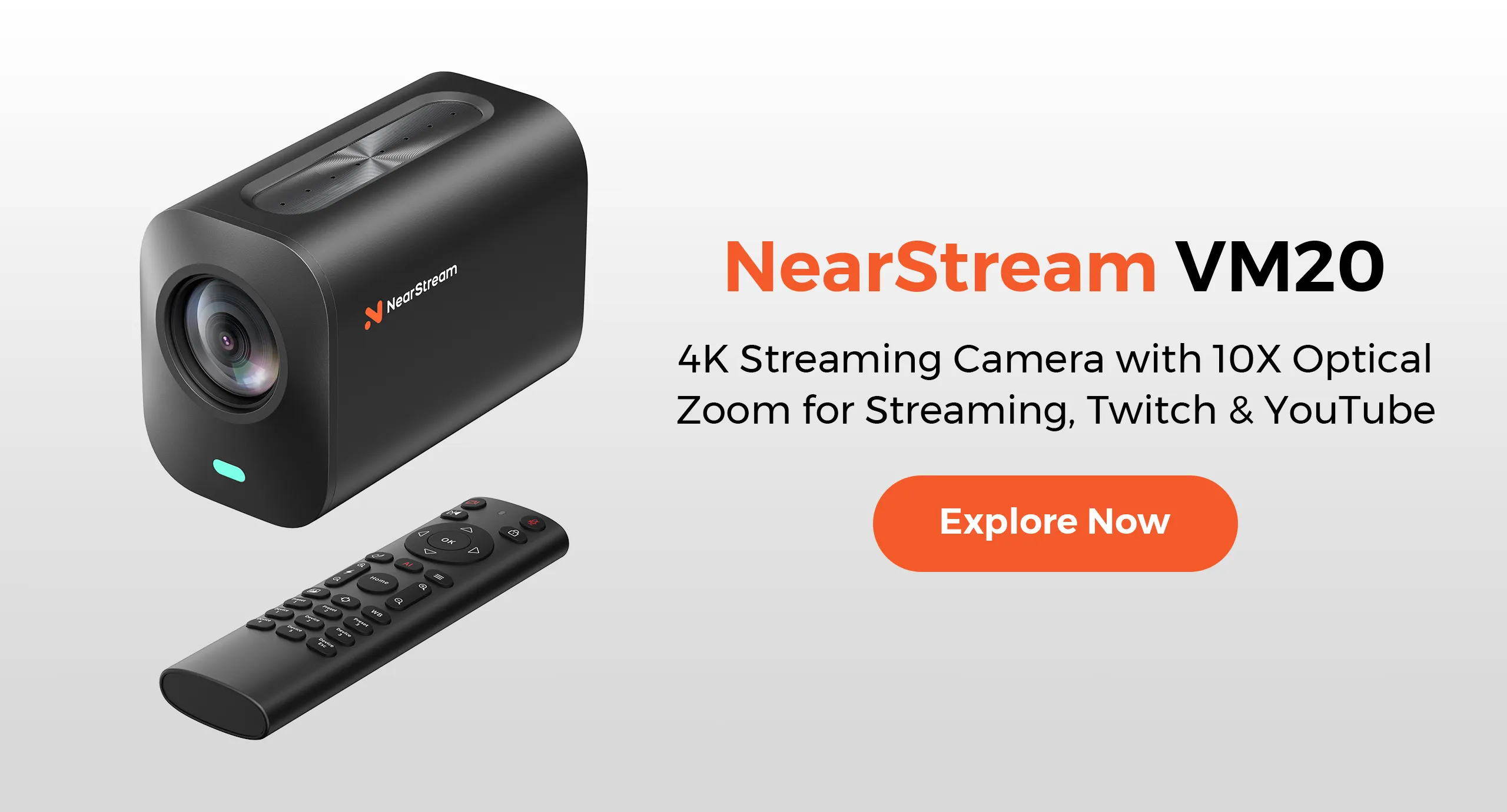
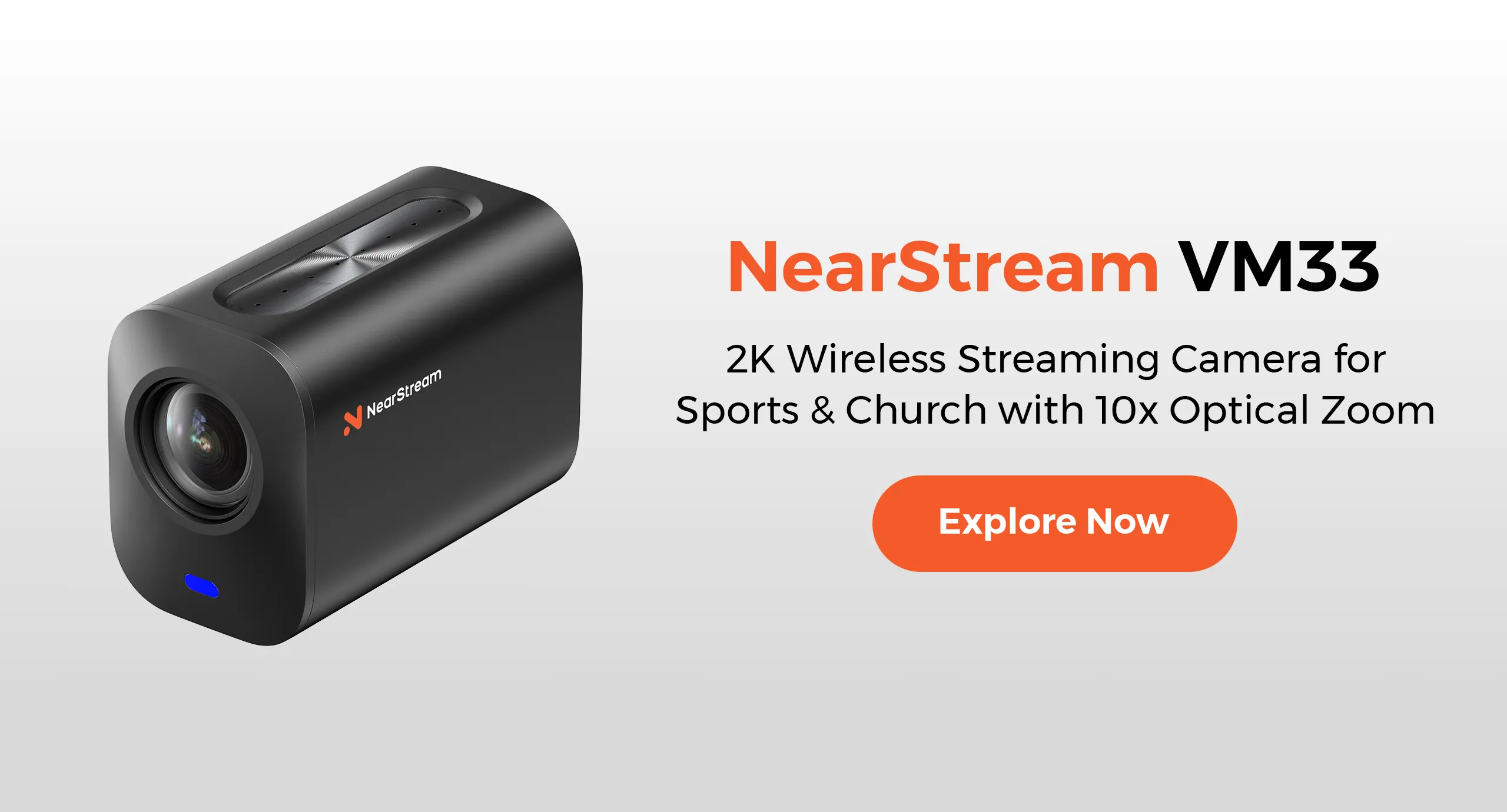
Streaming Camera
Look for 1080p or 4K support, fast autofocus, and clean HDMI output if connecting to a capture card. Consider:
Connection: HDMI, USB, and RJ45 for seamless setup, has a strong compatibility to most devices and allows you to stream effortlessly to platforms such as YouTube, Facebook, Twitch, and OBS
Audio: 8-MEMS microphone with AI noise-canceling and 3.5mm audio input
Remote: Smart remote control with preset modes for easy framing
Additional: Multi-camera setup support and versatile mounting options
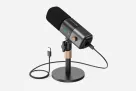
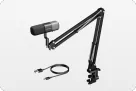
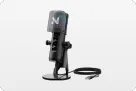
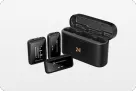
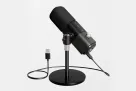
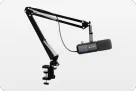
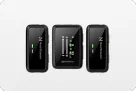
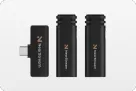
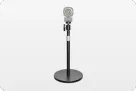
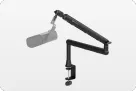
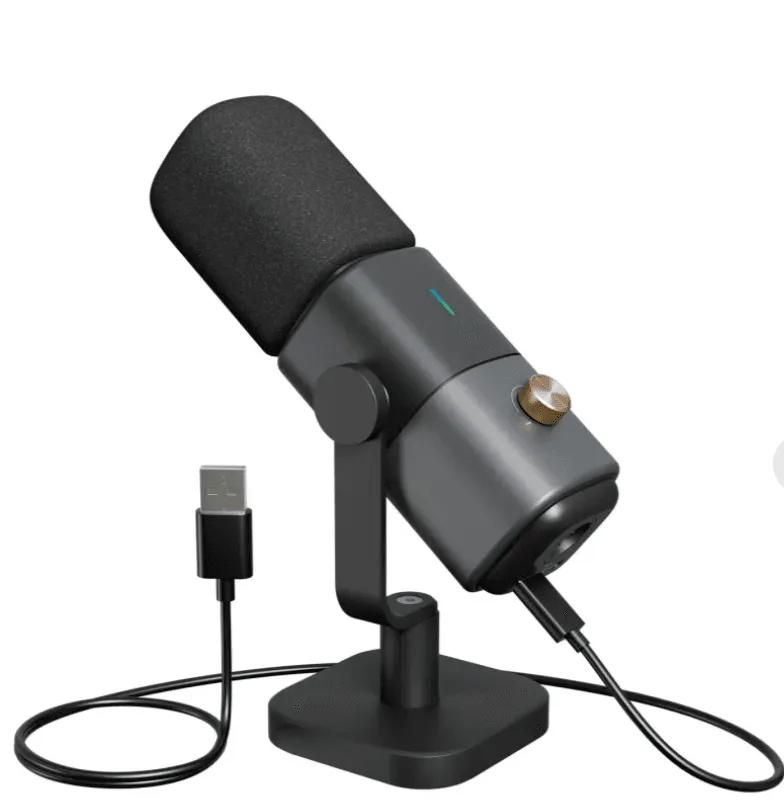
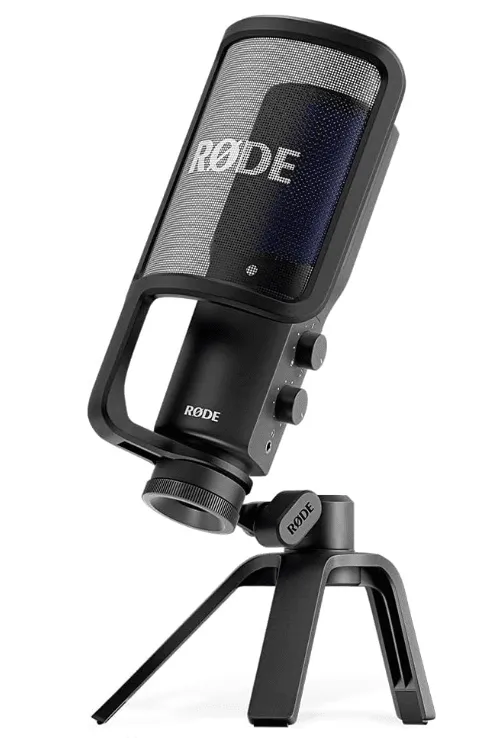
Streaming Microphone
A dynamic or condenser microphone connected via USB or XLR greatly enhances your vocal clarity. Top choices:
Audio Quality: Studio-grade sound tailored for warmth and presence
Monitoring: High-quality headphone output with precision volume control
Built-in Processing: Noise gate, compressor, and APHEX enhancements via RØDE Connect
Use Cases: Ideal for podcasting, music recording, streaming, and video calls
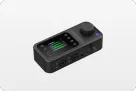
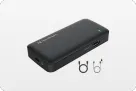
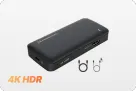
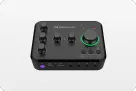
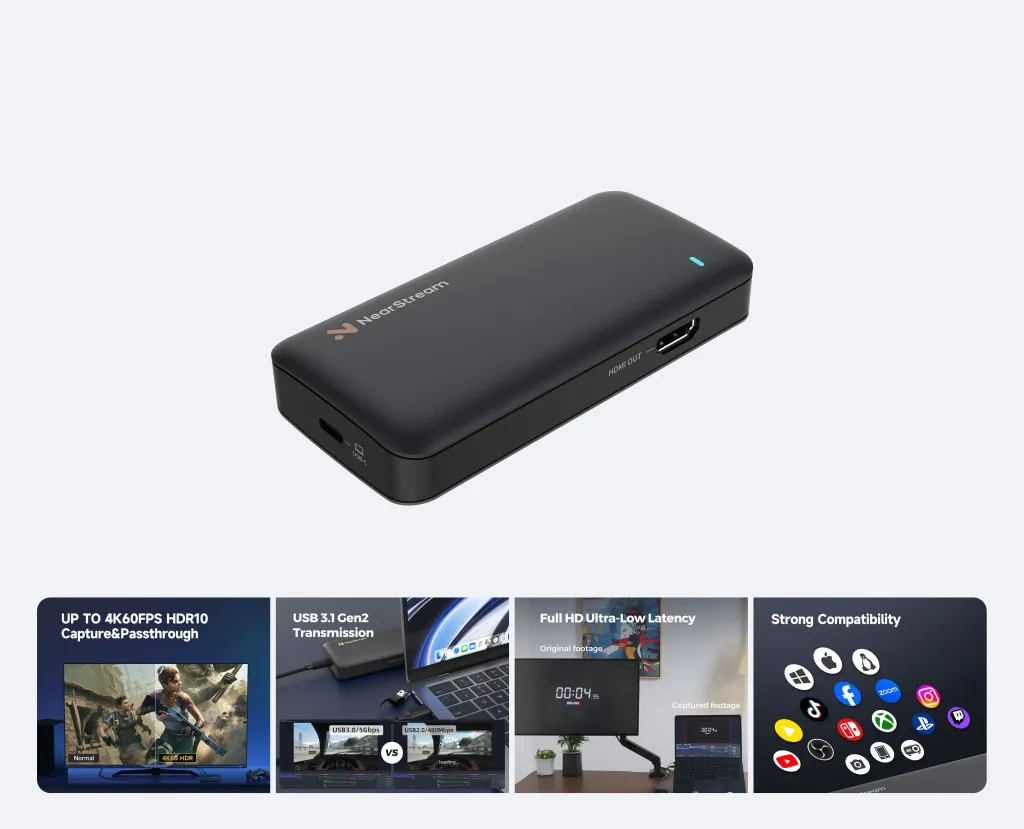
Capture Card
A capture card helps you input gameplay from consoles like PS5, Xbox, or Switch into your streaming software. Look for ultra-low latency and 4K passthrough if you’re serious about live streams. Popular options:
Video Quality: 4K capture with 4K60 HDR and VRR pass-through
Latency: Low-latency real-time streaming to Twitch, YouTube, OBS
Compatibility: Supports PS5, Xbox Series X/S, Switch, PC, iPadOS
Resolution: Wide screen support (3440×1440, 2560×1080)
Setup: Plug-and-play with OBS, Streamlabs, and Discord integration
How to Connect Hardware with Streaming Software
Setting up your hardware with any OBS alternative is straightforward:
Camera Setup: Connect your camera via USB or HDMI to a capture card. Select the video source inside your streaming software.
Microphone Setup: Plug in your USB/XLR microphone. Set it as your primary audio input.
Capture Card Setup: For gaming, connect your console HDMI to the capture card and the card to your PC. In your software, select the card as a video source.
Most alternatives will recognize external devices automatically, but double-check input settings to ensure the best quality.
Conclusion
While OBS Studio is a fantastic tool, it’s far from your only option. Whether you're a gamer looking for a lighter program like Streamlabs OBS, a business professional considering Wirecast, or a Mac user wanting a native experience through Ecamm Live, there's an alternative software for OBS Studio that fits your needs.
When choosing among the many alternatives for OBS, consider ease of use, performance, price, and compatibility with your hardware. And don’t forget — upgrading your setup with a professional streaming camera, streaming microphone, and capture card will elevate your live streams to the next level.
Ready to stream like a pro? Choose your perfect OBS alternative today!

















 sales@nearstream.us