The Ultimate Guide to StreamElements and OBS: Best OBS Settings for Streaming
Learn how to integrate StreamElements with OBS, apply the best OBS settings for streaming in 2025, and discover recommended gear to take your live stream quality to the next level.
stream elements obs
obs settings stream
Updated: Mar 5, 2026 · 8 minutes read
Modular Video Kits for Growing Business.
A January 2025 StreamElements “State of the Stream” report shows Twitch viewership rebounded after the holidays, with top creators like Caedrel streaming over 240 hours and ranking first in hours watched. At the same time, Twitch now boasts over 240 million monthly active users and an average of 2.37 million concurrent viewers in 2025.
For many of these creators, the key to sustaining and scaling this growth has been leveraging OBS Studio paired with StreamElements overlays and alerts. In this guide, we’ll walk you through the best OBS settings for streaming, how to integrate StreamElements, and tips to fine-tune your setup for top-tier performance.
What Is StreamElements OBS Integration?
StreamElements OBS refers to using StreamElements — a popular all-in-one streaming platform — alongside OBS Studio, the industry-standard open-source broadcasting software. Together, they allow streamers to customize overlays, manage alerts, and enhance viewer engagement without complicated setups.
Whether you're on Twitch, YouTube, or Facebook Live, StreamElements for OBS simplifies the streaming workflow with browser-based overlays and built-in widgets.
How to Set Up StreamElements with OBS
Setting up StreamElement OBS is simple. Follow these steps:
1. Create a StreamElements Account: Sign in using your streaming platform (Twitch, YouTube, etc.).
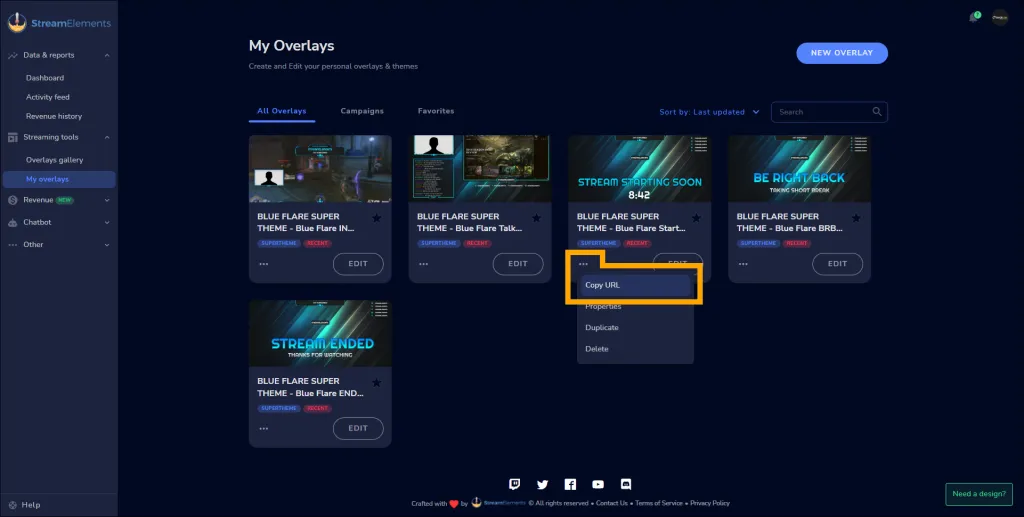
2. Build Your Overlay: Use StreamElements' Overlay Manager to create alerts, stream labels, goals, and chat boxes.
3. Copy the Overlay URL: Once done, copy the overlay URL.
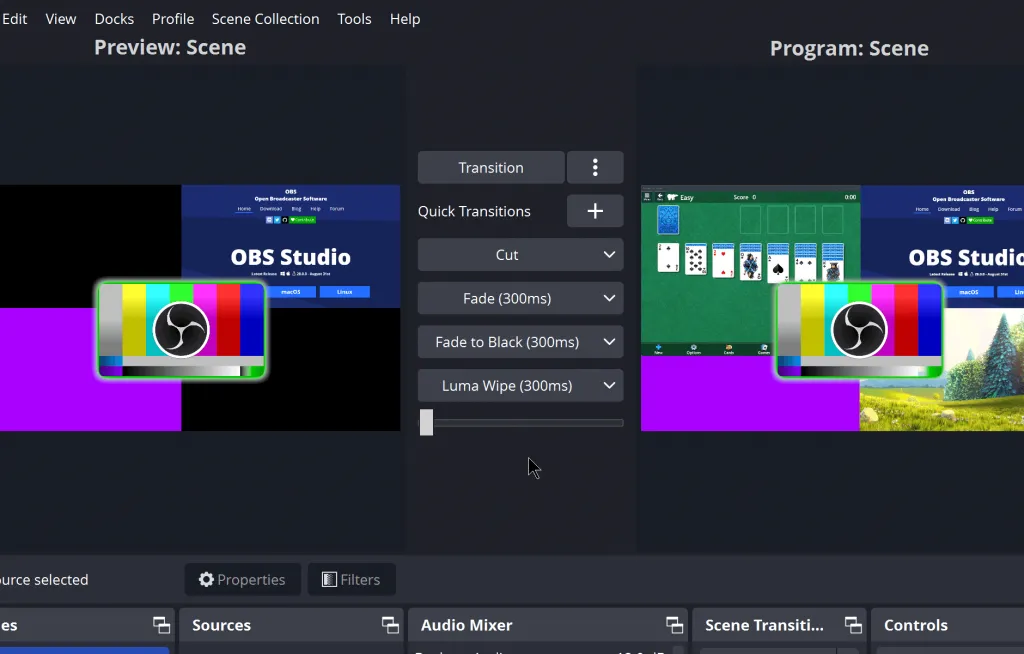
4. Open OBS Studio: In OBS, add a new “Browser Source” and paste the overlay URL from StreamElements.
5. Adjust Dimensions: Set width/height to match your stream resolution (e.g., 1920x1080).
Best OBS Settings for Streaming in 2025
Optimizing your OBS settings for stream quality is crucial. Here's a tested configuration for most creators:
Output Settings
Output Mode: Advanced
Encoder: NVENC (NVIDIA) / x264 (CPU)
Bitrate:
6000 Kbps (Twitch, 1080p@60fps)
4500 Kbps (YouTube, 720p@60fps)
Keyframe Interval: 2
Preset: Quality or Max Performance
Profile: High
Video Settings
Base (Canvas) Resolution: 1920x1080
Output (Scaled) Resolution: 1280x720 or 1920x1080
Downscale Filter: Lanczos
FPS: 60 (action-heavy), 30 (casual or desktop streams)
Audio Settings
Sample Rate: 48kHz
Channels: Stereo
Mic/Aux Device: Your main microphone
Desktop Audio: Default output device
With these best OBS settings for streaming, you’ll deliver smoother streams with professional-grade quality.
Must-Have StreamElements Tools for OBS
Once your OBS is optimized, don’t forget to take advantage of key StreamElements OBS features:
Alerts: Visual and audio triggers for new followers, donations, etc.
Chat Box: Display real-time chat on-screen
Stream Labels: Auto-updating data like recent followers or top tips
Goal Widgets: Show progress toward sub, follow, or donation goals
Overlay Themes: Pre-built and customizable options for branding
All of these can be integrated as browser sources in OBS, enhancing interactivity and viewer experience.
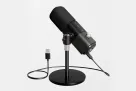
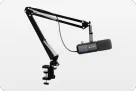
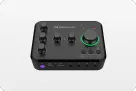
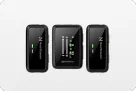
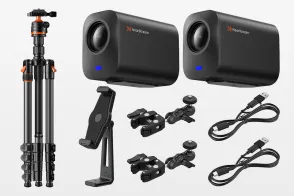
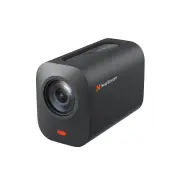
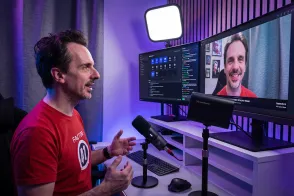
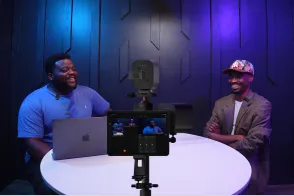
Recommended Gear for Streaming with OBS
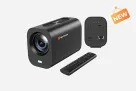
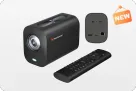
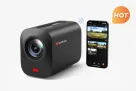
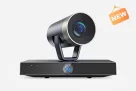
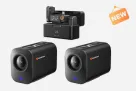
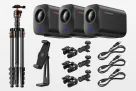
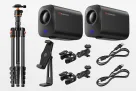
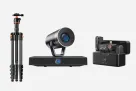
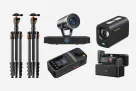
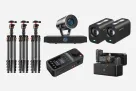
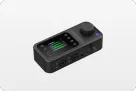
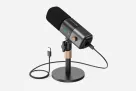
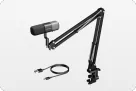
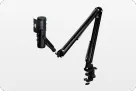
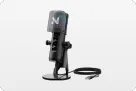
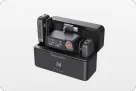
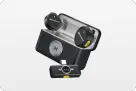
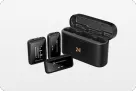
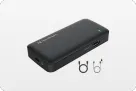
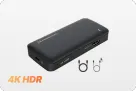
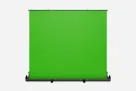
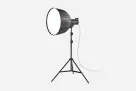
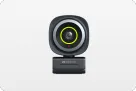
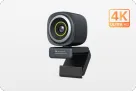
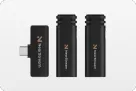
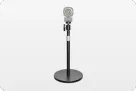
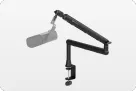
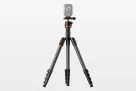
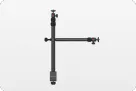
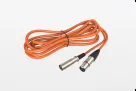
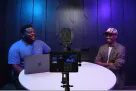
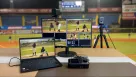
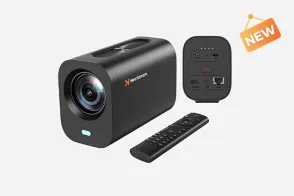
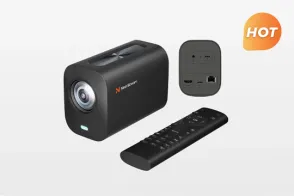
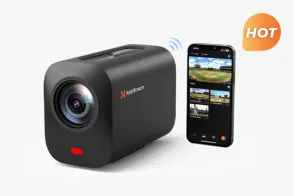
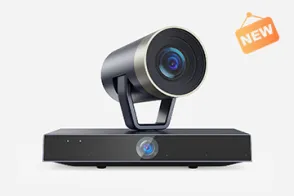
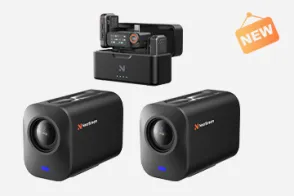
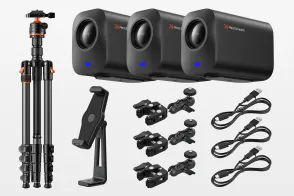
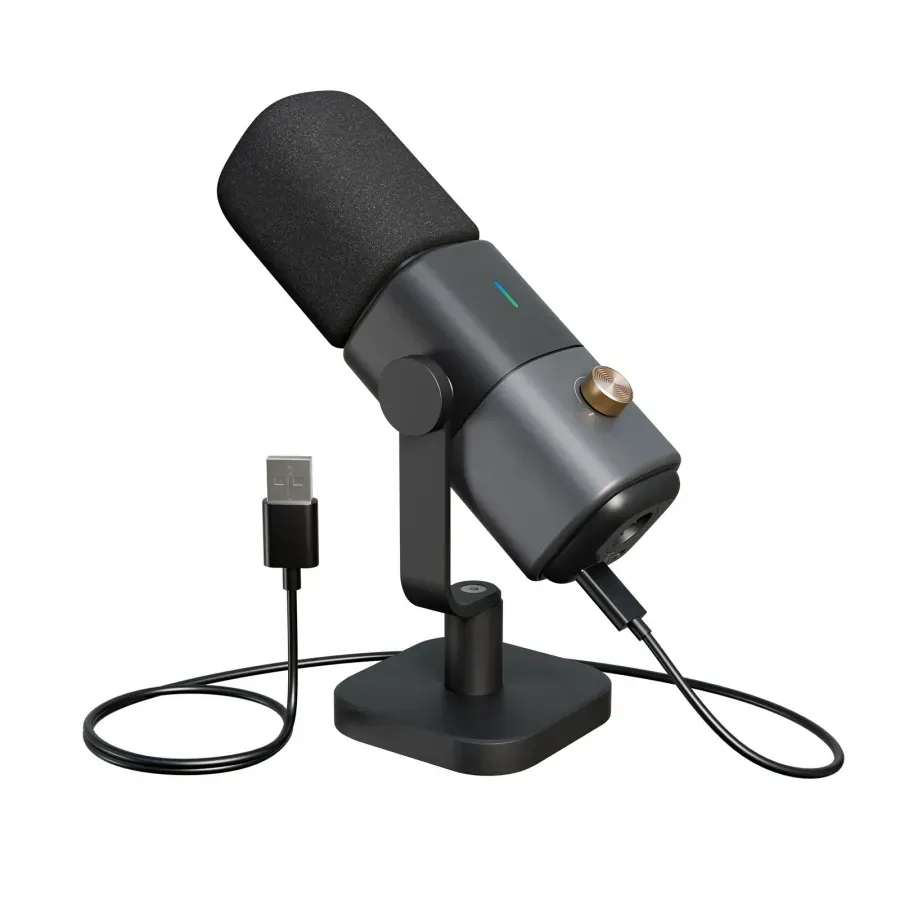
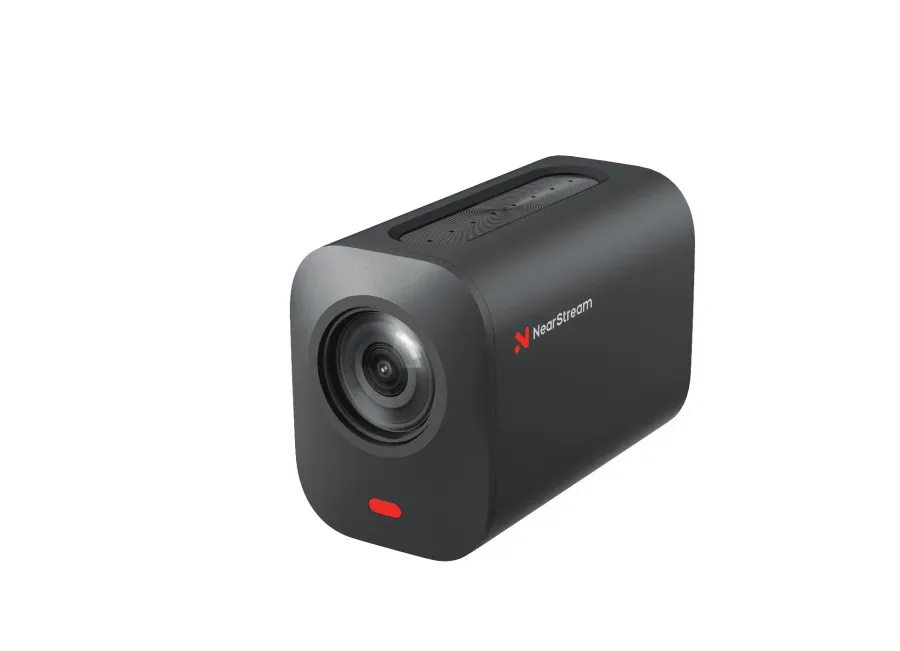
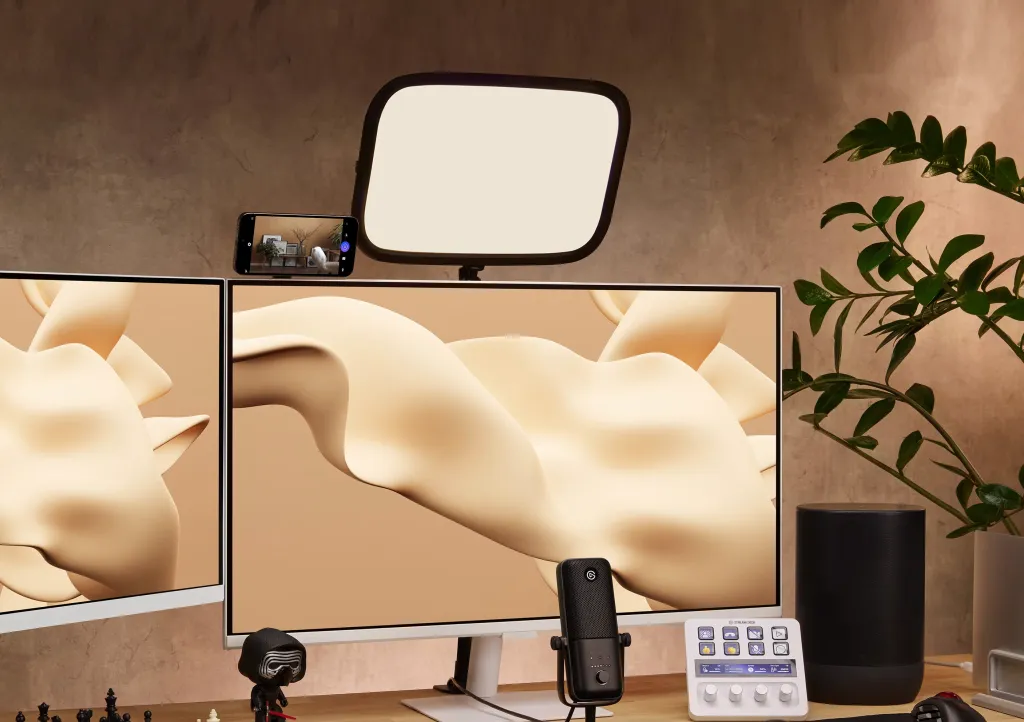
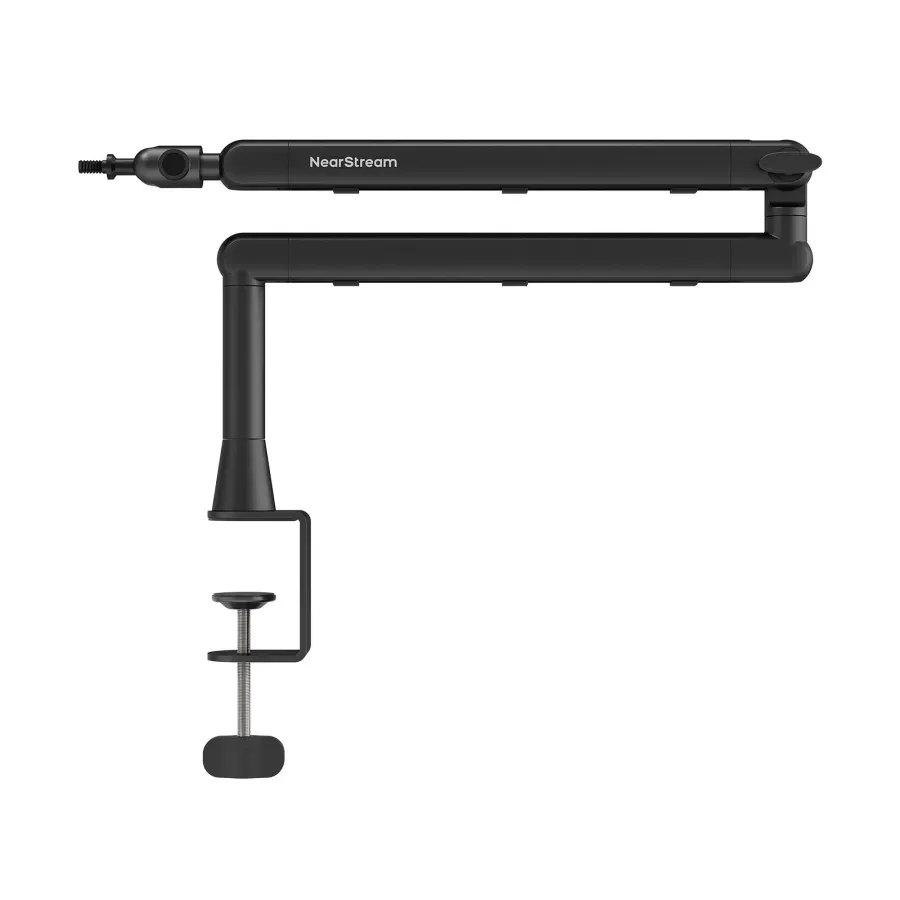
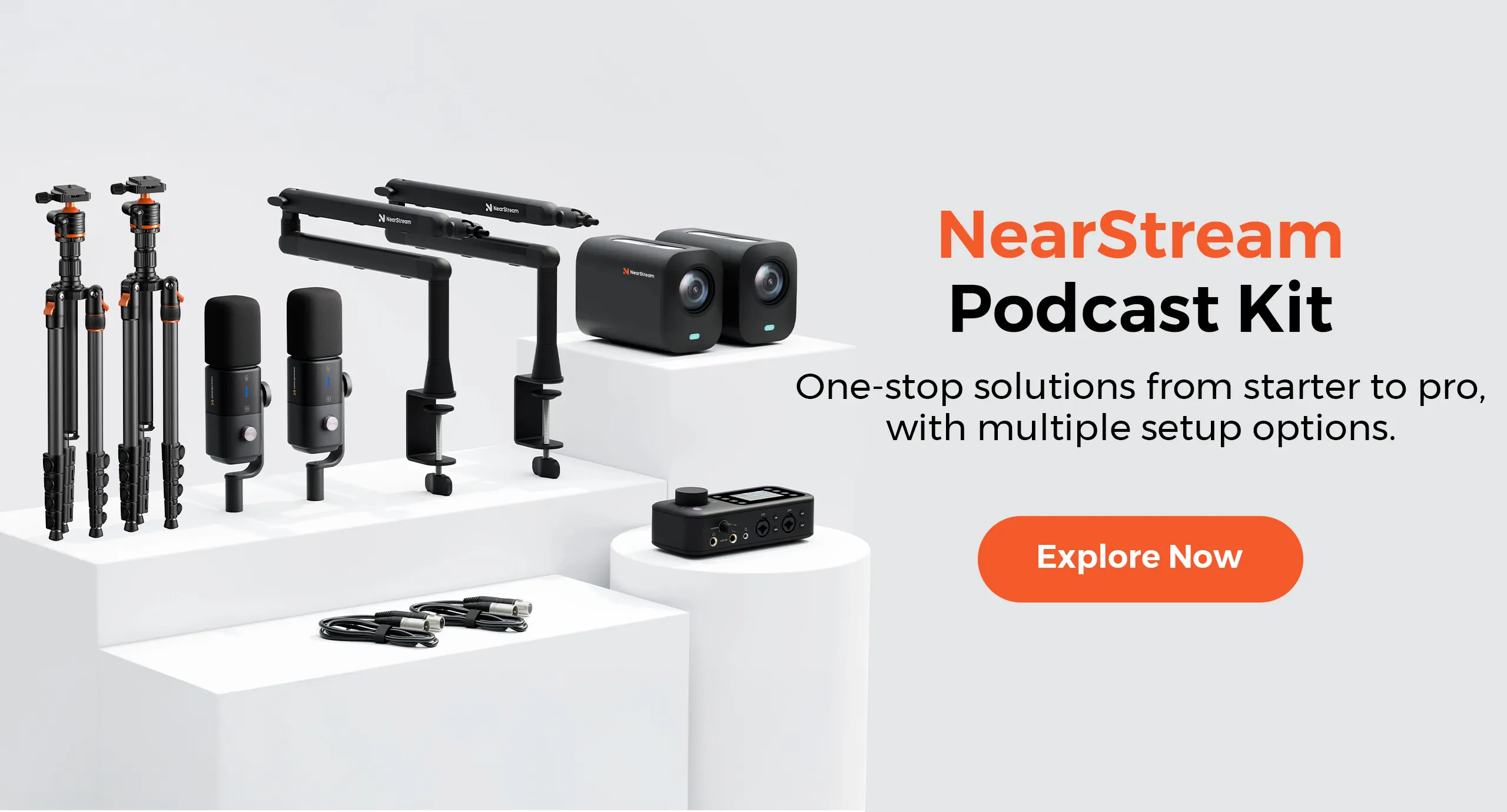
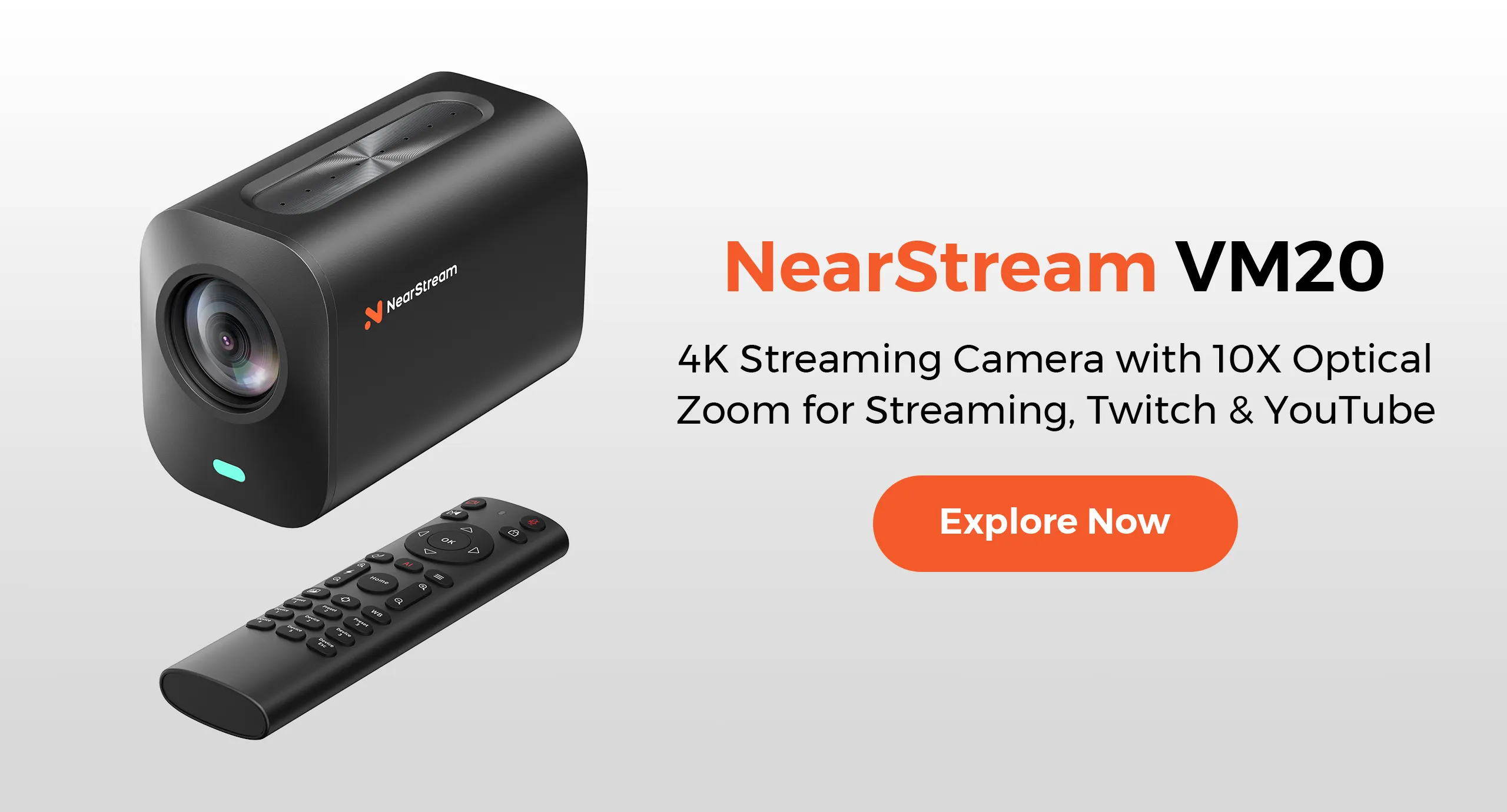
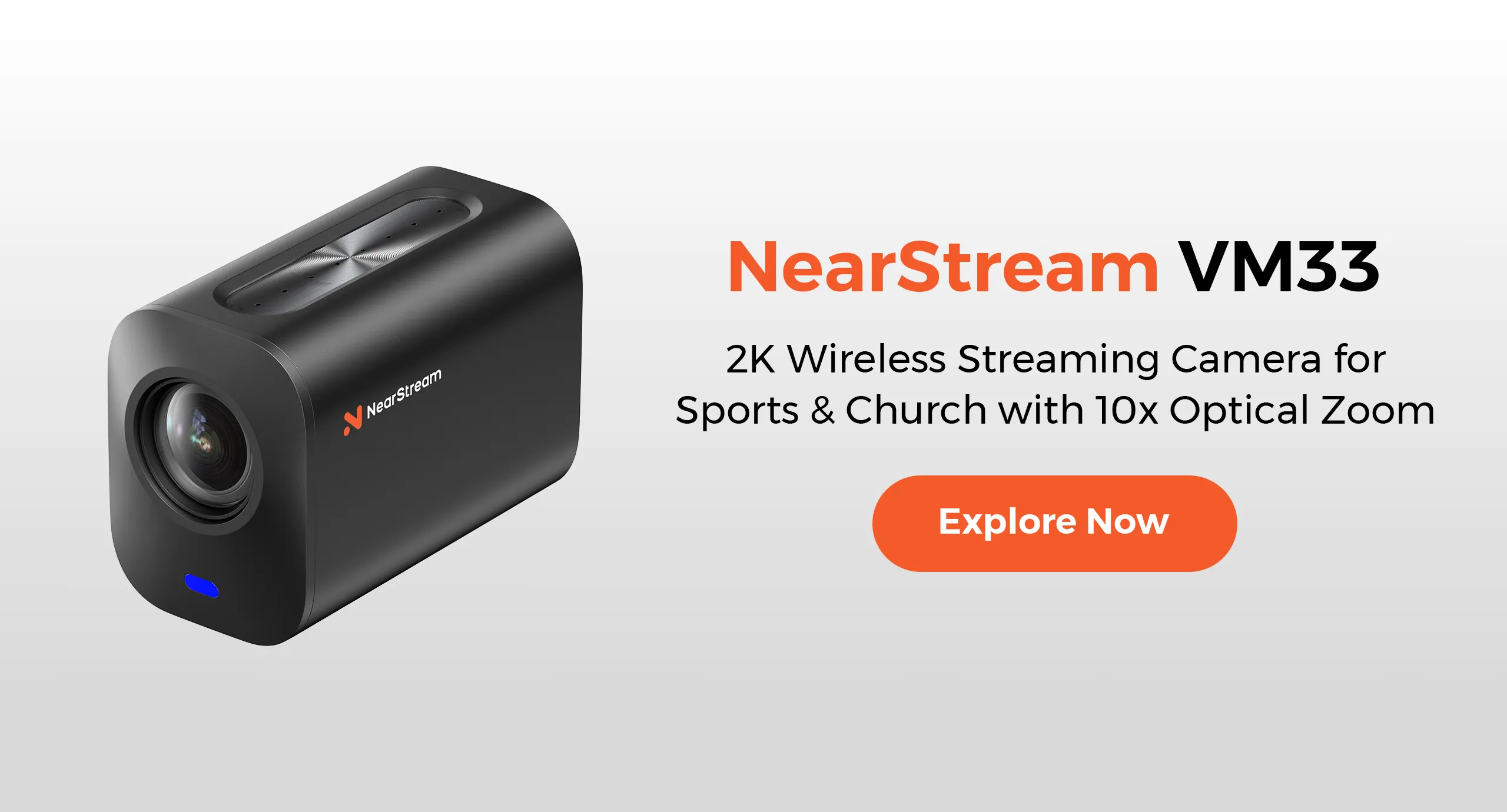
Pairing the right gear with your setup is just as important as using the right software. Here’s a carefully curated list of recommended streaming equipment:
Combining StreamElements with OBS gives you a powerful toolkit for high-quality, interactive live streaming. Whether you're just starting or looking to take your production to the next level, the right gear and the best OBS settings for streaming make all the difference.
By integrating the right StreamElements OBS overlays, optimizing your settings, and using the recommended hardware above, you'll be ready to stream like a pro.
























 sales@nearstream.us