







Camera
Webcam
Microphone
Wireless Microphone
Capture Card
Audio Mixer
Lighting & Backdrop
Accessories

With dozens of streaming software options available in 2025, which one fits your content and setup best? Whether you're a gamer, teacher, marketer, or mobile creator, this guide breaks down the top free and paid software for your specific needs:
We analyze their features, performance, hardware compatibility, and ideal use cases so you can stream like a pro—no matter your budget or experience level.
Streaming is no longer limited to gaming. In 2025, it's a core tool for education, e-commerce, corporate communications, and social media marketing. According to Statista, the global live streaming market was valued at approximately $130 billion in 2023, and is projected to grow steadily over the next few years. As demand increases, content quality expectations also rise—and your choice of streaming software plays a critical role.
(source: Statista, Streaming Worldwide)
Whether you're hosting a virtual workshop, livestreaming a product launch, or broadcasting a podcast, professional-grade software helps you manage audio and video feeds, switch scenes seamlessly, integrate audience interaction, and deliver a smooth streaming experience. In today’s attention economy, powerful streaming software is a necessity, not a luxury.
Not all streaming software is created equal. What sets the best apart is a combination of power and usability. Here are some essential features to look for:
Feature | Why It Matters |
Multi-platform streaming | Stream to YouTube, Facebook, Twitch simultaneously |
Customizable overlays & scenes | Create branded, engaging visuals with ease |
Audio mixing tools | Manage multiple inputs, background music, and mic feeds |
Recording & replay options | Save your content in high-quality formats for repurposing |
Hardware compatibility | Works smoothly with webcams, mics, capture cards |
Low latency / High stability | Reduces lag, maintains reliable connections |
If you're just starting or streaming on a budget, free streaming software can still deliver powerful results. Here are the best free options in 2025:
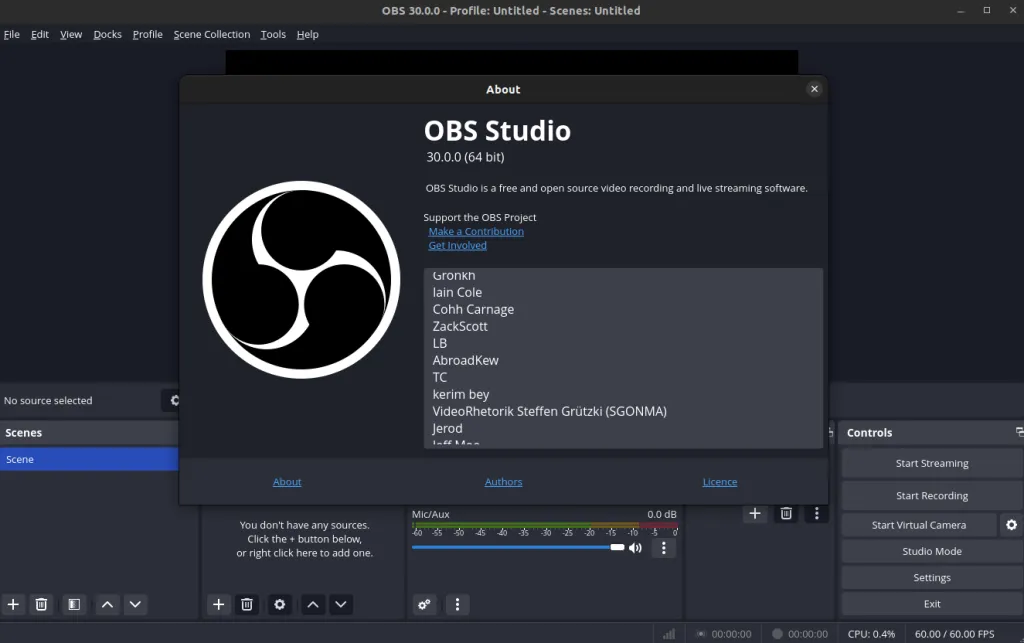
OBS (Open Broadcaster Software) is a free, open source, cross-platform live streaming software widely used by both professional and amateur streamers for its powerful and flexible architecture.
Extremely strong customization: Supports multi-scene editing, custom layout, filter plugins, etc., suitable for users with complex needs.
The plugin ecosystem is active: Automatic transitions and integration of Twitch/YouTube plugins can be added through third-party plugins.
Low resource consumption: Suitable for users who have high requirements for picture quality control and hope for multiple functions to coexist.
Open-source and feature-rich
Highly customizable scenes, plugins, transitions
Great for Windows, Mac, and Linux
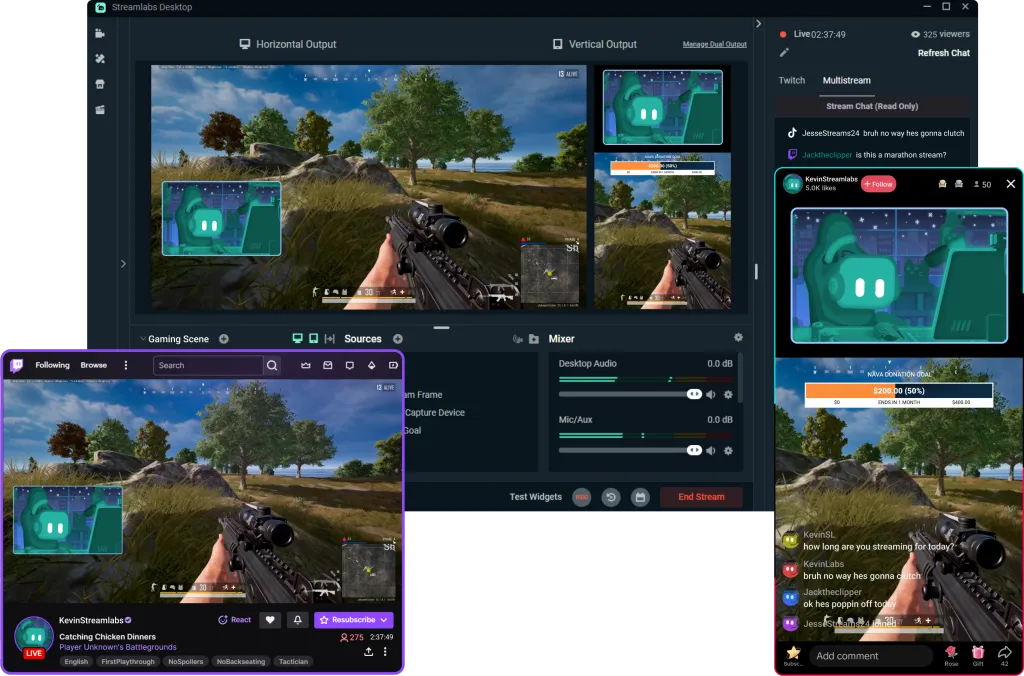
Streamlabs has optimized the user experience based on OBS and is suitable for beginners to get started quickly.
Intuitive interface and module drag-and-drop: No complex Settings are required for quick streaming.
Rich preset templates: Dozens of built-in visual themes and interactive reminders.
Cloud backup: Prevents Settings from being lost and is suitable for users who frequently change devices.
Beginner-friendly UI
Includes alerts, themes, and cloud backup
Great for YouTube and Twitch
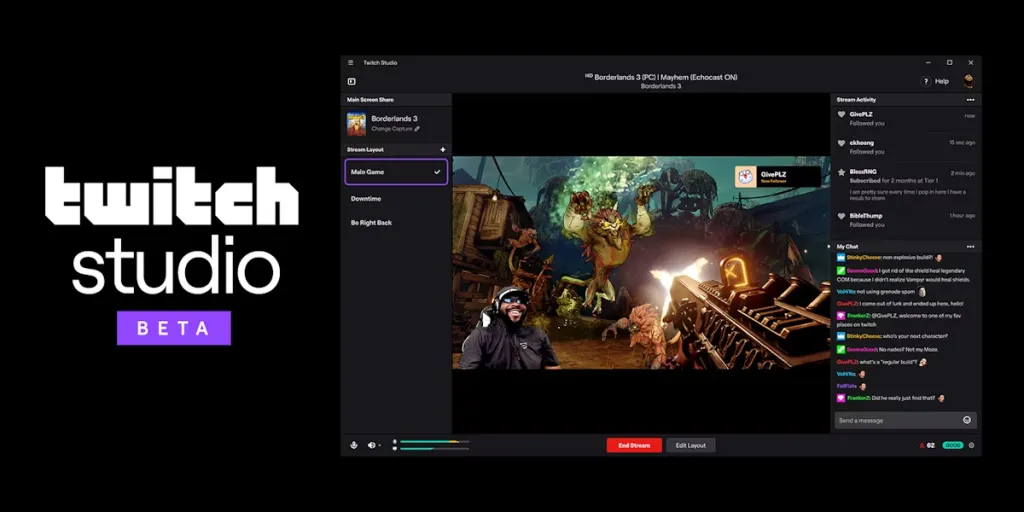
The exclusive live streaming tool officially launched by Twitch.
Platform deep integration: Seamless integration with Twitch chat, bullet comments, and channel information.
Automatic scene setup: Complete scene configuration and hardware detection through a guided process.
Suitable for new Twitch streamers: No third-party support required, excellent native experience.
🔑Key Features:
Built specifically for Twitch users
Auto hardware detection, guided scene setup
Integrated Twitch chat and alerts
Want to know more about Twitch live streaming? Come and have a look at this article: https://www.nearstream.us/blog/how-to-start-streaming-on-twitch
If you’re running webinars, virtual events, or multi-camera productions, investing in pro-level software gives you more control, higher stability, and enhanced integrations.
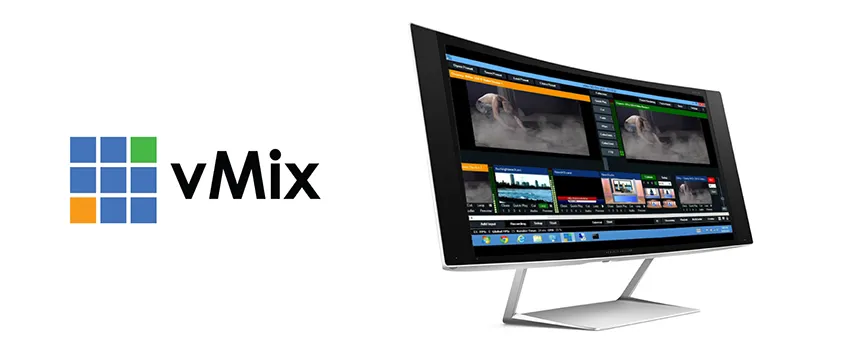
vMix is a broadcast-level live streaming solution for the Windows platform, widely used in churches, corporate press conferences and large-scale online events.
Professional video streaming: Supports parallel processing of dozens of video sources, combined with multi-camera live streaming.
Supports NDI protocol and instant playback: Suitable for sports events, replay content editing, churches, corporate events, broadcasters.
The price gradient is clear: ranging from Basic HD ($60) to Pro ($1200), and it can be purchased as needed.
Wirecast, launched by Telestream, is a representative of high-end video production.
Multi-platform integration: Zoom, Teams, and Skype guests can be directly pulled into the live streaming process.
Automatic switching and automatic scheduling: Suitable for team-based live streaming and live streaming director needs.
Strong scalability: Supports external hardware control panels.
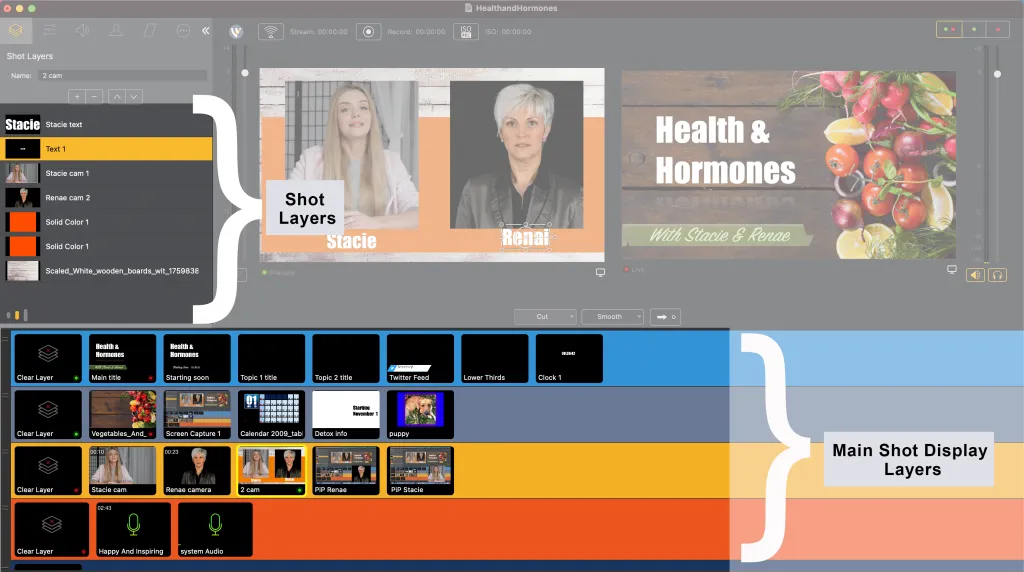
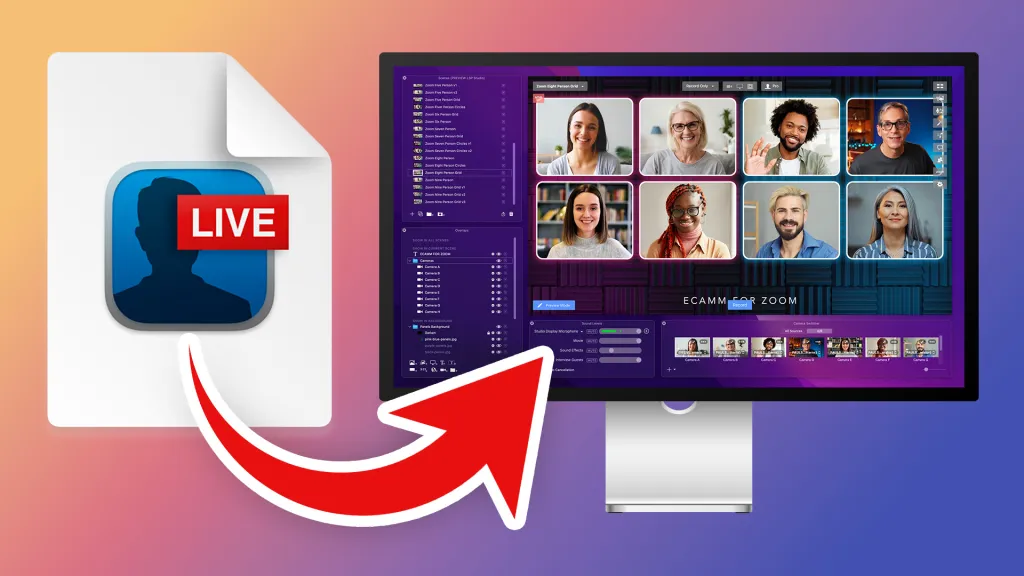
Ecamm Live is one of the most popular live streaming tools on the Mac platform.
Suitable for podcasts and content creation: supports virtual cameras, audio splitting, and real-time recording.
Natively compatible with Mac system: Seamlessly use Mac's camera, audio devices and screen sharing.
Lightweight yet powerful: The drag-and-drop UI makes content creation more free and is particularly suitable for one-person teams.
Different creators have different needs. A gamer’s setup won't suit a teacher streaming a lecture, and a corporate webinar host needs different tools from a mobile influencer. Below are top software picks tailored to each use case.
Streamlabs offers a plug-and-play experience that’s ideal for beginners. It comes with pre-built themes, easy widget setup, and direct integration with Twitch and YouTube. Users can start streaming within minutes.
Riverside excels in screen sharing, local multi-track recording, and high-quality remote guest integration—perfect for educators running webinars or online lessons. It ensures clarity and reliability even with varying internet speeds.
OBS remains the go-to for gamers due to its ultra-flexibility, support for custom scenes, overlays, and plugins. With minimal system overhead, it's trusted by top Twitch streamers and esports broadcasters alike.
Lightstream leverages cloud computing to minimize local processing demands. Ideal for laptops or low-spec PCs, it runs via browser and handles scene rendering and streaming on its servers.
This app brings full production control to smartphones. You can go live to YouTube, Facebook, or Twitch with dynamic text overlays, music, and screen effects—all optimized for mobile workflow.
vMix supports multiple camera angles, lower-thirds, live titles, and guest video calls. Its reliability makes it a favorite for enterprise-grade broadcasts, corporate presentations, and virtual summits.
Restream lets you broadcast to over 30 platforms simultaneously. It's perfect for creators looking to maximize reach without juggling separate streaming setups.
When choosing the right streaming software, it helps to compare top tools head-to-head. Below is a detailed comparison of four popular options: OBS Studio, Streamlabs, vMix, and Riverside.fm.
Feature | OBS Studio | Streamlabs | vMix | Riverside: |
|---|---|---|---|---|
Platform Compatibility | Windows, Mac, Linux | Windows, Mac | Windows only | Browser-based |
Cost | Free | Free / Paid Plans | Paid (Starts $60) | Free / Paid Plans |
Ease of Use | Moderate | Beginner-friendly | Advanced users | Very intuitive |
Multi-Platform Streaming | Yes | Yes | Yes | Yes (with plugins) |
Best For | Gamers, prosumers | Beginners | Businesses | Educators, podcasters |
Hardware Integration | High | High | Advanced | Moderate |
Cloud Recording | No | Limited | No | Yes |
Guest Support / Interviews | Limited | Moderate | Advanced (NDI/Skype) | Excellent |
YouTube remains one of the most powerful platforms for video creators, and your choice of streaming software can significantly affect how your content performs. The best software for YouTube must offer compatibility with its livestreaming backend, support high-resolution video, and enable effective audience engagement tools.
OBS Studio is a favorite among YouTube streamers because it offers unmatched control over video quality and customization. With support for real-time encoding, multiple scenes, source filters, and plugins, OBS gives creators the flexibility to run livestreams at 1080p and above, while integrating seamlessly with YouTube’s ingestion servers.
Supports real-time transitions between scenes
Includes audio filters, chroma key, and studio mode
Open-source and free, with a large support community
Define your primary use case (e.g., gaming, business, education, podcasting)
Check your technical comfort level (beginner vs advanced)
Evaluate your hardware (PC specs, camera/mic setup)
Compare features and integrations (multi-streaming, overlays, remote guests)
Test free versions or trials
Scale as needed—free for now, pro features later
A stream package is a collection of pre-designed assets used to enhance the visual identity and professionalism of a livestream. These usually include:
Overlays (borders around the video frame)
Stinger transitions (animated scene changes)
Custom alerts (follower/subscriber pop-ups)
Stream countdown timers
Matching banners, lower-thirds, and webcam frames
They are often designed to match a theme or brand aesthetic and are especially useful for creators who want their livestreams to look polished but lack design or motion graphics expertise. Many platforms such as Nerd or Die, Own3D, and Streamlabs offer premium stream packages.
While not required, stream packages help:
Create brand consistency across scenes and videos
Reduce design/setup time before going live
Increase viewer retention by improving presentation quality
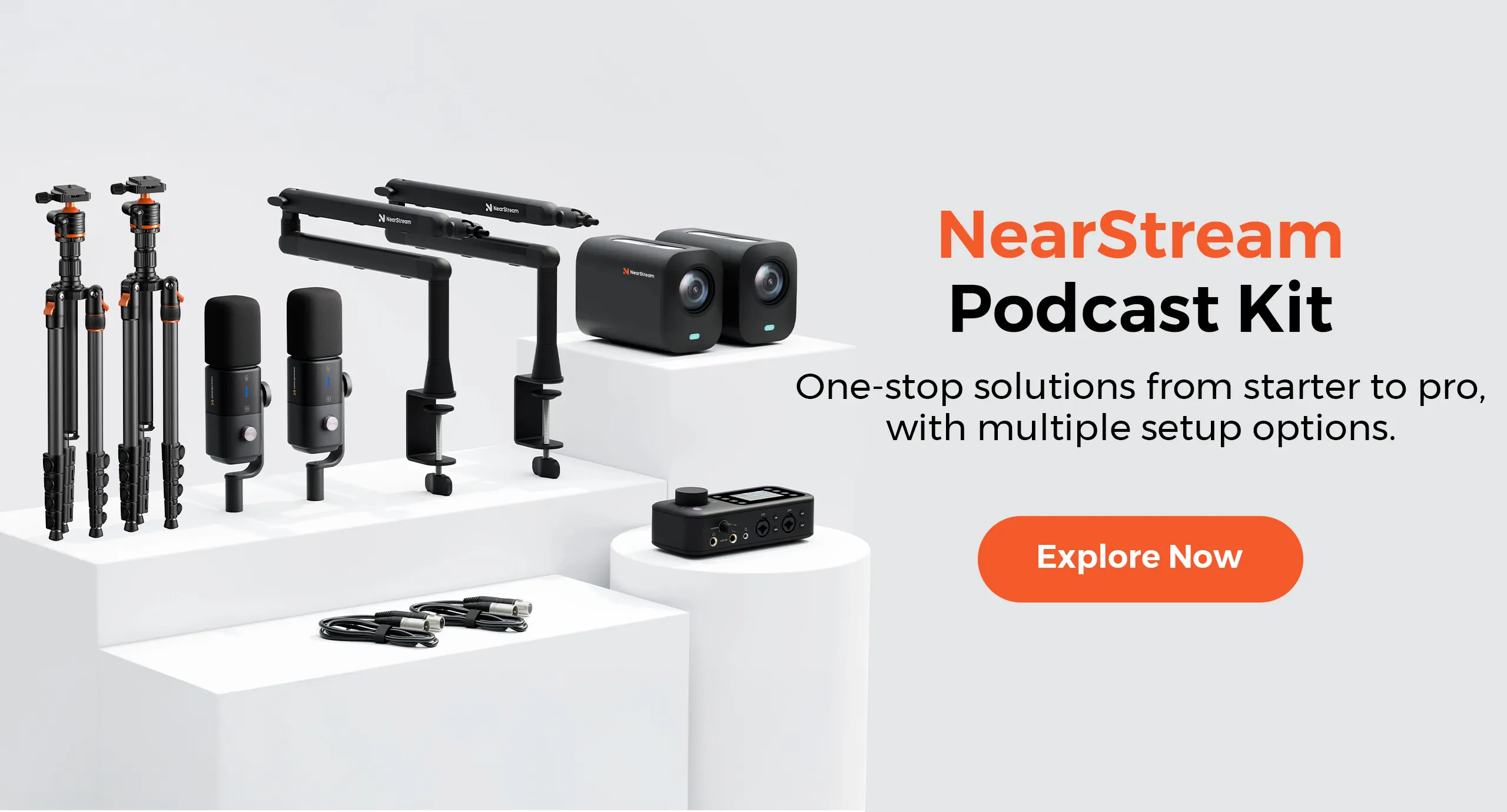
A professional stream isn't just about flashy transitions—it depends on the clarity of your video and audio. NearStream recommends a full-stack approach:
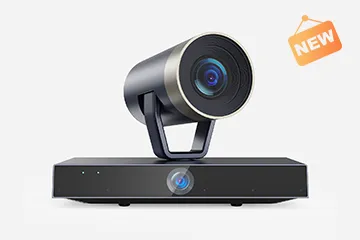
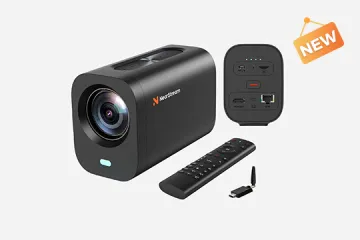
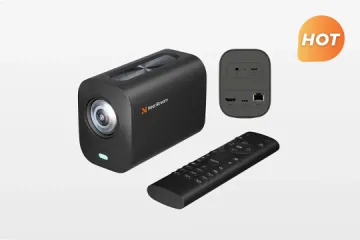
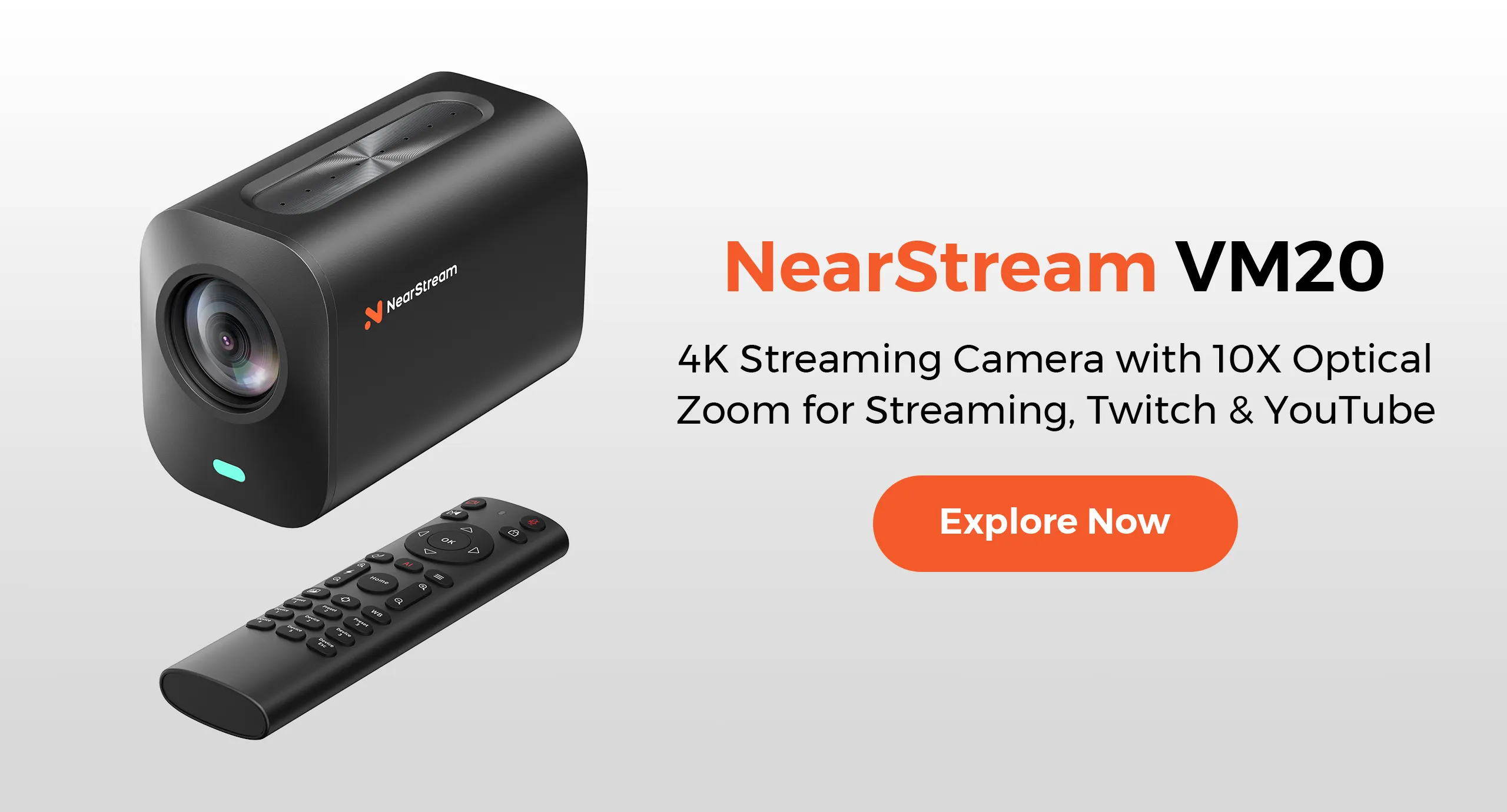
Camera: Use a 4K-capable camera like the NearStream VM20, which includes advanced features like 40x digital framing, remote control, and dual USB/HDMI output.
Microphone: For clean audio, pair with the AM25X condenser mic for studio-quality vocals, or a wireless mic setup when you're moving around.
Software: OBS Studio for customization, or Riverside for guest interviews and multi-track audio.
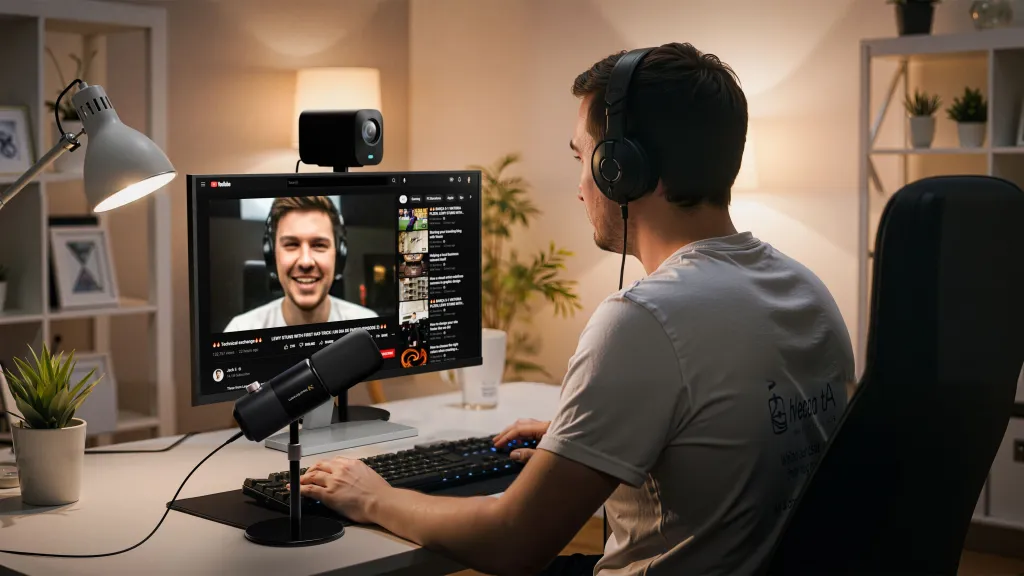
This setup ensures:
Crisp image resolution and professional framing
Clear voice with minimal background noise
Smooth integration with OBS, Zoom, Riverside, etc.
Whether you're live streaming an online course, podcasting, or conducting a hybrid event, investing in the right hardware/software combo minimizes tech failures and maximizes content quality.
Q1: What is the best free streaming software for beginners?
A1: Streamlabs or OBS Studio, depending on your comfort level. Streamlabs is easier; OBS is more powerful.
Q2: Can I stream to multiple platforms at once?
A2: Yes! Use Restream or StreamYard to stream to multiple platforms simultaneously.
Q3: Is 4K streaming necessary?
A3: Not always. 1080p is sufficient for most viewers. But if you're a tech or gaming creator, 4K can give you a competitive edge.
Q4: Do I need a capture card?
A4: Only if you're using a DSLR, gaming console, or want to stream from a secondary computer.
Q5: Which streaming software is best for webinars?
A5: vMix and Riverside.fm are both great choices—vMix for its multi-camera layout, Riverside for remote guests and HD recording.
Q6: Can I stream from my phone using pro-level software?
A6: Yes, Prism Live Studio and Streamlabs Mobile are powerful apps that support overlays, effects, and cross-platform streaming directly from your phone.
Q7: What if I have a low-end computer?
A7: Try Lightstream—it's browser-based and uses cloud rendering to reduce CPU load.
Q8: Is there a software that supports guest interviews?
A8: Yes! Riverside.fm, StreamYard, and Wirecast all allow remote guests with clean split-track audio.


Get exclusive NearStream offers and catch the latest in features, updates, and more.
By signing up, you agree to NearStream's Privacy Policy.


 sales@nearstream.us