The Ultimate Off-Grid Scouting Guide: Streaming Softball on GameChanger via Starlink and the VM33
Discover the ultimate guide for streaming youth softball in rural areas using Starlink and the NearStream VM33 camera.
Starlink
GameChanger
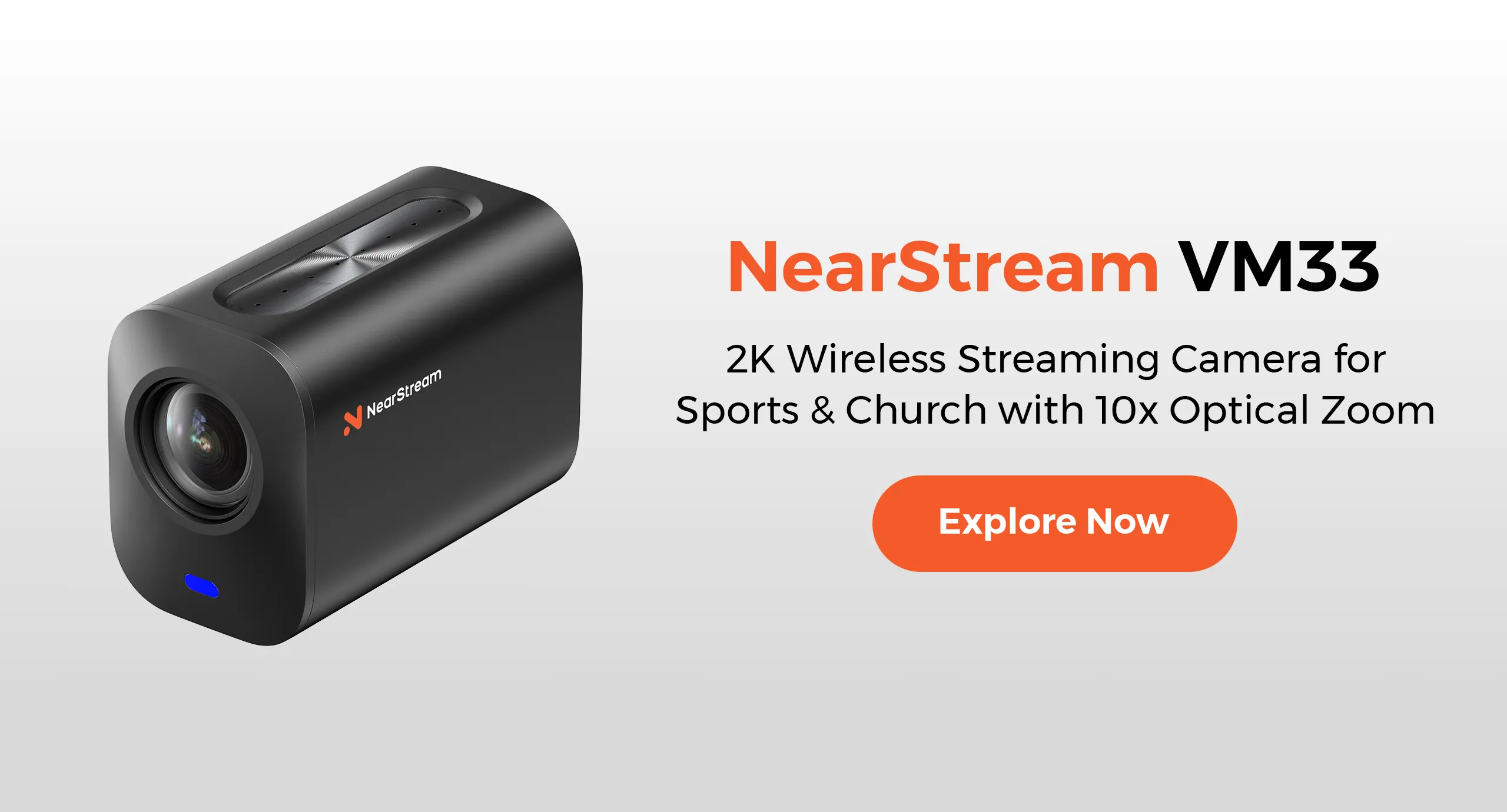
NearStream VM33
Updated: Mar 16, 2026 · 8 minutes read
Modular Video Kits for Growing Business.
For travel softball families across the country, the biggest opponent isn't the pitcher in the circle—it’s the "No Service" bars at the top of their smartphone. When tournaments take you to rural "Dead Zone" complexes, providing a high-definition GameChanger stream for scouts and distant family members becomes an uphill battle. While SpaceX’s Starlink has solved the connectivity crisis, choosing the right camera to pair with a satellite backbone is critical. This guide deep-dives into a head-to-head comparison between the professional Sony a6400, the ubiquitous Smartphone, and the purpose-built NearStream VM33. Discover why the VM33 is the reigning champion for the 2025-2026 season and learn exactly how to build your own portable satellite broadcast station.
The Connectivity Crisis: Why Traditional Ballpark Streaming Fails
Every travel ball parent has been there: your daughter is at the plate with the bases loaded, and just as she swings, your GameChanger stream cuts out.
The "Tournament Trap" is real. Massive 12-field complexes are often built in rural areas where local 5G towers are quickly overwhelmed by 2,000 parents trying to upload video at the same time. This congestion leads to dropped frames, pixelated video, and frustrated grandparents watching from home. To stream like a pro, you need to solve the "Internet Pipe" problem first, followed immediately by the "Hardware Endurance" problem.
Starlink: Creating a Private Wi-Fi Bubble
Starlink, operated by SpaceX, has revolutionized remote sports. By connecting directly to Low Earth Orbit (LEO) satellites, it provides a high-speed, low-latency "Wi-Fi bubble" that follows your team wherever they go.
Reliability: No more competing with the local crowd for bandwidth.
Speed: Upload speeds of 15-25Mbps—perfect for consistent 1080p video.
True Portability: With the Starlink Mini or Roam plans, you have a broadcast-ready signal in any cornfield or mountain-side park.
The Contenders: Pro Mirrorless vs. Smartphone vs. The VM33
To find the best tool for the job, we analyzed the three most common setups used at U.S. ballparks today.
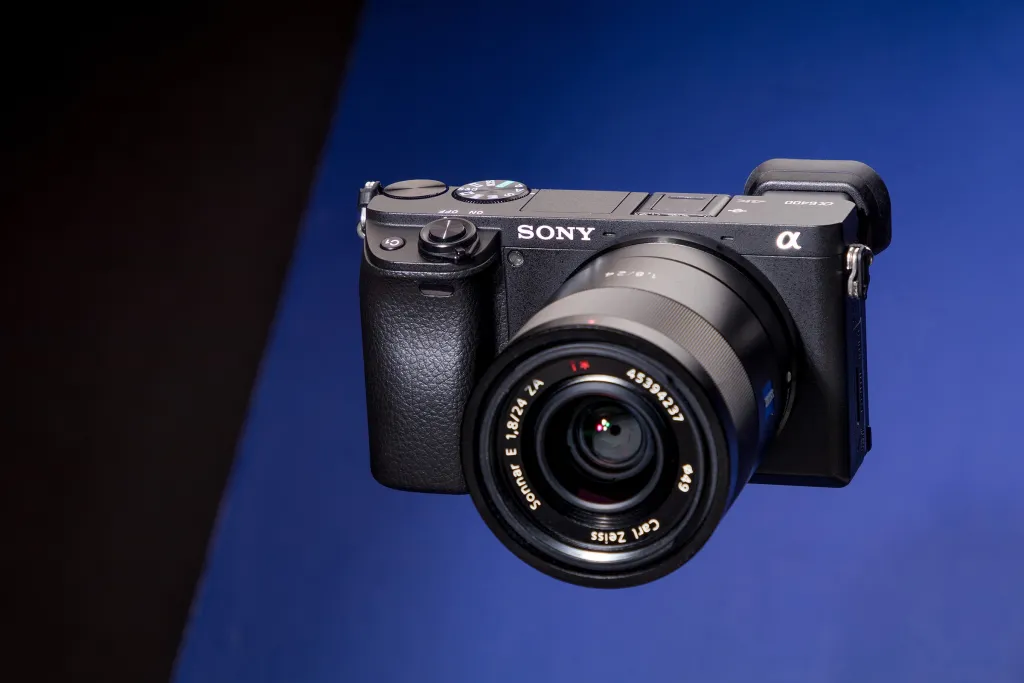
The Pro Mirrorless (Sony a6400): High-end image quality and elite autofocus. However, it requires a "tethered" setup (cables, capture cards, and a laptop) that is difficult to manage in a hot dugout.
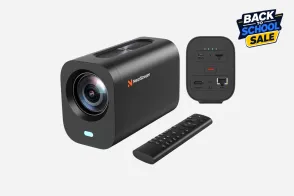
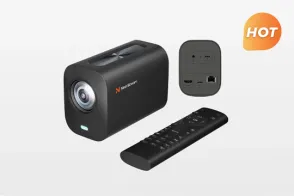
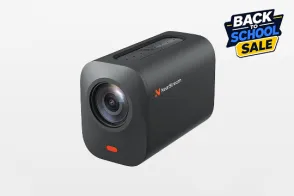
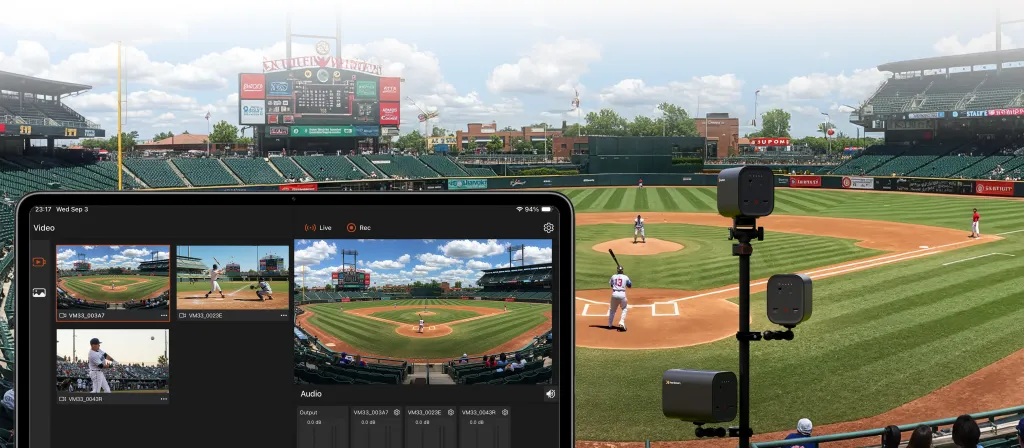
The NearStream VM33: A dedicated "Smart Stream" camera. It bridges the gap by offering the optical zoom of a pro camera with the standalone Wi-Fi connectivity of a smartphone.
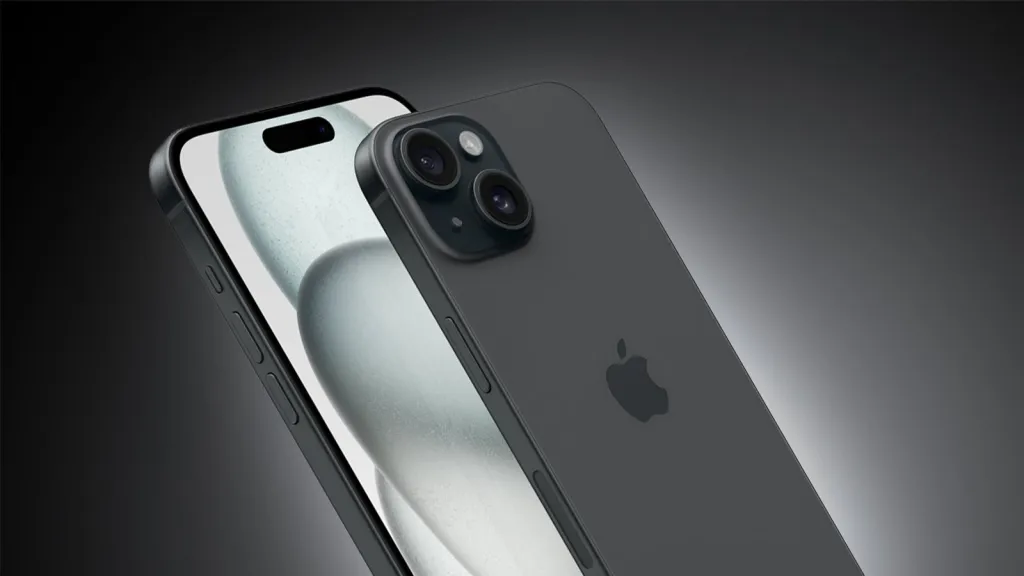
The Smartphone (iPhone/Android): The low-barrier entry. Great for short clips, but notoriously prone to overheating and "digital blur" when zooming from the fence.
The "Softball Killer" Factors: Heat, Zoom, and Fence Interference
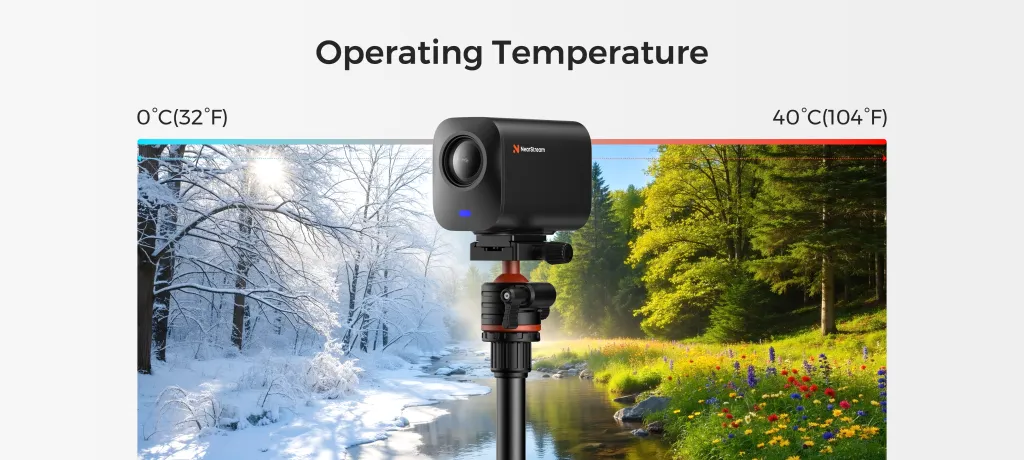
Softball environments are uniquely hostile to electronics.
The Heat Wall: Direct sunlight and 100°F humidity will shut down a smartphone in 20 minutes.
The Zoom Trap: Most phones use "Digital Zoom," which simply crops the image and loses all detail. To see the outfielders, you need Optical Zoom.
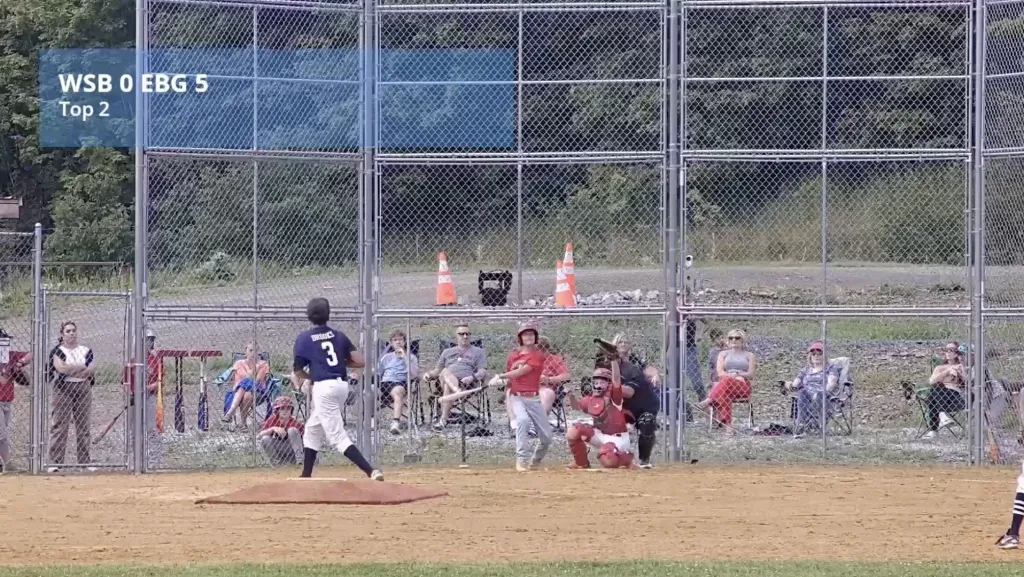
Net Focus Issues: Most autofocus systems get "confused" by the chain-link fence, focusing on the metal wires instead of the batter.
Head-to-Head Comparison: Performance Data
Table 1: Hardware Specifications & Capabilities
Feature
Smartphone (Flagship)
Sony Alpha a6400
NearStream VM33
Streaming Protocol
Via App Only
HDMI Output (Needs PC)
Native RTMP (One-Tap)
Zoom Type
Digital (Lossy)
Optical (Interchangeable)
Optical (High Precision)
Cooling
None (Passive)
Moderate (Passive)
Active Internal Cooling
Starlink Pairing
Good
Poor (Requires Laptop)
Excellent (Direct Wi-Fi)
Fence Interference
Struggles with Focus
Manual Adjust Required
AI Fence-Ignoring Focus
Table 2: Ballpark Durability & User Experience
Metric
Smartphone
Sony a6400 Setup
NearStream VM33
Overheat Risk
High
Moderate
Low (Built for 3-hour games)
Setup Time
1 Minute
15-20 Minutes
3 Minutes
GameChanger Link
Native App
Complex (Capture Card)
Native RTMP Integration
Battery Life
60-90 Mins
45 Mins (Internal)
3+ Hours (Internal)
Table 3: Total Cost of Ownership (TCO)
Component
Smartphone
Sony a6400 System
NearStream VM33
Camera Cost
$1,000+ (Existing)
$900+
$350 - $400
Necessary Extras
Cooling Case ($50)
Lens + Laptop ($800)
Fence Mount ($50)
Complexity
Low
Very High
Low (Parent-Friendly)
Value Score
6/10
5/10 (Too complex)
9.5/10
Deep Dive: Why the NearStream VM33 is the "Starlink Champion"
After field testing at regional championships, the VM33 emerged as the superior choice for Starlink users.
Native RTMP Engine: Unlike the Sony, which needs a computer to "talk" to the internet, the VM33 handles the encoding internally. You paste your GameChanger Stream Key into the VM33 app, and it pushes the video directly to the satellites.
Optical Prowess: The VM33 features a dedicated lens system that "punches through" the backstop. It blurs out the chain-link fence and keeps the pitcher in sharp focus, even at $1080p/60fps$.
Industrial Cooling: While phones are built for social media, the VM33 is built for the dugout. Its internal heat management allows it to stream through a 1 p.m. doubleheader in Florida without skipping a beat.
Step-by-Step Blueprint: Setting Up Starlink + VM33 + GameChanger
Ready to go live? Follow this professional workflow:
Step 1: Deploy the Starlink Dish
Position your Starlink dish in an area with a 360-degree clear view of the sky. Avoid placing it directly under metal overhangs or stadium bleachers. Check the Starlink App for "Obstructions."
Step 2: Mount the VM33
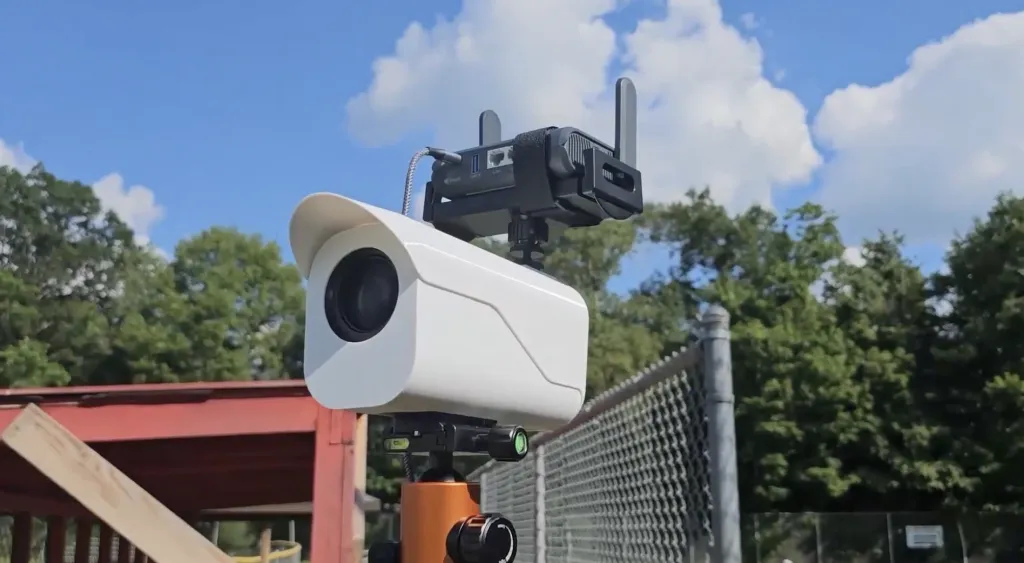
Use a high-quality fence mount (like a LynkSpyder) to attach the VM33 to the backstop behind home plate. Ensure the lens is as close to the mesh as possible to minimize fence visibility.
Step 3: Establish the Satellite Connection
Open the NearStream App on your phone. Go to "Settings" > "Network" and select your Starlink Wi-Fi network. The camera is now connected to the most powerful internet source at the ballpark.
Step 4: Link GameChanger
Open the GameChanger App:
Navigate to your game and tap "Go Live."
Select "External Camera."
Copy the Stream URL and Stream Key.
Step 5: Start the Broadcast
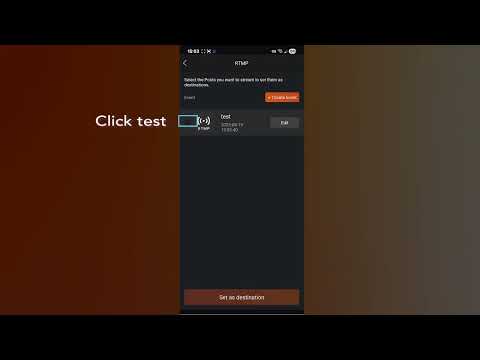
Return to the NearStream App, choose RTMP, and paste the URL and Key. Hit "Start Stream." You are now broadcasting to Grandma and college scouts via space!
Conclusion: Future-Proofing Your Athlete’s Exposure
In the competitive world of youth softball, video is the ultimate currency. If you are relying on a shaky, overheating smartphone, you are doing your athlete a disservice.
By combining the Starlink internet backbone with the NearStream VM33, you remove the two biggest failure points of sports streaming: dead-zone signals and hardware shutdowns. You get a professional, $1080p$ broadcast that stays online from the first pitch to the walk-off hit.
Frequently Asked Questions (FAQ)
Q: Will Starlink work in a heavy rain delay?
A: Yes. Starlink is weather-resistant. While extreme storms may slow down speeds slightly, it is generally much more reliable than cellular data during a storm.
Q: Can I use the VM33 without Starlink?
A: Absolutely. If you have a strong 5G signal or ballpark Wi-Fi, the VM33 will work perfectly. Starlink is simply the "ultimate insurance policy" for rural fields.
Q: Why not just use a GoPro?
A: GoPros are designed for 30-second action clips, not 3-hour live streams. They frequently shut down due to heat and lack the optical zoom necessary to see the outfield.
Q: Does the VM33 require a monthly subscription?
A: No. The hardware is a one-time purchase. You only pay for the internet service (Starlink) and any premium tiers you might use on GameChanger.
Q: How many games can I stream on a single battery?
A: The VM33 can typically handle a full 2-3 hour game on its internal battery. For tournament weekends, we recommend plugging it into a standard USB power bank for "infinite" runtime.













































 sales@nearstream.us