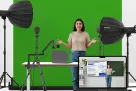
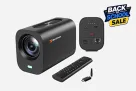
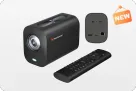
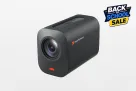
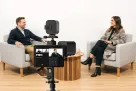
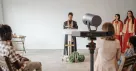
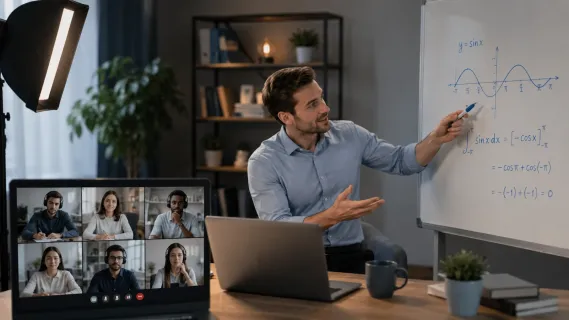
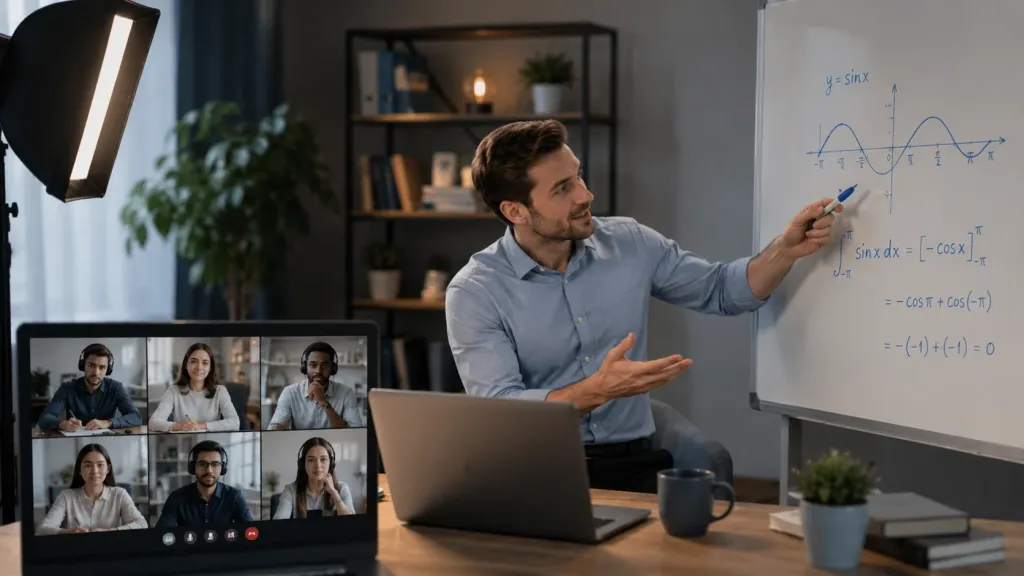
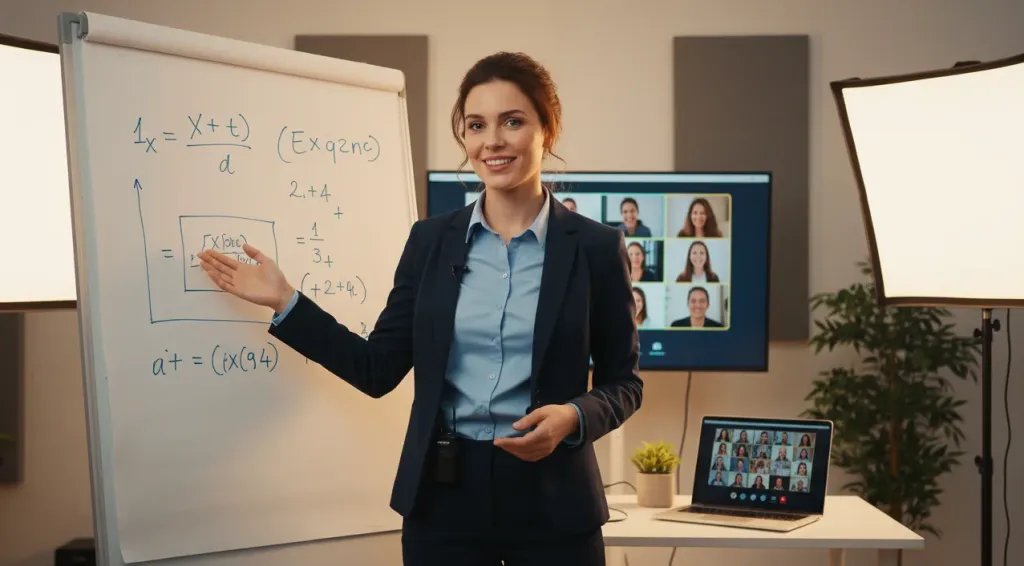
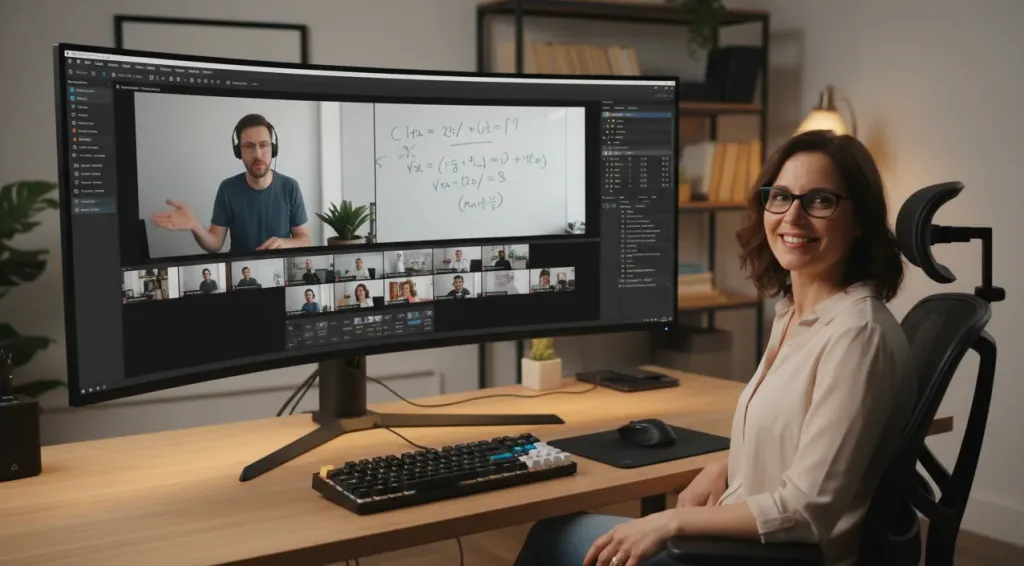
In today’s online learning environment, professional video and audio quality are no longer optional — they directly impact student engagement, comprehension, and retention. This guide explores the best camera setup for online teaching, comparing basic webcam workflows with professional multicam solutions designed for educators, hybrid classrooms, course creators, and trainers. From the challenges of blurry whiteboards and poor audio to the benefits of dual-camera teaching and OBS multicam workflows, we break down what truly matters in a modern teaching setup. We also explain why the combination of 2× NearStream VM20 4K streaming cameras and the AWM28T wireless lavalier microphone stands out as one of the most practical and effective solutions for professional online instruction, hybrid learning, STEM demonstrations, tutorial recording, and interactive virtual classrooms.

Quick Picks: Best Online Teaching Camera Setups for 2026
Before diving into the details, here are our top recommendations based on different teaching scenarios:
| Rank | Setup | Best For | Key Strength |
|---|---|---|---|
| #1 | 2× NearStream VM20 + 1× AWM28T | Hybrid classrooms, multicam teaching, course creators | Best overall value for professional multicam + wireless audio |
| #2 | Single NearStream VM20 + AWM28T | Solo educators upgrading from webcams | Excellent zoom and audio at accessible price point |
| #3 | Basic webcam + USB mic | Casual one-on-one tutoring | Simplest setup, limited flexibility |
For educators ready to move beyond basic webcams and create truly engaging, professional-quality lessons, the dual VM20 + AWM28T combination stands out as the most capable and practical best multicam setup for online classes available today.
The Problem: Why Basic Setups Fall Short for Modern Teaching
Most educators start with what they already have — a laptop webcam and built-in microphone. While this works for casual video calls, it creates significant limitations when teaching becomes your primary professional activity.
Common Pain Points Educators Face
Lack of Optical Zoom Standard webcams have fixed lenses. When you step back to show a whiteboard, textbook, or experiment, details become unreadable. Students squint at blurry formulas, diagrams, or demonstrations, reducing comprehension and increasing frustration.
Flat, Single-Perspective Lessons One camera angle throughout an entire lesson feels monotonous. Students lose visual engagement when they only see a talking head. For hands-on subjects like art, music, or product training, a single viewpoint simply cannot capture the action effectively.
Poor Audio Quality Laptop microphones pick up room echo, keyboard noise, and ambient sounds. When you move away from the computer to demonstrate something, your voice becomes distant and muffled. In a hybrid classroom camera setup, poor audio disproportionately affects remote students who already face engagement challenges.
Difficulty Switching Views Without a multicam workflow, showing different angles requires physically moving a camera or laptop — disrupting lesson flow and looking unprofessional.
Stability Issues During Long Sessions Consumer-grade devices overheat, drop frames, or disconnect during extended livestreams. When you are teaching a two-hour workshop or recording a comprehensive course module, reliability matters.
Complexity of Traditional Multicam Systems Professional broadcast setups with multiple cameras, switchers, and audio mixers deliver excellent quality but require technical expertise, significant budget, and dedicated space that most educators and schools simply don't have.
The Search for a Better Solution These limitations drive educators to search for alternatives that deliver professional results without professional complexity. The ideal best webcam alternative for teaching should offer superior optics, reliable connectivity, and workflow flexibility while remaining accessible to non-technical users.

What Makes the Best Streaming Camera for Educators in 2026
When evaluating teaching livestream equipment, several factors matter more than raw specifications. Here's what we prioritize when recommending setups for educators:
Image Quality and Zoom Capability
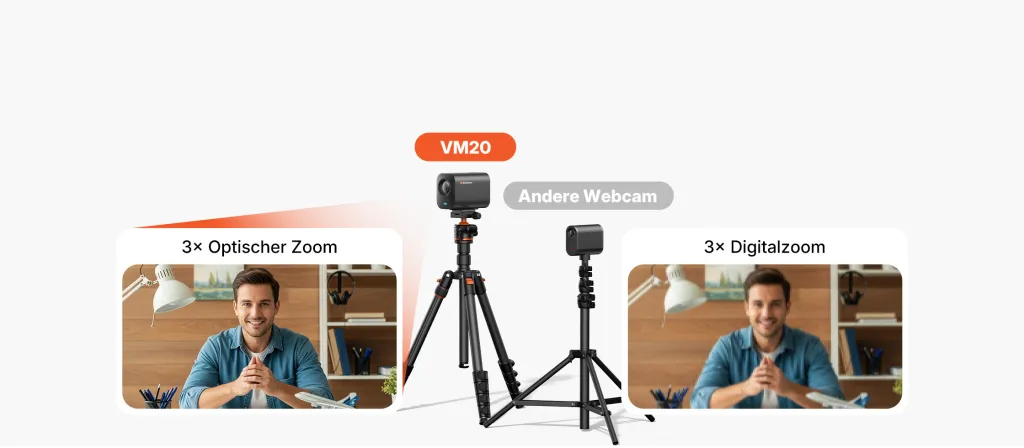
4K resolution provides crisp detail that makes whiteboard text, textbook pages, and demonstration elements clearly visible. More importantly, optical zoom maintains image quality when you need to focus on specific details. A camera with 10× optical zoom, like the VM20, lets you show fine details without pixelation — critical for STEM demonstrations, art instruction, and document sharing.
Multicam Flexibility
The ability to switch between multiple camera angles transforms lesson dynamics. A professional online teaching setup should support at least two cameras: one for the instructor and one for demonstrations, whiteboards, or close-up work. This flexibility improves pacing, engagement, and information clarity.
Livestream Stability and Reliability
Educators need equipment that works consistently through long sessions. Wired connections (USB-C, HDMI, Ethernet) generally outperform wireless alternatives for stability. RTSP support enables direct streaming without intermediate software when needed.
OBS and Software Compatibility
Most educators use OBS Studio or similar software to manage their streams. The best streaming camera for educators must integrate seamlessly with these platforms, allowing scene switching, picture-in-picture layouts, and professional transitions without complex configuration.
Audio Quality and Flexibility
Clear speech reproduction is arguably more important than video quality for educational content. Wireless lavalier microphones provide consistent audio whether you are at your desk, at a whiteboard, or demonstrating a hands-on technique.
Ease of Deployment
The ideal setup should be deployable by non-technical users within minutes, not hours. Schools and institutions need solutions that multiple teachers can use without extensive training. A streamlined OBS setup for online teaching should work with minimal configuration, allowing educators to focus on content rather than troubleshooting technology.
Audio as a Critical Component
While video quality receives more attention, audio clarity often matters more for educational outcomes. Students tolerate mediocre video longer than poor audio. A dedicated wireless microphone for online teaching provides consistent speech capture, reduces environmental noise, and allows natural instructor movement — directly improving the learning experience for remote participants.
Cost Efficiency and Workflow Simplicity
Budget constraints are real. The goal is maximum teaching impact per dollar invested, not chasing specifications that don't improve learning outcomes. The best OBS setup for online teaching is one that works reliably without constant troubleshooting, letting educators focus on students rather than technology.
Why Multicam Teaching Dramatically Improves Engagement
Research into online learning consistently shows that visual variety and clarity directly correlate with student attention and retention. A multicam classroom livestream isn't just about looking professional — it's about communicating more effectively.
The Power of Dual Perspectives
When students can see both the instructor's explanations and the subject matter simultaneously, comprehension improves dramatically. Imagine a chemistry teacher explaining a reaction while students see both the teacher's face (capturing emphasis and enthusiasm) and a close-up of the experiment (capturing visual detail).
Better Pacing and Visual Interest
Switching between camera angles naturally segments lessons, creating visual rhythm that maintains attention. A 45-minute lecture with varied camera work feels shorter and more dynamic than the same content delivered through a static shot.
Subject-Specific Advantages
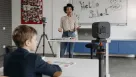
Whiteboard Teaching: One camera on the instructor, one on the whiteboard. Students never miss an equation or diagram because the camera can zoom in optically while maintaining clarity.
STEM Demonstrations: Show the setup wide, then cut to detailed close-ups of equipment, measurements, or reactions. Students in hybrid classrooms see details that might be invisible from the back row.
Art and Music Instruction: Capture the instructor's technique from multiple angles. A piano teacher needs hand-position views. An art teacher needs close-ups of brushwork or material manipulation.
Tutorial and Workshop Creation: For educators building online course recording setups, multiple angles create polished, professional content that justifies premium pricing. When searching for the best camera for tutorial videos, creators need equipment that captures fine details while maintaining production values audiences expect.
Remote Student Equity
In hybrid classrooms, remote students often receive a diminished experience compared to in-person attendees. A well-executed multicam setup can actually give remote students better views of demonstrations than those sitting in the back row, leveling the educational playing field.

Best Camera Setup for Online Teaching: 2× NearStream VM20 + 1× AWM28T Wireless Mic
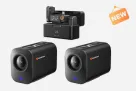
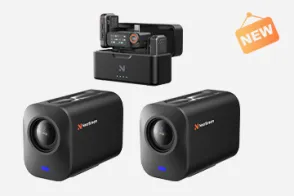
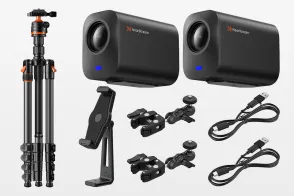
After evaluating numerous configurations for best livestream setup for educators, the combination of two NearStream VM20 4K streaming cameras paired with one AWM28T wireless lavalier microphone emerges as the standout choice for most teaching scenarios in 2026.
This isn't just another camera recommendation. It is a complete workflow designed specifically for the challenges educators face daily.
The Setup Configuration
Camera 1: Instructor Wide Shot Positioned to capture the teaching area, desk, or front of classroom. This camera provides the primary view students see during explanations, discussions, and presentation segments.
Camera 2: Detail/Whiteboard/Demonstration Camera Positioned to capture whiteboards, textbooks, experiments, product demonstrations, instrument close-ups, or hands-on work. With the VM20's powerful zoom capabilities, this camera can reframe to show fine details without physical repositioning.
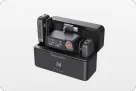
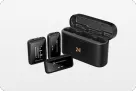
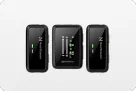
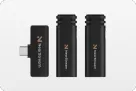
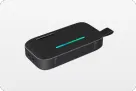
Audio: AWM28T Wireless Lavalier Clipped to the instructor's clothing, providing consistent, clear speech pickup regardless of movement. The wireless design eliminates cable constraints that limit teaching mobility.
NearStream VM20: Built for Teaching Environments
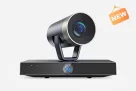
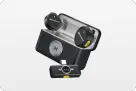
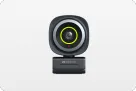
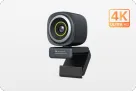
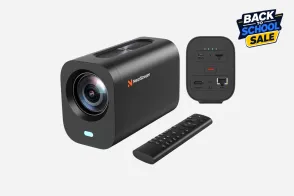
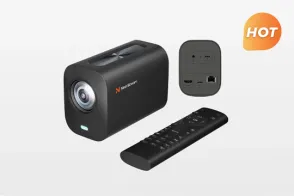
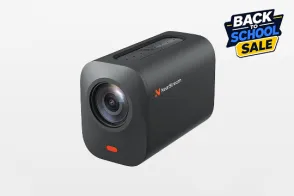
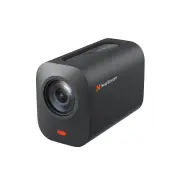
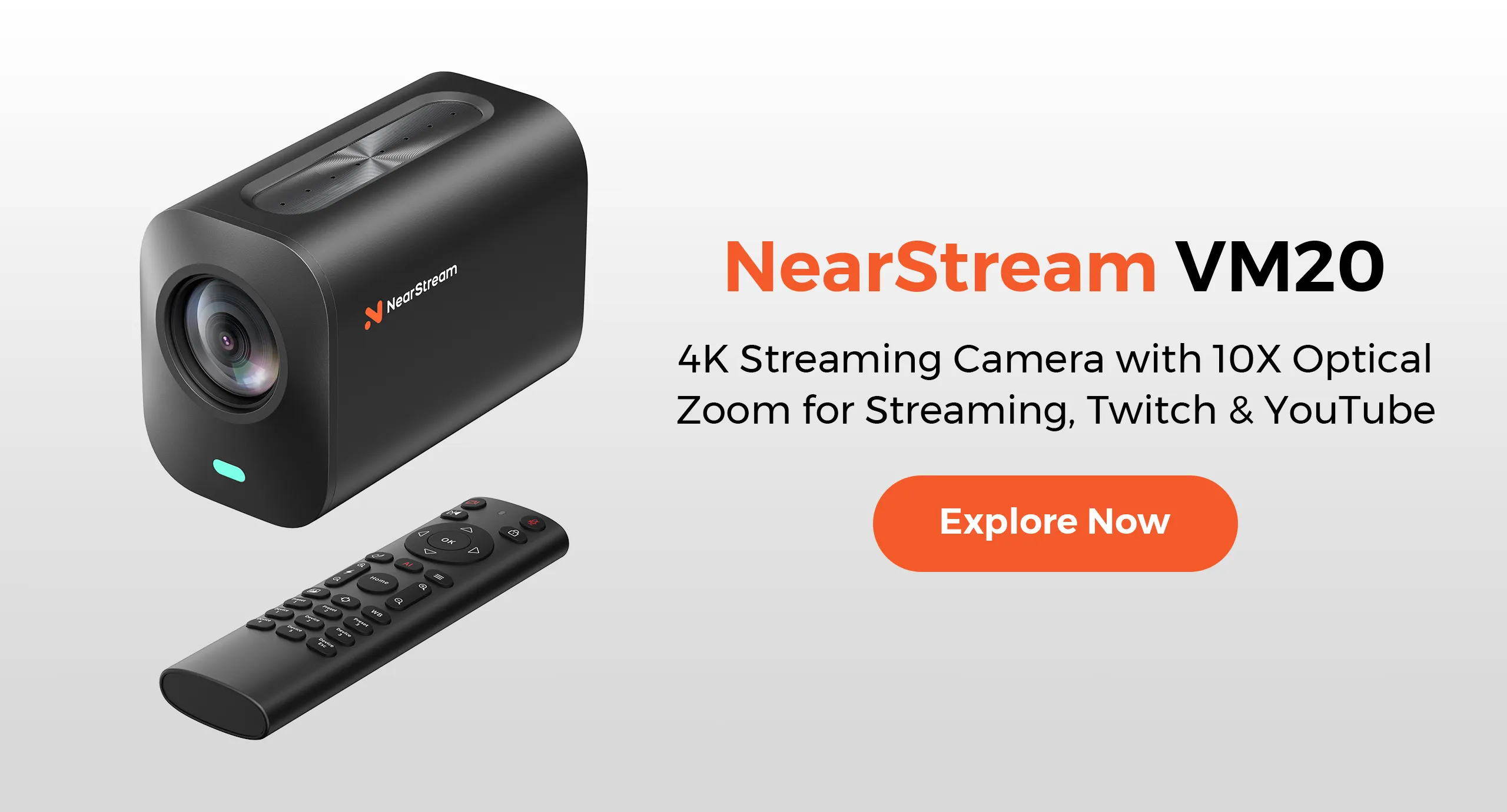
The NearStream VM20 is a 4K streaming camera designed with content creators and educators in mind. Here's why it excels as the best camera for whiteboard teaching and broader educational applications:
4K Resolution with Powerful Zoom The VM20 captures at 4K resolution, providing the detail needed for clear whiteboard visibility and demonstration close-ups. The 10× optical zoom maintains full image quality when focusing on specific areas, while 40× hybrid zoom extends reach for capturing fine details like circuit boards, mathematical notation, or artistic technique.
For educators teaching subjects where visual detail matters — mathematics, engineering, art, music, laboratory sciences — this zoom capability transforms what's possible to communicate through video.
Stable Wired Workflow Unlike wireless cameras that can suffer interference or battery anxiety during long sessions, the VM20 uses wired USB-C and HDMI connections. This stability is essential for:
- Multi-hour workshops and training sessions
- Daily recurring classes in institutional settings
- Important presentations where technical failure isn't acceptable
- Hybrid classrooms where technical interruptions disproportionately impact remote students
Universal Connectivity USB-C provides plug-and-play compatibility with computers, while HDMI output enables direct connection to displays, capture cards, or broadcast equipment. RTSP support allows direct network streaming for advanced deployments.
OBS Native Compatibility The VM20 works seamlessly with OBS Studio, appearing as a standard video source. This means educators can create professional multicam productions using free software they're likely already familiar with.
AWM28T: Solving the Audio Problem
The NearStream AWM28T wireless lavalier microphone addresses the most commonly overlooked aspect of online teaching audio setup — consistent, clear voice capture.
Wireless Teaching Mobility Traditional USB microphones or laptop mics require you to stay within a few feet of the computer. The AWM28T clips to your clothing and transmits wirelessly, letting you:
- Move freely to whiteboards without audio degradation
- Demonstrate physical techniques while maintaining clear narration
- Teach naturalistically without constantly thinking about microphone position
- Maintain consistent volume levels throughout dynamic lessons
Reduced Classroom Clutter Wireless audio eliminates cable runs across teaching spaces, creating safer, cleaner environments. For schools deploying these setups in multiple classrooms, this simplicity reduces setup time and maintenance.
Professional Speech Clarity The lavalier form factor captures speech from an optimal distance, reducing room echo and ambient noise that plague built-in microphones. Remote students hear clear, present audio that maintains engagement through long sessions.
The Workflow Advantage
What makes this combination the best webcam alternative for teaching isn't just the hardware — it is how the pieces work together to solve real classroom problems:
- No production crew required: One person can operate the entire setup using OBS scene switching
- No expensive switchers needed: OBS handles camera switching through a normal computer
- Scalable across institutions: Schools can deploy identical setups in multiple rooms with minimal training
- Grows with your needs: Start with one VM20, add a second camera and wireless mic when ready
- Reliable for daily use: Built for professional content creation, designed to handle institutional workloads

OBS Workflow and Teaching Setup Tips
One reason this setup works so well for educators is its integration with OBS Studio, free software that transforms multiple camera inputs into professional-looking productions.
Basic Scene Configuration
Scene 1: Instructor Primary Camera 1 (VM20) full screen. Used during introductions, explanations, and discussion segments. The instructor connects with students through direct eye contact and natural presentation.
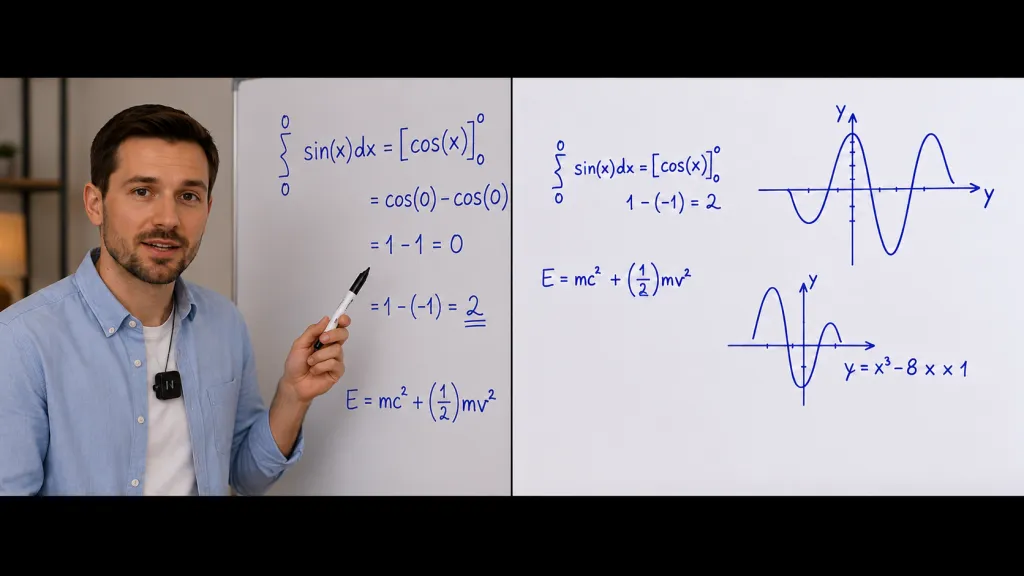
Scene 2: Whiteboard Close-Up Camera 2 (VM20) zoomed on whiteboard or presentation area. Students see formulas, diagrams, or written content in crisp detail. Switch to this scene when writing or referencing visual materials.
Scene 3: Demonstration View Camera 2 reframed on demonstration area. For science experiments, product showcases, art technique, or hands-on work. The optical zoom ensures detail visibility without moving the camera.
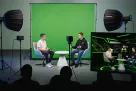
Scene 4: Picture-in-Picture Camera 1 as primary (instructor) with Camera 2 inset showing whiteboard or demonstration. This composite view lets students see both the instructor's explanations and the subject matter simultaneously.
Scene 5: Split Screen Equal view of both cameras. Useful during collaborative segments, student presentations, or when showing two related elements side by side.

Implementation Tips
For educators new to OBS, start with two scenes — Instructor and Whiteboard — and add complexity gradually. Use keyboard shortcuts or a simple USB controller for scene switching during lessons. The learning curve is modest, and the improvement in production quality is immediate.
The VM20's wired connections mean both cameras appear as stable, reliable sources in OBS without the connection drops that plague wireless camera workflows.
Step-by-Step OBS Configuration
Step 1: Connect Your Cameras Plug both VM20 cameras into your computer via USB-C. Your operating system should recognize them as video devices automatically. No special drivers are required.
Step 2: Add Sources in OBS Open OBS Studio and add each VM20 as a "Video Capture Device" source. Name them clearly (e.g., "Camera 1 - Instructor" and "Camera 2 - Whiteboard") for easy identification during live switching.
Step 3: Create Your Scenes Build at least two scenes: one with Camera 1 full-screen for instructor-focused segments, and one with Camera 2 for whiteboard or demonstration views. Test switching between them using the scene panel or keyboard shortcuts.
Step 4: Configure Audio Add the AWM28T wireless receiver as an "Audio Input Capture" source in OBS. Set it as your primary audio source and disable any built-in laptop microphones to prevent echo or dual audio capture.
Step 5: Test Before Going Live Run a 10-minute test stream to verify camera stability, audio levels, and scene transitions. Check that whiteboard text is readable at your chosen zoom level and that audio remains consistent throughout your teaching area.
Comparison: How Teaching Setups Stack Up
When evaluating online course recording setups and livestream configurations, understanding the trade-offs helps educators make informed decisions.
| Feature | Laptop Webcam + Built-in Mic | Single VM20 + AWM28T | 2× VM20 + 1× AWM28T |
|---|---|---|---|
| Video Resolution | 720p–1080p | 4K | Dual 4K |
| Optical Zoom | None | 10× | 10× (per camera) |
| Hybrid Zoom | Digital only | 40× | 40× (per camera) |
| Camera Angles | Single fixed | Single with zoom flexibility | Two independent angles |
| Audio Quality | Echoey, distance-sensitive | Professional wireless clarity | Professional wireless clarity |
| Teaching Mobility | Tethered to laptop | Wireless audio freedom | Wireless audio + dual camera coverage |
| OBS Multicam | Single source | Single source with zoom changes | True dual-camera switching |
| Whiteboard Visibility | Poor at distance | Excellent with optical zoom | Dedicated camera angle possible |
| Setup Complexity | Minimal | Low | Moderate |
| Stability | Variable | High (wired) | High (wired) |
| Scalability | None | Can add second camera later | Full multicam workflow |
| Production Quality | Basic | Professional | Broadcast-style |
Key Takeaways
The standard webcam setup works for informal use but creates significant limitations for professional educators. The single VM20 + AWM28T configuration solves the most critical problems — image quality, zoom, and audio — for educators primarily teaching from one position.
The dual VM20 + AWM28T configuration unlocks true multicam classroom livestream capability, enabling the visual variety and flexibility that separate amateur recordings from professional educational content. For educators building courses, running hybrid classrooms, or teaching demonstration-heavy subjects, this additional capability justifies the investment.
Best Use Cases by Teaching Scenario
Different teaching contexts benefit from different configurations. Here's how to match your needs to the right setup:
Hybrid Classrooms (In-Person + Remote Students)
Recommended Setup: 2× VM20 + 1× AWM28T
Hybrid classrooms present unique challenges — simultaneously serving in-person and remote students requires professional capture quality. One VM20 captures the instructor while the second captures whiteboards, presentations, or demonstration areas. Remote students receive broadcast-quality views that can exceed what in-person students see from the back row.
STEM and Science Teachers
Recommended Setup: 2× VM20 + 1× AWM28T
Laboratory demonstrations, equipment close-ups, and detailed visual explanations demand both high resolution and optical zoom. The second VM20 positioned at the demonstration bench captures experimental details while the instructor explains concepts. The wireless mic maintains clear narration even when working with equipment across the room.
Whiteboard-Heavy Instruction
Recommended Setup: 2× VM20 + 1× AWM28T (or 1× VM20 + AWM28T for budget-conscious educators)
Mathematics, physics, economics, and language instruction often depend on written content. The VM20's optical zoom makes handwritten formulas and diagrams clearly readable — a game-changer compared to webcam-quality whiteboard visibility. The dual-camera setup lets students see both the instructor and detailed whiteboard content.
Online Course Creators
Recommended Setup: 2× VM20 + 1× AWM28T
For educators building premium courses sold on platforms like Teachable, Kajabi, or Udemy, production quality directly impacts perceived value and pricing power. Multicam recordings with professional audio justify premium course prices and generate stronger student reviews. The time saved through efficient OBS workflows accelerates course production.
Art, Music, and Workshop Instructors
Recommended Setup: 2× VM20 + 1× AWM28T
Hands-on instruction requires showing technique from multiple angles. A piano instructor needs views of both hand positions and facial expression. A painting teacher needs close-ups of brushwork and wider views of the canvas. The wireless lavalier mic captures narration regardless of position, while dual cameras provide the visual coverage impossible with single-camera setups.
Corporate Training, Tutorial Recording, and Production Teams
Recommended Setup: 2× VM20 + 1× AWM28T
Professional trainers delivering internal education, sales training, or compliance content need polished production that reflects organizational standards. Software tutorials, DIY workshops, and how-to content also benefit from showing both the instructor and detailed close-up work. For schools and institutions building multiple recording spaces, the VM20 + AWM28T combination provides reliable, repeatable setups that scale across campus with minimal technical support.
Common Concerns and Troubleshooting
"Isn't Two Cameras Overkill for Online Teaching?"
For occasional one-on-one tutoring, possibly. But for regular teaching, course creation, or hybrid classrooms, the second camera transforms what is possible. Television productions use multiple cameras because visual storytelling requires varied perspectives — and teaching is visual storytelling.
"Do I Need Technical Expertise to Run This?"
The VM20 + AWM28T setup is designed for educators, not broadcast engineers. USB-C plug-and-play means cameras work like advanced webcams. Basic scene switching in OBS is learnable in an afternoon.
"What About Wireless Cameras Instead?"
Wireless cameras offer cable-free convenience but introduce instability through interference, battery limitations, and connection drops. For educational settings where reliability matters, wired connections provide peace of mind that wireless alternatives cannot match.
"Can I Start with One Camera and Expand?"
Absolutely. Many educators begin with a single VM20 and AWM28T, immediately improving their teaching quality over webcam setups. Adding the second camera later enables multicam workflows when budget or needs justify the expansion. This scalability makes the system practical for individual educators and institutions alike.
Troubleshooting Common Issues
Camera not detected in OBS: Use the included USB-C cable and connect directly to your computer — not through a USB hub. Try a different USB port if detection fails.
Audio out of sync with video: Add a small audio sync offset (typically 50-150ms) to your AWM28T audio source in OBS. Test with a hand-clap visible to both cameras.
Whiteboard appears washed out: Adjust exposure compensation on the VM20. Position the whiteboard perpendicular to windows to avoid glare.
OBS scene transitions feel jarring: Add a short fade transition (200-300ms) in OBS settings. Gentle fades feel more professional than quick cuts for recorded lessons.
Choosing the Right Setup for Your Situation
Still deciding which configuration fits your teaching? Here's a scenario-based guide:
Start with 1× VM20 + 1× AWM28T If You:
- Teach primarily from a desk or fixed position
- Need significantly better video and audio than your webcam provides
- Want professional zoom capability for showing documents or materials
- Are building your first dedicated teaching setup
- Have budget constraints but want professional quality
Upgrade to 2× VM20 + 1× AWM28T If You:
- Teach subjects requiring demonstrations or whiteboard work
- Run hybrid classrooms with remote and in-person students
- Create online courses requiring professional production quality
- Need to show both yourself and detailed subject matter
- Want true multicam switching capability through OBS
- Are ready to create the most engaging possible learning experience
The Bottom Line
The best camera for hybrid classroom and online teaching environments in 2026 isn't about having the most expensive equipment — it is about having the right equipment that solves real teaching challenges without creating new ones.
The NearStream VM20 + AWM28T combination succeeds because it addresses the specific pain points educators face: limited zoom, poor audio, single-camera constraints, and complex multicam deployment. Whether you start with one camera or deploy the full dual-camera wireless audio system, you are building on a foundation designed for professional educational content creation.
For educators serious about online teaching quality, the question isn't whether to upgrade from basic webcams — it is how quickly you can implement a solution that lets you focus on teaching instead of troubleshooting technology.
FAQ
Q: What makes the NearStream VM20 better than a standard webcam for teaching?
The VM20 offers true 10× optical zoom and 40× hybrid zoom at 4K resolution, keeping whiteboards and demonstrations sharp from a distance. Standard webcams have fixed lenses with no optical zoom, so digital zoom creates unreadable pixelation. The VM20's wired USB-C and HDMI connectivity ensures long-session stability, and it works natively with OBS for easy multicam workflows.
Q: Do I need technical expertise to set up a dual-camera teaching system with OBS?
No. The VM20 connects via USB-C plug-and-play, so your computer recognizes it like an advanced webcam. OBS Studio is free, and most educators can set up basic scene switching within an afternoon. Start with two scenes and add complexity gradually.
Q: Why is a wireless lavalier microphone important for online teaching?
A wireless lavalier like the AWM28T clips to your clothing and maintains consistent audio regardless of movement. Unlike laptop mics that pick up room echo and fade when you step away, a wireless lavalier keeps speech clear whether you are at your desk or at a whiteboard — directly improving comprehension for remote students.
Q: Can I start with one VM20 camera and add a second later?
Absolutely. Many educators begin with a single VM20 and AWM28T, immediately improving quality over webcam setups. Add the second camera later when your needs justify multicam switching. This scalability works for both individual educators and institutions.
Q: What teaching scenarios benefit most from a dual-camera setup?
Whiteboard-heavy instruction, STEM demonstrations, art and music lessons, tutorial recording, hybrid classrooms, and corporate training all benefit significantly. Any context where students need to see both the instructor and detailed subject matter — formulas, experiments, techniques — will see engagement improvements from multiple camera angles.
Q: How does a multicam setup improve student engagement in online classes?
Visual variety correlates with attention and retention. Switching between views creates natural pacing, while picture-in-picture layouts show both explanations and subject matter. For remote students in hybrid classrooms, a multicam setup can provide better views than in-person students in the back row.
Ready to upgrade your teaching setup? Explore the NearStream VM20 4K Streaming Camera and AWM28T Wireless Lavalier Microphone to build your professional online teaching workflow today.