How to Ensure Professionalism and Smooth Communication in Important Hybrid Meetings (A Practical Setup Guide)
This guide addresses the common pitfalls of hybrid meetings, such as poor audio, blurry visuals, and lack of control, which can erode confidence in high-stakes business scenarios.
PodKit Dual Kit
meeting technology
professional audio
Updated: Feb 25, 2026 · 8 minutes read
Modular Video Kits for Growing Business.
By The Enterprise Solutions TeamEstimated Reading Time: 10 Minutes
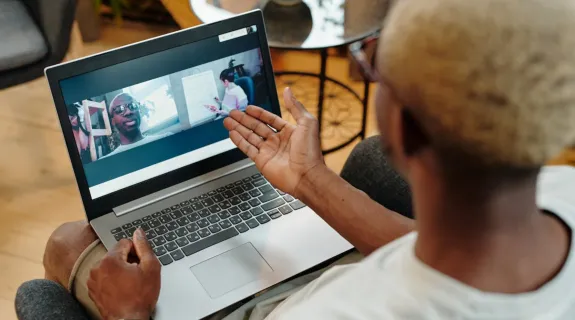
We have all been in that disastrous hybrid meeting.
The CEO is speaking, but remote participants can’t hear him because he is too far from the laptop.The camera is pointing at the ceiling light, making everyone look like silhouettes.Someone tries to show a physical document, but the webcam is too blurry to read the text.
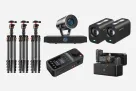
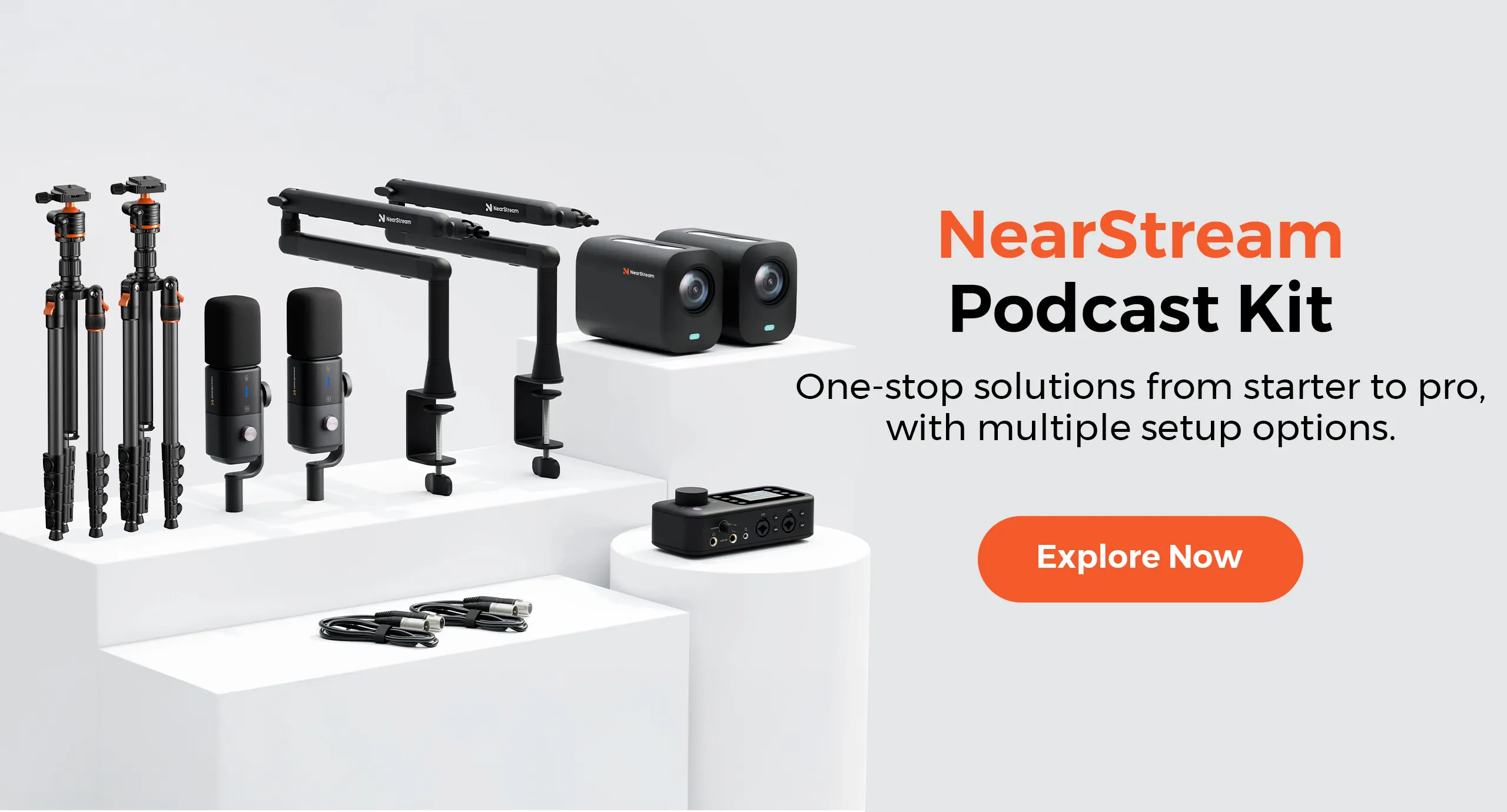
The PodKit Dual Kit is a hardware solution designed to turn any standard table into a professional broadcast station for 4 people.In this guide, we will skip the fluff and look at exactly how to place, position, and operate this gear to ensure your next important meeting runs flawlessly.
The Visual Setup: Positioning the VM20 for "Eye Contact"
In a meeting, eye contact is trust. Standard webcams sit too low (looking up your nose) or too high (security camera angle).
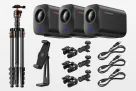
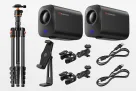
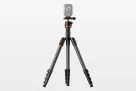
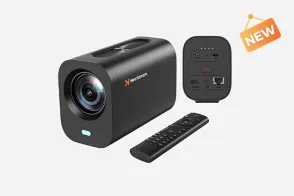
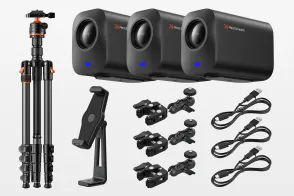
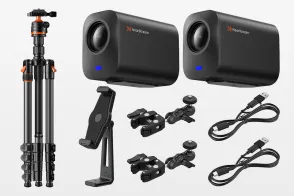
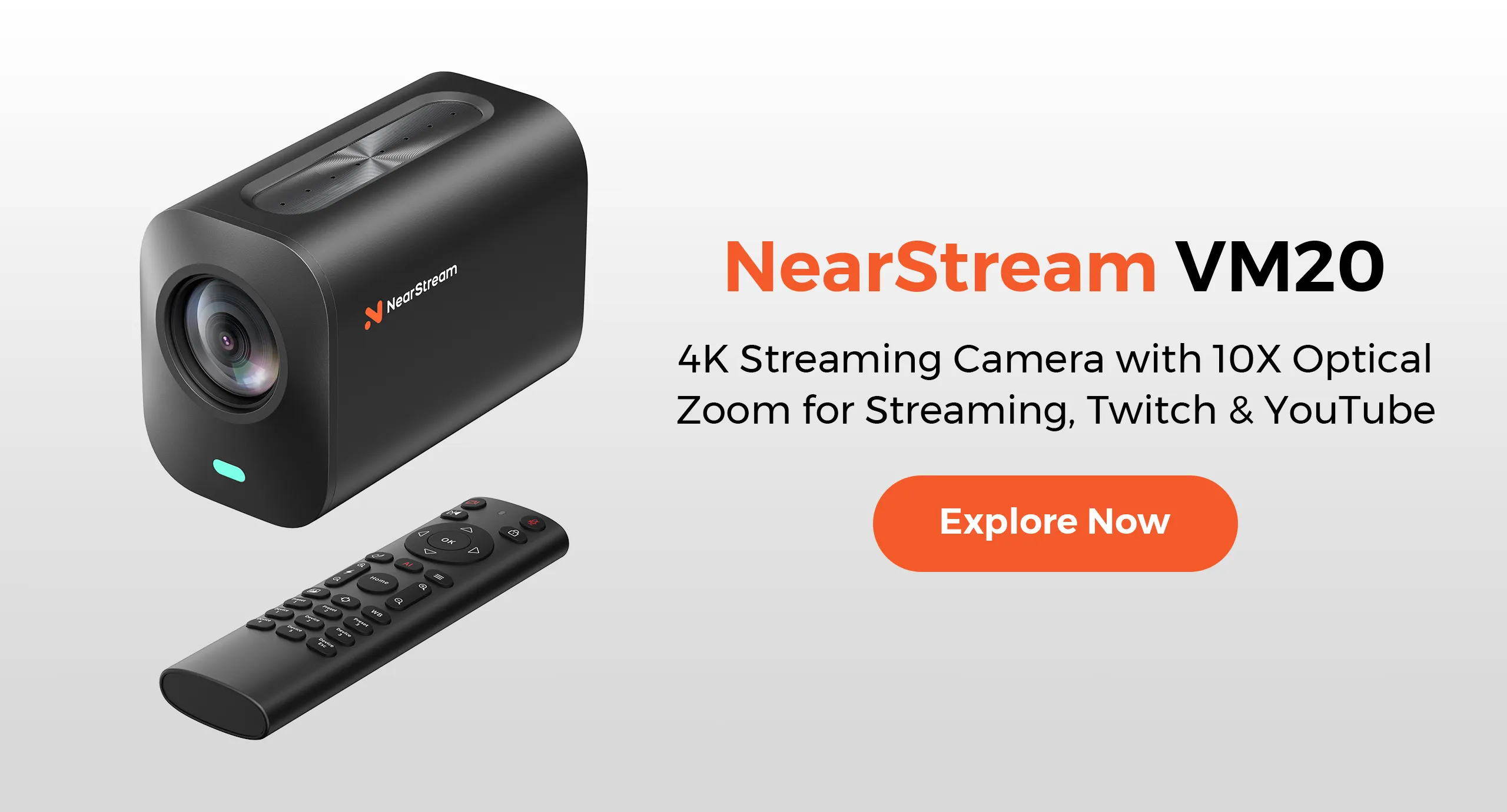
The PodKit Dual Kit includes 4x VM20 4K Cameras and 4x ST30 Tripods. Here is how to use them practically.
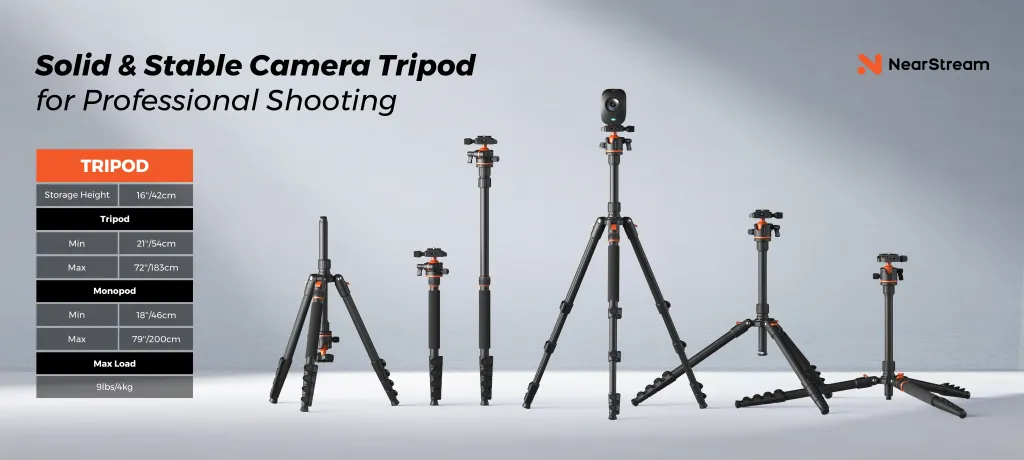
1. The "Eye-Level" Rule (Using ST30)
The Problem: Laptops sit on the table. When you look at the screen, you are looking down. This makes you look submissive or tired.
The Fix: Place the VM20 on the ST30 Tripod Stand.
Action: Adjust the ST30 height so the camera lens is exactly parallel to the speaker's eyes (about 12-15 inches off the table).
Result: Remote participants feel like you are sitting across the table from them, not looking down at them.
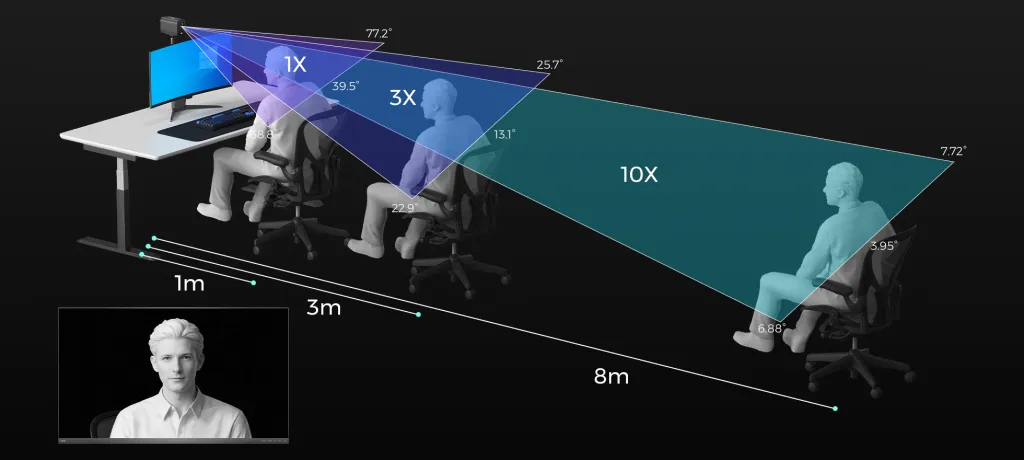
2. The "Document Cam" Strategy (Using 40X Zoom)
The Problem: You need to show a prototype, a fabric sample, or a printed architectural drawing.
The Fix: Assign one VM20 as a "Detail Cam."
Action: Place this camera at the end of the table. When you need to show a detail, use the 40X Optical Zoom.
Result: Clients can read the fine print on a document without you awkwardly holding it up to the lens.
Table 1: Visual Setup Checklist
Setup Mistake
PodKit Practical Solution
The "Silhouette" ❌ Camera facing a bright window.
✅ ST30 Flexibility: Move the tripod to a side angle. Use VM20 exposure settings to brighten the face.
The "Fishbowl" ❌ One wide lens for 4 people. Everyone looks small.
✅ Dedicated Cams: Give each key speaker their own VM20. Switch views when they speak.
The "Chin Cam" ❌ Camera looking up from laptop hinge.
The Audio Setup: Integrating AM25X into a Formal Office
Business environments require gear that looks professional, not like a gaming streamer's bedroom.
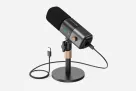
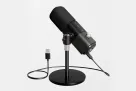
The AM25X Microphone was chosen for this kit because of its Matte Black, Low-Profile Design. It blends into a boardroom; it doesn't scream for attention.
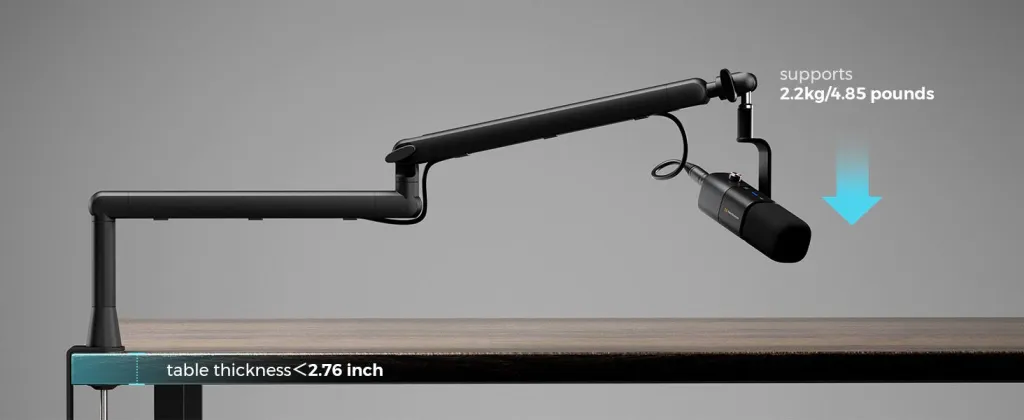
1. Clean Desk Policy (Using ST20 Boom Arms)
The Problem: Conference tables are covered in notebooks, laptops, and coffee cups. Desk stands take up too much space.
The Fix: Clamp the ST20 Boom Arms to the edges of the table.
Action: Float the microphones above the laptops.
Result: The table surface remains clear for documents. No one accidentally knocks over a microphone while reaching for water.
2. The "30cm" Clarity Zone
The Problem: "Can you hear me now?" happens when people lean back in their chairs.
The Fix: The ST20 arm is flexible.
Action: Instruct participants to pull the mic to within 30cm (12 inches) of their mouth when speaking.
Result: The AM25X captures the rich, authoritative "Boardroom Voice," rejecting the sound of the HVAC system or typing noises from the person next to you.
The Control Center: Managing the Flow with AMIX40U
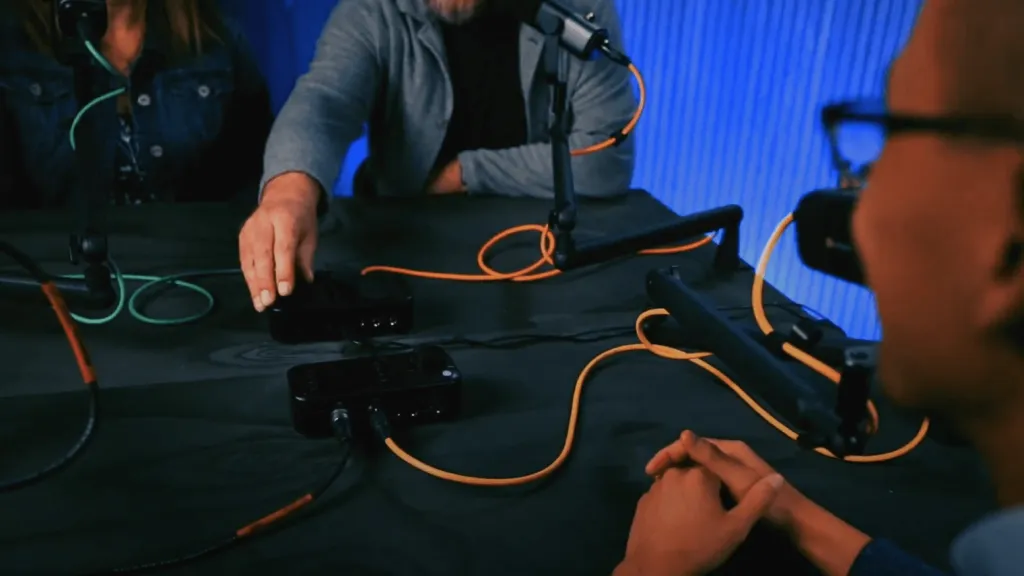
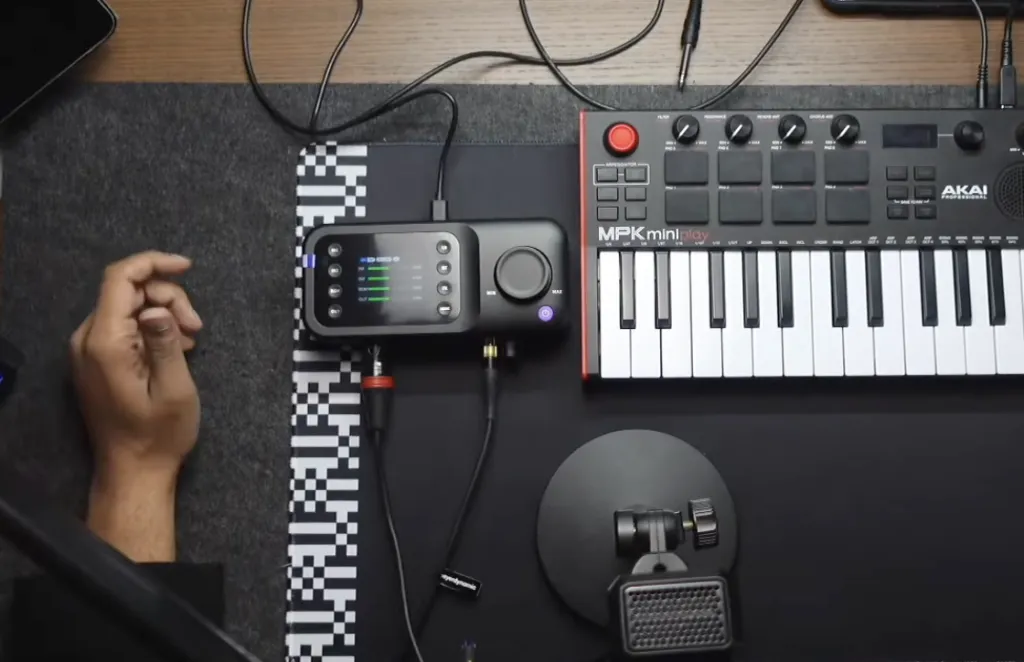
In a high-stakes meeting, you don't have time to fiddle with mouse clicks in software settings. You need physical, tactile control. The kit includes 2x AMIX40U Mixers.
1. The "Cough Button" (Instant Mute)
Scenario: A VP starts coughing while the client is presenting.
Old Way: Fumble for the mouse, find the Zoom window, click the tiny microphone icon. Too late—the cough has already interrupted the flow.
PodKit Way: The VP simply presses the Mute button (or turns the volume knob to zero instantly) on the mixer. Instant silence. Professionalism saved.
2. Balancing Volume (Precision Knobs)
Scenario: One person has a loud booming voice; another person speaks softly. In a standard setup, the remote listeners would hear a mix of shouting and whispering.
Action: The meeting facilitator can simply turn the Gain Knob left to dial down the loud talker and twist it right to boost the quiet talker.
Result: Remote listeners hear a perfectly balanced conversation. The LCD screen gives you visual confirmation of the levels, so you aren't guessing how much you've turned the dial.
Table 2: Audio Operation Guide
Challenge
How to Solve with PodKit
Privacy / Side-Bar
Press Mute on Mixer. Discuss confidentially, then unmute.
Feedback / Echo
Use Headphones. Plug into the AMIX40U to hear remote audio without echo.
Connecting Phone Audio
Bluetooth Input. Pair a phone to AMIX40U to bring a mobile caller into the meeting.
The Layout: How to Arrange a 4-Person Hybrid Table
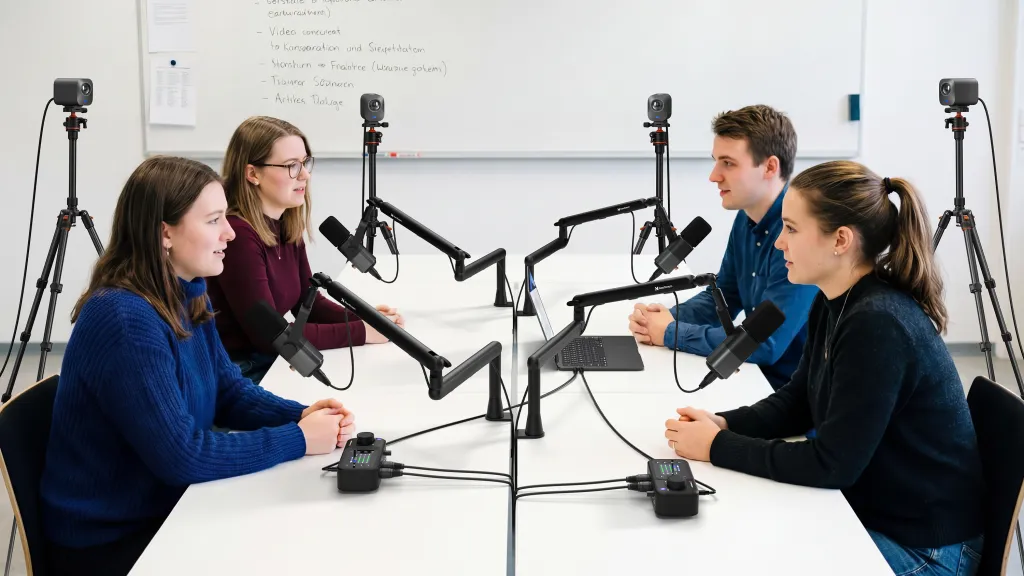
Where exactly do you put all this gear? Here is a standard "Quad Setup" for a rectangular conference table.
The "Zonal" Approach:
Instead of one messy pile of gear, divide the table into 4 Zones.
Zone A (Leader/Presenter):
1x VM20 on Tripod (Face).
1x AM25X on Boom Arm.
Role: Main speaker, addressing the remote team.
Zone B (Co-Pilot/Tech):
1x AM25X on Boom Arm.
2x AMIX40U Mixers (Central Control).
Role: Manages the audio levels and switches camera angles.
Zone C (Subject Matter Expert):
1x VM20 on Tripod (Face).
1x AM25X on Boom Arm.
Role: Answers specific technical questions.
Zone D (Product/Demo Area):
1x VM20 on Tripod (Pointed at Product).
1x AM25X (Positioned near product for sound effects, e.g., clicking/texture).
Role: The visual focus area for physical items.
Why "Low-Profile" Design Matters in Business
Aesthetics affect perception.
If you bring glowing RGB "Gamer Gear" into a law firm or a bank, it looks out of place.
The AM25X Design Language:
Color: Matte Black / Gunmetal Grey.
Lights: The LED ring is functional (Green = On, Red = Mute). It is not a disco light.
Shape: Cylindrical and industrial.
Fit: It looks appropriate next to a MacBook Pro, a leather notebook, or a suit.
Conclusion: Professionalism is Preparation
Smooth communication doesn't happen by accident. It happens by design.
By using the PodKit Dual Kit, you are not just buying microphones. You are building a Communication Infrastructure.
You are ensuring that every face is seen at eye level (VM20 + ST30).
You are ensuring that every voice is clear and separated (AM25X + ST20).
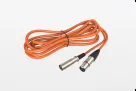
You are ensuring that the meeting flow is never interrupted by technical glitches (AMIX40U + XLR).
When the technology becomes invisible, the conversation becomes the focus. That is the definition of a successful meeting.
Table 3: Who Needs This Setup?
Role
Why PodKit Dual Kit?
Sales Directors
You need to demo physical products to remote clients with 4K clarity.
Agencies / Consultants
You pitch to clients daily. Your image is your product.
HR / Interview Panels
You need to interview candidates remotely with a panel of 3-4 interviewers.
Executive Assistants
You need a "set-and-forget" room that works every time the CEO walks in.



















































 sales@nearstream.us